
Drag and Drop Data Import
I’ll occasionally contribute to this blog to focus on the data-related tools in the MATLAB Desktop. We provide a lot of tools to help you import, organize, visualize, and explore your data in MATLAB . I’m going to help you learn about them and give you hints for new ways to use them. Remember, menus and dialogs aren’t the only way to get things done! Drag-and-drop and right-click context menus can smooth your workflow a lot.
Let’s start by learning how to drag-and-drop data into MATLAB. Suppose that you’ve got an interesting data file on your computer’s desktop. To play along at home, drag the following picture from your web browser onto your desktop. That should save a PNG to your desktop.

What’s a good way to get that image data into MATLAB? You could go to the Command Window and use IMREAD, but let’s think “drag-and-drop” and “GUIs” for a few minutes.
The Workspace window in the MATLAB Desktop is where your MATLAB data lives. So, it interprets dropping a file onto it as “please turn this file into MATLAB data.” Try it! Click on the Workspace tab to bring it to the foreground, in front of any other windows in the MATLAB Desktop.
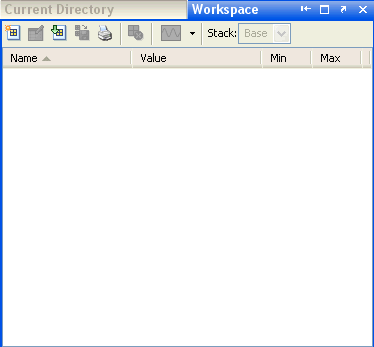
Now, select the JPEG file that you just created and drop it onto the Workspace
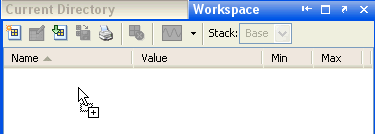
The Workspace knows that you want to create some data from that file, so it opens the MATLAB Import Wizard, the point-and-click UI for importing common file formats.
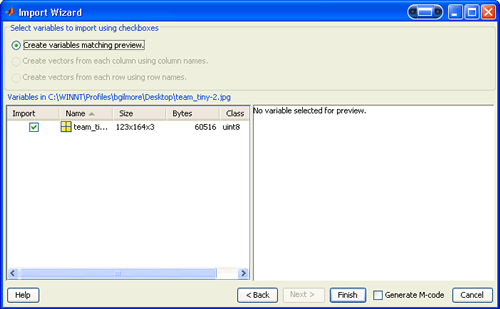
Click the Import Wizard’s Finish button, and you’re done. A variable containing your data has appeared in the Workspace. (Since the name of the variable is based on the file name, your variable name may differ from the screenshot.)
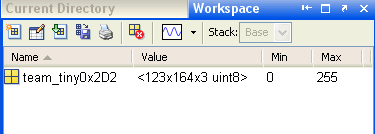
Let’s double-check. Select that new variable in the Workspace, and right-click. You’ll see a menu with a bunch of options, including some graphics-related options near the bottom. Select the “imagesc” option.

This will create a scaled image of that data in a Figure window. Sure enough, it’s the image that you dropped onto the Workspace.
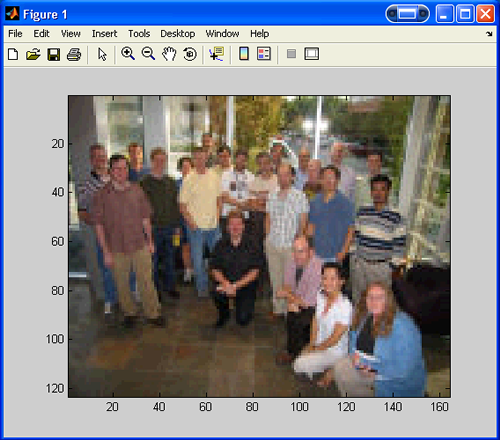
The image is blown up a lot from the original, so it’s pretty pixelated.
I hope that this courages you to start trying drag-and-drop more when using the MATLAB Desktop. If something doesn’t work the way you expect, be sure to tell us!
In future posts I’ll go into more detail about the Import Wizard and the Workspace, and then start moving into other data management tools.
- Category:
- Data Tools




Comments
To leave a comment, please click here to sign in to your MathWorks Account or create a new one.