
Start Up Your M-Files in Style
Looking for a way to integrate your code into the MATLAB Start button? Welcome to info.xml!
In just a few easy steps you can hook up your collection of m-files. MATLAB collects information for the Start button menu from info.xml files. All you need is one of these files in the directory with your code and that directory on the MATLAB search path. You can even give the info.xml files to friends, along with your M-files, and they can access your code from the Start button too.
1.
- To make things easy for you there’s an example file in
<matlabroot>
- \help\techdoc\matlab_env\examples\startinfo.xml. Copy this file into your directory and rename it to info.xml.
2.
- Add this directory to your MATLAB search path.
3.
- Let’s view the info.xml before making any changes. Select Start > Desktop Tools > View Start Button Configuration Files. You’ll need to click the Refresh Start Button to see this new info.xml and again later after modifying an existing info.xml.
4.
- In the Start Button Configuration Files dialog box, select the info.xml you just created (your new info.xml is named SpecSim (Example) Toolbox).
 5.
5.
- Click the Open button to view the file in the Editor.
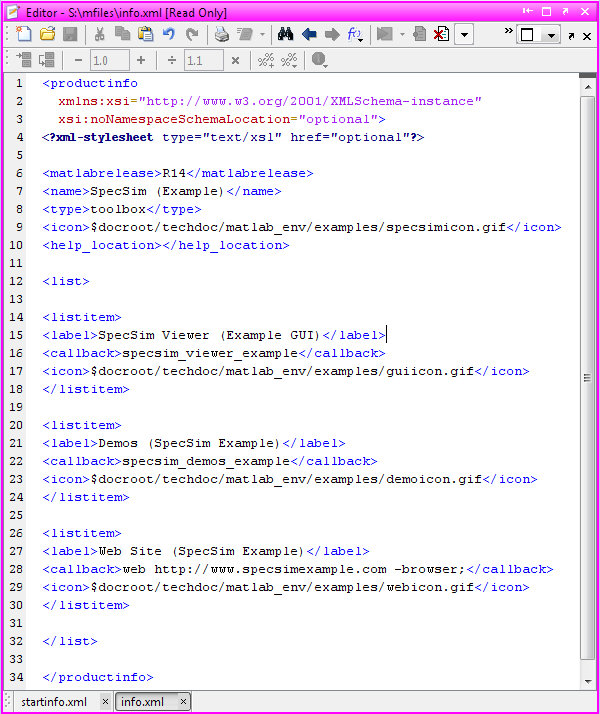 6.
6.
- Change the name from SpecSim (Example) to something unique and representing your M-file collection. (click Refresh Start Button in the Start Button Configuration Files dialog box). Notice that your named collection now appears in the Start > Toolboxes menu.
7.
- Now move/change/add other entries in the info.xml so they pertain to your code and are placed on the Start menu where you prefer. The first level of the start menu provides basic groups of products/functionality such as MATLAB, Simulink, Toolboxes etc. You decide which of these groups your menu will be listed in. This value is placed next to the type tag.
For each main menu representing a collection of m-files you can specify:
- matlabrelease – this value is your versioning information, it’s currently not used
- name – name of your main menu
- type – name of the menu group your main menu will cascade from. (allowable values are: matlab, simulink, toolbox, blockset, links_targets, other)
- icon – path to an icon to display next to your main menu
- help_location – path to HTML help files for your code
For each main menu you can create a list of items (listitems) listed on a sub-menu off of your main menu. In addition to menu items launching your m files, you can add items for things such as demos and examples.
- label – name to be listed on you main menu
- callback – the function that is run when the menu time is selected
- icon – the icon that shows up next to your menu item
Here’s an example:
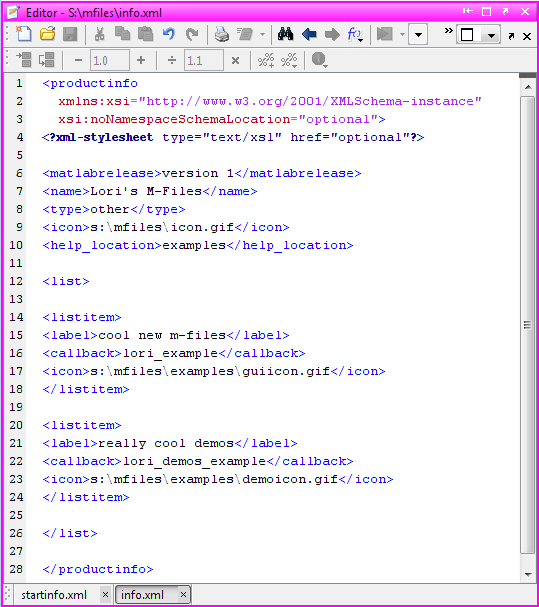
And the start menu…
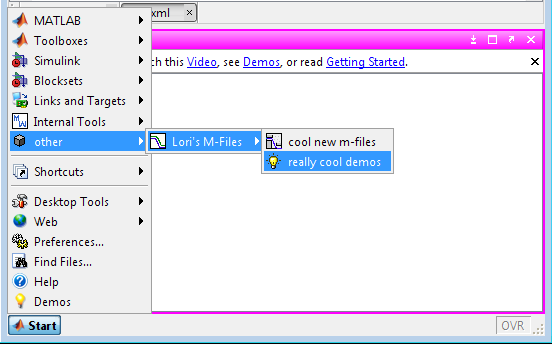
Now you can show off your code in style. By the way did you notice the XML syntax highlighting? The first person to return instructions on how to get the MATLAB Editor to highlight XML will receive a t-shirt!
We’d love to hear what you think about the Start Button. Leave a comment here.
- Category:
- Desktop




Comments
To leave a comment, please click here to sign in to your MathWorks Account or create a new one.