
Model-Based Design in the MATLAB Desktop
In honor of our newest blog, Seth on Simulink, I’m dedicating this week to some useful features for Model Based Design in the MATLAB desktop.
The following is a survey of the various tools that come with MATLAB (available to everybody, depending on release), and how they can be used in a Simulink-based workflow. I’ve broken up the tools into two categories: those used for model setup, and those used for data analysis.
Tools for setting up/running your model include the MATLAB Editor, the EML Editor, Path Tool, and the File and Directory Comparisons.
The MATLAB Editor
If you’ve been following this blog for awhile, you might know that the MATLAB editor understands C and TLC files, provides indenting, as well as brace-matching and syntax highlighting for these languages. This allows you to write or edit S-Functions and TLC scripts without having to switch out of MATLAB.
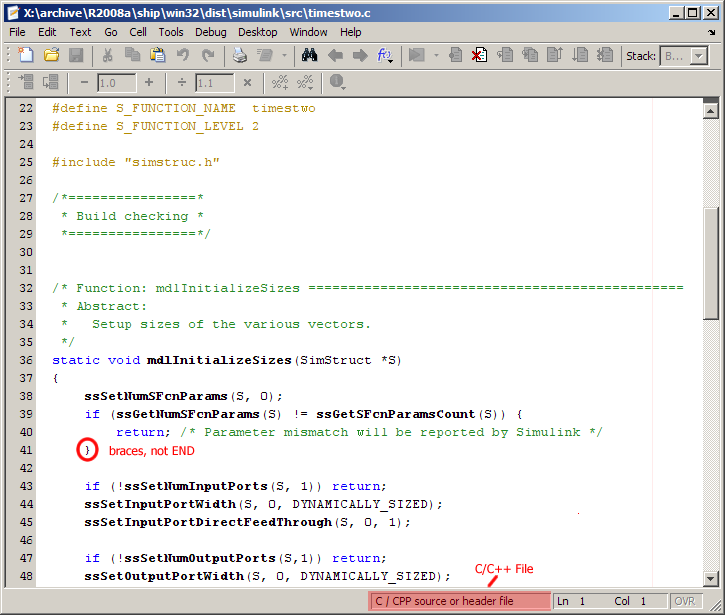
The MATLAB Editor is also useful for writing model callbacks (I find it easier to debug whole M-files instead of trying to squeeze complicated code into the little box in the block properties). And of course, it’s great for writing test programs, sl_customization.m files, and data analysis scripts.
The Embedded MATLAB (EML) Editor
The EML editor (opened when by double-clicking an EML block) is built on top of the regular MATLAB editor, providing all the nice M-file features, plus information related to the execution and building of a Simulink model. In particular it has toolbars for configuring the data ports and building the model.

The Path Tool
The pathtool (File -> Set Path…) is a GUI for managing your MATLAB path. My Simulink projects tend to have a more complicated directory structure than my MATLAB projects. This is usually due to managing several libraries in addition to my model, its callbacks, and all my test and model advisor files. I find this GUI helpful for moving directories up and down the path, as well as making sure I have everything I need.

Shortcuts
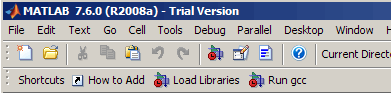
MATLAB shortcuts on the main toolbar are useful to do each of the following addpath related tasks: set up your library, load common parameter values into the workspace, move generated code, or launch external utilities with the system command. We’ve even provided you with the Simulink icon to mark such shortcuts.
Those were some of the tools available for creating models – the following three items are tools for analyzing the results of running a model or the results of generating code from Real-Time Workshop.
File and Directory Comparisons
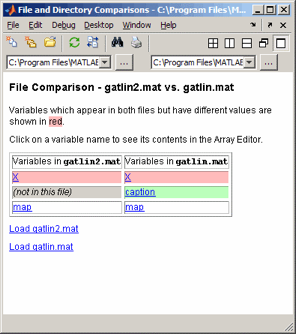
The comparison tool is great for looking at differences between runs of rapid simulations (RSIM). Outputs of these simulations (either output blocks, logged signals, or To File blocks) are saved as MAT files between runs and can be compared using the comparison tool (updated in R2008a, to support comparing MAT files without having to load them into the workspace).
You can also use the tool to compare generated code files. Want to quickly see how the generated code changes if you tweak a subsystem option, or data type? Generate the code, change, and regenerate into a new location (be sure to just generate and not generate and build–you still get the code, but it takes longer). In fact, the R2008a version of the tool lets you start off by comparing directories and then drilling down into individual files.

A comparison of sf_engine.c after changing the Engine subsystem of the sf_car demo to a reusable function.
Time Series Tool
The Time Series Tool (tstool) is useful for plotting, and manipulating time-series data, such as those generated by signal logging. This GUI provides actions for quickly plotting and filtering statistical information. In the following screen shot, I’ve logged the x1 and x2 signals of the vdp demo model and loaded them into the timeseries tool after running the model with the command: tstool(logsout).

Variable Editor
The variable editor is useful for editing complicated arrays of data, such as filter coefficients, look-up table data, or index selectors.

Making full use of Simulink requires generating MATLAB code and data, which you can interact with using your favorite Desktop tools. Let us know what else you think is handy for model-based design in MATLAB
- Category:
- Data Tools,
- Desktop,
- Editor,
- Find tools,
- MATLAB Shortcuts




Comments
To leave a comment, please click here to sign in to your MathWorks Account or create a new one.