
Configuring M-Lint to only display certain messages
The extended M-Lint project gave us a good excuse to go in and change up the old M-Lint preferences GUI. This post will concentrate on the new ways to do the old stuff, and next time I’ll talk about the new things you can do. You can reach these preferences from the File menu in the desktop: File -> Preferences – M-Lint.
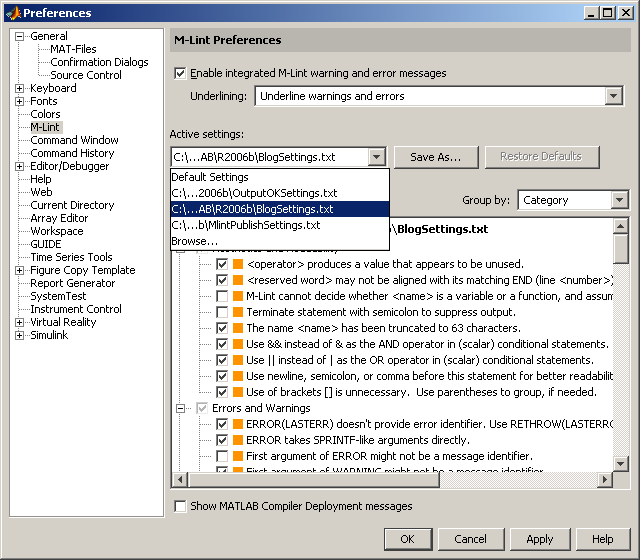
Old M-Lint Preferences panel (R2008b and earlier)
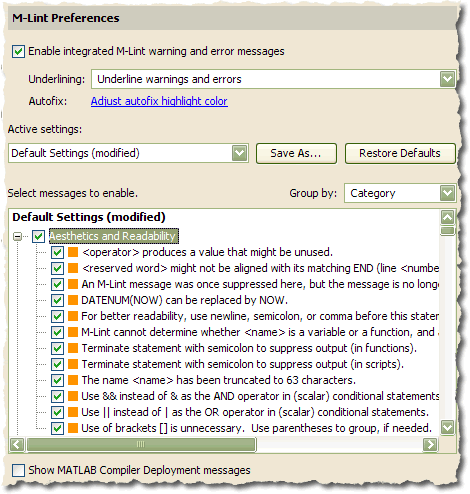
New M-Lint Preferences panel (R2009a)
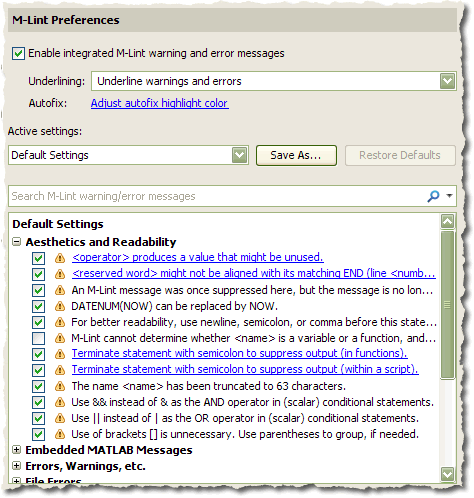
To start off, all the old stuff is still there: You can set the editor underlining level, create and set different configurations, and turn individual messages on and off.
Let’s talk about what go axed. Gone from the front is the “Show MATLAB Compiler Deployment messages.”
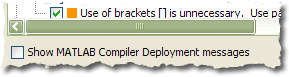
This has been replaced by a whole category enable/disable button on the compiler group.
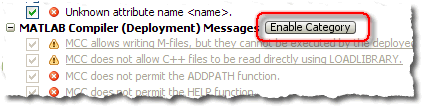
If you don’t have a MATLAB compiler license, don’t worry, you won’t see these messages in either release.
Gone too is the group by enabled/disabled. Based on feedback this was rarely used, and now you can filter by enabled/disabled. Therefore the messages are all grouped by category by default. Removing this combo box freed up space for the new filter box.
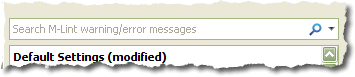
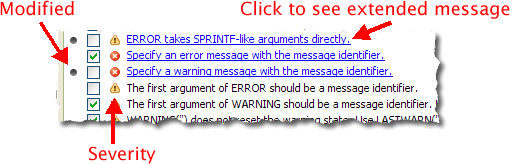
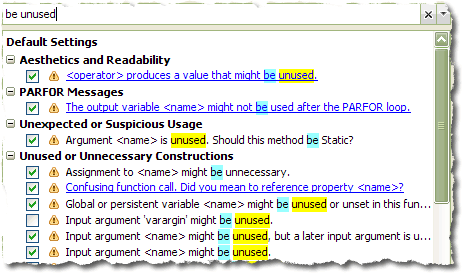
Which brings us to the new stuff. The obvious new features are the filter box, the new message severity icons, and the extended messages. The filter box makes it easier to locate specific messages by name or category. The icon shows whether the message is marked as an error warning (instead of the orange/red boxes). Messages whose enabled state has been changed from the factory defaults are marked with a little bullet. You may recognize this little bullet if you use publish configurations in the Editor.
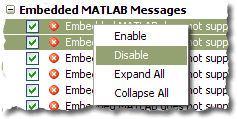
There was one bit functionality that we decided to remove, namely the single check to turn on/off all the messages in a specific category. We found that this checkbox was confusing and not very useful to some users. Instead you can select multiple messages and use the context menu to enable/disable the selected messages.
- Category:
- Editor,
- M-Lint,
- Preferences





Comments
To leave a comment, please click here to sign in to your MathWorks Account or create a new one.