
Internationalization of GUIs
Recently, Mario asked on the MATLAB newsgroup about how to provide a localized version of his GUI made in GUIDE. This is an interesting problem with no official, but many worthwhile solutions.
Right now depending on where you live you can purchase MATLAB either in English or Japanese:
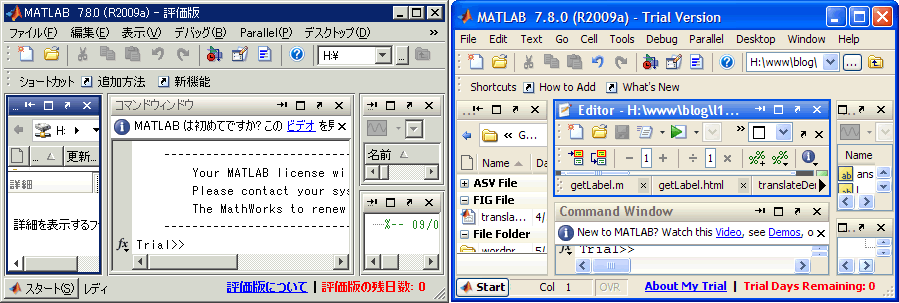
The translated strings that ship with MATLAB come compiled and bundled up, and we’re not able to extend our translation mechanisms into a tool that would be useable for MATLAB customers. This means we have to think of other ways for providing localizeable GUIs. Here’s an example GUI that I quickly whipped up using a few easily translateable nouns. I apologize ahead of time, the buttons will only work if you have the image processing toolbox as I took some of my favorite images from its demos. However, the language changing menu works without any toolboxes. There’s a lot more code than you’re used to seeing on this blog, so I’ve provided a zip file with all the examples at the end.
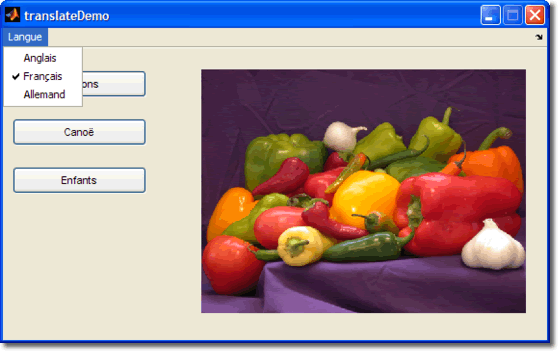
Below I present four of many possible strategies to create an internationalizeable MATLAB GUI. For each of these strategies the actual GUI code (the translateDemo.fig and translateDemo.m files) remain unchanged. The difference happens in the dispatch function getLabel.m, which is called from the following function by the menu callbacks. Note that menu labels have a different property to set than the uicontrols. I’ll leave it as an exercise for you to simplify this function using the UserData or Tag properties.
function setLanguage(lang)
% find the label or string for each of the uicontrols for a given language
% and set it.
h = guidata(gcf);
set(h.language, 'Label',  getLabel(lang, 'language'));
set(h.english,  'Label',  getLabel(lang, 'english'));
set(h.french,   'Label',  getLabel(lang, 'french'));
set(h.german,   'Label',  getLabel(lang, 'german'));
set(h.peppers,  'String', getLabel(lang, 'peppers'));
set(h.children, 'String', getLabel(lang, 'children'));
set(h.canoe,    'String', getLabel(lang, 'canoe'));
Using MATLAB classes
The first method makes use of constant properties in MATLAB class objects, allowing us to define the strings using the same pattern as one class file per language. Note that the keys for all of the languages are in English. It doesn’t matter what the keys actually are, as long as they are consistent. As you can see from my getLabel function, I’m taking advantage of the default subsref to access a class property dynamically. I think it’s a neat trick.
getLabel.m
function xlatedString = getLabel(lang, label)
xlatedString = '???';
switch lang
    case 'en'
        xlatedString = EnglishStrings.(label);
    case 'de'
        xlatedString = GermanStrings.(label);
    case 'fr'
        xlatedString = FrenchStrings.(label);
end
The following is my class with the English labels. The French and German ones follow the same pattern.
EnglishStrings.m
classdef EnglishStrings
    properties (Constant)
        language = 'Language';
        english = 'English';
        french = 'French';
        german = 'German';
        canoe = 'Canoe';
        children = 'Children';
        peppers = 'Peppers';
    end
end
The advantage of this method is that it takes the MATLAB search path out of the equation. If you can run the GUI code, you can get to the class objects–the file locations do not need to be hard coded.
Using XML
Hard coding the strings in class files may be a little a clunky or not fit into your workflow. The next method makes use of XML files, but you can use whatever combination of files and I/O methods to read them you’d like: plain text files (with fread), Microsoft Excel files (with xlsread), or even using a containers.Map and saving/loading .MAT files!
getLabel.m
function xlatedString = getLabel(lang, label)

xlatedString = '???';
switch lang
    case 'en'
        xmlfile = 'english.xml';
    case 'de'
        xmlfile = 'german.xml';
    case 'fr'
        xmlfile = 'french.xml';
end

try
    xDoc = xmlread(xmlfile);
    root = xDoc.getDocumentElement;
    strings = root.getElementsByTagName('string');
    for i=0:strings.getLength - 1
        if strcmp(strings.item(i).getAttribute('id'), label)
            %translate from java string to MATLAB string
            xlatedString = char(strings.item(i).getTextContent);
        end
    end
catch %#ok<CTCH>
    %ignore any read errors and use '???'
end
french.xml
<?xml version="1.0" encoding="UTF-8"?>
<strings>
    <string id="language">Langue</string>
    <string id="english">Anglais</string>
    <string id="french">Français</string>
    <string id="german">Allemand</string>
    <string id="canoe">Canoë</string>
    <string id="children">Enfants</string>
    <string id="peppers">Poivrons</string>
</strings>
Using a Java Resource Bundle
Java provides a built-in mechanism for storing strings and choosing them based upon locale called a ResourceBundle. We can take advantage of java.util classes from MATLAB so this method uses Java’s solution for our MATLAB GUI. Remember to convert the java.lang.String returned from the bundle using the MATLAB char function.
getLabel.m
function xlatedString = getLabel(lang, label)
%using the java resource bundle
xlatedString = '???';
try
    file = java.io.File(['strings_' lang '.properties']);
    inputStream = java.io.FileInputStream(file);
    resourceBundle = java.util.PropertyResourceBundle(inputStream);
    xlatedString = char(resourceBundle.getString(label));
catch %#ok<CTCH>
    %ignore any read errors and use '???'
end
strings_de.properties
language=Sprache
english=Englisch
french=Französisch
german=Deutsch
canoe=Kanu
children=Kinder
peppers=Paprikas
The Java ResourceBundle mechanism comes with the ability to automatically select the right file based upon the locale information and filename. To take advantage of that, we’d have to discuss how MATLAB and the ClassLoader interact…a topic for a different post.
Google Translation Services
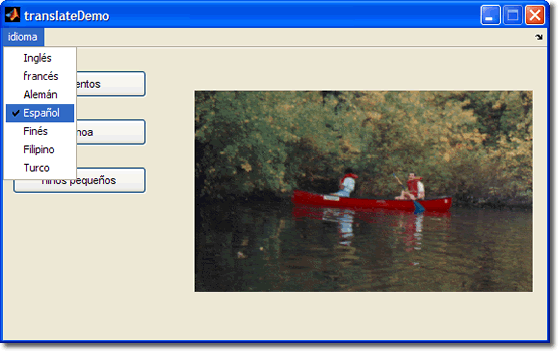
Thanks to smart people at Google, you can get live translation to/from nearly any language. For this version of the GUI, I’ve added Spanish, Finnish, Filipino, and Turkish to the menu for almost no extra work. All the strings are translated live through Google’s translation API. I won’t interpret their Terms of Service for you, but if you do decide to use their services, play nice: it’s a great service they’re giving away for free.
getLabel.m
function xlatedString = getLabel(lang, label)
xlatedString = '???';
try
    url = 'http://ajax.googleapis.com/ajax/services/language/translate';
    %'en' (English) is the base language
    page = urlread(url,'get',{'v','1.0','q',label,'langpair',['en|' lang]});
    pattern = '(?<="translatedText":")(.+?)(?=")';
    xlatedString = regexp(page,pattern,'match','once');
catch %#ok<CTCH>
    %ignore any read errors and use '???'
end
To make this nicer, I should probably look up the stored English strings instead of using my object labels for the translation (i.e. this doesn’t work for a phrase and doesn’t do the correct capitalization). Also, this code can be cleaned up a little using François Glineur’s JSON Parser from the MATLAB file exchange.
The real power here, I think is that you can provide a localized UI without having to develop a competency in that language. Of course the real question is whether or not it is better to provide no translation or a translation that could be wrong and confusing.
Determining Language Automatically
Most modern operating systems know something about the user’s environment such as the location and language. Java is able to get this information from the system and thus you can get it from MATLAB:
java.util.Locale.getDefault().getLanguage()
This returns the cute little two-letter language code that is consistent with the ones I’ve been using, and so we can stick this in the openingFcn function and have out GUI automatically detect the language and choose the appropriate strings.
function translateDemo_OpeningFcn(hObject, eventdata, handles, varargin)
% This function has no output args, see OutputFcn.
% hObject    handle to figure
% eventdata  reserved - to be defined in a future version of MATLAB
% handles    structure with handles and user data (see GUIDATA)
% varargin   command line arguments to translateDemo (see VARARGIN)

% Choose default command line output for translateDemo
handles.output = hObject;

% Update handles structure
guidata(hObject, handles);

%default to the peppers
peppers_Callback(handles.peppers, [], handles);
setLanguage(char(java.util.Locale.getDefault().getLanguage()))
A web search should reveal how to change the language settings for your particular OS. Here’s how to do it for Windows XP, and the result of making my machine think I understand Finnish:


I’d like to close this post asking my high school teachers, colleagues in France and Germany, and Aurélien to forgive me for any embarrasing translation mistakes. Bon Chance!
You can download the demo code right-clicking here and doing a Save As. I will also put them on the MATLAB file exchange and link them once they are up.
- Category:
- MATLAB Central,
- MATLAB GUI




Comments
To leave a comment, please click here to sign in to your MathWorks Account or create a new one.