
Using the cell mode toolbar
The MATLAB Editor is great because supports many different workflows and user styles. Even though I call myself an advanced MATLAB user, I have long since stopped being surprised when I find out about something that has been there forever and is quite blatant in the UI. There are just some things that I don’t need to use in my normal work, but may be quite useful to others. One such thing is the cell mode toolbar. If the toolbar is not already present in the editor, you can activate it from the menu: Cell -> Enable Cell Mode.

The first two items on the toolbar are the ones I use a lot. They are evaluate current cell (Ctrl+Enter) and evaluate cell and advance to next (Ctrl+Shift+Enter). This is great for live demos, where you can put a single concept (of multiple commands) in a cell and then step through a file one cell at a time. The demo workflow also fits nicely with publishing, where each step of the demo publishes into a separate section. Just remember that evaluating a cell evaluates the enclosed commands in the base workspace, which is not necessarily the same workspace as if the file were run regularly.
The next two sections of the toolbar have a textbox surrounded by either a “+,-” or a “x,%”. It’s not obvious what to do with these. If you place the caret in the editor next to a number or select a number, then the +,-,x,% buttons will light up. Pressing them will increment/decrement or multiply/divide the selected number by the amount in the box and reevaluate the current cell. This is good for tweaking a numerical parameter, such as a coefficient, tolerance, or number of iterations/interpolations. In this example I’m tweaking the peaks input, which produces a nice visual change on each increment.
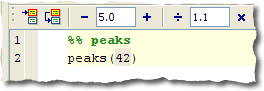
The next two buttons %% are a little more obvious but their icons are subtly different. The first one  has a plus “+” in the icon and clicking it inserts a new cell marker. It’s handy to have that for the mouse, but I find it faster to type “%%”. The second one
  provides you a dropdown list of the cells in your file, the same way the function dropdown
  provides a list of functions in the file.
And remember, you can always customize the buttons that show up on the cell mode toolbar: File -> Preferences -> Toolbars -> Editor Cell Mode.
- Category:
- Editor,
- Preferences,
- Publish




Comments
To leave a comment, please click here to sign in to your MathWorks Account or create a new one.