Mike on the MATLAB Desktop

November 30th, 2009

Organizing your files for fast coding

Pascal Getreuer over at the widget-heavy Advanced MATLAB blog recently wrote several posts about making your code run faster, the first of which described file organization. Pascal’s suggestions will help your code run faster, but there are number of features built into the MATLAB Desktop to help you write your code faster.

In that article, he makes the following suggestions for organizing MATLAB code as “good working habits.”

  • Use a separate folder for each project
  • Write header comments, especially H1
  • Save frequent console commands as a script

These are great ideas, and here some parts of the Desktop that facilitate those habits:

Managing Folders
The Current Folder Browser provides a few features to make managing separate folders easier.

The tree view lets you look at multiple projects from a root directory. Having a top-down hierarchical view lets you easily inventory and move files between project directories.
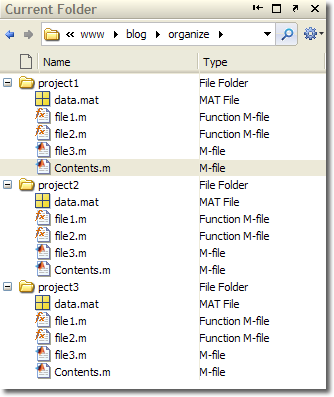
Current Folder view of Project tree

The address bar lets you quickly switch back and forth between project directories. This lets you keep only one of these folders on the MATLAB search path at the same time.
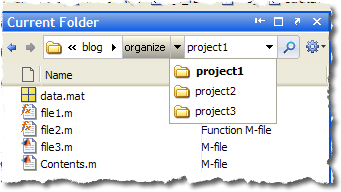
Current Folder address bar

If you have a nested folder structure of useful functions that you want to access (for example a heirarchical tools directory), you can use the “Add with Subfolders” from the context menu to quickly add a whole directory tree to your MATLAB search path.
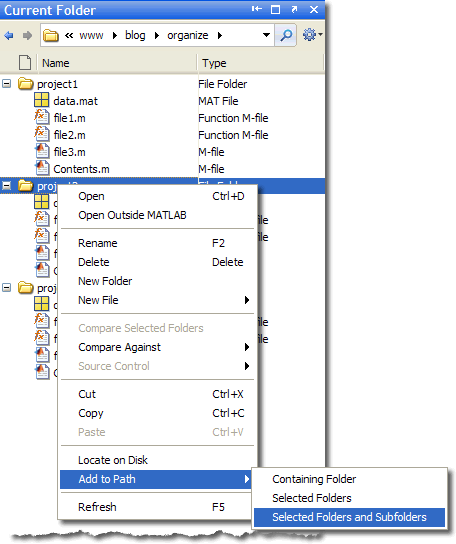
Add with subfolders on Current Folder browser context menu

Write Header Comments
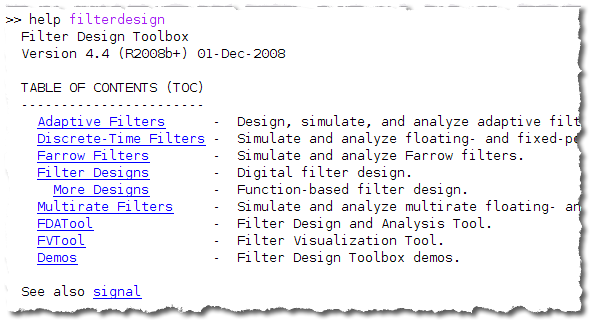
Having H1 comment lines in your files enables your functions, scripts, and classes to participate in functions like help and lookfor. When you supply a directory to the help function it reads out a list of functions in that directory. You can customize this display with a Contents.m file, which you can generate with the Contents Report. I described in earlier post how to create a Contents.m with the report.
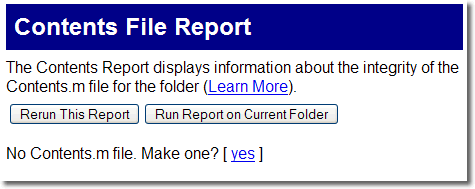
Generate Contents.m with contents report

Save Console commands as a script
You can select several commands in the Command History and create a script out it. Check out our earlier post on creating a file from the History. The method I use is: (1) delete from the Command History the unwanted commands so that the ones I’m interested in is left as a contiguous block. (2) Then I create a file in the Editor, (3) select in the History those commands and (4) drag the whole block into the Editor. Instant script!

You can also drag those commands to the shortcut bar to create a new shortcut instead.

13 Responses to “Organizing your files for fast coding”

  1. Ryan Gray replied on :

    That reminds me that what I’d like is an option for the “add selected folder and subfolders to path” option to ignore hidden subfolders.

    I use Subversion to version control my changes to my function libraries, and adding with subfolders adds all the “.svn” subfolders of the working copy. I don’t want to do an export of the files that doesn’t have these subfolders because it would not be in version control.

    Is there perhaps a way other than writing a function that does it?

  2. Mike replied on :

    Ryan, no at this time the context menu function will grab all the subfolders.

  3. Dan Salluce replied on :

    I second the feature request Ryan made. We current had to write our own function which allows us to remove any “dots” folders- those starting with “.” like “.svn”. This also helps us on Linux platforms where the home directory has a lot of hidden dot folders. It would be nice if addpath() and genpath() took an optional argument for an exclude string.

  4. Mike replied on :

    Dan and Ryan, I will forward your suggestion to the path function developers. Thanks.

  5. StephenLL replied on :

    I have used this in the past to get a list of directories/files, etc.. ignoring .sn directories.

    http://www.mathworks.com/matlabcentral/fileexchange/9647-grep-a-pedestrian-very-fast-grep-utility

    More then what you are asking, but a great utility that will accomplish what you are asking for.

    After you get the list of directories from the grep utility, use the addpath function to add them to the path.

    Stephen

  6. Sung replied on :

    A better solution would be a simple project management support. I’m suggesting something similar to the visual studio project file. One main reason is that two different project may have the same file names and if you use the method described above without careful attention, you’ll end up adding all project paths in the path. Switching between project (e.g. changing current working directory and opening related files) does not automatically fixes path info. Also, you cannot open recently opened files in each project automatically.
    Personally, I made my own project manager to control these things. But the best solution should be native support of the project file by Matlab itself.

  7. Mike replied on :

    @Sung,
    That is a good point. I just described some easy steps that are currently available in MATLAB. If you have submitted your project manager to the File Exchange, please share the link here.

  8. KE replied on :

    I would love Matlab to include more project management support. We have a terrible time keeping track of code associated with various projects.

  9. Mike replied on :

    KE,

    It is something also that we are working on, but right now the easy way to use separate folders for each project, with a setup script that handles adding various folders to the path. It’s not the prettiest workflow, I admit.

  10. karthikeyan replied on :

    I need a project management software for matlab.
    whenever i make some changes in the code, that software should make backup. Or else atleast when i open a file and edit them, it should take backup with date, time. i need such software so that even if i delete some code which is important, i should be able to recover by seeing the history of changes made.
    please help me with that.

  11. Steve L replied on :

    karthikeyan,

    What you’re describing is revision control software (also called version control or source control software.)

    http://en.wikipedia.org/wiki/Revision_control

    Depending on what platform you’re on and what version of MATLAB you’re using, you may be able to directly interface with an installed revision control software application:

    http://www.mathworks.com/help/techdoc/matlab_env/f7-5297.html

    or you may have the revision control software running outside MATLAB.

  12. JG replied on :

    How can I get the Contents TODO & Help reports to look into subfolders that are collections (i.e. prefixed with +) ?

  13. Mike replied on :

    @JG,

    There’s currently no option for this. The reports predate packages, and have not caught up yet. Thanks for your interest, though; I’ll let the reports team know.

Leave a Reply

Wrap code fragments inside <pre> tags, like this:

<pre class="code">
a = magic(3);
sum(a)
</pre>

If you have a "<" character in your code, either follow it with a space or replace it with "&lt;" (including the semicolon).


MathWorks
Mike works on the MATLAB Desktop team.

These postings are the author's and don't necessarily represent the opinions of The MathWorks.