Mike on the MATLAB Desktop
January 18th, 2010
Two editor shortcuts I bet you didn’t know about
The MATLAB Editor has plenty of handy text-editing actions built in to it. Unfortunately we don’t have a concise way of advertising or providing default keyboard shortcuts for all them. Amongst the standard cut/copy/paste-style actions that we are all familiar with, the Editor also has two forward-deleting actions.
The first is “Remove Next Word” (Ctrl+Delete default on Windows). This does almost exactly what you’d think. Starting at the caret (or, text insertion point) all text up to the next letter after a space is deleted. So if you’re at the end of the word, the space is deleted. If you’re in the middle of a word the rest of the word and following space is deleted. Basically, this sticks the next word to the right of where you are. Used in the standard way, repeated invocations go through your line (and on to the next) deleting one word at a time. This is useful when you find yourself holding down the shift and ctrl key with the right arrow to select a bunch a text for the purpose of deleting it.
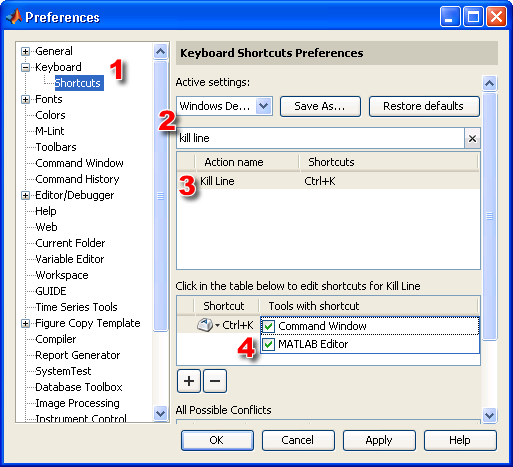
The other action is “Kill Line” (Ctrl+K default on Windows). This action deletes from the caret forward to the end of a line. A second Ctrl+K deletes the newline character bringing the next line up. This single action replaces the Shift+End, Delete combo. By default this action is only bound to Ctrl+K in the Command Window. To get it in the Editor, (1) go to File -> Preferences -> Keyboard -> Shortcuts, (2) search for “Kill Line”, (3) select the shortcut and in the table below, (4) click the drop-down arrow and check the “MATLAB Editor” checkbox.
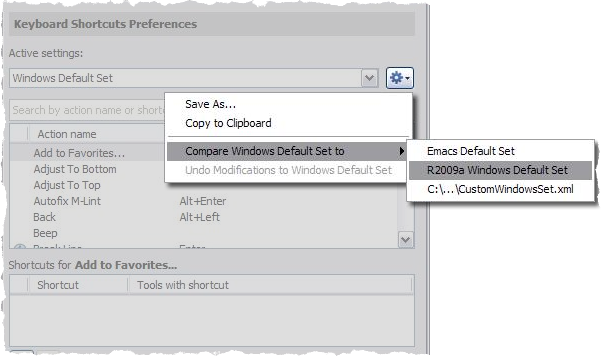
While you’re in the Keyboard Shortcut preferences, you can browse the list to see the tons of other editing commands that are available.
By
Michael Katz
Mike is a developer on the MATLAB Mobile team. When not describing himself in the third person, biking, homebrewing, or rooting for the home team, he's busy trying to make the world a better place for programming.
14:39 UTC |
Posted in Editor |
Permalink |
8 Comments »
You can follow any responses to this entry through the RSS 2.0 feed.
You can skip to the end and leave a response. Pinging is currently not allowed.
Leave a Reply
|
I certainly like the concept of Keyboard Shortcuts. But, I haven’t developed the habit of using them in MatLab.
Other than the Keyboard Shortcuts Preferences, I haven’t found a complete list of the Actions for which Shortcuts might apply. Looking at the list in the Preferences window is kind of like looking thru a paper towel tube. It looks like there are on-the-order of 200 Actions. Is there something like a FRP for them?
My favorite editor shorcuts are ctrl+i for smart indent, ctrl+r for comment, ctrl+t for uncomment, ctrl+j to wrap text comments, and ctrl+d to open selection.
@OysterEngineer,
There is a not a reference page per action. Not all of them are easy to explain or really worth having a shortcut for. Hopefully we’ll have more to say on the matter in a future release.
@Eric,
Thanks! We’re glad you’re using these; I find them quite useful as well.
‘Remove Next Word’ is useful, but in all other applications ‘Remove Previous Word’ is by far my favourite keyboard shortcut.
I’ve been using MATLAB for the last 8 years, and it is the one shortcut I SORELY miss.. Surely delete previous word is more useful than delete next word?
Scenario: I’m typing along, and I type the wrong variable name. Oh dear.. Let me delete it quickly!
Oh..
I can’t
:’(
I have to move the cursor back a word, and then delete next word! :(
I’ve been looking in the shortcuts section for the last few years at every new release, hopeful for delete previous word – but it’s never there!
Even if it’s by default assigned to nothing – please could it be included so that productivity could increase :)
Otherwise:
I <3 MATLAB
@Jono,
Thanks for the suggestion. I’ll pass it on to the Editor team.
@Jono,
Remove Previous Word is in the Editor in R2010b prerelease. Its default shortcut is Ctrl+Backspace, but you can change that via Keyboard Shortcuts preferences.
Enjoy!
Christina
I’d love to be able to switch between file tabs in the editor window (when I have several files open at once).
Is there an option to assign a keyboard shortcut to this function?
hope so!
OK, sorry I should have looked longer before posting.
It is there – CTRL + page up/page down.
ciao