
Open as Text
I bet good odds that most of our users don’t know about the “Open As Text” feature in the Current Folder Browser. Double-clicking on files in the Current Folder will try to open the file using MATLAB’s implementation of the open function. That means importing to the workspace for a data file, loading of a mdl-file in Simulink, and editing a regular “.m’ file in the Editor. Sometimes we may not want to open the file in the default way, but instead want to look at or edit the file as if it were a plain text file.
Let’s say I wanted to compare the years the Yankees and Red Sox won the World Series. To do this, I’ll have my friend over in the facts department sent me a tab-delimited file with the years each team won the World Series, “ws.dat”. Double-clicking it in the Current Folder Browser does the same operation as the MATLAB command open('ws.dat'), that is, the Import Wizard is launched and the data can be imported into the workspace.

With this imported data, we can quickly visualize the years that each team won the World Series (I’ll leave it as an exercise for the the reader to interpret the results).
cla
hold on
bar(data(:,2),repmat(1,1,27),'r')
bar(data(:,1),repmat(1,1,27),'b')
set(gca,'YTickLabel',[])
set(gca,'YTick',[])
set(gca,'YLim',[0 1.1])
legend({colheaders{2:-1:1}})
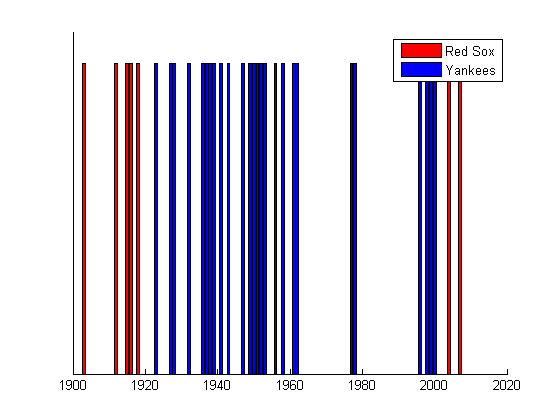
Looking over the data, I notice that my friend has made a mistake by sending me an older version of the file that does not have the Yankees’ most recent win. Rather than send him an email and wait an indeterminate amount of time for the new file, I’ll just go ahead and edit the file locally. Obviously, we can’t edit the file by double clicking since that brings up the Import Wizard, instead, let’s right-click and select open as text.
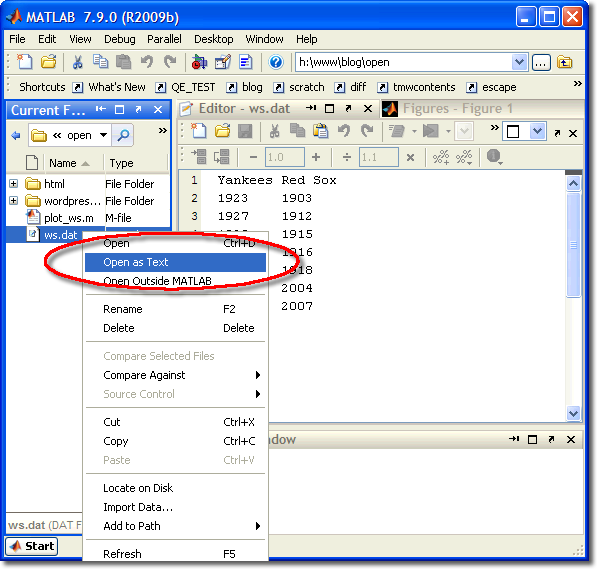
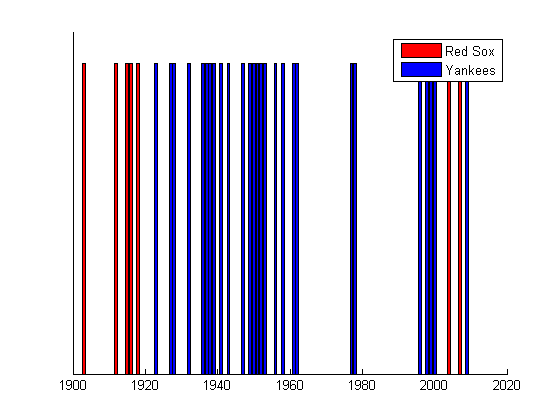
This opens the file in the Editor, now we can quickly add 2009 to the bottom of the list, save and replot. Voila!
EDIT (25-01-2010): fixed typo in open command example
- Category:
- Current Directory,
- Editor





Comments
To leave a comment, please click here to sign in to your MathWorks Account or create a new one.