Mike on the MATLAB Desktop
December 6th, 2010
Controlling the MATLAB Path from the Editor
Quiz: When setting a breakpoint in a file open in the Editor, your primary motivation is
- To stop at the corresponding line of code in the debugger.
- To change the MATLAB current folder.
- To add the file’s parent folder to the search path.
- To decorate your file with red ornaments for the holidays.
If you answered B or C to the question above, there is a new feature in R2010b that you will like (if you answered D, it’s time to leave your computer and go Christmas tree shopping)!
In R2010b, if you right-click on the document tab of a file open in the Editor, there are options to change the Current Folder to the file’s parent directory, add/remove the parent directory from the search path, or copy the file’s full path to the clipboard. In addition, on Windows and Macintosh platforms there is an option to locate the file in the system file explorer.
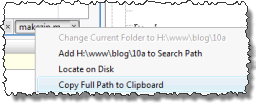
Currently the document tabs are only available when you have multiple files open in the Editor. So I will end this post with one more quiz.
Quiz: If you have only one file open in the Editor, how do you access the new path actions?
- Through brilliant keyboard shortcuts you configured using the Keyboard Shortcuts preference panel.
- By clicking the “New” toolbar item and then right-clicking on the document tab for the file originally open in the Editor.
- By requesting them in your annual letter to St. Nick.
If you answered B, you get full credit. If you answered A, you get partial credit. Change Current Folder, Locate on Disk, and Copy Full Path to Clipboard are available in the Keyboard Shortcuts preference panel and can be assigned shortcuts (though they do not have them by default). However, the Add/Remove from Path action cannot be assigned a shortcut because it has several variations in the Current Folder depending on whether or not subfolders are included.
By
Christina Roberts
Christina has been working on the MATLAB Editor since 2001. When she's able to tear herself away from that, she is chasing after her twins.
16:11 UTC |
Posted in Editor |
Permalink |
8 Comments »
You can follow any responses to this entry through the RSS 2.0 feed.
You can skip to the end and leave a response. Pinging is currently not allowed.
Leave a Reply
|
For the Quiz 1, my answer(s) are A and B. I frequently click to temporarily create a breakpoint just so that I can switch to that folder. While I love the new feature in the document tab, I’m finding it hard to re-train my muscle memory. And the As for the document tab context menu, I find the “Locate on Disk” the most useful for me, as there’s no other easy way of doing this.
For Quiz 2, did you mean “If you answered A, you get full credit”? I didn’t know there was a keyboard shortcut for them. Now, I think it will allow me to re-train myself easier.
Here are a couple of other round-about methods for Quiz 2 (Windows-specific):
1) Select File/Open or File/Save-As… (or their corresponding toolbar icons), then click the “Folder-up” icon, select the folder you came from, click “Explore”, finally select the entire contents of the Address Bar in the Explorer Window. It sounds more complicated than it actually is…
2) Click File/Publish-Configuration/Edit… (or the corresponding toolbar icon), then select the contents of the “Output Settings / Output folder” parameter excluding the “html” suffix.
- Yair
I thought of another method to Quiz 2.
With the more recent “editorservices” package, you can do this:
cd(fileparts(editorservices.getActiveFilename))
… that was for changing to that folder.
For adding to the path,
addpath(fileparts(editorservices.getActiveFilename))For locating on disk,
winopen(fileparts(editorservices.getActiveFilename))Thanks for the creative answers! Jiro, I didn’t give full credit to answer A in Quiz 2 because there is one action you can’t assign a keyboard shortcut to.
Actually the way I switch to the folder of a script I’m editing is by pressing F5 to run it, and then accepting “Change folder” in the message box that appears! I’ll do it even if I don’t really want to run that script, it’s just a convenience. If it’s a function it will yield an error since there are no arguments, but I’ll do it anyway!
Yes, running the file is a way to get the same “Change Folder” dialog that you get when setting a breakpoint. Jotaf, note that you can set up input arguments to a function using Run Configurations (dropdown beside the run button).
Thank you for your recommendation, Run Configurations are indeed useful in cases like this.