Mike on the MATLAB Desktop
December 20th, 2010
More Current Folder Browser Enhancements
I thought I’d start today’s post off with an informal poll. If you answer in the comments, I’ll pick a random commenter my first day back in the office in January to receive a thank-you gift! Feel free to also leave other comments about the Current Folder Browser (CFB).
- Do you know what the “Current Folder Browser” is?
- Do you use the Current Folder Browser?
- If so, what features do you use most?
- Do you keep it in it’s default position, or do you move it somewhere else on the desktop?
My buddies on folder browser team found time to add a few minor items for R2010b. These aren’t major changes, but if you’ve been one of the people asking for these enhancements, I hope you find them useful:
Customizable Date Format
In the CFB, you have the option to display a column showing the last modified date for all the files. From the top menu choose: View -> Show -> Date Modified.
It’s slightly misleading for me to call the date format customizable. What I should say is that the Date Modified column respects the system date format. Here in the U.S. we like to format our dates by month/day/year, but others may prefer day/month/year or some other format. These are generally determined by your OS’s locale setting, but some operating systems may let you arbitrarily customize it. Once you change your system’s date and time settings, use these directions to refresh the CFB and you’ll start seeing the date formatted as you would expect.
Modified in Editor indicator
For years the MATLAB Editor has indicated if a file has been modified by placing an asterisk “*” next to the file’s name in the title bar and document bar button. Now the same “*” indicator appears next to the modified file’s name in the CFB as well. I’ve found this most useful when bouncing between two folders that have files with the same names.
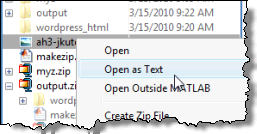
Open as Text
An “Open as Text” action was added for all files in the Current Folder Browser. Many file types have a specific meaning to MATLAB based on its extension. For these files there is a default double-click action, which may try to open the file in a special tool or import data directly into the workspace. However sometimes you may just want to treat the file as a text document and open it in the Editor instead. In these cases you can right-click the file and select “Open as Text” to open the file in the Editor. This option is not available for known binary files such as .MAT and .FIG files.
Let us know what you think of these new features and answer the poll in the comments below!
By
Michael Katz
Mike is a developer on the MATLAB Mobile team. When not describing himself in the third person, biking, homebrewing, or rooting for the home team, he's busy trying to make the world a better place for programming.
18:45 UTC |
Posted in Current Directory |
Permalink |
8 Comments »
You can follow any responses to this entry through the RSS 2.0 feed.
You can skip to the end and leave a response. Pinging is currently not allowed.
Leave a Reply
|
One enhancement I would like to see is the ability to configure the double-click response from the “CFB” for different file types.
For example, when I double-click an Excel file today the File Import “wizard” attempts to help me import that data. Often, these spreadsheets are very large and once the wizard is started, Matlab does not respond for quite some time. Many times, I would rather have the double-click open the file directly in Excel.
I did some digging and was able to change the default behavior, but the changes were very difficult to share with my group. It seems like offering this via the Preferences would be very useful.
Mike, I’d like the CFB ‘New File’ menu option to have ‘Text file’ as a choice.
Cheers,
Eric
I have fallen into the same trap as Jim, especially with Excel files.
In answer to your questions Mike, I do know and use the filebrowser, I mostly use it to open the file in the editor, but I also like Locate on Disk, Compare and Add to Path right click options, the Back and Forward buttons. I typically have the CFB as a detached window on a 2nd monitor leaving MATLAB editor/command window on main monitor.
What I miss is some of the right click options available in Windows Explorer, in particular “Send To” is really useful for either putting onto a USB drive or emailing a file. In an ideal world, some integration with TortoiseSVN for version control would be really really nice.
Merry Xmas to all.
Hi Mike,
1 & 2- Yes, I know, and I use it a lot, particularly when I use MATLAB and COMSOL together. It makes life easier to switch between working directories of each software. Sometimes when you are working on a paper you prefer to save your figures in a separate folder as your codes. That’s when CFB becomes handy.
3- In addition to running or opening codes, I use it as if it is Explorer. I use it to delete, copy and paste files. Sometimes I use it to check if my code is working by monitoring the time/date that the output files are modified.
4- Top left corner of desktop is my favorite location for CFB.
I use R2010a, so I am not sure if this feature is added or not to R2010b. I use the file preview box to see the contents of data files or the header of .m files, however, in my version it does not show the preview of figures, including .fig files. I think it would be a good enhancement.
Have a happy and safe holiday,
Pezhman
1&2) Yes, I use CFB.
3) I use it to keep track of what’s going on. The astrisk is a nice feature to add as well, because when my code still doesn’t work after changes I’ve made, it’s usually because I forgot to save.
4) I keep it where it is.
Also, the excel problem happens to me as well. It would be nice if large files automatically opened in their format, rather than trying to import it automatically.
Thanks!
Amanda
I used R2010b’s current folder browser mainly to move between main, search and sub-directories and to open files. Surprisingly, I’ve never modified it from the default position.
1- I know it
2- I use it
3- I use CFB %99 of time for just opening m files for editing.
4- I forgot its default position, I keep it in left top tapped with workspace.
What I would like to have is when I double click on a .mat file, I want see the variables and if possible values in it without loading them to workspace. So I can choose which .mat file should I load without messing up my current workspace.
Thank you
Happy Holidays Everybody
Temel
answer=struct('1)','yes','2)','yes','3)','opening files','4)','default') answerI know that I’ll get an error with field names like that, but it’s OK since this is just for fun. And I didn’t want to put ;’s at the end of my lines because there is no way that I want to suppress this output… I love MATLAB! Merry Christmas!
