File Exchange Pick of the Week

December 30th, 2012

Let It Snow!

Doug's pick this week is Let it snow by Mingjing Zhang.

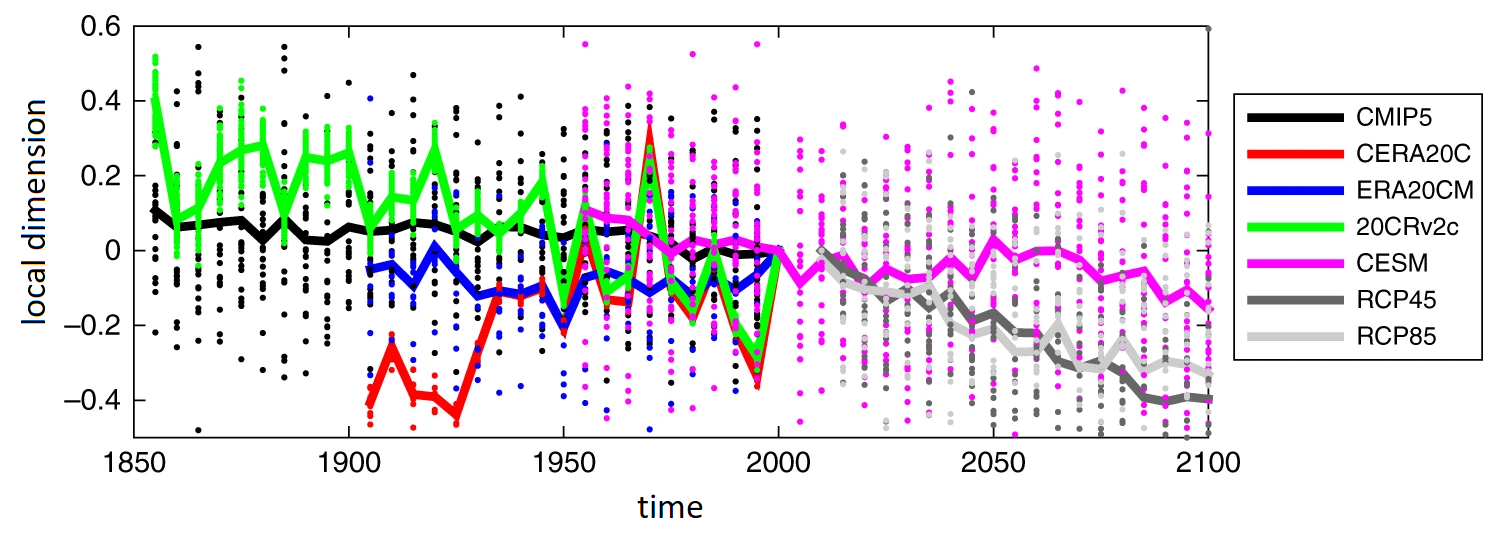
As some of you may know, MathWorks is headquartered just outside of Boston in a town called Natick. I lived in that area for 5 years, but I moved out to San Diego in 2007. There's a significant difference in climate out here so I like to keep track of the weather back in Boston just to see what I'm missing. I should probably use Trendy to help track the differences. I imagine the plot would look somewhat similar to the Anchorage/Honolulu comparison:

Temperature comparison between Anchorage and Honlulu

So while I really don't have anything to complain about living in such a temperate place, I do sometimes miss the seasons, especially around this time of year. I noticed that this weekend they are getting a bit of a snowstorm back in Boston so I thought I'd turn to MATLAB to try to experience the excitement of seeing those big white flakes falling from the sky. That's when I found Mingjing's great submission that allows you to add some winter spirit to any MATLAB figure. You simply create a figure, then run letitsnow and soon a blizzard of snow is falling past the window.

figure('Color',[0.22 0.44 0.33])
letitsnow


I was impressed that Mingjing was able to create a snowflake image by cleverly stacking four standard plot markers (hexagon, x, cross, and square). This submission also serves as a good example of how to use a timer object with nested function callbacks to animate figures.

However when I first tried to run Mingjing's function in MATLAB R2012b, the snowflakes showed up only as squares. After turning on plot tools I noticed that only the square marker positions were being updated while the other three markers were stationary. It appears that when Mingjing calls refreshdata on line 149, it is only updating the last element of the plot handle vector that is passed in. I was able to work around this issue by updating line 149 to: set(snow_plot_hdl,'XData',snowflakes_x,'YData',snowflakes_y)
I also noticed that Mingjing's submission was inspired by a previous Pick, A christmas tree plot, so it seemed only natural to combine the two submissions together. I set the snow parameter in christmas.m to 0 and then ran: christmas
letitsnow
Christmas Snow

Happy Holidays Everyone!

Comments
Let us know what you think here or leave a comment for Mingjing.

December 21st, 2012

Figure margins, subplot spacings, and more…

Jiro's pick this week is tightfig by Richard Crozier.

Contents

Subplot and its large margins

In response to my last post, Richard Johnson asked whether we could write posts that compared similar entries, for instance "arrows" and "waitbars". Just for kicks, I searched the File Exchange for entries with the tag "waitbar", and it returned close to 70. One of these days, I may get around to testing all of them, but not right now. Hey, even the fact that there are a lot of "waitbar" entries has already been blogged about.

With that daunting task of reviewing 70 files weighing heavily in my head, I came across Richard Crozier's tightfig. It caught my eye, because I like anything related to visualization, and people have asked about (how to get rid of) large margins in subplots. Then, I remembered seeing something similar before. In fact, Brett picked "tight subplot" earlier this year. Nice! Maybe I could compare these two files.

After reading through the comments for tightfig, one of the commenters mentioned 5 other similar entries (subplot_tight, spaceplots, subplot1, subplotplus, tight_subplot). Sounds good! That's a more reasonable number of entries to review. Luckily, Richard has already done some reviews himself, but I'll try to add some of mine below.

tightfig

The first thing I want to mention is that tightfig has a different purpose than the other entries. The description on the entry page explains the purpose very well: "Alters a figure so that it has the minimum size necessary to enclose all axes in the figure without excess space around them." Note that this is about making the outer bounds of the figure tight. Its intention is not to modify any of the spacings between the axes, which is the primary purpose of the other entries. I'll say more on this later.

figure('Color', [.8 .8 .8]);

subplot(2,2,1);
surf(peaks); shading interp
title('Peaks');
ylabel(colorbar, 'Color Scale');

subplot(2,2,2);
plot(rand(10,3));
xlabel('time');
ylabel('money');

subplot(2,2,3);
imshow('peppers.png');

subplot(2,2,4);
surf(membrane(1));
xlabel('x label');
ylabel('y label');
zlabel('z label');

tightfig is extremely simple to use. You just call it after creating your plots, and it applies to the current figure. That's one of my favorite things about this entry.

tightfig;

Review of the other entries

Before looking into the other entries, I'd like to point out that the use case for tightfig is quite different from that of the others. One is for tightening the figure boundary, and the others are for controlling/tightening the axes boundaries. So it may not be an apples-to-apples comparison. Nonetheless, here I go. Oh, and try not to get confused with all the names. :)

subplot_tight

I find subplot_tight to be the easiest to use, since it has a syntax that is closest to the MATLAB function subplot. Not surprisingly, it is a wrapper around subplot, with an added option to specify the spacing between an axes and its neighbors. Because it's a wrapper, you can make use of the vector input syntax for the 3rd parameter (see below). The author also supplies a demo script to recreate his screenshot.

figure;
subplot_tight(2, 2, 1, .1);
subplot_tight(2, 2, 2, .05);
subplot_tight(2, 2, [3 4], .05);

tight_subplot and subplot1

tight_subplot and subplot1 are quite similar. They both allow you to lay out a grid of subplots with arbitrary spacings and margins. tight_subplot is compact with just those parameters, i.e. spacing and margin, while subplot1 lets you control other axes properties, such as tick labels, label font size, and axes scale. I like that it gives me the ability to have the tick labels only displayed on the outside with subplot1 (see example below).

% tight_subplot

figure;
hA = tight_subplot(3, 2, [.01 .03], [.1 .01], [.01 .01]);

% subplot1

figure;
subplot1(3, 2, 'Gap', [.01 .03], 'XTickL', 'Margin', 'YTickL', 'Margin');

spaceplots

spaceplots works like tightfig, in that you create your figure first with subplots, then call spaceplots to adjust the spacings and margins. This function, unlike tightfig, will allow you to adjust the spacings between axes, not just the outside margin. The part that I like most is that it will work with irregular-grid subplots (see example below). However, there's a caveat that it only works on axes created using subplot.

figure;
subplot(2, 2, [1 2]); plot(rand(10, 3));
subplot(2, 2, 3); surf(peaks); title('Peaks')
subplot(2, 2, 4); contourf(peaks);

% 0 margin, 0.02 (normalized) spacing
spaceplots([0 0 0 0], [.02 .02]);

subplotplus

subplotplus is the king of custom subplots. It comes with a price of somewhat cryptic syntax, but once you understand it (with the help of an example script), it can let you custom layout your subplots in any configuration you like. It even includes the ability to "glue" axes together so that they have a common axis.

cell71={{['-g']};{['-g']};{['-g']};{['-g']};{['-g']};{['-g']};{['-g']}};
cell41={{['-g']};{['-g']};{['-g']};{['-g']}};

figure;
C = {{{{[]},{[]}};cell41},cell71};
[h,labelfontsize] = subplotplus(C);

Conclusion

So what have I concluded from this review? There are multiple solutions to a problem! They all have unique ways of tackling the problem, and some solve a slightly different problem than others. Overall, I prefer the "post-processing" type functions, tightfig and spaceplots. I tend to do my exploratory plotting in a rough state, and once I have a plot I like, then I start making things look nicer. But of course, with an interactive tool like MATLAB, even the "pre-processing" type functions can be introduced at a later step.

Comments

I'm interested to hear from anyone who has looked at all/any/one of these entries. Give us your feedback here.


Get the MATLAB code

Published with MATLAB® R2012b

December 14th, 2012

A conversation about managing File Exchange downloads

Jiro's post last week prompted a lot of very interesting comments. Today, Jiro and I would like to share publicly a discussion we had about one of them. (We'll be considering some of the others in future posts.)

Brett: Jiro, last week you wrote an open letter, asking people for their input on topics they'd like to see in the POTW blog. We've been getting some really interesting (and legitimate --I think we owe some people some swag!) ideas. I was particularly intrigued by Sven's comment. Sven asked if every serious MATLABber has a “File Exchange” folder on his or her path. I hadn't thought about the ways people manage their downloads, but now I'm really curious.

Personally, I have a directory called “MFILES” that I add to my path, recursively, on startup. Within that directory, I have many sub-directories, including one I call “DOWNLOADS.” Submissions I get from the File Exchange typically go there, each in its own folder that I label with some descriptive name that helps me know at a glance what it contains.

Is that similar to your file-management approach?

Jiro: That's sort of similar to my approach. I also have a folder where I put all the files I downloaded from the File Exchange. I call it “FEXDownloads.” Inside that folder, I have a folder for each entry. However, I don't have any of them on my MATLAB path. I use that as a place to keep track of everything I downloaded and tested. If I find any of the entries useful for my daily use, I move that content to a different folder called “MyReceivedFiles,” which is on my MATLAB path.

I'm not very consistent on how I organize the files in “MyReceivedFiles,” though. Initially, I put all the functions directly under this folder. But that quickly started to make the function list large, and occasionally some of the function names would clash with my own functions. Then, I started to put some of them into packages. This way, I can create additional namespaces. For example, I have a folder called “+WordPress” inside “MyReceivedFiles” (which is a utility I got from a colleague to publish my blog posts), and I call it like this:

WordPress.wordpress_publish('my_blogpost');

Sven had another great question about * versioning * . The File Exchange does have a “Watch this File” option to be alerted when a file gets updated. But aside from that, you have to manually download and manage the versioning, right? Do you have any other tips?

Brett: I've been known to move downloaded files off my path—particularly if I find they create namespace issues, or if they are buggy or poorly executed. (There are some great files on the File Exchange, but there are some that aren't great, too.) But my default is that they start out on my path. The packaging idea is a good one; I might have to try that.

I wish I had some great tips to share regarding downloading updated files, beyond simply “watching” the ones you're interested in, reading the update notes, and manually downloading when a bug is fixed or something interesting is added. Automatic updating is an intriguing idea, but one that frightens me a bit. If we ever got to that point, I would absolutely move all of my direct downloads off-path by default, and only move them onto my path after I've had time to validate them.

Jiro: Right. Because the File Exchange is very open (very little moderating), you do have to be careful about the quality and test them before you are comfortable to add them to your path.

Well, I wonder how other community people manage File Exchange downloads.

Brett: How about it, readers? Does anyone have a different approach to managing File Exchange downloads (or for keeping abreast of changes to their favorites) that they'd like to share? Tell us about them here!


Get the MATLAB code

Published with MATLAB® R2012b

December 7th, 2012

Tell us what you want to read about!

Today, I'd like to stray from the usual format of the Pick of the Week post. This blog has been around for almost 9 years. The oldest post I found in the archives was this post back in 2004 by Doug.

The format of the posts has been mostly consistent, which is one of us selecting an entry from the File Exchange, explaining what's cool about it, and showing how it works. Around the time Brett and I (and Bob in the beginning) took over the blog from Doug and Scott, Doug started creating some videos for his posts, and that led to his new blog Doug's MATLAB Video Tutorials. Since then, Bob moved on to bigger and better things, and a number of guest posters have joined in the rotation.

Brett has created summaries of the past Pick of the Week posts (check out the links on the right), to help remind our readers of the great entries we've highlighted in the past. Brett's post asking you guys to nominate File Exchange entries was a big hit. It was great to see so many of you finding the File Exchange valuable. We also had a couple of programming challenges, this and this.

While Brett, I, and the rest of the guest bloggers love writing about our favorite entries, I do want to make this blog an interesting and stimulating read for our readers. We will continue writing the usual posts, but from time to time, we like to change it up a bit. Let us know what kind of posts you want to see. The only requirement is that it has to have something to do with the File Exchange. You can even tell us about a particular post from the past you liked and what you liked about it.

Finally, everyone loves free stuff, so the first 5 legitimate comments, i.e. suggestions for topics or improvements, will get a MathWorks swag sent their way!

Thanks, everyone, for following our blog!


Get the MATLAB code

Published with MATLAB® R2012b

November 30th, 2012

Auto-Tune your voice!

Jiro's pick this week is Auto-Tune Toy by Carl.

First of all, let me just say that I'm not a singer; not even close. But after playing around with Carl's Auto-Tune Toy, maybe I do have a future in the music industry! ... Okay, who am I kidding. I've determined that even Auto-Tune couldn't save me.

I've heard of Auto-Tune before, but I didn't know you could do it in MATLAB! This cool App by Carl lets you have fun with your voice, fixing any pitch inaccuracies you may have.

Here, I'm throwing away my pride and showing you how I transformed my bad rendition of the first few seconds of the nursery rhyme "Mary Had a Little Lamb". Notice that I was even able to add a little bit of vibrato to my voice at the end!

Comments

Give it a try and let us know what you think here or leave a comment for Carl.


Get the MATLAB code

Published with MATLAB® R2012b

November 25th, 2012

Converting Images from Grayscale to Color

Contents

Brett's Pick this week is gray2rgb, by Jeny Rajan.

Win One of Several MATLAB Hats! Read On!!

This week's blog is image processing-centric, but it includes a challenge for MATLAB geeks everywhere. Jeny, of course, is due some swag--it's on the way, Jeny! But I'll also send MATLAB hats to four readers who can rise to the challenges I posed below. (Who says the MATLAB Central Contest Team gets to have all the fun? :) ) If you're interested, read on...

Grayscale to RGB

Typically, when I'm analyzing color images, I find that I can do my analyses in "gray space" rather than in color space. That is, I can usually get all of the information I need from one or more individual color planes, or from a grayscale representation of the color image. Converting to grayscale generally simplifies--and often speeds up--the processing of these color images. Creating a grayscale image as a linear combination of multiple colorplanes is a common task, and one that the Image Processing Toolbox facilitates with the function rgb2gray. Recently, while browsing the File Exchange, I came across Jeny's file, which allows one to convert images "the other way." That is, you can provide a grayscale image along with a color image whose pallete you want to copy, and gray2rgb will create a color version of your grayscale image, matching (to some extent) the color of the second input image. I was intrigued, so I played with the file. Here is a sample that shows what this function can do:
figure
subplot(2,2,1)
imshow('liftingbody.png');
subplot(2,2,2)
imshow('gantrycrane.png');
colorIm = gray2rgb('liftingbody.png','gantrycrane.png');
subplot(2,2,3.5)
imshow(colorIm)
It's clear that many people have found gray2rgb to be useful; the file has been on the File Exchange for many years, and is getting close to 100 downloads per month. Plus, there are several "thank you's" and good reviews. Nonetheless, I'd like to note that this calculation took a very long time --on the order of two-and-a-half minutes ! Jeny discussed a couple of approaches to making this faster. One could subsample the color image (at the potential cost of quality), or one could use "jittered sampling." Unfortunately, no examples are provided that show how one would implement these time-saving approaches.

A Multi-Part Challenge

Digging into the underlying code, we see that Jeny's function converts both input images to yCbCr. (The grayscale image is first expanded to 3D, with replicated information in the red, green, and blue colorplanes.) Then, the output image is generated by processing the converted images pixel by pixel (!) , using a nested for loop. That works, but it can be slow indeed. I can think of several ways to improve the performance of this code, and I'm betting that some of our readers can as well. I'll send a MATLAB cap to the first person who can exactly duplicate the results of colorIm generated above by vectorizing Jeny's implementation of gray2rgb! It also occurs to me that there are other approaches to the same problem. For example, using a function that I have previously shared on the File Exchange, I generated this color image: Creating this image, using my function on my computer, took 0.02 seconds. Swag to the first person who can find, from among my File Exchange submissions, a function that generates the image above using a one-line command. (Note that there's also an Image Processing Toolbox function that facilitates the same calculation, though you'll have to use it "cleverly.") Next, I'll send swag to anyone who can come up with an alternate solution that differs substantively from Jeny's approach, and from the one I used. The only other rule besides "differs substantively" is that it has to run quickly --say 1 second or faster, using the same input images. Now the question arises: why would one want to do this? Does anyone have a practical use case for converting grayscale images to rgb by matching the colors of a second image? If anyone can provide an intriguing use case for modifying images in this way, I'd love to hear it. Swag for the first compelling rationale. (For our purposes here, reasons like "it looks cool" or "it creates an interesting special effect" don't count!)

Happy Thanksgiving, and Happy MATLABbing!

As always, comments to this blog post are welcome. Or leave a comment for Jeny here.

Get the MATLAB code

Published with MATLAB® R2012b
 

November 16th, 2012

Morse Code Practice System

Sean's pick this week is Morse Code Practice System by James Willmann.

Howdy! My name is Sean and I am an Application Support Engineer with Mathworks. You may also recognize me as a dog on MATLAB Answers. I am on the MATLAB/MATH Technical Support team and I'm working with Jiro to hopefully become an Application Engineer one day.

Contents

S.O.S.

I really like programming in MATLAB. But even more than that: I love boating!

S.O.S.: dit dit dit | daw daw daw | dit dit dit

This is the international distress signal that was used on the sea until very recently. It is also the only Morse Code I know. Fortunately, I've never had to use it, though we did come close once when we forgot to put in the bilge plug.

In an effort to learn more Morse Code, I turned to the FEX with the hope that someone else had already done this in MATLAB. Sure enough, someone had!

I LOVE MATLAB!

There are two ways for you to use this App to transmit your message in Morse Code:

  • Type it live.
  • Have it read from a text file.

You can also adjust the word and code speed and frequency. The letters appear as they are being transmitted so you know what letter you are hearing at any one time.

Let's see it in action:

I can only imagine how jealous someone, who had to use a Telegraph day in and day out 100 years ago, would be of this utility.

Learning Morse and MATLAB Code

If you would like to learn more Morse Code this is a great App with which to practice. It is also a good way to see some high quality MATLAB programming. The programmatic GUI is well organized and commented making it easy to follow. Specifically, it shows how to receive and manage keyboard input as well as how to use a TIMER to control events.

If you are interested, Wikipedia has plenty of information on Morse Code. Or you could just look at the Code Table and superb documentation that come with this App:

Suggestions for the Author

James has done an excellent job with this program, but I have two suggestions to make it even better:

  1. As I mentioned in the feedback last July: a visual indicator would help those of us who have no experience learn even more quickly.
  2. You may notice the warnings with regard to WAVPLAY. WAVPLAY is on its way to being deprecated and is being replaced with AUDIOPLAYER. There are many reasons to move to AUDIOPLAYER including its multiplatform support and built-in options for PlayBlocking, starting, stopping, etc. To temporarily turn off the WAVPLAY warning, you can run:
warning off MATLAB:audiovideo:wavplay:functionToBeRemoved

Comments

Do you know Morse Code? Or have you ever had an experience where you needed to transmit S.O.S.?

Let us know what you think here or leave a comment for James.


Get the MATLAB code

Published with MATLAB® R2012b

November 9th, 2012

MathExplorer: Learn about math interactively with MuPAD!

Jiro's pick this week is MathExplorer by Martin Brown.

Since MATLAB is, first and foremost, a numerical computation package, we haven't picked too many entries that use symbolic capabilities. Well, here it is, and it's quite impressive! Symbolic Math Toolbox™ extends MATLAB by providing functions for solving and manipulating symbolic expressions. In R2007b, we introduced a notebook interface called the MuPAD Notebook App. It provides an interactive environment for performing symbolic calculations and creating a dynamic document.

MathExplorer is a set of hyperlinked MuPAD notebooks (43 total) for teaching mathematical concepts that are typically taught in the first and second year of college. With his notebooks, the students can learn the concepts interactively by running dynamic examples and experimenting with different parameters.

The concepts that are covered are:

  • Vectors
  • Complex Numbers
  • Differentiation
  • Integration
  • Taylor Series
  • Multivariable Calculus
  • Ordinary Differential Equations
  • Laplace Transform
  • Vector Calculus
  • Linear Algebra

It also contains a few application examples for some of the topics. Many of his notebooks contain animated graphs to better convey the concepts. For example, you can learn about the concept of differentiation:

Or see how first and second order systems respond to a step input:

Or visualize a 3D vector field:

Comments

Students out there, learn about mathematical concepts in a fun, interactive way using MathExplorer! If you're a professor, give this a try in your courses! Let us know what you think here or leave a comment for Martin.


Get the MATLAB code

Published with MATLAB® R2012b

November 2nd, 2012

ImageViewer: A GUI for viewing and interactively exploring image files

Brett's Pick this week is the ImageViewer, by Jiro Doke.

I've been contributing to the MATLAB Central File Exchange for more than ten years now; my first shared file, collectCode, went live on the File Exchange in May, 2001. That was long before I started working for MathWorks (six years ago). For most of those six years, I've co-written the Pick of the Week blog with my friend Jiro, and in all that time, I've "Picked" one of my own files exactly once. The same is true of Jiro, I believe; he's "Picked" only one of his own.

For five years, Jiro and I have had the pleasure of poring over other contributors' files to find gems that we wanted to write about. Jiro is one of the best MATLAB programmers I know, so it struck me as odd recently when I realized that I had never written about any of his submissions. We rarely think of writing our own files up, and we've never thought of writing up each other's. Today, that changes.

Jiro, in fact, writes some of the best code I've seen on the File Exchange. And when I recently took a look anew at Jiro's shared files, I remembered how easy it is to find "Pickworthy" files--including ImageViewer.

I do image processing all day long, and have at various times written my own image viewers. But Jiro's is better. With a smartly designed GUI, you can easily preview a directory of images, select an image, view it in full resolution, and get properties of the image.

ImageViewer is also one of the more popular Apps on the File Exchange, and it now has a permanent spot in my Apps Tab. Check it out--it's definitely worth a look! And browse through some of Jiro's other contributions; there are several great submissions among them, many of which I would feature here-- if they hadn't already been written about by our predecessors, Scott and Doug.

As always, comments to this blog post are welcome. Or leave a comment for Jiro here.


Get the MATLAB code

Published with MATLAB® R2012b

October 26th, 2012

GUI 2D Heat Transfer

Will's pick this week is GUI 2D Heat Transfer by Dominik Gibala.

Long, long ago in a galaxy far, far away, I was an aerospace engineering undergraduate. Back then, the classes I excelled most at were Statics, Solid Mechanics, Thermodynamics, and Heat Transfer. I even spent a year researching particle agglomeration in a combustion research group. Strange then that I chose a life of avionics and control design rather than one of finite element analysis.

Despite my chosen career path, heat transfer has always held a special place in my heart. And since I'm also a big fan of MATLAB GUIs, I was left with little choice but to select Dominik's work when I came across it. He has created a MATLAB App that displays the time-varying temperature of a square plate. Each edge of the plate has a fixed, user-specified temperature. This causes the plate to heat or cool from its initial condition.

GUI options

Once you set up your problem and push Run, it's kind of like you have a little lava lamp on your desk. I ran various experiments and found the following results particularly intriguing:
The Crosshatch The Shark The Bird

Fun as this is, there's still room for improvement in this submission. Here are some suggestions I have to make this App even better!
  • Enable the user to control the time step.
  • Enable the user to control the color map.
  • Lock the color bar's range at the beginning of simulation to the min/max temperatures.
  • Change the name of the files and GUI from Czech to English :).
  • Solve the intermittent crash that occurs when the variable t gets cleared.
  • Scale the axes to match the user-specified edge length rather than the number of points.
I leave the challenge to our readers.

Comments
Let us know what you think here or leave a comment for Dominik.

MathWorks

Brett & Jiro share their favorite user-contributed submissions from the File Exchange.

These postings are the author's and don't necessarily represent the opinions of MathWorks.