
Back-Seat Driver: Simulink Tips for Efficient Model Navigation
Does this ever happen to you? You are sitting in a meeting looking up at the projected image of your coworker’s computer desktop. They are navigating through {a web page, a Simulink model, or computer settings}. You can see a faster, better, more efficient way to complete the task. You as the observer have two options: 1) politely bite your lip or 2) become the back-seat driver and scream out corrective commands like “up, up, up... to the right, right, left... click the thing...open... control-k...arg!”
This happens to me some times... especially with Simulink models. I want to share with you two Simulink tips that I wish everyone knew.
Tip: Navigating your model – window reuse, and escape.
I spend much of my day looking at models I did not build. Finding your way around large models can be slow due to the many layers of subsystems between the top of the model and the leaf component you are working on. There are two parts to this tip.
Part one is setting window reuse. Make sure the model is set for window reuse. I rarely need to look at two different systems at the same time, so my preference is to set Simulink to reuse the windows as I navigate the diagram. A close alternative is to use mixed.
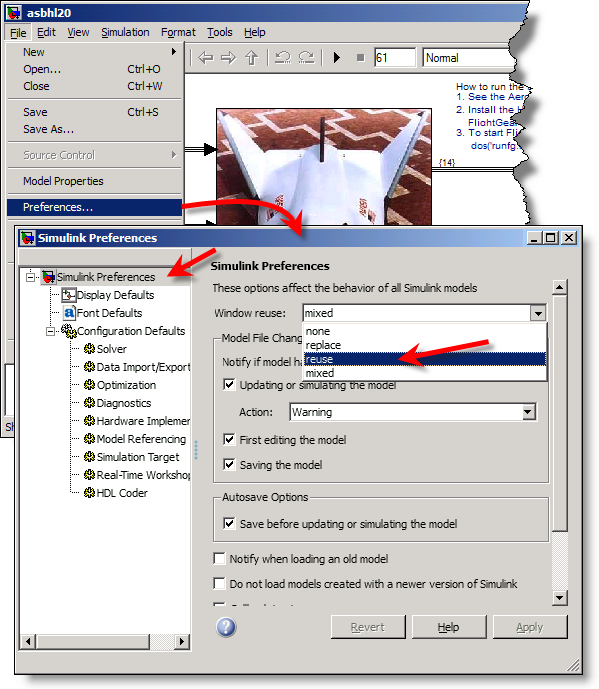
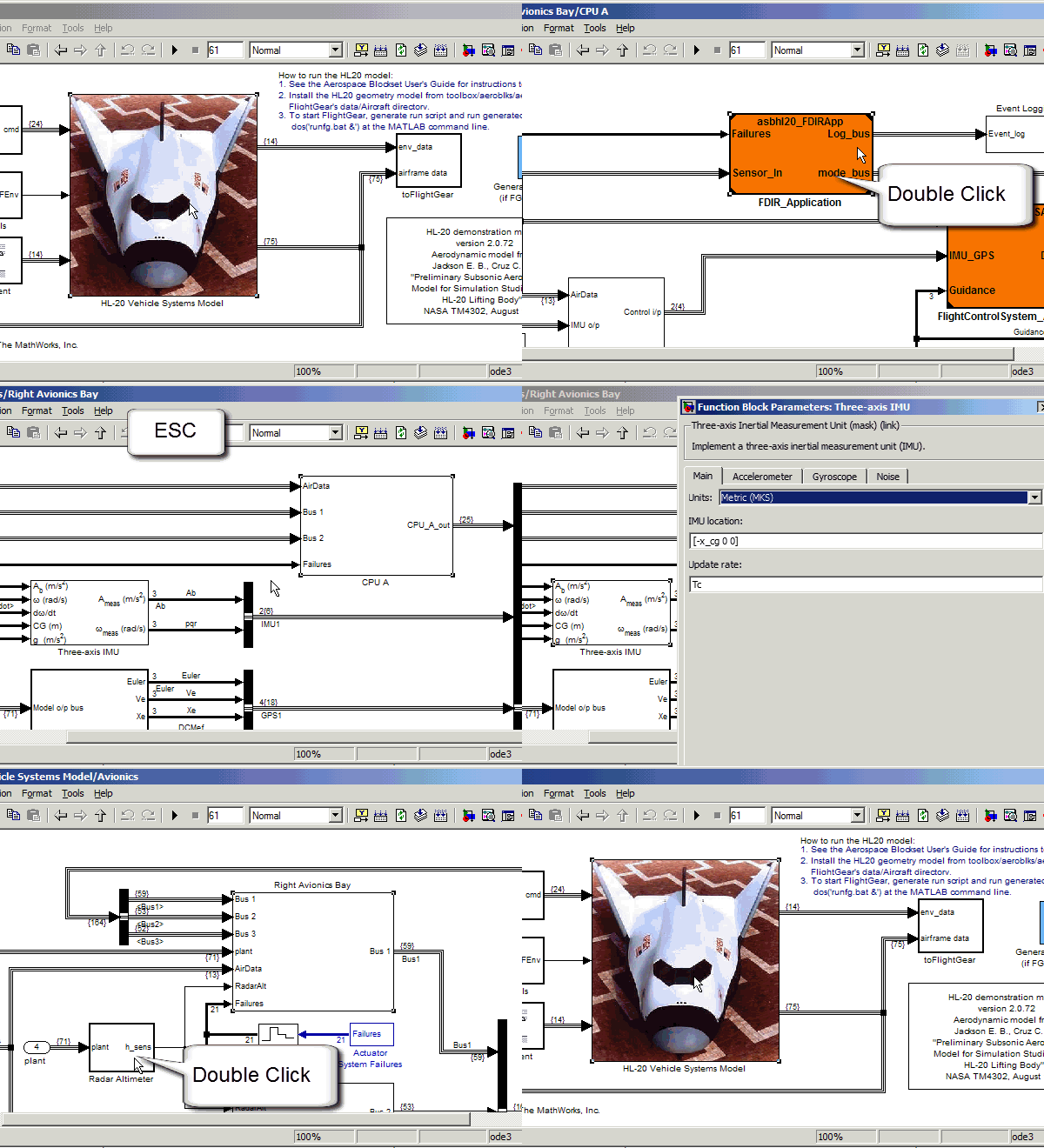
Part two is using the escape key. Diving down through layers of a model is as easy as double clicking on a subsystem. What do you do when you want to go back up a level? While you can reach for the arrows on the toolbar to go back, or up a level, I use the escape key. Escape will bring you to the level above the current level. This even works if you have opened a reference model, Stateflow chart, Embedded MATLAB function blocks and block dialogs!
What do you know?
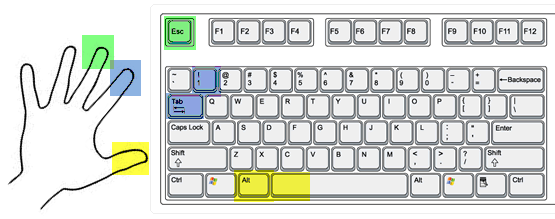
What accelerators do you use to work more efficiently? What do you yell when back-seat driving? Leave a comment here and tell me about it.
- Category:
- Simulink Tips





Comments
To leave a comment, please click here to sign in to your MathWorks Account or create a new one.