
New Ways to Explore a Model with Simulink R2012b
Last week I showed how to pan and zoom within one system of a model. This week, we will talk about your options to navigate between systems in Simulink R2012b.
Explorer Bar
One of the first things you will notice when you open a model in R2012b is the Explorer Bar:
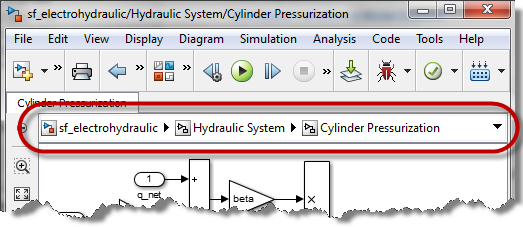
The Explorer bar helps you navigate a Simulink model in a manner similar to how you navigate a file system in Microsoft Windows Explorer and in many Linux distributions.
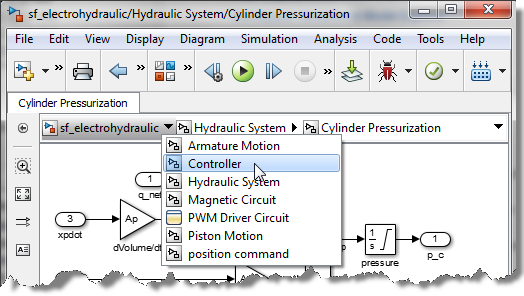
At the right of each system, there is a triangle. Clicking on the triangle shows the list of subsystems inside this system, and allows you to directly navigate there.
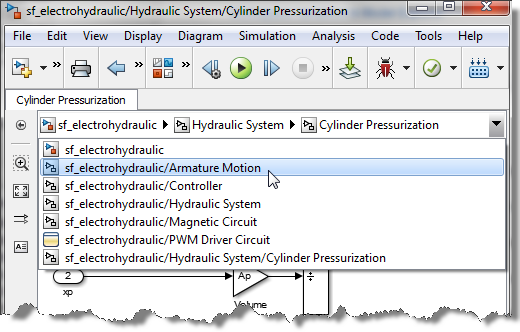
At the right extremity, there is another triangle showing the list of recently visited subsystems, and allowing you to navigate directly there.
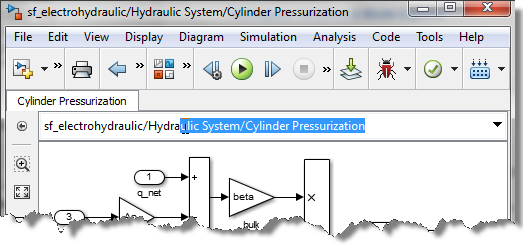
My favorite part of the explorer bar is when you click between the inner most system and the right-most triangle. This turns the bar into a string that you can edit or copy.
In my every day workflow, I often receive and send instructions like:
Go inside subsystem ModelName/subsystem_A/subsystem_B/subsystem_C/...
In that case, the Explorer Bar replaces the gcs command I was using to copy the path of a system. It also replaces the open_system command I was using to reach a subsystem deep in the hierarchy.
Tabs
The other great new feature for navigating models is the possibility to have multiple tabs in one window.
I really like using tabs to keep open the subsystems and Stateflow charts that I need to access frequently. Keeping those systems open in tabs significantly speeds up my debugging workflow, especially with a model containing complex Stateflow charts.
When opening a subsystem, you can:
- Double-click to open it in the current tab
- Shift + double-click to open it in a new window
- Ctrl + double-click to open it in a new tab
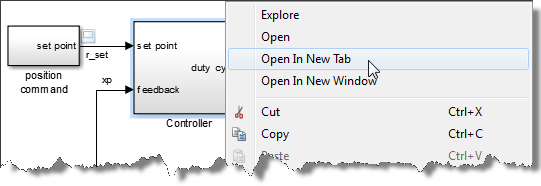
If you prefer, you can also right-click on the subsystem and choose how to open it.
Now it's your turn
Let us know what you think of the Explorer Bar and the tabs by leaving a comment here
- Category:
- Simulink Tips,
- What's new?




Comments
To leave a comment, please click here to sign in to your MathWorks Account or create a new one.