
Introducing Terminal in MATLAB
One of the delightful side effects of the world's obsession with agentic AI is that the humble terminal is having something of a renaissance. If you've been using the MATLAB Agentic Toolkit, then you've almost certainly had one or more terminal windows open alongside MATLAB and Simulink.
So, we decided to bring the terminal inside MATLAB and Simulink and you can install and use the prototype right now.
The difference between Terminal and MATLAB Command Line
Some of you may be thinking 'Hasn't MATLAB always had a terminal?' and pointing to the Command Window as evidence. Indeed, in the beginning MATLAB didn't have a desktop at all; it was only a command Window.
The MATLAB Command Window is a MATLAB language REPL (Read-Eval-Print Loop). You type MATLAB expressions, such as x = eig(A), and the MATLAB interpreter evaluates them. It's great for MATLAB but it isn't a terminal. A terminal is for interacting with your operating system shell.
You can run commands on your operating system's shell via the MATLAB Command Window using either the MATLAB system function
system('dir')
or by using an exclamation mark
% Run the windows date command
!date /t
While this is OK for the occasional command or two, it's a long way from a full terminal experience and you certainly couldn't use it for interactive agentic coding sessions. That's where this new terminal comes in.
Getting started with the Terminal in MATLAB
Once you have it installed, you can create a terminal using your system's default shell with the terminal command. On Windows, this is cmd.exe
t = terminal
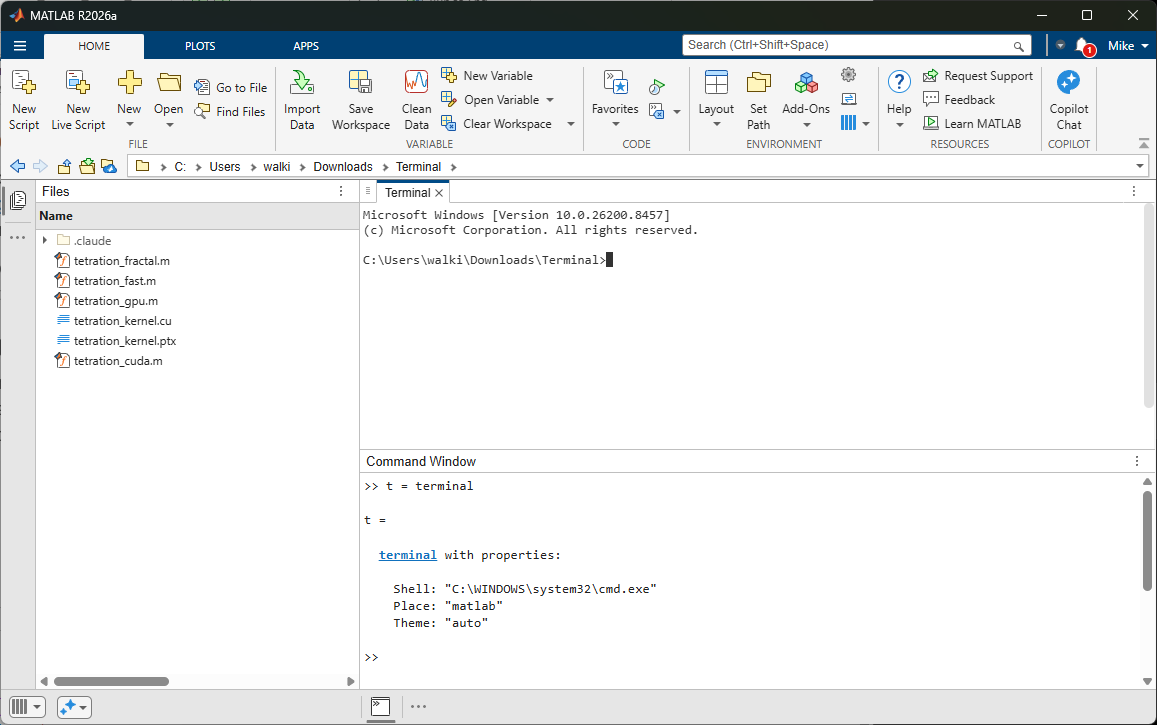
You may prefer to use PowerShell instead
ps = terminal(Shell="powershell.exe");
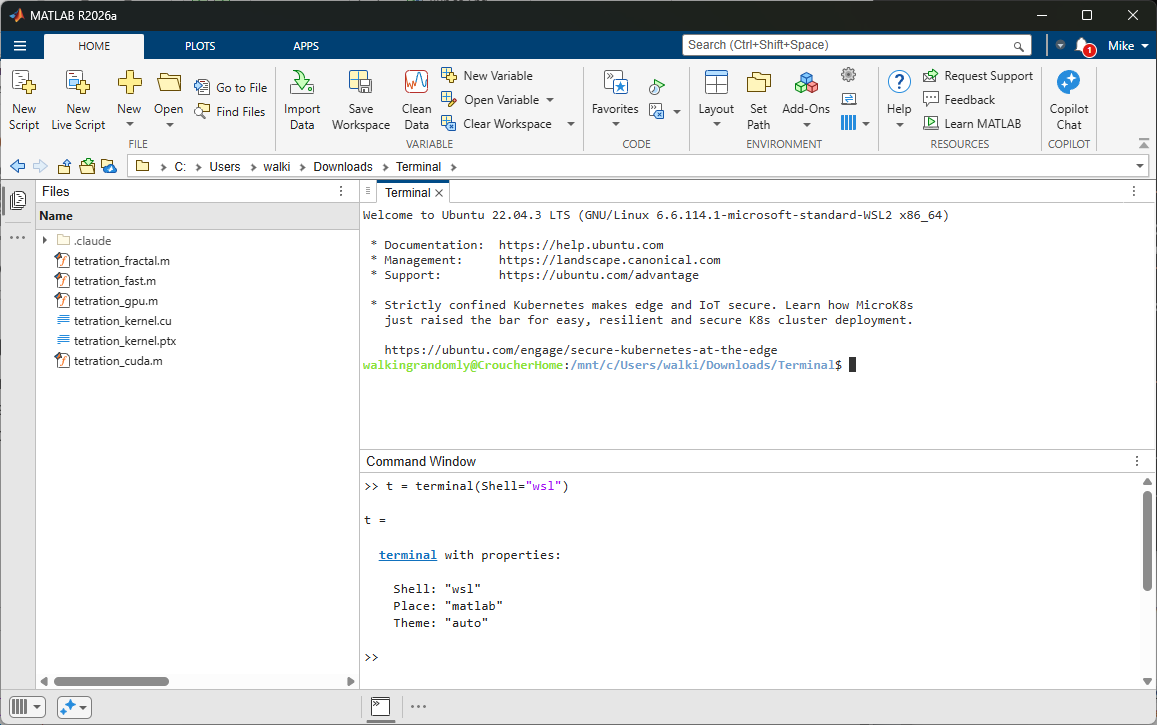
I wondered if the Windows Subsystem for Linux (WSL) would work and happily, the answer is "yes."
wsl = terminal(Shell="wsl");
You can query the current version of terminal with
terminal.version()
and update it to the latest version with
terminal.update()
By default, terminal uses the MATLAB desktop theme, light or dark, and updates automatically when the MATLAB theme changes. You can also use preset themes such as "solarized_light"
terminal(Theme="solarized_light")
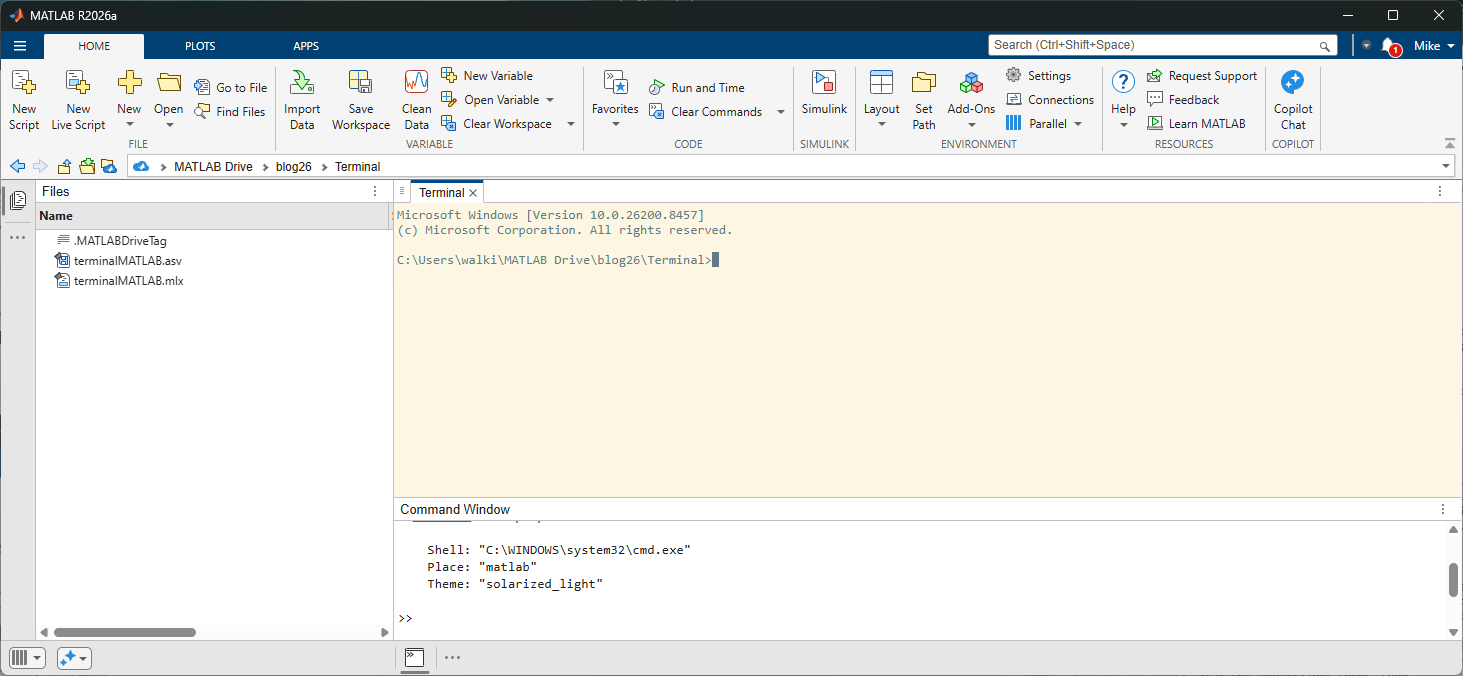
To list all available themes use terminal.themes() which at the time of writing includes 12 different options including "auto"
themes = terminal.themes();
fprintf("%s\n",themes)
Opening terminals in Simulink
When this terminal was first made available internally at MathWorks, one of the first requests was to make it available directly in Simulink as well. You'll need to have a model open in Simulink after which you can do
t = terminal(Place="simulink");
which will dock a terminal in the most recently active Simulink editor
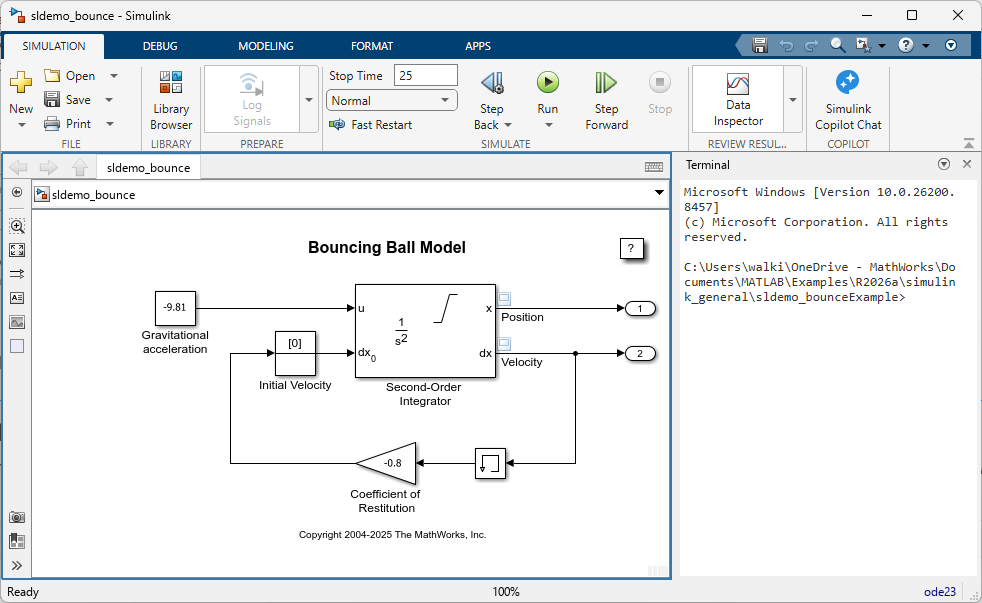
If you have many models open simultaneously, you can target a specific one by name. For example, to explicitly target the model above you'd run
t = terminal(Model="sldemo_bounce");
Using the MATLAB terminal for agentic workflows
If this was all the terminal did, it would be enough for me. I've wanted a full-featured terminal in MATLAB for years and finally I've got one. However, this terminal has a couple of other extra tricks up its sleeve. If I let it know that I intend to use an AI Agent such as Claude Code, it will download and configure the MATLAB Agentic Toolkit for me and is probably the easiest way to configure everything.
t = terminal(Agent="claude");
MCP server binary at "C:\Users\walki\.local\bin\matlab-mcp-core-server.exe" is version 0.8.1 (minimum: 0.10.0).
MCP server binary not found at:
C:\Users\walki\.matlab\agentic-toolkits\bin\matlab-mcp-core-server.exe
Download it now? (y/n) [y]: y
Downloading MCP server binary...
Downloading matlab-mcp-core-server v0.10.0 for win64...
MCP server binary installed at: C:\Users\walki\.matlab\agentic-toolkits\bin\matlab-mcp-core-server.exe
Installing MATLAB MCP Core Server Toolbox...
This may take a minute — please wait.
MATLAB MCP Core Server Toolbox installed.
MATLAB session shared for AI agent access.
Downloading MATLAB Agentic Toolkit 2026.05.21...
MATLAB Agentic Toolkit 2026.05.21 installed at:
C:\Users\walki\.matlab\agentic-toolkits\matlab
Claude Code: MCP server registered (via claude mcp add-json)
Adding marketplace…√ Successfully added marketplace: matlab-agentic-toolkits (declared in user settings)
Claude Code: installed plugin automotive@matlab-agentic-toolkits
Claude Code: installed plugin computational-biology@matlab-agentic-toolkits
Claude Code: installed plugin image-processing-and-computer-vision@matlab-agentic-toolkits
Claude Code: installed plugin matlab-app-building@matlab-agentic-toolkits
Claude Code: installed plugin matlab-core@matlab-agentic-toolkits
Claude Code: installed plugin matlab-data-import-and-analysis@matlab-agentic-toolkits
Claude Code: installed plugin matlab-software-development@matlab-agentic-toolkits
Claude Code: installed plugin reporting-and-database-access@matlab-agentic-toolkits
Claude Code: installed plugin rf-and-mixed-signal@matlab-agentic-toolkits
Claude Code: installed plugin robotics-and-autonomous-systems@matlab-agentic-toolkits
Claude Code: installed plugin signal-processing@matlab-agentic-toolkits
Claude Code: installed plugin test-and-measurement@matlab-agentic-toolkits
Claude Code: installed plugin toolkit@matlab-agentic-toolkits
Claude Code: installed plugin wireless-communications@matlab-agentic-toolkits
Skills installed (61 symlinks in C:\Users\walki\.agents\skills)
Setup complete.
Agent: claude
Toolkits: matlab
Note that this doesn't run claude for me in the terminal, it just gets everything ready to do so. Once I do run claude, the fact that I passed the Agent argument to terminal means that claude will be connected to this MATLAB session via the MATLAB MCP Server. As such, it has an awareness of what's going on in my MATLAB session.
For example, if I highlight a section of code in the editor and ask claude about it, it can 'see' what I've highlighted.
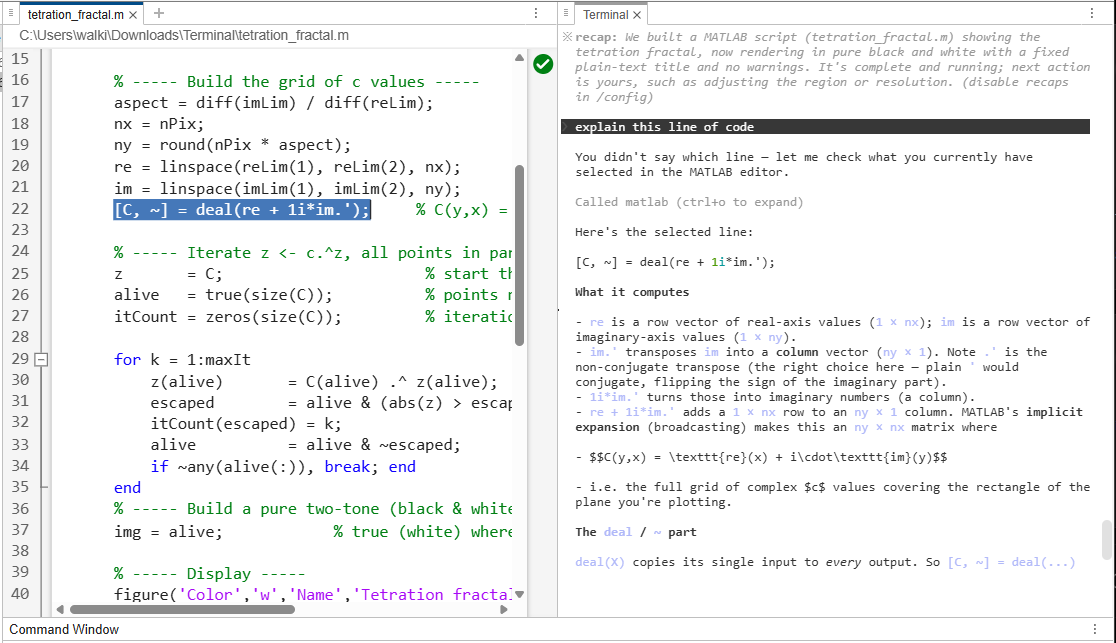
Similarly I could ask it things like 'What documents do I have open in MATLAB?' or 'Critique the script I have open now'.
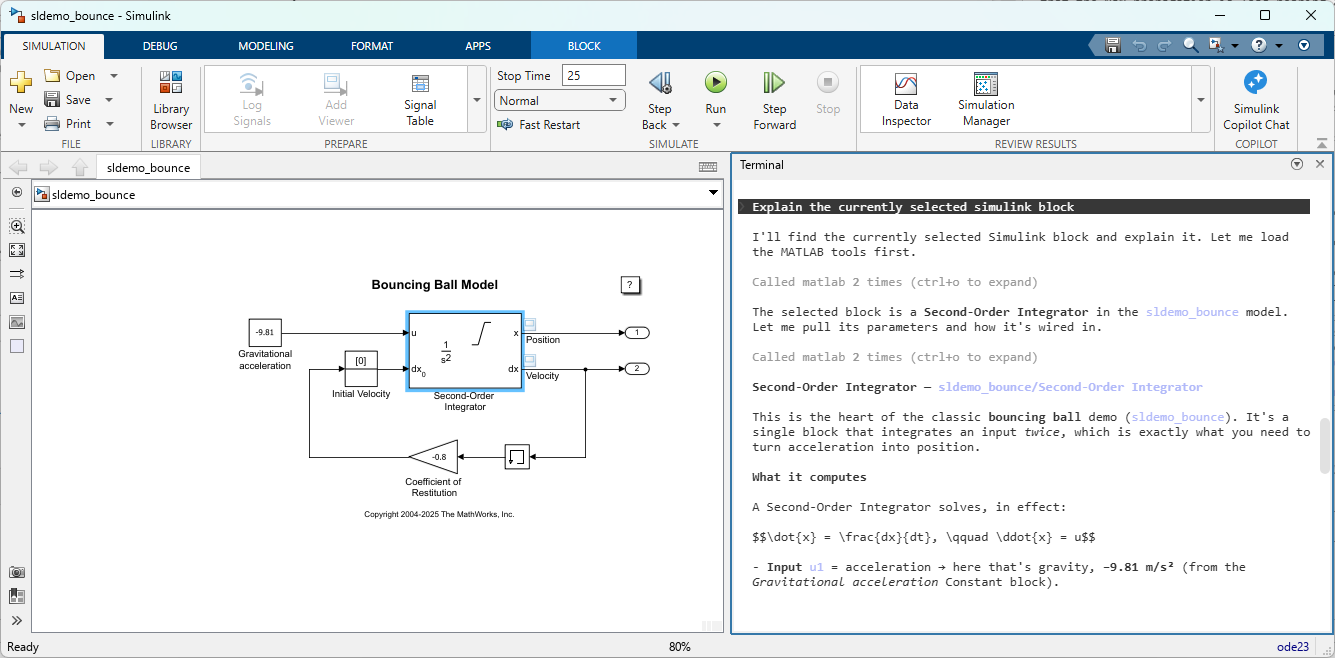
This awareness of the MATLAB session also extends to Simulink. Here I use the Toolkits option to ensure that I'm using both Agentic toolkits.
t = terminal(Model="sldemo_bounce",Agent="claude",Toolkits=["matlab","simulink"]);
If I had never installed the Simulink Agentic Toolkit before, this would take care of that for me too!
Now if I select a block, I can ask claude about it directly
The Agentic=true option
Up until now, I've been explicit and said exactly which agent and toolkits I want configured with each terminal launch:
t = terminal(Model="sldemo_bounce",Agent="claude",Toolkits=["matlab","simulink"]);
You can also simply set Agentic=true
t = terminal(Model="sldemo_bounce",Agentic=true);
If terminal.agentOptions is set then these will be used to determine how to do the agentic integration. In my case I have
terminal.agentOptions
and so, right now, the above two terminal commands are equivalent for me.
if terminal.agentOptions is not set then the download and configuration wizard will run on first launch. You can reset the options with
terminal.resetAgentOptions()
Some limitations for this version
The current version of terminal is a prototype and although many of us have been using it without major issues, there are a couple of things I'd like to point out. If the main MATLAB thread is busy, such as with a long running calculation, any terminals docked with MATLAB will become unresponsive. To see this for yourself, run the following on the Command Window and try to interact with a terminal that's docked with MATLAB.
% An infinite loop
for i=1:inf;end
any key presses you make in the terminal will be buffered until you do CTRL+C in the command window.
This is a limitation of the current implementation but it turns out that any terminals docked with Simulink will not have this problem.
You may find some other issues and limitations as you're using it. If so, please let the team know via GitHub Issues.
Let us know what you think
Many of us at MathWorks are really excited about this new addition to MATLAB and Simulink and we hope you are too. Let us know what you think.




コメント
コメントを残すには、ここ をクリックして MathWorks アカウントにサインインするか新しい MathWorks アカウントを作成します。