
Jump into Test Authoring Straight from Requirements Using an AI Agent
| Guest writer: Pat Canny Pat Canny is a Principal Technologist at MathWorks specializing in safety-critical systems development, Model-Based Design, and digital engineering workflows for aerospace and defense. |
Authoring test cases is a tedious process. Authoring good, requirements-based, systematic test cases is… well it’s not always fun. When I created test cases to test my colleague’s designs in Simulink, the day-to-day requirements work often looked something like this:
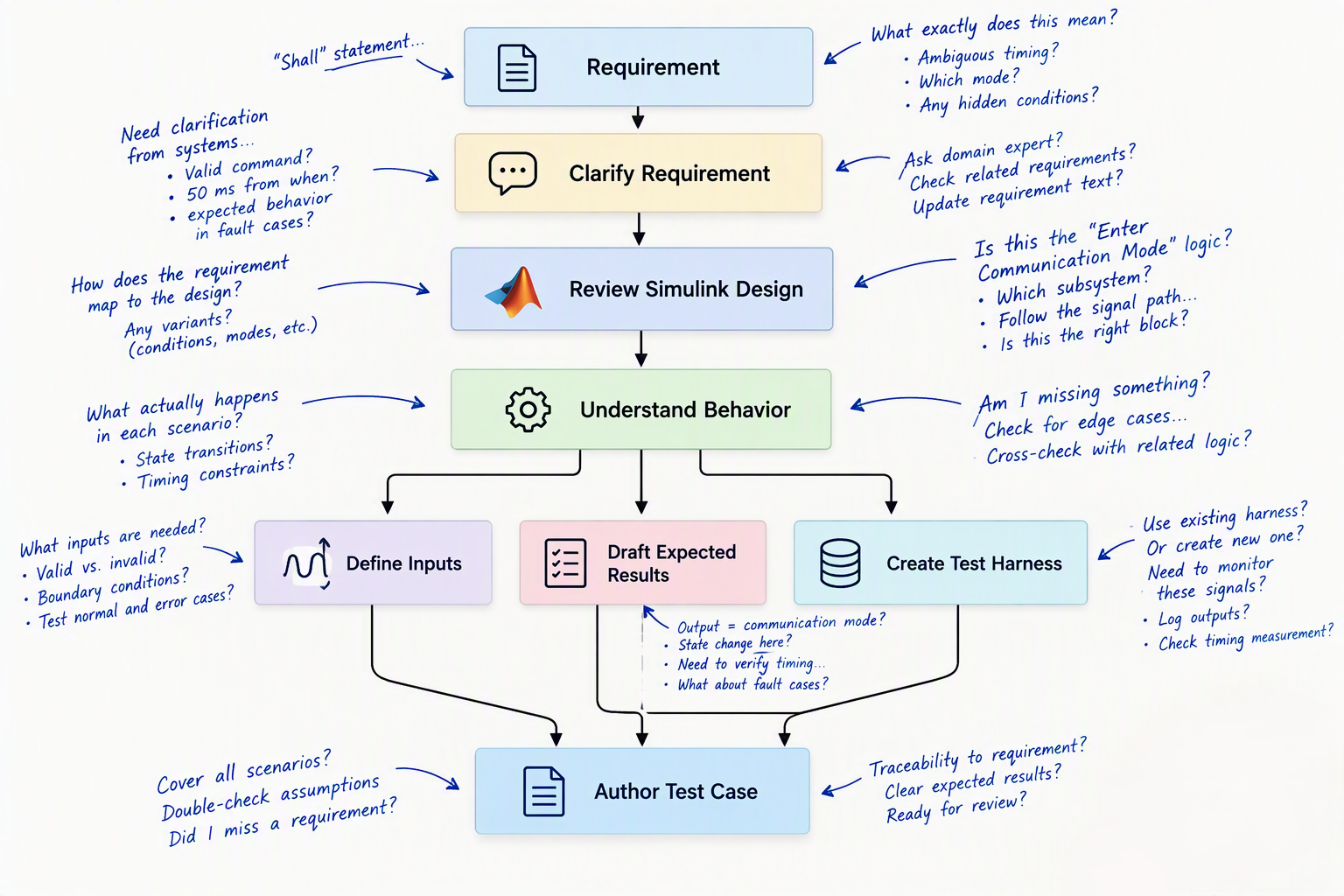
This reflects what day-to-day requirements work can feel like.
This is a time-consuming workflow, and I haven’t even talked about test coverage!
This is an ideal use case for Agentic AI because an Agent can help “automate the boring stuff” and allow me, an engineer with domain expertise, to focus on authoring the best requirements-based test case possible while minimizing the context-switching between a text-based requirement and a Simulink model.
To do this, I created a set of skill files in Codex which:
- Analyzes a text-based requirement which follows EARS (Easy Approach to Requirements Syntax), a popular, structured methodology for writing requirements
- Creates a human-reviewable “mapping” between “symbols” in the requirements text (e.g., “Enter Communications Mode”) and the Simulink model
- Generates a test harness for the Simulink model with a draft test sequence as a source
A Short Demo
Here is what it looks like in action.
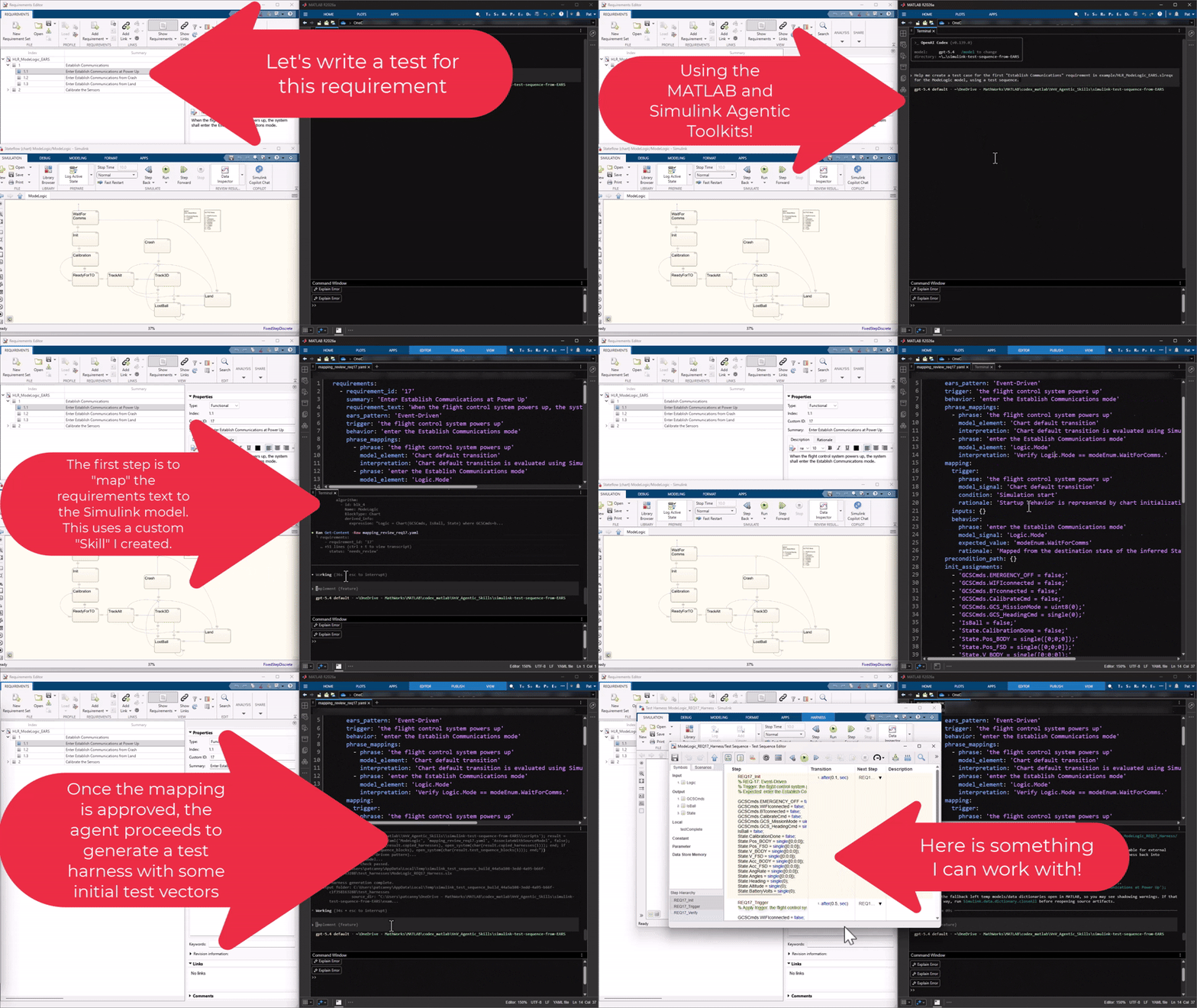
Demo of generating a draft Simulink Test sequence from requirements.
What’s Inside
A set of skill files used for MATLAB and Simulink workflows typically includes a SKILL.md and a suite of MATLAB utility functions (*.m files). The SKILL.md defines the specialized workflow, instructions, and guardrails the agent should apply to a particular class of tasks. The MATLAB utility functions are invoked by the agent to perform specific, repeatable computations.
For this use case, I created a SKILL.md and a suite of MATLAB utility functions specifically tailored for analyzing text-based requirements, creating a “mapping” between the text and the Simulink model under test, and for creating a test sequence within a test harness (available on GitHub).
The SKILL.md includes a brief name and a description:
---
name: simulink-test-sequence-from-EARS
description: Generate Simulink Test Sequences from EARS-compliant requirements. Use when creating test cases from EARS requirements, generating Test Sequence blocks from .slreqx files, or testing Simulink models against text-based requirements.
---
The SKILL.md also includes sections that describe:
- Goal: What the skill is intended to accomplish.
- Supported “EARS” patterns: Which requirement formats the skill can process.
- Inputs Required: What files and context the agent needs.
- Triggering phrases: Example prompts that invoke the skill.
- Setup: Dependencies and project configuration.
- Workflow: The steps the agent follows.
The workflow is broken up into two phases. I’ll use a simple example to explain.
Let’s say I have requirements for a quadcopter’s flight mode logic. These requirements follow the “EARS” syntax. Here’s a snippet of the “Establish Communications Mode” requirements from Requirements Toolbox:
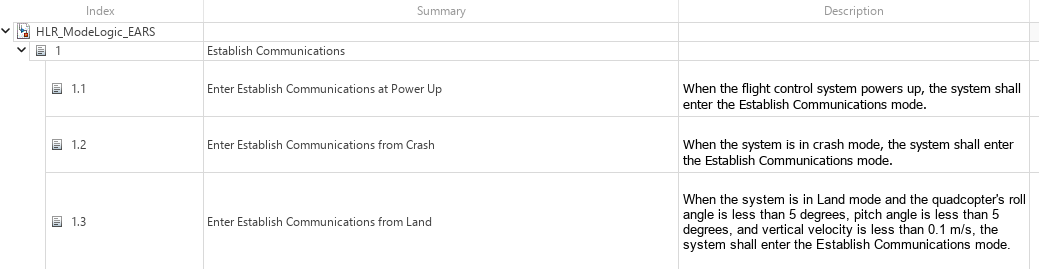
Requirements Toolbox snippet of the “Establish Communications Mode” requirements.
I want to write a set of requirements-based tests against this Stateflow state chart:
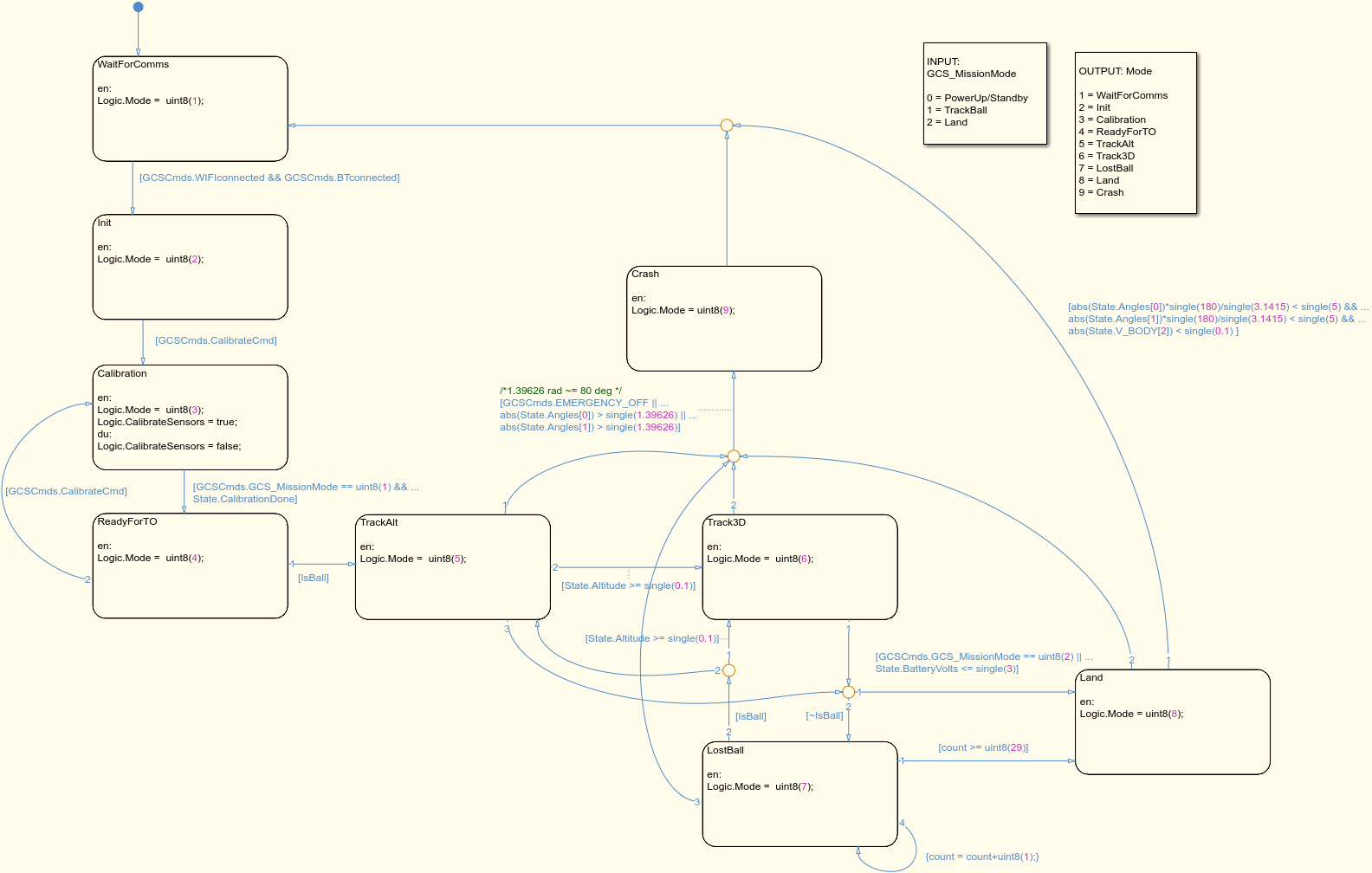
Stateflow state chart for the quadcopter flight mode logic.
A quick note on what I mean by “requirements-based tests.” This type of testing ensures the intent of the requirement (the expected behavior) is being met by the design. For this specific example, I want to ensure that the quadcopter is commanded to enter the correct mode based on the conditions.
Requirements-based testing differs from workflows like “robustness testing,” which is when I’d try to deliberately “break” the design by injecting faults, attacks, or anything along those lines which go beyond just the “if this, then that” type of test cases. Requirements-based tests are the “first line of defense” and can also help ensure you have the right set of requirements to begin with before diving into robustness testing.
OK, back to the workflow!
Phase 1 starts by reading requirements from a Requirements Set (*.slreqx file), then inspecting the Simulink model before creating a .yaml file containing the “mapping” of text elements for each requirement to an element in the Simulink model. For example, the term “Establish Communication” corresponds to the “WaitForComms” state in the Simulink model’s Stateflow state chart. I need to approve this “mapping” artifact (.yaml file) before the agent can proceed.
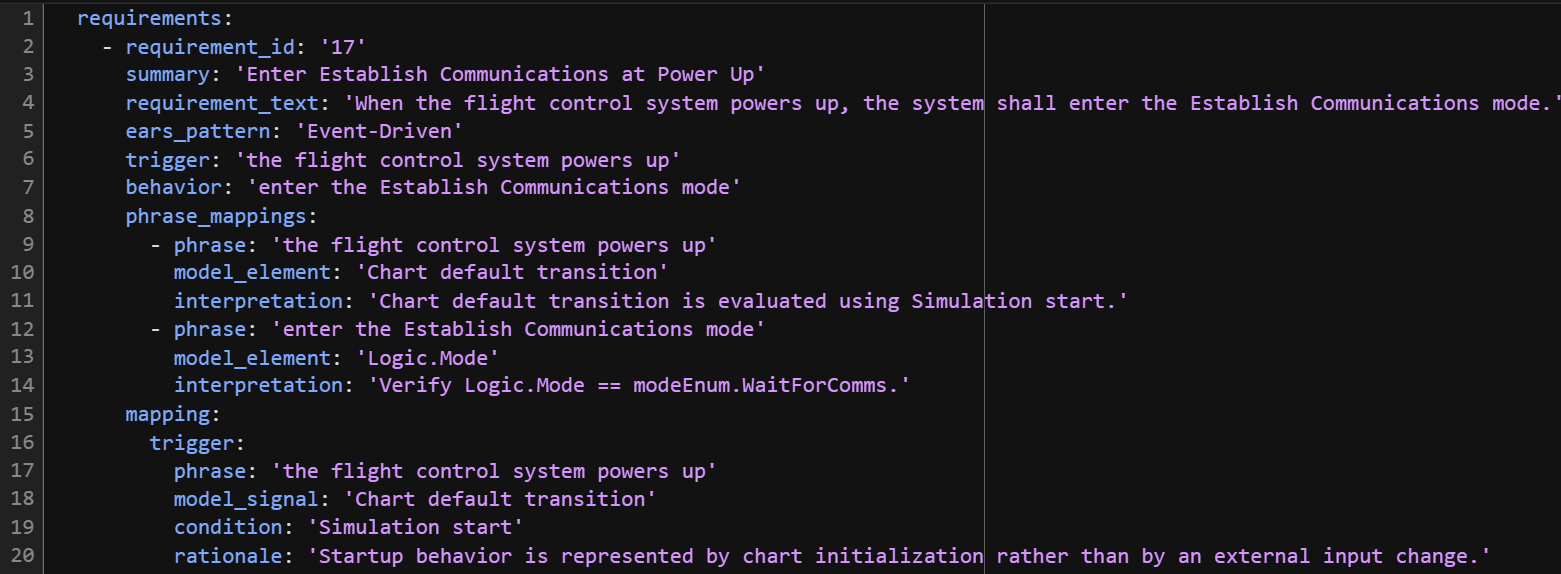
Mapping artifact connecting requirements text to Simulink model elements.
Phase 2 begins once I approve the “mapping” between the requirements text and the Simulink model elements. The mapping is used to generate a test harness using Simulink Test, which isolates the Simulink model for testing, as well as a corresponding draft Test Sequence, which is a stepwise test source. The Test Sequence is then opened for me to inspect and modify.
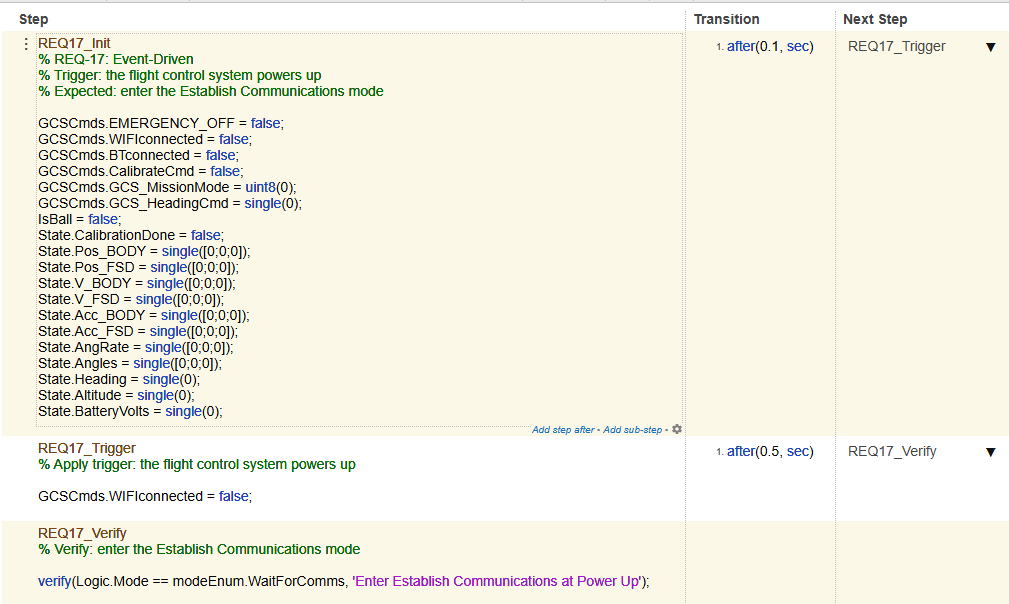
Generated Simulink Test harness and draft Test Sequence.
Why This Matters
AI agents, like any tool, have their strengths and weaknesses. One of their strengths is their ability to translate between different levels of abstraction, such as a text-based requirement and a Simulink model. But AI agents are not trained in every engineering domain, which is where you come in. Skill files allow you to leverage the strengths of AI agents while validating the agent’s outputs along the way through human-readable artifacts.
Try It Yourself
You will need MATLAB R2023a or newer with Simulink, Stateflow, Requirements Toolbox, and Simulink Test installed. You will also need the skill files (available here) and Simulink Agentic Toolkit installed. Simulink Agentic Toolkit includes MATLAB MCP Server, which is required for Agentic AI workflows with Simulink. I tested the skill files using Codex, but the setup should be straightforward to port to other coding agents.
Drop the skill folder into your project’s /skills/ directory, start the agent, and invoke the Skill using a phrase like “create test cases for the requirements in mode_logic.slreqx”.
We’re always looking for insights into your challenges in testing your Simulink designs, so please leave a comment below!
- 범주:
- Deep Learning


댓글
댓글을 남기려면 링크 를 클릭하여 MathWorks 계정에 로그인하거나 계정을 새로 만드십시오.