
What’s New in R2026b?

MATLAB R2026b is now available. Here are my favorite enhancements.
Published Referenced Models
In R2026b, you will notice a new Publish button in the Simulink toolstrip:
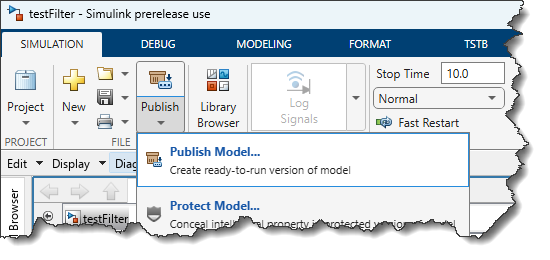
When publishing a model, a new SLXP file is created. This file contains a precompiled, ready-to-run version of the model. As a result, models that reference a published model can initialize quickly by skipping rebuild checks and using the precompiled version in the SLXP file.
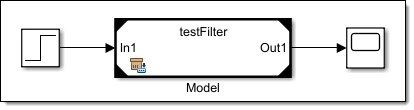
A Model block that references a published model displays a new badge:
MATLAB Project definition file
This enhancement is not specific to Simulink, but I expect many Simulink users to like it.
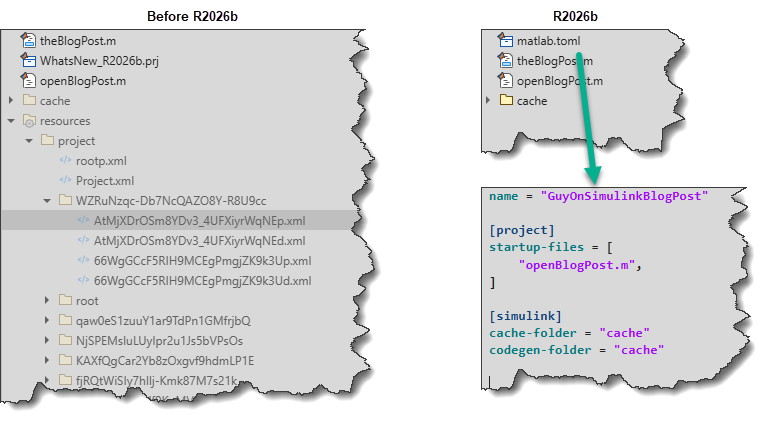
Before R2026b, MATLAB projects stored project definition information in many XML files in a resources folder. This made the metadata difficult to inspect and added noise to source-control diffs. In R2026b, you can instead store this information in a single, human-readable matlab.toml file at the top level of the project.
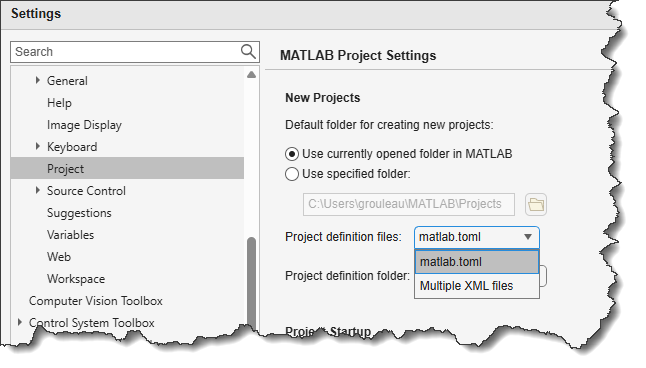
This is controlled in the MATLAB settings:
If you want to convert an existing project, you can execute:
matlab.project.convertDefinitionFiles(pwd,matlab.project.DefinitionFiles.Toml)
Save Simulink Data Dictionaries in JSON format
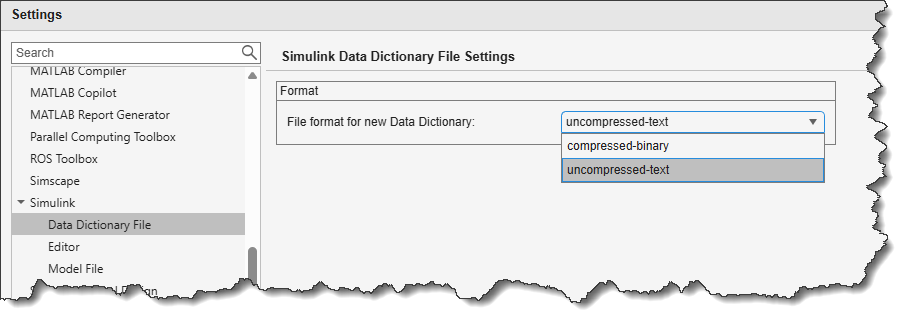
Before R2026b, Simulink Data Dictionary files were saved in a binary format. In R2026b, we are adding an option to save data dictionaries as an uncompressed text file in a JSON format. Many users may not notice a difference in their day-to-day workflows, but for teams using Git, this option should help keep repository sizes manageable and simplify diff workflows.
The data dictionary format is also controlled from the MATLAB settings:
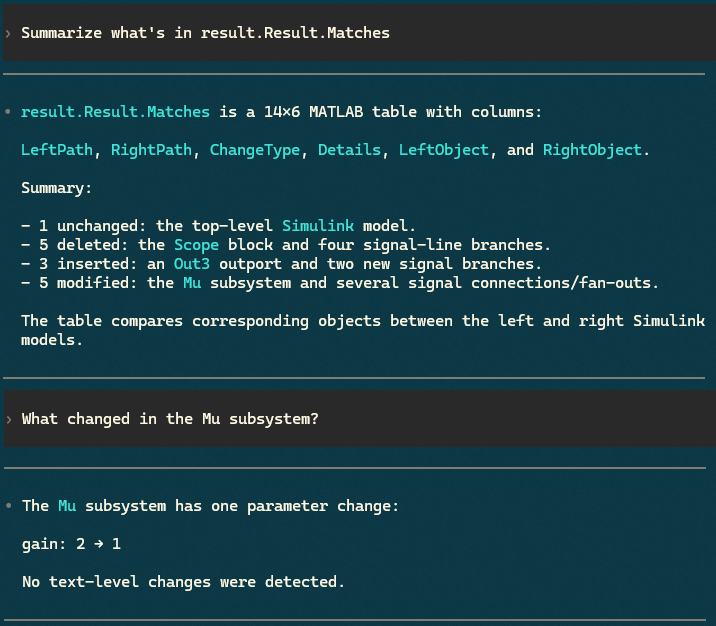
Simulink comparison results available at the MATLAB Command Prompt
result = visdiff('vdp1.slx','vdp2.slx');
result.Result.Matches
This is especially useful when using a coding agent connected to MATLAB through the MCP server. Here is an example where I asked Codex CLI to summarize the above changes:
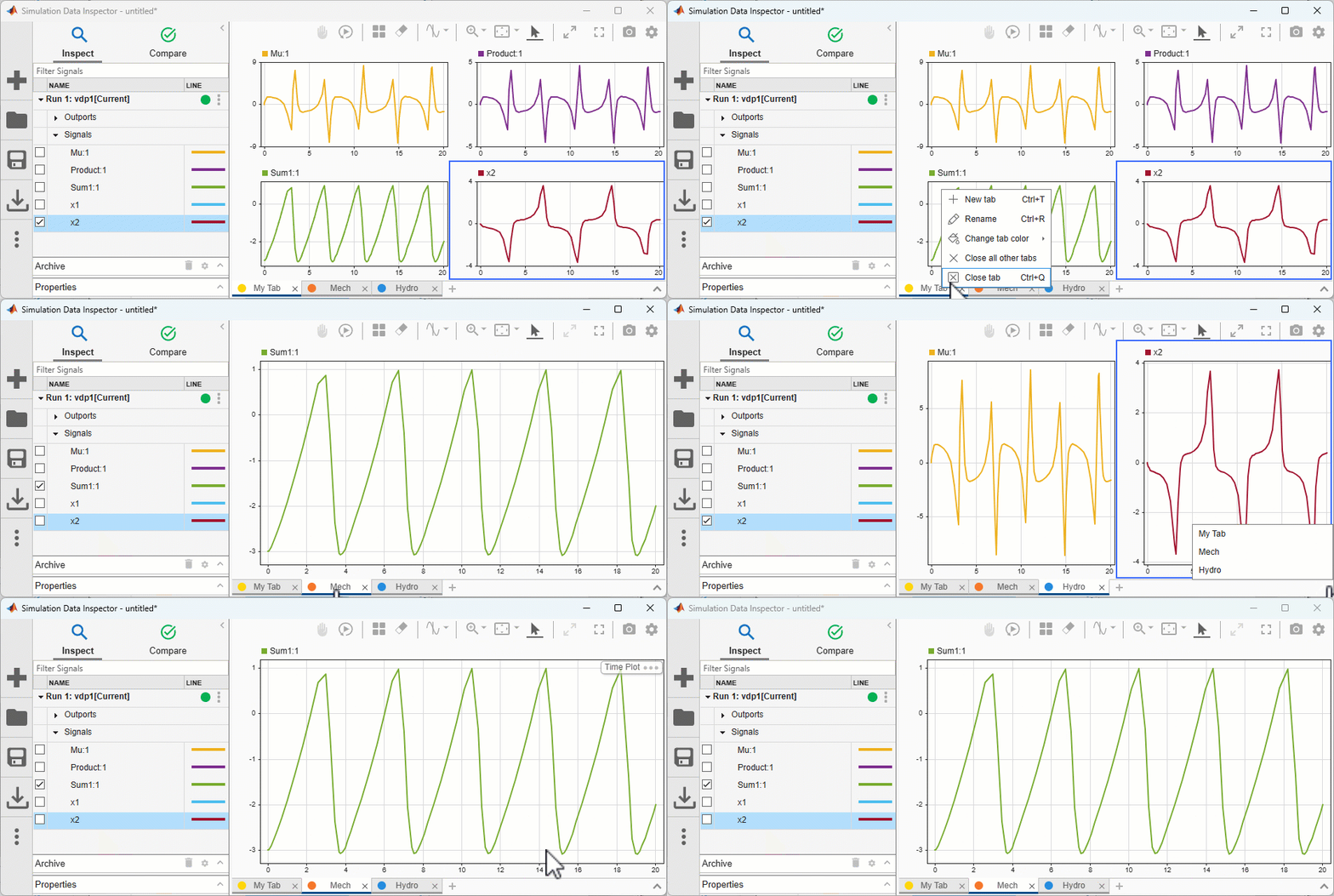
Tabs in Simulation Data Inspector
The Simulation Data Inspector now has tabs, making it easier to organize and view large number of signals.
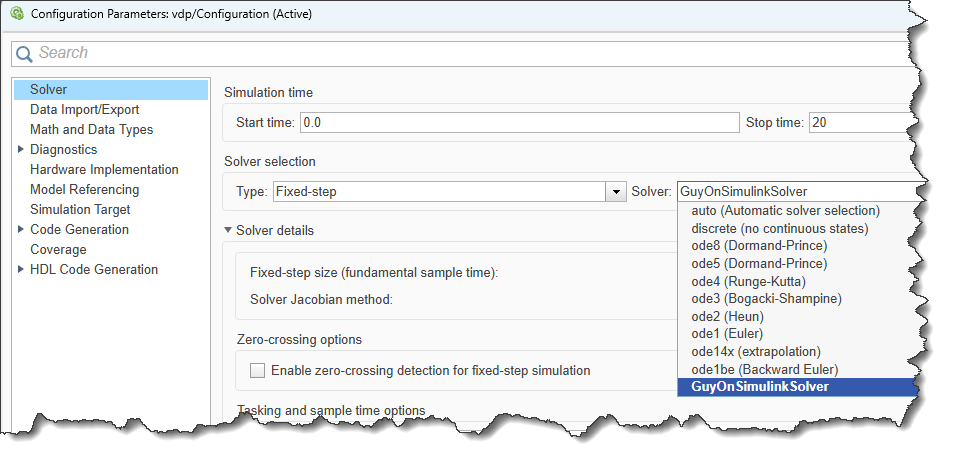
Custom Simulink Solvers
It is now possible to write your own solver for Simulink models. This can potentially improve speed and/or accuracy when dealing with specialized sets of equations that could be solved more efficiently using special solver algorithms not included with Simulink.
See this example: Implement Stabilized Variable-Step Plugin Solver Using Chebyshev Polynomials - MATLAB & Simulink
This feature is also useful if you want to impress your friends and colleagues by having your name appear in the list of solvers available in Simulink!
Now it's your turn
Go through the Simulink release notes and let us know your favorite enhancements and which topics you would like to see covered in more detail on this blog.
- 범주:
- What's new?


댓글
댓글을 남기려면 링크 를 클릭하여 MathWorks 계정에 로그인하거나 계정을 새로 만드십시오.