
Developing a Mass Spring Damper App using MVC Architecture and Simulink
 |
Guest Writers
Ken Deeley
Ken is an application engineer in Cambridge, UK, supporting MathWorks users with their technical computing projects. Ken joined the MathWorks customer training team in 2011 after research work in mathematics with applications to motion planning for autonomous guided vehicle (AGV) robotics. Ken specializes in software development, machine learning, and financial applications, with a particular focus on graphics and app development. He enjoys training MathWorks users on best practices, working with customers on consulting projects, and capturing common customer workflows and requirements to inform future MathWorks development activities.
|
 |
Maria Bedran
Maria joined MathWorks' Cambridge office, in 2022,where she moved after her studies in Lyon, France. She started her journey in the Engineering Development Group, where she first got exposed to Advanced App development in MATLAB. She then joined the customer training team in 2025. Maria now specializes in Control System Design in Simulink. Outside of work, Maria enjoys dancing, hiking and playing the piano.
|
Table of Contents
Overview
MVC for an App Using a Simulink Model
Autogenerated Apps
Hand-Coded Modular Apps
Integrating a Simulation Object in the App
Overview
Working with Simulation Objects
Binding UI Components to Simulation Signals and Variables
Overview
Views
Controllers
Events and Listeners
Simulation Status
Model Variables
Web App Deployment
Summary
Overview
In this article we'll show how to deploy a simple web app for running a Simulink model. The app supports updating the model parameters dynamically as the simulation is running. This process represents a workflow for sharing your Simulink model with others, preserving the IP contained in your model, but simultaneously allowing your end users to interact with the model by modifying its tunable parameters during run time.
We'll be discussing the following products and concepts:
- Simulink Compiler
- Web apps
- The model-view-controller software architecture pattern for app development
- The binding mechanism for connecting app components to simulation signals and variables
The Simulink model we'll work with in this article is a modified version of the mass-spring-damper example from the Simulink Compiler documentation.
open_system("MassSpringDamperModel");
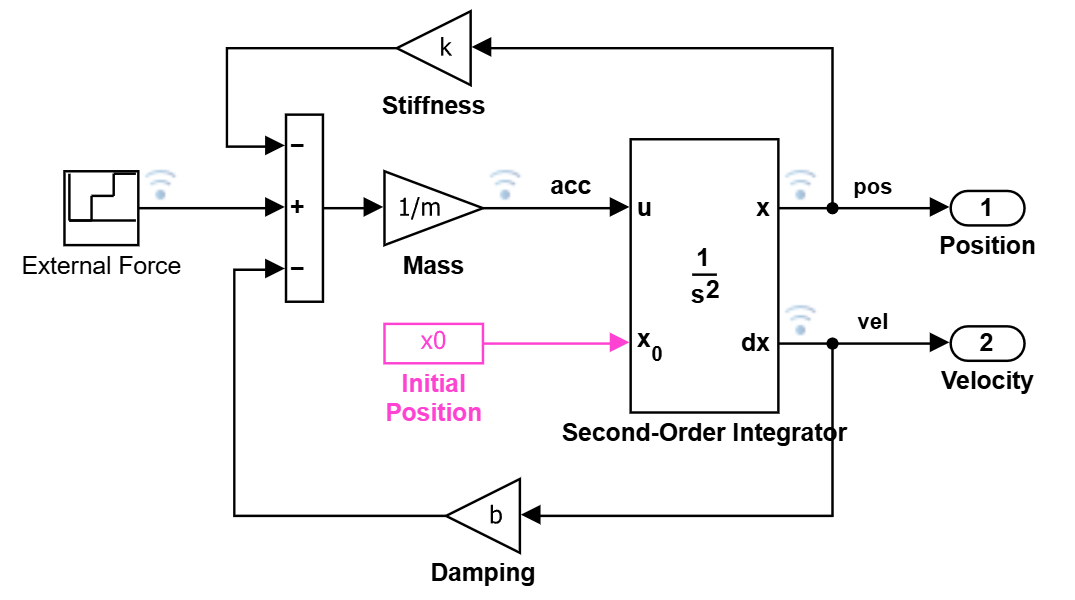
This article builds on the ideas introduced by Robert Philbrick in a previous article Build Simulink Apps with App Designer. Robert's article covers the Simulink UI components introduced in R2024a and the process for developing an App Designer app wrapping the Simulink model using these components. Material for this article can be accessed in GitHub.
MVC for an App Using a Simulink Model
Autogenerated Apps
To deploy your Simulink model as a web app, it must be compatible with rapid accelerator mode. Assuming this is the case, Simulink Compiler has a useful feature for automatically generating a frontend:
simulink.compiler.genapp("MassSpringDamperModel.slx")
This command automatically generates an App Designer app that you can then deploy as a web app. The resulting app visualizes the output signals from the model, and contains controls to allow you to interact with the model inputs, parameters, and initial states.
We can choose from a list of predefined templates for generating the App Designer app. This approach is extremely convenient and requires no expertise in app design to deploy the web app. On the other hand, the app produced by this approach is monolithic and exists in a single App Designer file, making future collaborative development and testing trickier. Further, the app would need to be regenerated if you decide to make any modifications to your Simulink model.
Hand-Coded Modular Apps
In some cases, you will want to include additional features in the web app, such as integrating with external MATLAB code or customizing the layout or appearance of the dashboard. In these cases, the automatically generated app from Simulink Compiler is a good starting point for further development. However, to avoid manually copying and pasting the code for your additional features each time you regenerate the app, we recommend taking a modular approach to application development which separates the backend (model) from the frontend (how the model is visualized and modified). A modular approach is also more suitable for larger or more complex applications.
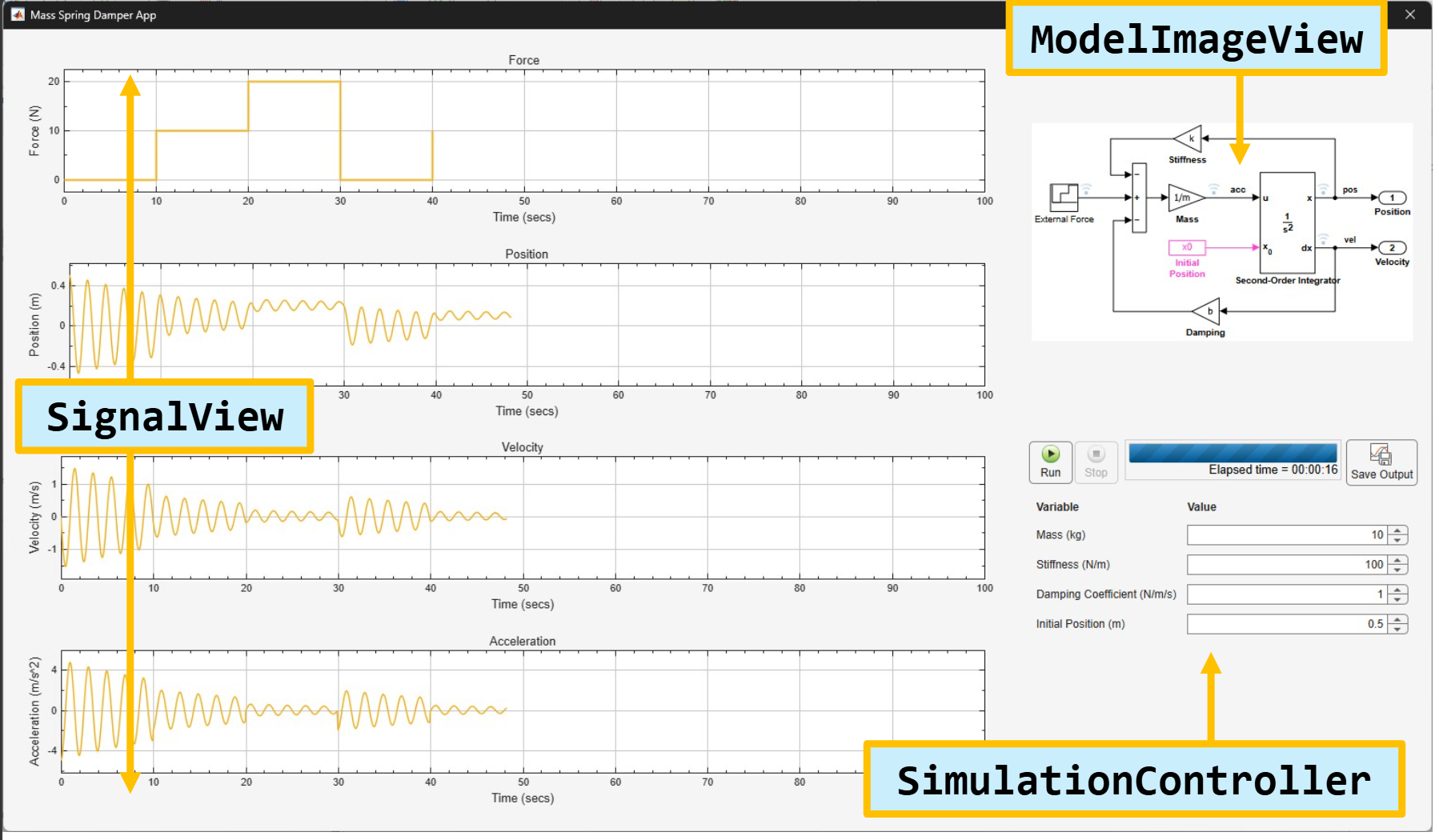
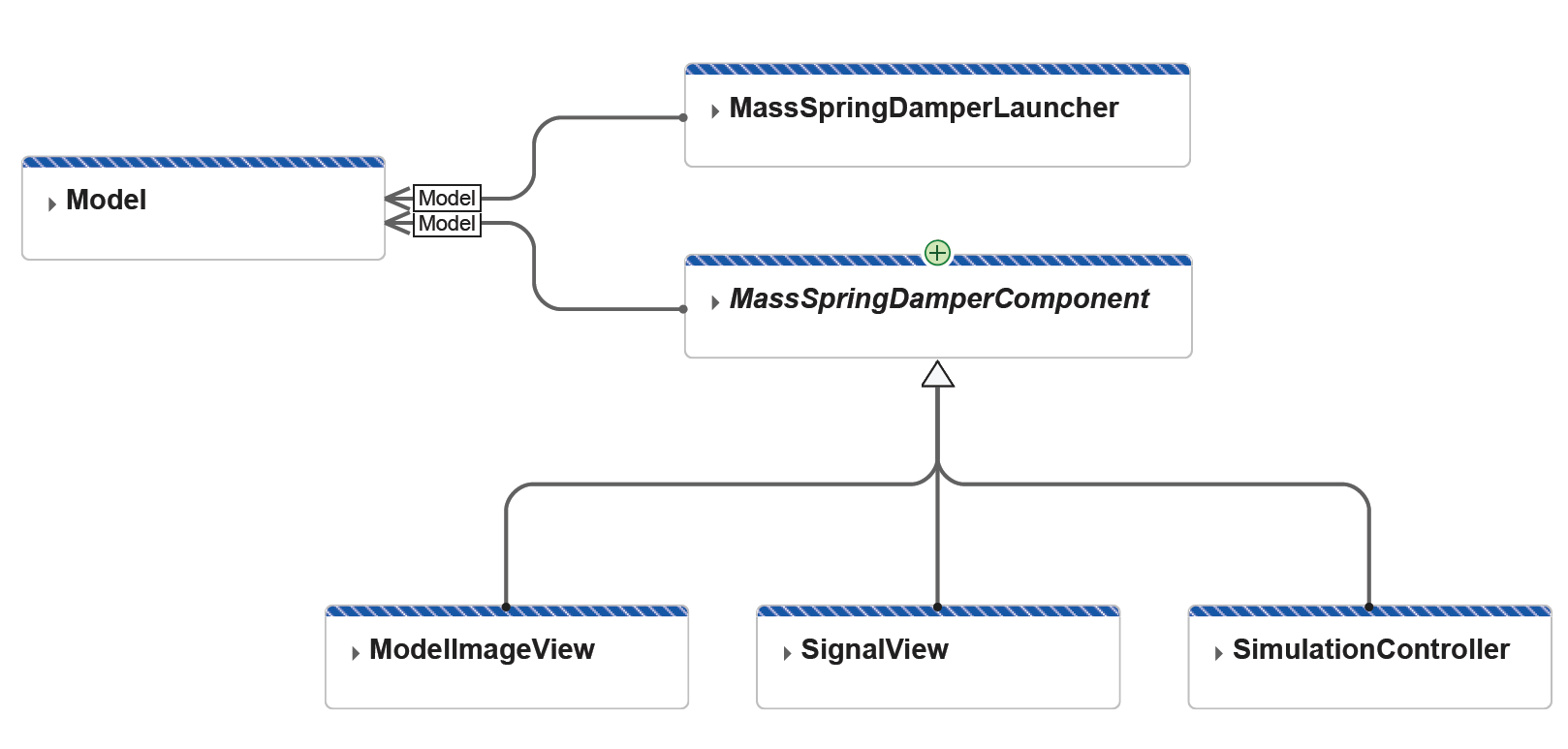
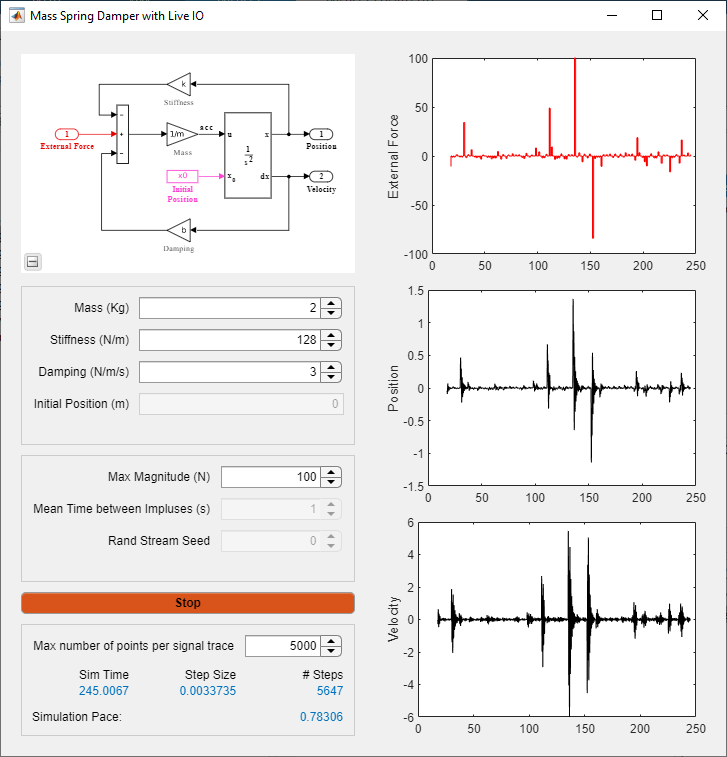
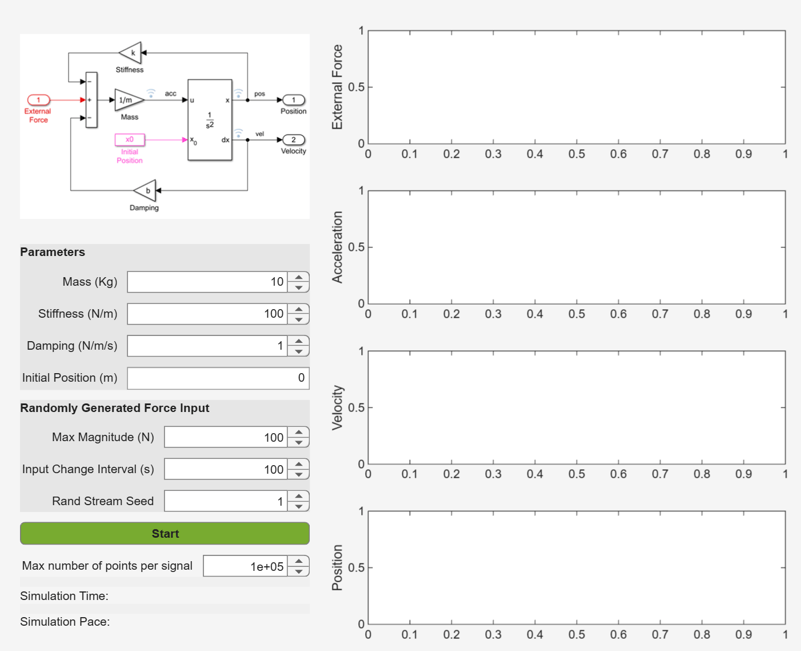
Specifically, in this article we'll look at how to develop a MATLAB app for interacting with the Simulink model using the MVC framework. Our app's layout and architecture are shown below.
Let's start by looking at the app's backend code - we'll need to write a model class in MATLAB that is backed by the Simulink model.
Integrating a Simulation Object in the App
Overview
- The mass m (kg)
- The spring stiffness k (N/m)
- The damping coefficient b (N/m/s)
- The initial position $ x_0 $ (m).
The mass, stiffness, and damping coefficient can all be changed dynamically as the simulation is running, whereas the initial position can only be changed between simulation runs. The simulation outputs are the position, velocity, and acceleration of the mass over time. The external force on the system is specified using a repeating sequence stair block with repeating values 0, 10, and 20 with a sample time of 10s. As the force and simulation outputs change over time, we visualize the signals in the app using time scopes.
Working with Simulation Objects
In the MVC framework, the Model class is responsible for managing the Simulink model, providing access to the simulation data so that views can visualize it, and providing mechanisms for interacting with the Simulink model so that controllers can perform operations.
To be able to change the model's inputs at run time and update the simulation automatically, we create a simulink.Simulation object as a property of the Model class:
obj.Simulation = simulation(obj.SimulinkModelName);
The simulink.Simulation object allows you to modify simulation parameters at run time without changing the underlying model. It is also deployable and supports the binding mechanism that we'll discuss shortly.
Within the Model class, we use the simulink.Simulation object in conjunction with the setVariable function to update the model parameters:
setVariable(obj.Simulation, "m", obj.Mass)
We equip the Model class with an API for changing the Simulink model parameters via public properties:
classdef Model < handle
properties (SetObservable)
% Spring stiffness - k (N/m).
Stiffness(1, 1) double {mustBePositive, mustBeFinite} = 100
% Mass - m (kg).
Mass(1, 1) double {mustBePositive, mustBeFinite} = 10
% Damping coefficient - b (N/m/s).
DampingCoefficient(1, 1) double {mustBePositive, mustBeFinite} = 1
% Initial position/displacement - x0 (m).
InitialPosition(1, 1) double ...
{mustBeNonnegative, mustBeFinite} = 0.5
end % properties (SetObservable)
end % classdef
The simulation.Simulation object provides non-blocking methods start and stop for controlling the simulation. Our model class provides simple public wrapper methods which can be invoked by application controllers.
function startSimulation(obj)
%STARTSIMULATION Start the Simulink simulation.
start(obj.Simulation)
end % startSimulation
function varargout = stopSimulation(obj)
%STOPSIMULATION Stop the Simulink simulation.
nargoutchk(0, 1)
simOut = stop(obj.Simulation);
if nargout == 1
varargout{1} = simOut;
end % if
end % stopSimulation
Binding UI Components to Simulation Signals and Variables
Overview
Starting in R2024a, a binding mechanism between UI components and Simulink was introduced. With respect to view classes in the MVC framework, the bind function allows you to link logged signals associated with a simulink.Simulation object to a time scope for dynamic plotting. With respect to controller classes in MVC, we use bind to connect the value of a UI control component (such as a spinner) to a model variable.
Views
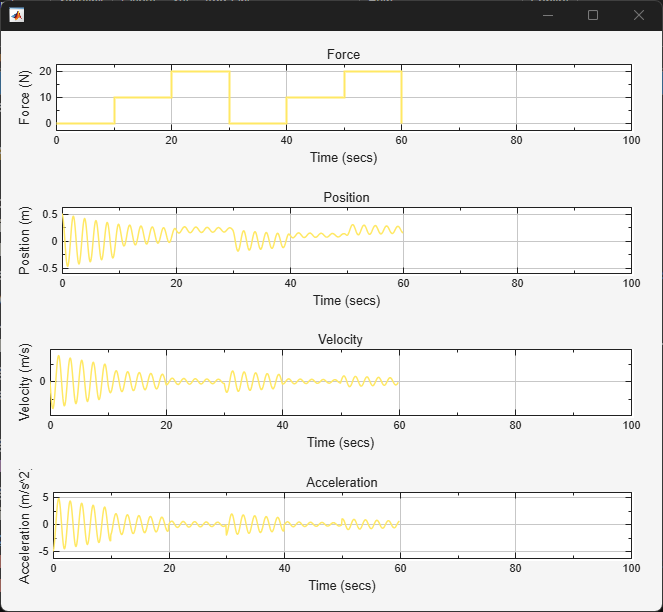
We create a view class SignalView to visualize the force input and position, velocity, and acceleration model outputs over time. This class maintains and updates four time scopes as the simulation progresses. This is achieved by binding each time scope to the corresponding logged signal in the model. For example, for the force input, the binding is constructed as follows:
obj.Bindings(1) = bind(obj.Model.Simulation.LoggedSignals, ...
"MassSpringDamperModel/External Force:1", ...
obj.SignalTimeScope(1));
Controllers
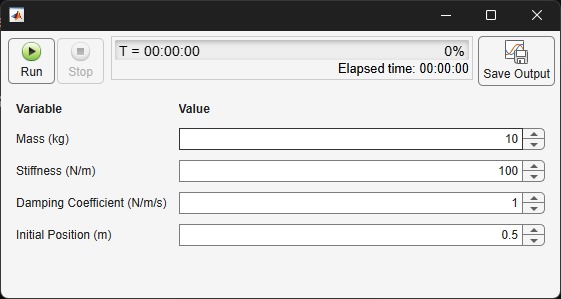
We create a controller class SimulationController to start/stop the simulation, export the simulation data, and modify the model variables. This class maintains four spinner controls to allow the end user to adjust the values of the model variables. To keep the spinner controls synchronized with the model variables, we create bindings as follows:
obj.Bindings(1) = bind(obj.Spinners(1), "Value", ...
obj.Model.Simulation.TunableVariables, "m:MassSpringDamperModel");
This binds the Value property of the spinner with the variable m in the MassSpringDamperModel. We also use the following UI components available with Simulink:
- uisimcontrols - creates the simulation controls (start/stop)
- uisimprogress - displays the simulation progress bar
- uisimdatabutton - creates the button to save the simulation data
Each of these controls is connected to the Simulation object maintained by the Model class.
obj.StartStopControls = uisimcontrols("Simulation", obj.Model.Simulation);
Events and Listeners
Events and listeners are the key features of MATLAB's class/object system that enable separation of concerns in the MVC architecture. The model and view-controller classes are separate. They each have a specific responsibility, and the model needs to communicate changes to the views and controllers.
When the model modifies the data that it stores, it notifies an event. The listeners maintained by the view and controller classes will then invoke their callback function when the event is received.
The binding mechanism described above encapsulates some of the required communication between the model and frontend classes. However, to achieve a fully functional system we need to respond to the following situations:
- If the simulation is running, we should disable the spinner for the initial position. This variable can only be changed between simulation runs, and not during an active simulation.
- If another controller changes one of the model variables, the SimulationController should display the updated parameter values in its spinner controls.
Simulation Status
The Model class maintains the simulink.Simulation object, which is equipped with the SimulationStatusChanged event. The Simulation property of the Model is publicly accessible, so in the SimulationController class we can create the required listener as follows:
obj.SimulationStatusListener = listener(obj.Model.Simulation, ...
"SimulationStatusChanged", @obj.onSimulationStatusChanged);
The listener callback updates the initial position spinner according to the simulation status.
function onSimulationStatusChanged(obj, ~, ~)
%ONSIMULATIONSTATUSCHANGED Respond to changes in the
%simulation's status.
obj.Spinners(4).Enable = obj.Model.Simulation.Status == "inactive";
end % onSimulationStatusChanged
Model Variables
The Model class also maintains the values of the mass, stiffness, damping coefficient, and initial position. To allow frontend components to listen to changes in these parameter values, we provide these properties with the SetObservable attribute.
classdef Model < handle
properties (SetObservable)
% Spring stiffness - k (N/m).
Stiffness(1, 1) double {mustBePositive, mustBeFinite} = 100
...
end % properties (SetObservable)
end % classdef
In the SimulationController class, we can then create the property listeners as follows:
obj.ParameterListeners(1) = listener(obj.Model, "Mass", "PostSet", @obj.onMassChanged);
The listener callbacks simply update the spinners with the new parameter values:
function onMassChanged(obj, ~, ~)
%ONMASSCHANGED Respond to changes in the model's Mass property.
obj.Spinners(1).Value = obj.Model.Mass;
end % onMassChanged
Using the events and listeners as described ensures that communication between the app's Model class and its frontend components is correctly synchronized.
Web App Deployment
To bring everything together, we have an application launcher class MassSpringDamperLauncher that instantiates the model and creates the views and controllers. To be deployable as a web app, we also need to create an App Designer app to create the app's main figure window (app.Figure) and invoke our application launcher. We do this by defining a startup function in App Designer that simply calls our application launcher by passing it the figure defined in App Designer.
% Code that executes after component creation
function onStartup(app)
MassSpringDamperLauncher(app.Figure);
end
The app can then be compiled and deployed as a web app using Simulink Compiler. We've automated this process by using an automated build containing a task that packages the web app using compiler.build.WebAppArchiveOptions and compiler.build.webAppArchive.
function compileTask(c)
% Compile the web application.
projectRoot = c.Plan.RootFolder;
appFile = fullfile(projectRoot, "tbx", tbxname(), "apps", "MassSpringDamperApp.mlapp");
simModel = fullfile(projectRoot, "tbx", tbxname(), "models", "MassSpringDamperModel.slx");
opts = compiler.build.WebAppArchiveOptions(appFile);
opts.AdditionalFiles = simModel;
compiler.build.webAppArchive(opts);
end % compileTask
Summary
In this post we've seen how to integrate the simulink.Simulation object in a Model class that wraps the Simulink model. This class also provides an interface for the frontend application components to visualize the simulation output data and modify simulation parameters during runtime. In the frontend components, we've used the Simulink UI controls to simplify the development of the user interface.
Since we've used the MVC framework to develop the application, the resulting app is modular, maintainable, testable, scales robustly as additional features are added over time, and facilitates parallel development across a wider team.



댓글
댓글을 남기려면 링크 를 클릭하여 MathWorks 계정에 로그인하거나 계정을 새로 만드십시오.