
Less Typing, More Creating: MATLAB Copilot Comes to Your Android Phone
 |
Guest Co-author: Tharikaa Ramesh Kumar, PhD Tharikaa is the Product Manager for MATLAB Mobile. She holds a PhD in Aerospace Engineering from Auburn University, where she taught dynamics and systems courses using MATLAB as a graduate instructor. |
I'm excited to share some news that I think will change the way many of you use MATLAB on the go. We've brought MATLAB Copilot to MATLAB Mobile, and it's available for now on Android with two features: Copilot Chat and Explain Code. If you've ever been on a commute, in a lecture hall, or out in the field and wished you could quickly prototype an idea in MATLAB, you know the challenge. You pull out your phone, open MATLAB Mobile, and start typing on a small touch keyboard. It works, but it's not exactly the same as sitting at your desk. That's where Copilot comes in.
Why an AI Assistant on Your Phone Changes Things
Let's be honest: coding on a phone has its limitations. The screen is smaller, the keyboard is touch-based, and switching between your code and documentation is a juggling act. MATLAB Copilot reduces that friction significantly.
With Copilot Chat, you describe what you want in natural language and get MATLAB code you can run right away. Instead of typing out every function call and argument, you tell Copilot what you need and it writes the code for you. Less typing, more creating!
Here is a bonus: your phone keyboard already has a microphone button for speech-to-text. Tap it, speak your Copilot prompt, and the code appears. You do not even need to type your request. Between voice input and AI-generated code, this is as close to a low-code experience as it gets on a phone. And when you do type, your phone keyboard's predictive text and autocomplete suggestions help you write prompts faster than you would on a desktop keyboard.
For the many students and educators who use MATLAB Mobile every day, this is especially valuable. Your phone is the one device that's always with you and always charged. It's more personal and more accessible than a laptop. With Copilot on that same device, you get answers and explanations on the spot, right where you are, instead of waiting to get back to a computer.
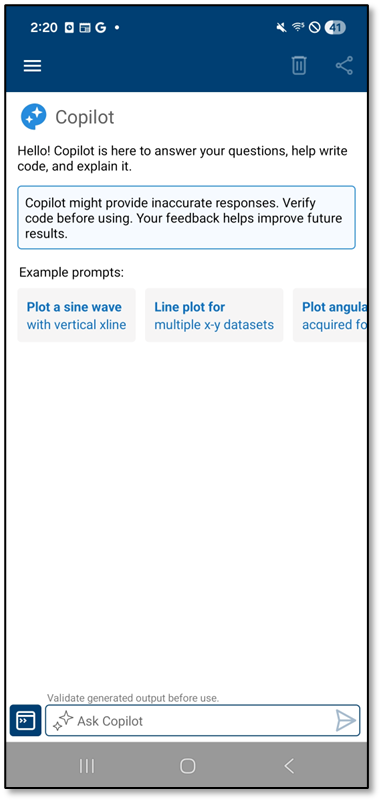
Copilot Chat
Copilot Chat is a conversational AI assistant built right into MATLAB Mobile. You can access it from the Command Window, the Editor, or the app menu. Ask a question, describe the code you need, or request an explanation. Copilot responds with answers grounded in MathWorks documentation.
Here is where it really shines on mobile. Say you've just collected accelerometer data from your phone's sensors using MATLAB Mobile's built-in sensor support. You want to plot the x, y, and z axes on a single figure, but you can't remember the exact syntax. Open Copilot Chat and describe what you're looking for. Copilot generates a ready-to-run snippet that handles the plot calls, axis labels, and legend for you. Tap to insert the code, hit Run, and you're looking at your data.
It works just as well for broader questions. If you're wondering how to apply a low-pass filter to audio you recorded on your phone, ask Copilot. Need a quick refresher on how fft works? Ask Copilot. It handles everything from basic syntax help to signal processing workflows, and every response draws from official MathWorks documentation so the code follows best practices.
As with all things GenAI, your results will depend on your specific question and context.
Explain Code
The second feature we're bringing to MATLAB Mobile is Explain Code. Select any block of code in the Editor, tap Explain Code, and get a plain-language overview of what the code does along with a line-by-line walkthrough in the Chat panel.
On a small screen, dense code can be tough to read. Explain Code helps you make sense of it quickly. Say you open a shared script from MATLAB Drive, maybe a classmate's assignment or an instructor's demo file, and encounter a block of code using fft, windowing functions, and inverse transforms. Instead of switching apps to search the documentation, select the code and tap Explain Code. Copilot gives you an overview of the block's purpose and annotates each line so you understand not just what the code does, but how.
This is incredibly useful for learning. Students can review code before an exam and actually understand each line. TAs can quickly parse student submissions between classes. Professors can pull up a demo script and get a refresher before a lecture. All from their phone.
When Will You Use This?
The student on the bus. You're reviewing the signal processing examples your professor shared on MATLAB Drive. You select the Fourier transform code block, tap Explain Code, and get a line-by-line breakdown. By the time you arrive, you understand exactly how the frequency domain conversion works.
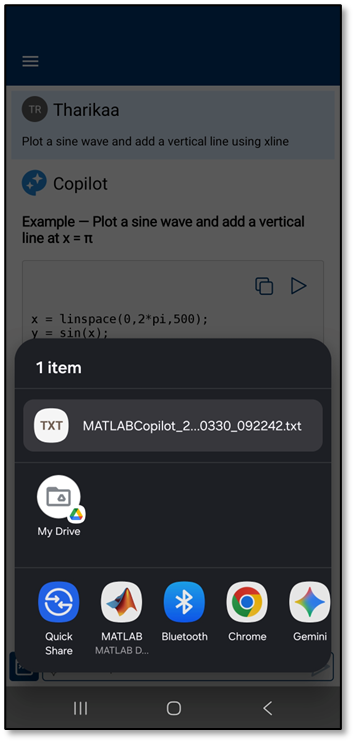
The professor between classes. A student messages you about an error in their script. You open MATLAB Mobile, describe the issue to Copilot Chat, and get a suggested fix. Share the chat history directly through your phone's messaging apps, or save it as a .txt file to MATLAB Drive for later reference. No laptop needed.
The engineer in the field. You're collecting magnetometer data with MATLAB Mobile's sensor support and want to visualize the magnetic field direction. You ask Copilot Chat how to create the visualization. It generates the code, you run it on the spot, and you see results immediately.
And here is the thing: none of this work is stuck on your phone. Every script you create with Copilot syncs to MATLAB Drive, so you can start prototyping on the bus and pick up right where you left off on your desktop. Copilot on your phone is not a separate experience. It is part of the same workflow.
We hear from students and researchers all the time that their phone is always with them, even when their laptop isn't. Now, MATLAB Copilot is right there too.
How to Get Started
Getting started takes just a few steps:
- Install or update MATLAB Mobile from the Google Play (Android). The app is free to download.
- Check your MATLAB Copilot license. You'll need a MATLAB Copilot license to use Copilot Chat and Explain Code. Many university campus-wide licenses already include MATLAB Copilot. Check with your institution's MATLAB administrator. Individual and team licenses that include Copilot work as well.
- Start using it. Open MATLAB Mobile and access Copilot Chat from the Command Window, the Editor, or the app menu. To try Explain Code, select code in the Editor and choose "Explain Code." That's it.
For more details, visit the MATLAB Copilot documentation and the MATLAB Mobile product page.
Try It Out
We've been looking forward to getting this into your hands. Update MATLAB Mobile, open Copilot Chat, and ask your first question. I think you'll be surprised how quickly it becomes part of your workflow.
We'd love to hear how you're using MATLAB Copilot on Mobile. Drop a comment below or share your experience with #MATLABMobile.
- Category:
- Agentic AI,
- Generative AI,
- MATLAB Online


See Also
-
A Copilot for Simulink!
Blogs
-

Learning MATLAB in 2025
Blogs
-
-
-
Comments
To leave a comment, please click here to sign in to your MathWorks Account or create a new one.