
Enhanced output in the MATLAB Command Window in R2026b
When using MATLAB, I have always been most at home in the command window. I'm kind of old-school that way which is why the release of MATLAB's Terminal made me so excited. Give me the command window, with the editor alongside it, and I shall move the world!
As such, I was very happy when some of my fellow MathWorkers reached out to me and said 'The command window is evolving, go check it out.' So I did!
Truncated Matrix Outputs
You know that feeling when you create an enormous matrix at the command line and forget to suppress output with a semicolon?
a = rand(10000)
Millions of numbers scrolling by as you hammer CTRL+C to make it stop. Well, that simply doesn't happen any more.
To demonstrate, I resized my command window so that it could only display a small number of rows and columns and created an enormous matrix.
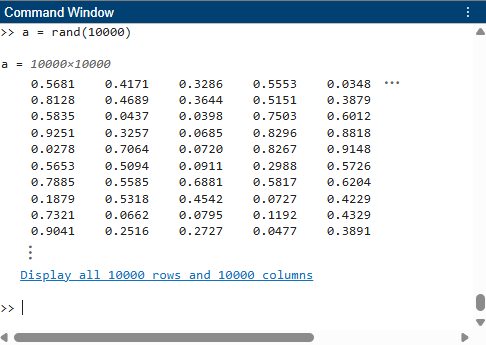
As you can see, MATLAB displayed only the part of the matrix that fit into the window and then gave me the option to show everything. Click on the blue, underlined link and you'll get all of the numbers scrolling by; just like the old days.
If you right click anywhere on the output you can also choose to copy it to the operating system clipboard or open in the MATLAB variables editor which is often far better than letting all of the numbers scroll by.
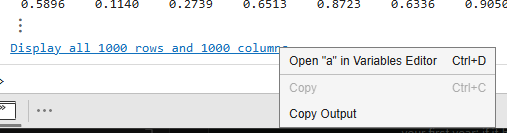
The number of rows and columns shown before truncation depends on the size of your command window so it always looks 'just right'. Overall this is a small quality of life enhancement that has been a source of joy for many of us who use MATLAB daily.
Markdown in the command window
The phrase 'This is a game-changer' is over used in the world of technical computing. Every new feature we want to discuss is a 'game-changer' and while this is technically true, some games are more important than others.
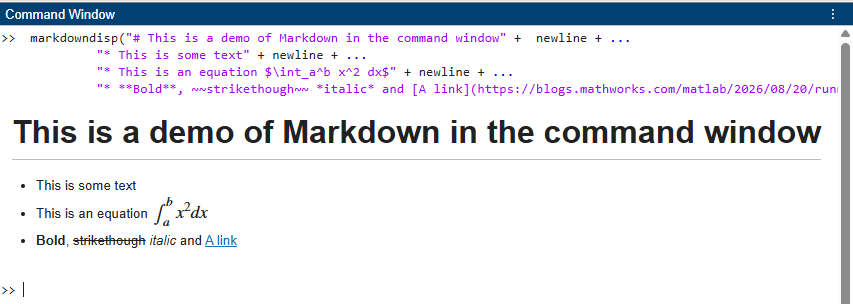
I think this is a big one! The functionality is provided by the new markdowndisp function that takes Markdown as input and renders it in either the command line or Live Editor.
Here's a screenshot from using it at the command window including lists, equations and formatted text.
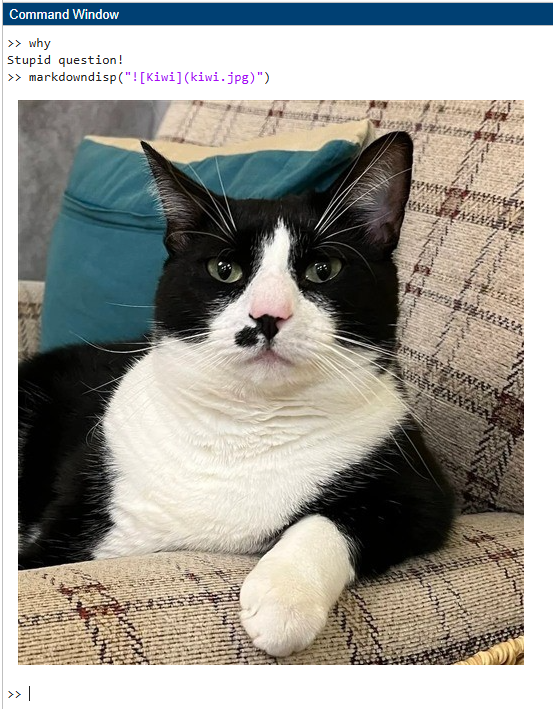
Images are supported too! Here's my cat, Kiwi, posing in the MATLAB Command window courtesy of markdowndisp
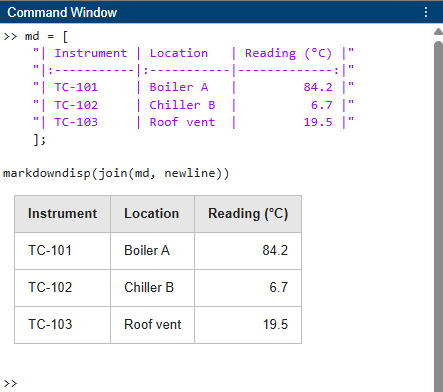
The version of Markdown used is GitHub flavored markdown and many things are already supported. Tables, for example:
For this first release, however, there are some gaps. Emojis, for example, are not supported
so we need to resort to different methods
Please give this new function a try and let us know if its missing anything you need.
Programmatic markdown in the Live Editor
Whilst having rich text and graphics in the command window is a novelty, we've had it for years in the Live editor. Indeed, every post at The MATLAB Blog is a MATLAB Live Script that gets converted to WordPress via the matlab_live_to_wp package. That's why I get so excited when improvements come to the Live Editor, it directly improves one of my daily workflows.
markdowndisp brings the ability to generate rich output programmatically which will allow for more expressive, automatically generated live scripts.
Combine markdowndisp with a few Live Controls and I can now create entire, interactive, rich text computational documents to send to my non-programmer friends. Hide all the code, share via MATLAB Online and they won't need to see a single line of code or even install MATLAB to use my interactive analysis.
This really does change the game!
Styled and coloured text in the MATLAB command window using ANSI escape codes
Yair Altman's superb cprintf command on the File Exchange gives an indication of how popular the idea of formatting text in the command window is. This next update is a step towards providing such support natively.
We now make use of ANSI Control Sequences to do things like this
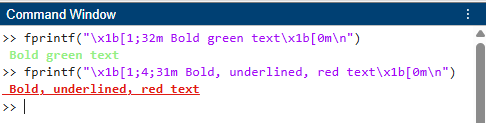
The syntax looks rather arcane, and it is, but its also completely standard. Let's take a closer look at the string in the command
- \x1b The ESC byte. Essentially this says "The following bytes are not data, they are a command"
- [ This is the Control Sequence Introducer
- 1;32 These are the arguments to our command. 1 means 'bold' and 32 means 'Green foreground'.
- m This is the final byte, the opcode. Essentially this is the function we want to run and refers to 'Select Graphics Rendition'
Then we have the string we wish to display. Finally, we have another escape sequence \x1b[0m which means 'Reset back to normal'
Here's a list of all of the standard foreground colors and their ANSI codes
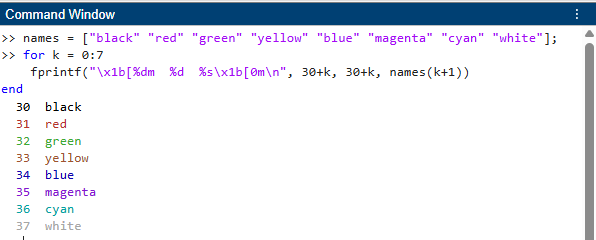
I know what you're thinking. 37 is grey and not white. It turns out that this is standard too! Different terminals will render 'white' in different ways (see the ANSI escape codes Wikipedia page for a demonstration) but it's almost always some form of light grey. The reason is because there are also "bright" versions of each of these colours. If you want honest-to-goodness "white" you have to ask for "bright white". Since all of the "bright" colors start at code 90 ("bright black!"), "bright white" is code 97.
Background colors are in the 40s. So, 40 gives a black background, 41 is a red background and so on. Here's bright white (code 97) on a black background (code 40).

Here's a cribsheet for the standard color codes
Combine these with a few extra modifiers such as the following and you should be good to get started
Let's do bright red on black with strikethrough

Finally, code 5 is 'blink' but it's unsupported. We're not monsters!
Interesting side effects and edge cases
I wondered what would happen if I didn't close a string with \x1b[0m. It turns out that the output of the command window is changed for all subsequent output
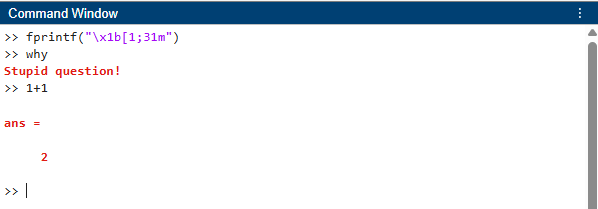
Could have a lot of fun by changing someone's command window to bright white while they were away from their desk! So now, all my output is bold and red until I reset it with a fprintf("\x1b[0m")
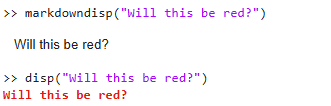
Not everything is affected though. The new markdowndisp function, for example, does not support ANSI codes although the venerable disp function does
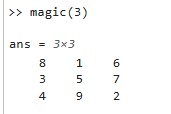
When MATLAB returns a matrix, that is not affected either
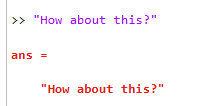
Strings are though
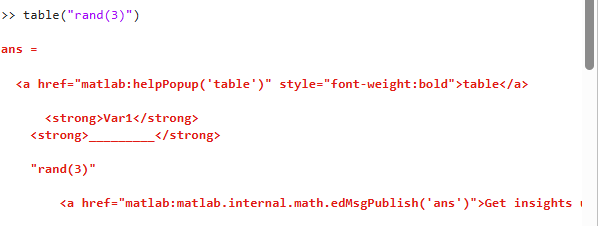
HTML for bold and hyperlinks is not supported when using ANSI codes. As such, Table and other outputs containing bold or hyperlinks will show their underlying HTML when used like this. For example:
The escape characters don't work at all in live scripts yet

There might be more such edge cases. Let me know if you find any
How to turn off markdown display and truncated matrices for the command window
Whenever a change is made to a fundamental part of MATLAB, some people will always want to go back to the way things were. You cannot turn off support for ANSI escape codes but you can turn off the rendering of markdown via markdowndisp and truncated matrices.
In the MATLAB Desktop, Click on Settings in the Environment section. Select MATLAB>Command Window, and then clear the Show enhanced output (truncate matrix, render Markdown) option.
Matrices won't be shown truncated anymore and markdowndisp will behave like disp in the command window

Over to you
Please give all of this new functionality a try, let us know what you think and what you think we should do next in this area. For more of what's new in R2026b, check out my tour of the new release.
- Category:
- MATLAB Programming Language,
- New Features


Comments
To leave a comment, please click here to sign in to your MathWorks Account or create a new one.