
Running local Agentic AI workflows with MATLAB on a 16Gb Macbook Pro with LM Studio and gemma 4
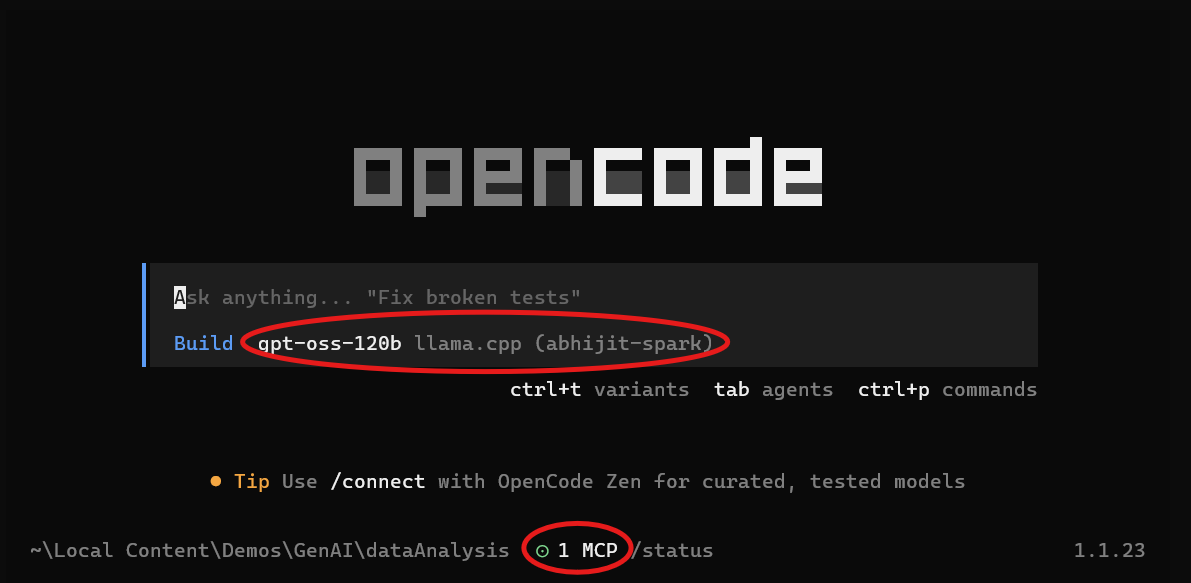
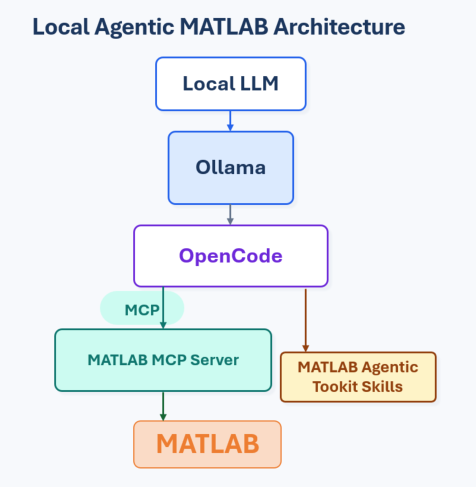
Back in January, I showed how put a 120 billion parameter LLM on a 128Gb NVIDIA DGX Spark and hook it up to MATLAB. My colleague, Abhijit Bhattacharjee quickly followed up with an article showing how to use the same model and hardware agentically using OpenCode and MATLAB MCP Server.
These articles resulted in a lot of interest from users who wanted to start playing with local agentic AI. The only problem is that most people don't have access to machines with 128GB of VRAM or unified memory. I certainly don't most of the time. Indeed, I had to borrow the NVIDIA DGX Spark from my friend Nick to research and write my articles about it.
Most of the time I use much more modest machines such as the 16Gb M2 Macbook Pro I am writing this article on. Turns out, that's enough to get started.
Installing a local AI model on your machine
There are several ways to do this but I think that the easiest way to start is to download and install LM Studio. It provides a graphical user interface and you can go from install to chatting with an AI model in just a few minutes.
After LM Studio has been installed, use the Model search to choose a suitable model. For the purposes of this article, I used the original gguf version of the brand new gemma-4-12b model. As a general rule, you'll want to try to find mlx versions of models on a Mac because they have been especially tuned for Mac hardware and so will probably run faster than the equivalent gguf model.
There's nothing wrong with using a gguf model on a Mac though and it just happened to be what I started out with. LM Studio does a good job with these models since it makes use of llama.cpp under the hood.
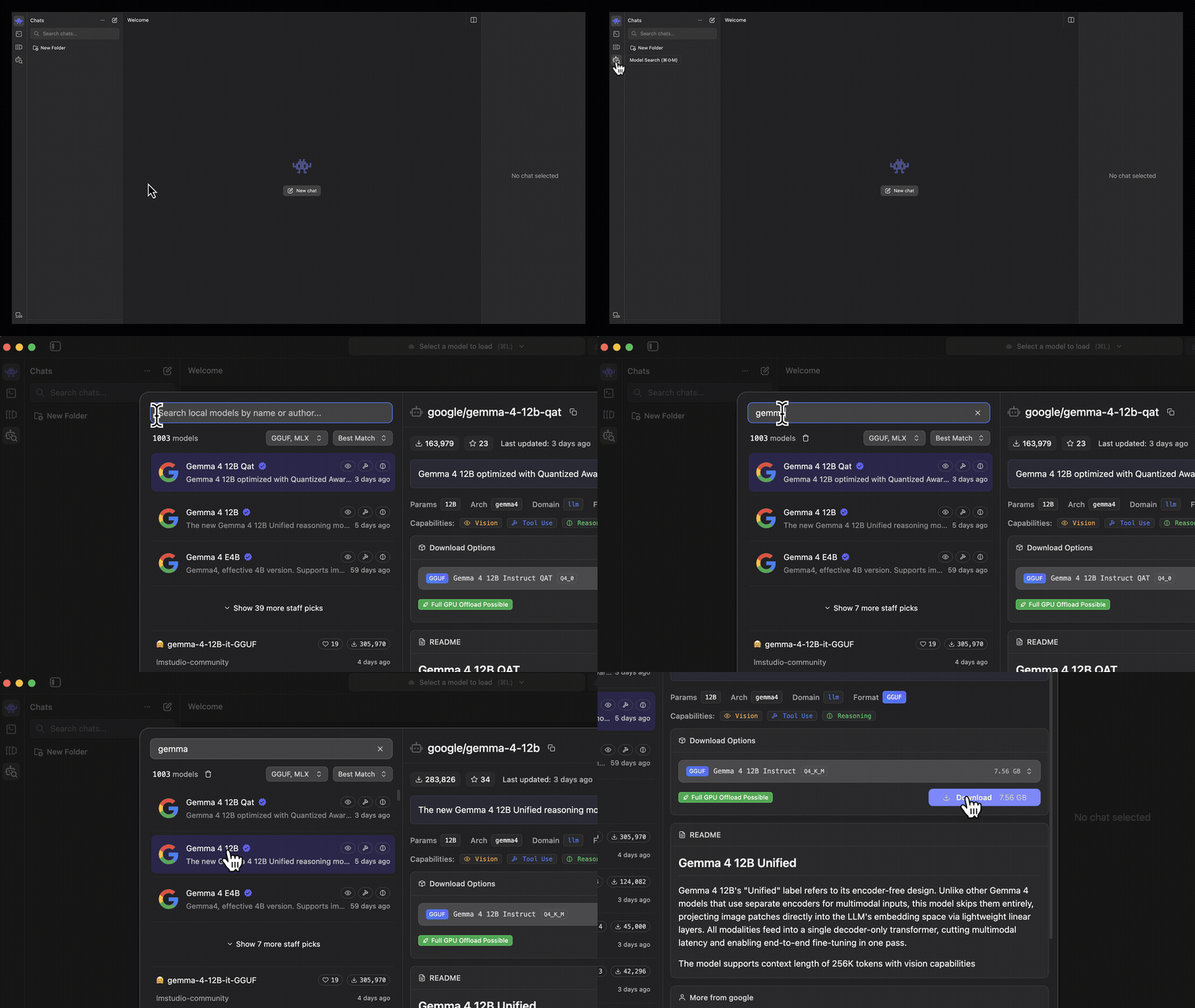
Whatever model you end up using, just make sure that 'Tool use' is listed as one of its capabilities or you'll not be able to use it agentically.
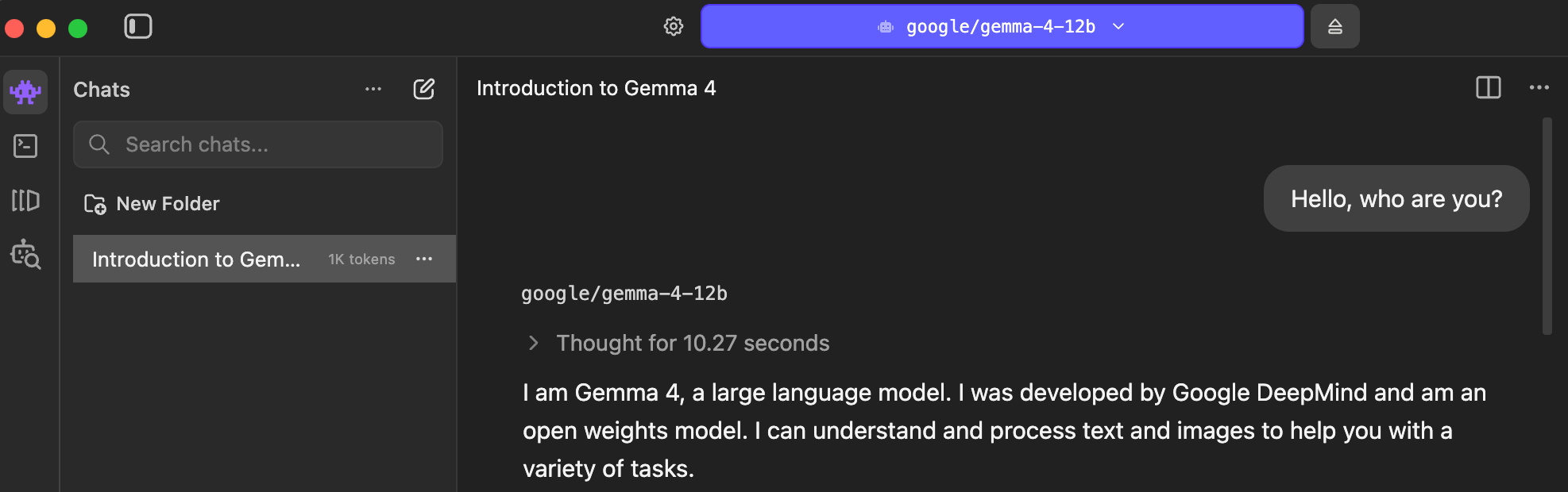
Once you have your model downloaded, all you need to do now is select and start chatting with it.
Increasing the context length
This is vitally important! By default, the AI only has a context length of 4096 tokens set up in LM Studio which is nowhere near enough for agentic workflows so we need to increase it. I originally doubled it but various sources online suggested that it should be around 32,000 or so. The model we are using supports context lengths up to 262144 but I was worried that I wouldn't have enough memory to support this and need to do more experimentation.
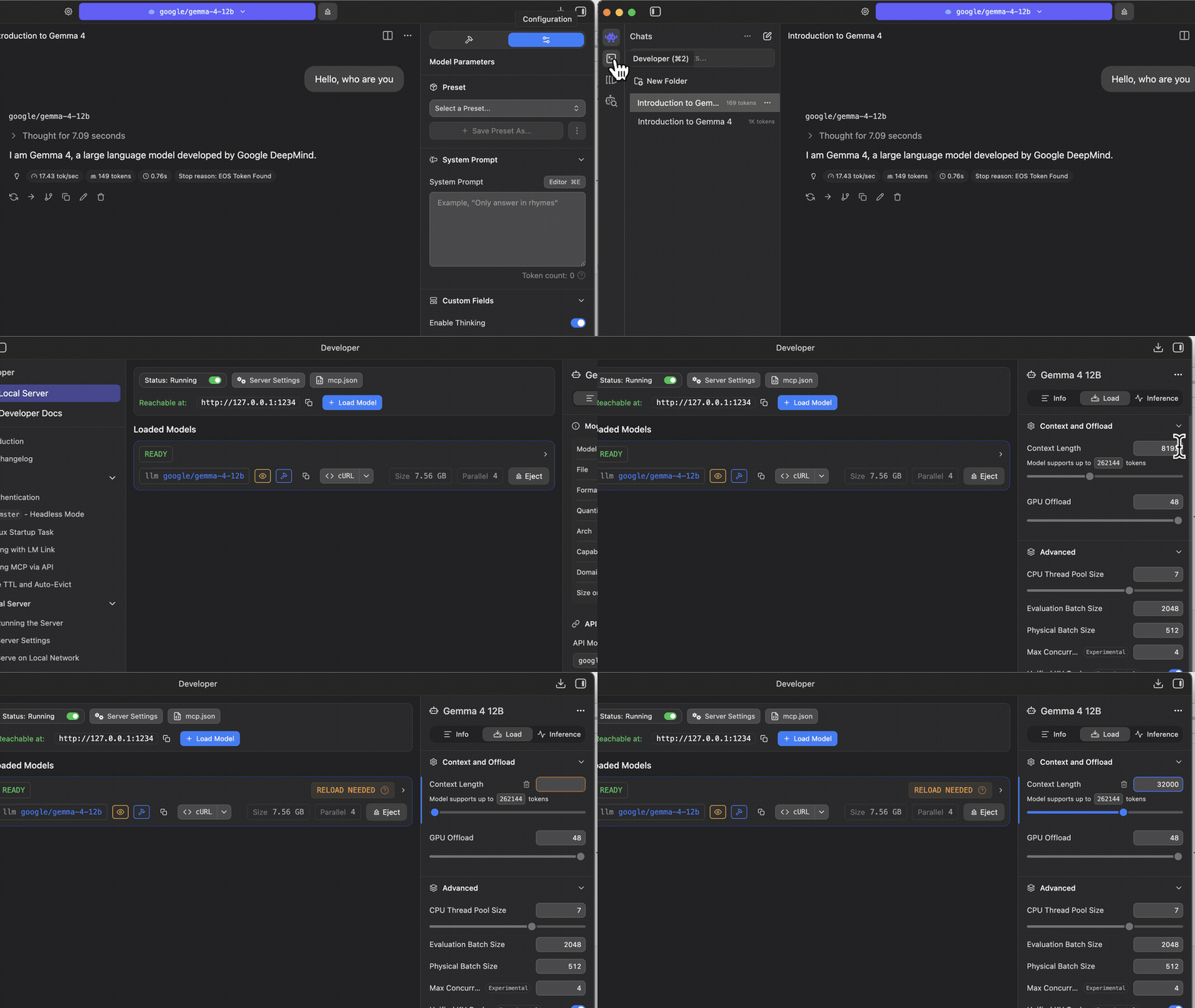
If you don't do this step, the AI will seem to have the memory of a goldfish and will lose track of what its supposed to be doing in the middle of its work.
Setting up MATLAB and filesystem MCP servers in LM Studio
At this point, your model can chat with you but it can’t do much else. It can’t read or write files on your machine, for example, and it can’t directly interact with MATLAB. If you ask it to write MATLAB code, it will do so in the chat window and then suggest that you copy and paste it to your machine.
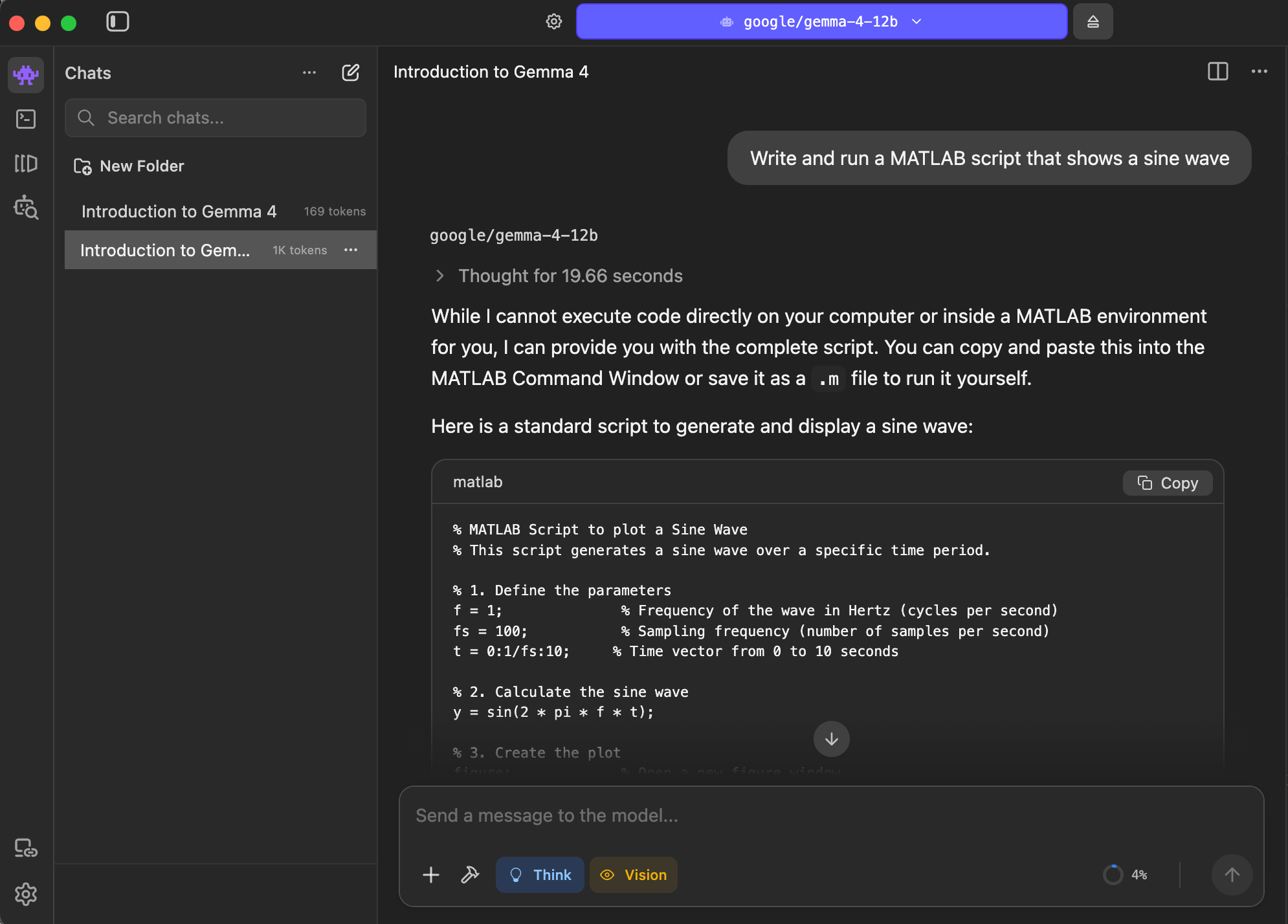
Whilst this is fine, it means that we can't take advantage of everything that working agentically would give us. For example, if the AI hallucinates some MATLAB code then you, as the human in the loop, will be the one that has to tell it as you painfully copy and paste code and error messages between MATLAB and the AI. This gets old fast!
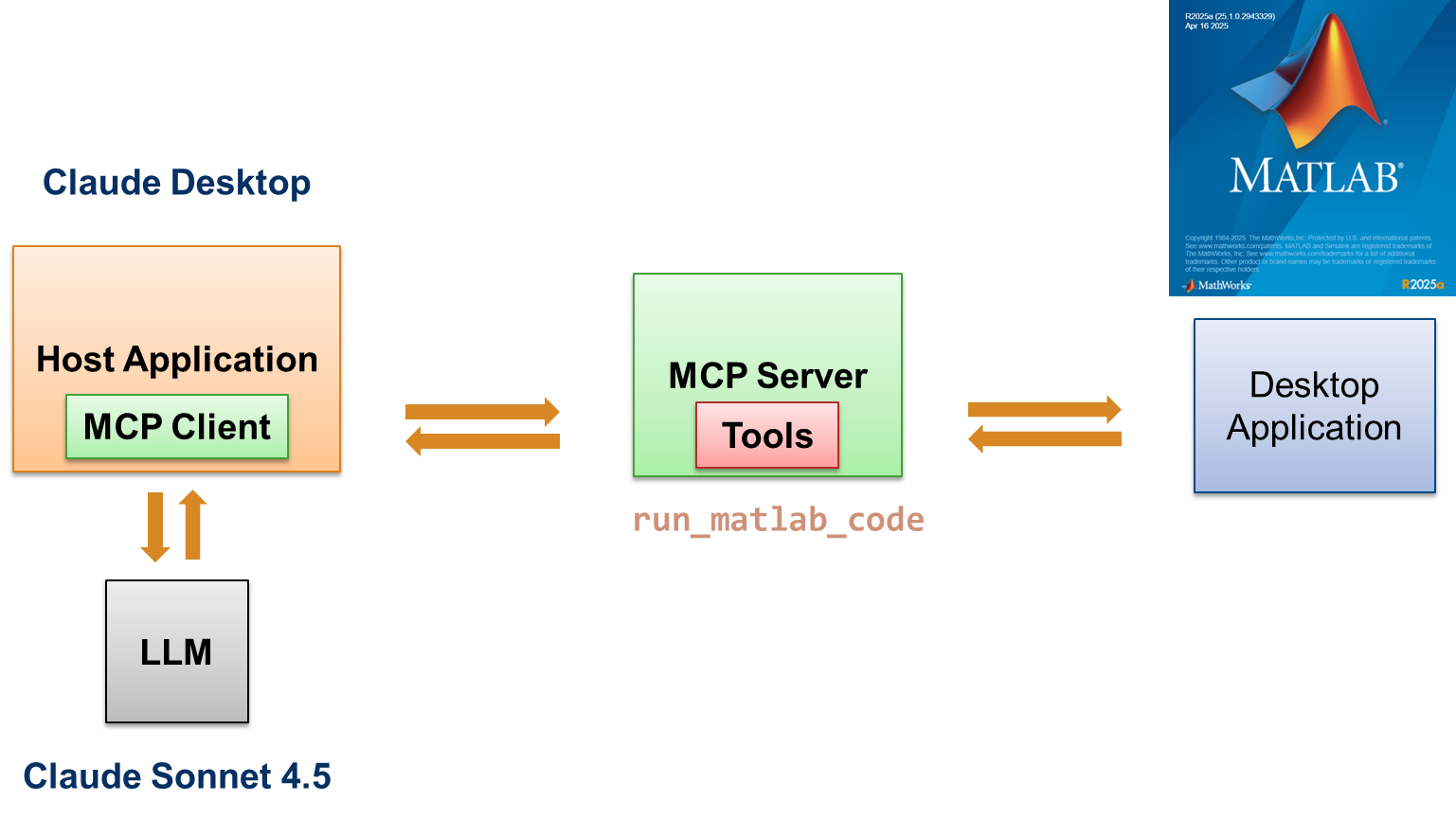
To allow the AI to work agenitcally, it needs to be able to read and write files on your machine and also to directly interact with MATLAB. To do these things, we need to install MCP servers. I installed two, the Filesystem MCP Server and the MATLAB MCP Server.
The Filesystem MCP Server
To install the Filesystem MCP Server, I ran the following command in the Mac OS Terminal.
sudo npm install -g @modelcontextprotocol/server-filesystem
If you don’t have the npm command available then you’ll need to install Node.js. I did that by getting it from Nodejs.org.
The MATLAB MCP Server
To install the MATLAB MCP Server, I used the MATLAB Agentic toolkit but you can just download the binary directly if you wish. Either way, you need to know the path to the file matlab-mcp-core-server
Setting up the mcp.json file
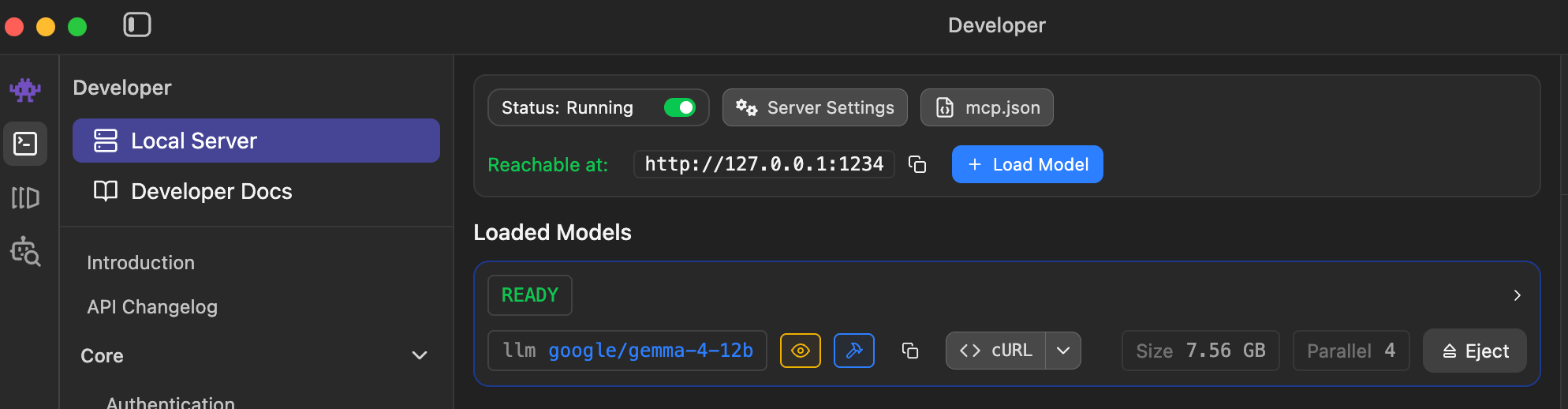
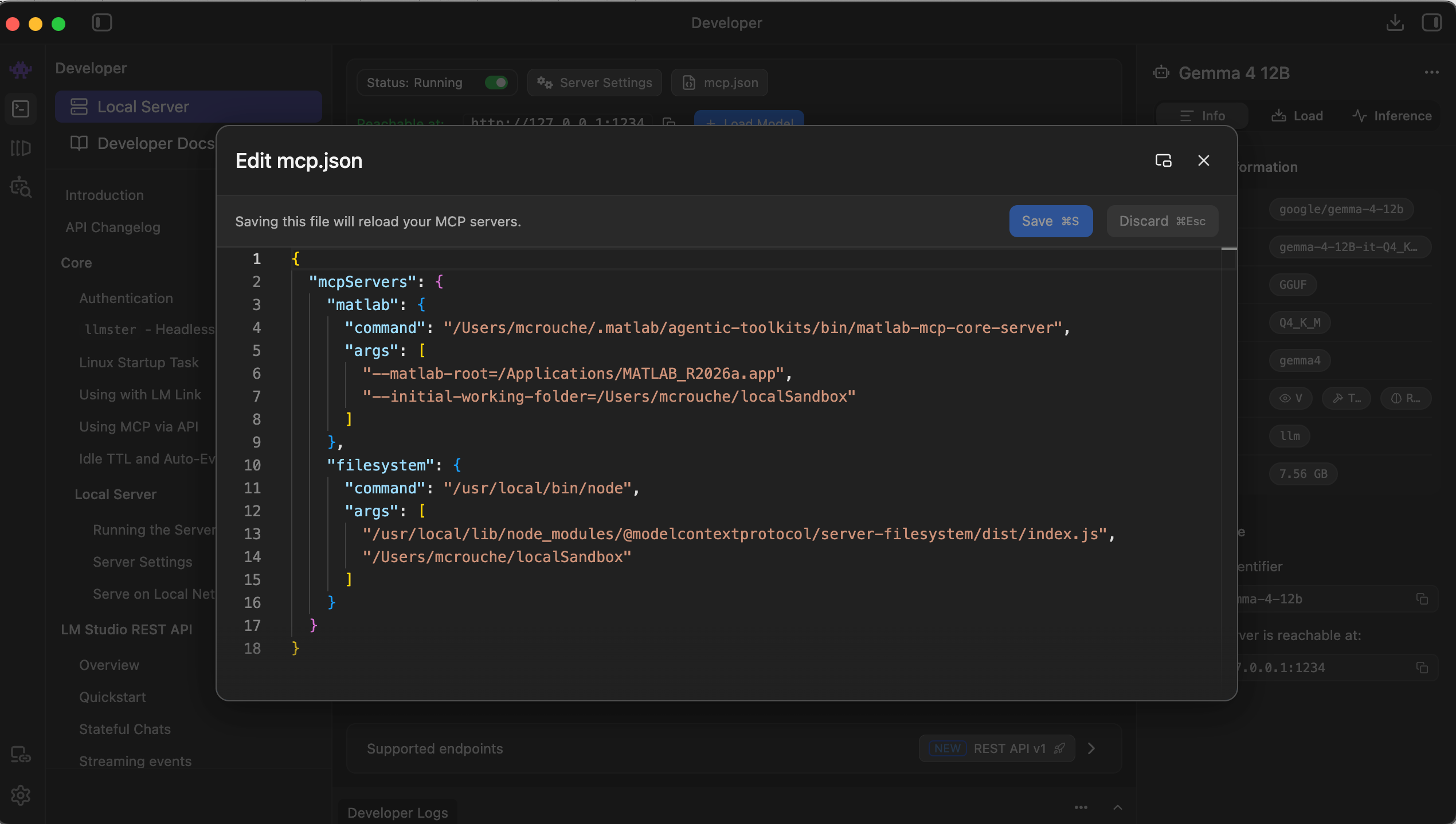
We now need to tell LM Studio about the MCP Servers. In the developer tab of LMStudio, click on mcp.json. Here's my version of this file. It assumes that
- MATLAB MCP Sever is installed at /Users/mcrouche/.matlab/agentic-toolkits/bin/matlab-mcp-core-server
- My MATLAB is installed at /Applications/MATLAB_R2026a.app"
- I've created a working folder called /Users/mcrouche/localSandbox/ and this is the only folder that the filesystem MCP is allowed to access
{
"mcpServers": {
"matlab": {
"command": "/Users/mcrouche/.matlab/agentic-toolkits/bin/matlab-mcp-core-server",
"args": [
"--matlab-root=/Applications/MATLAB_R2026a.app",
"--initial-working-folder=/Users/mcrouche/localSandbox",
"--matlab-session-mode=auto",
]
},
"filesystem": {
"command": "/usr/local/bin/node",
"args": [
"/usr/local/lib/node_modules/@modelcontextprotocol/server-filesystem/dist/index.js",
"/Users/mcrouche/localSandbox"
]
}
}
}
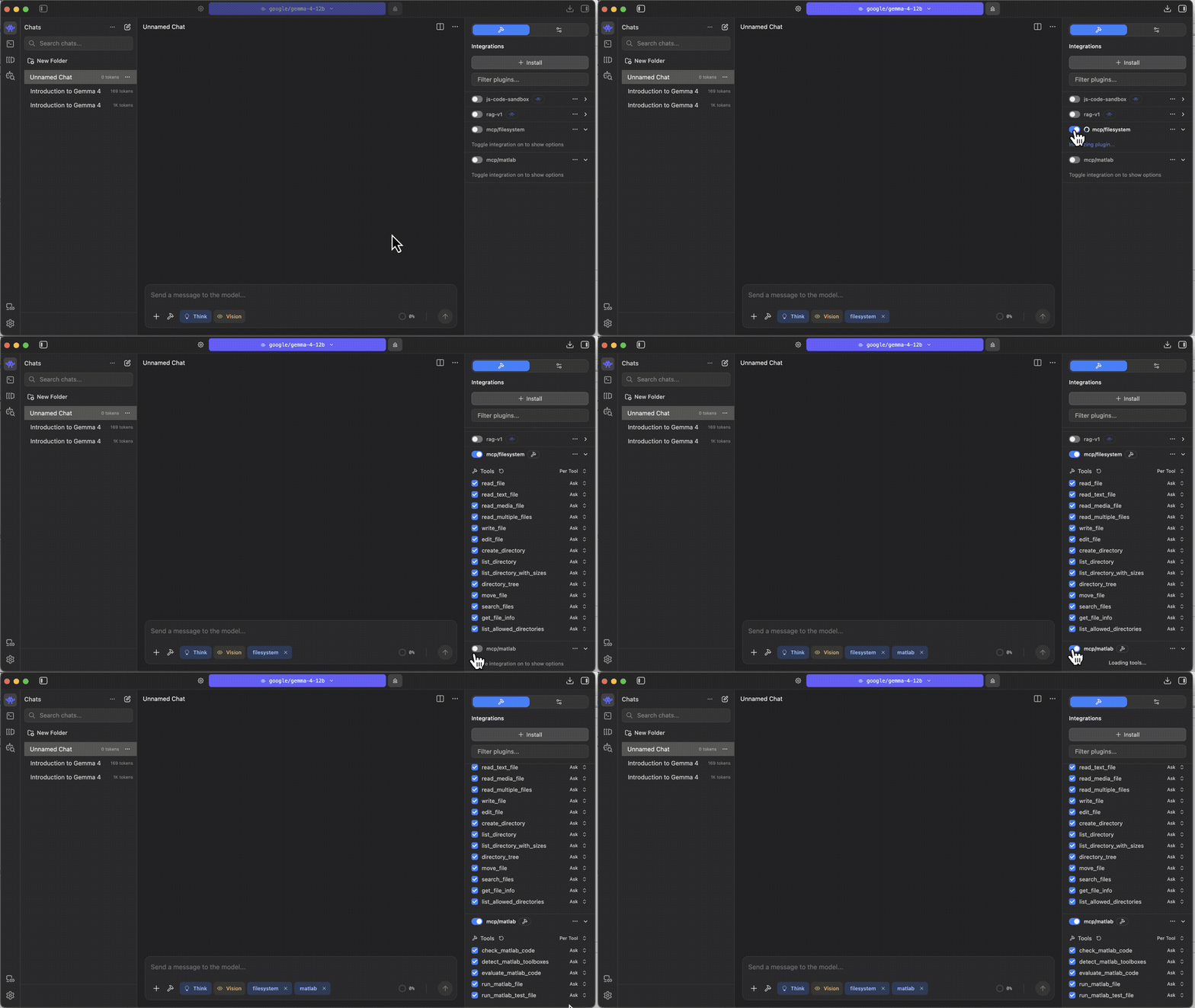
Once you have your mcp.json loaded, you should be able to activate the MCP tools. Go back to the chat window, click on Integrations and activate the MCP servers as I do in the animation below
Running a test prompt
All that remains is to run a test prompt to see if everything works properly. Nothing fancy! It just needs to show that all of the tools are working. Here's the prompt I used.
Write, test and run a MATLAB script that generates and plots a sine wave. Put the script at /Users/mcrouche/localSandbox
I've learned that I need to be rather more specific than I would be with frontier, cloud-based models. For example, if I don't explicitly tell the model to put the script at in my sandbox (/Users/mcrouche/localSandbox), it spends quite some time trying and failing to write it in various other places which wastes both time and context length.
Give it a try yourself
Models of this size are capable of a lot more than you might imagine so I encourage you to give them a try and let me know how you get on.




评论
要发表评论,请点击 此处 登录到您的 MathWorks 帐户或创建一个新帐户。