
Running local LLMs with MATLAB using OpenCode and Ollama on a Mac
Bio: This is a guest post by Toshi Takeuchi, Community Advocate active in online communities. Toshi has held many marketing roles at MathWorks over the last 20 years
Do you have a modern M series Mac and are interested in a fully local agentic workflow with MATLAB?
- no API key
- no token costs
- everything stays local
Back in June, Mike Croucher showed us how to run a local agentic AI workflow with MATLAB on a 16 GB MacBook Pro using LM Studio and a local model.
I happen to be more familiar with Ollama, and I wanted to try the same idea with Ollama and OpenCode. Ollama is an appealing choice because it also supports Apple's MLX framework, that let you take advantage of unified memory architecture in Apple Silicon - in a nutshell, CPU and GPU share the same memory on Apple Silicon and therefore no extra data movement is necessary between the two, and you can get a very good inference speed as the result.
OpenCode is a popular open-source AI coding agent and very similar to Claude Code and Codex I am familiar with. I had no issue enabling MATLAB MCP Server in OpenCode.
The Stack
Here is my setup:
macOS Tahoe
Ollama
qwen3-coder:30b
OpenCode
MATLAB MCP Server
MATLAB Agentic Toolkit skills
VS Code integrated terminal
The architecture has three separate local connections:
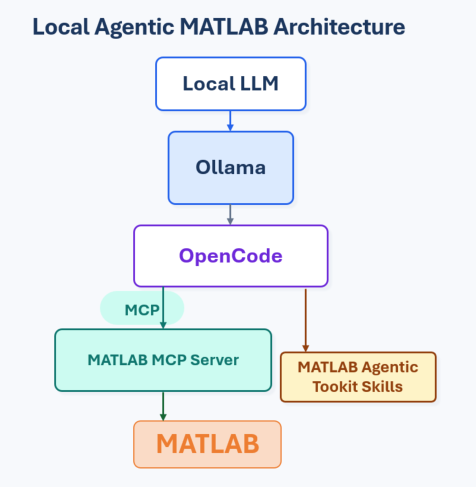
Ollama provides the access to the local LLM - in this case Qwen3-Coder-30B, because I have 48 GB of RAM on my MacBook Pro. On a 16GB model, you may want to use Qwen-3-8b instead. Then OpenCode talks to Ollama, and it also provides access to MATLAB via MATLAB MCP Server and also skills in MATLAB Agentic Toolkit.
Setting up Ollama
The first thing to install on your Mac is Ollama, a platform to manage and serve local LLMs.
Download the installer, open it, and move Ollama into the Applications folder. Then launch Ollama once so it can install the command-line tool and start its local background service.
Check the install:
ollama --version
The Mac app normally starts the local Ollama server in the background. If it is not running, you can start it manually:
ollama serve
If ollama serve reports that the port is already in use, that usually means the Mac app has already started the server.
Pulling a local model
For a coding agent workflow, use a model that supports structured tool calls. On a Mac with 48 GB of unified memory, qwen3-coder:30b is a good starting point, or qwen3:8b on 16 GB Macs. When a model doesn't support structured tool calls, it prints tool calls as ordinary text to screen, rather than executing them.
Pull the model. Larger local coding models can take a while to download and load:
ollama pull qwen3-coder:30b
This is the normal Ollama model-management step. You can confirm that the model is installed with:
ollama list
Before installing OpenCode, let's test the model by chatting with it directly:
ollama run qwen3-coder:30b "Hello, who are you?"
To leave the chat, type:
/bye
Installing OpenCode
To install:
curl -fsSL https://opencode.ai/install | bash
Then restart the shell, and confirm that it is working.
opencode --version
Launching OpenCode with Ollama
With Ollama v0.15 or newer, Ollama can launch OpenCode and auto-configure the local model connection.
Start OpenCode from the folder where you want it to work:
cd /path/to/your/project
ollama launch opencode --model qwen3-coder:30b
Note: OpenCode works relative to the directory where it is started. If you start it from ~/, it may create files in ~/.
Checking model tool-call support
Before adding MATLAB MCP Server to OpenCode, you may want to make sure that the model you chose actually support structured tool calls. I am assuming that you have OpenCode running in your terminal in the previous step.
Open another terminal, copy and paste the following (adjust the model name if you are using a different model), and hit enter:
curl http://127.0.0.1:11434/v1/chat/completions \
-H "Content-Type: application/json" \
-d '{
"model": "qwen3-coder:30b",
"messages": [
{
"role": "user",
"content": "Use the tool to add 2 and 3."
}
],
"tools": [
{
"type": "function",
"function": {
"name": "add_numbers",
"description": "Add two numbers.",
"parameters": {
"type": "object",
"properties": {
"a": { "type": "number" },
"b": { "type": "number" }
},
"required": ["a", "b"]
}
}
}
],
"tool_choice": "auto"
}'
This sends a minimal tool-call request directly to Ollama. If your chosen model supports structured tool calls, it should return a tool_calls field in the JSON response. In my test, qwen3-coder:30b returned finish_reason: "tool_calls" and a structured message.tool_calls entry.
You can now close OpenCode:
/exit
Adding MATLAB MCP Server
At this point, OpenCode can talk to the local model, but it does not yet have MATLAB tools. I used the MATLAB Agentic toolkit to install it. If you did the same, the executable is installed at:
/Users/<username>/.matlab/agentic-toolkits/bin/matlab-mcp-server
Before adding it to OpenCode, check that the path is correct:
ls -l /Users/<username>/.matlab/agentic-toolkits/bin/matlab-mcp-server
/Users/<username>/.matlab/agentic-toolkits/bin/matlab-mcp-server --help
This check matters. A typo in this path was enough to make the MCP setup fail.
OpenCode's user configuration file is:
~/.config/opencode/opencode.json
You need to edit this OpenCode's config file to add MATLAB MCP Server. If opencode.json does not exist yet, create it. If it already exists, add the mcp block as a top-level property.
A minimal config with MATLAB MCP Server looks like this
{
"$schema": "https://opencode.ai/config.json",
"mcp": {
"matlab": {
"enabled": true,
"type": "local",
"command": [
"/Users/<username>/.matlab/agentic-toolkits/bin/matlab-mcp-server",
"--matlab-root",
"/Applications/MATLAB_R2026a.app"
]
}
}
}
After editing opencode.json, validate it before restarting OpenCode:
python3 -m json.tool ~/.config/opencode/opencode.json
Restart OpenCode:
cd /path/to/your/project
ollama launch opencode --model qwen3-coder:30b
And test the connection with this prompt:
Use MATLAB to report the MATLAB version, then stop.
Adding MATLAB Agentic Toolkit skills
While MATLAB MCP Server provides OpenCode access to MATLAB, MATLAB Agentic Toolkit provides skills that enable reusable MATLAB-specific workflows that plain vanilla LLMs struggle with. As a MATLAB user, you probably turned a script into a function when you notice you repeat the same steps in your work. Skills do something similar - instead of typing the same set of prompts repeatedly, you package them into a skill. MATLAB Agentic Toolkit provides pre-built skills for common MATLAB tasks.
The MATLAB Agentic Toolkit skills are under:
~/.matlab/agentic-toolkits/matlab/skills-catalog
Because I was using a local model with limited context window, I did not expose every skill at first. I linked a curated set into OpenCode's global skills directory:
mkdir -p ~/.config/opencode/skills
ln -sfn ~/.matlab/agentic-toolkits/matlab/skills-catalog/matlab-core/matlab-testing \
~/.config/opencode/skills/matlab-testing
ln -sfn ~/.matlab/agentic-toolkits/matlab/skills-catalog/matlab-core/matlab-debugging \
~/.config/opencode/skills/matlab-debugging
ln -sfn ~/.matlab/agentic-toolkits/matlab/skills-catalog/matlab-core/matlab-review-code \
~/.config/opencode/skills/matlab-review-code
ln -sfn ~/.matlab/agentic-toolkits/matlab/skills-catalog/matlab-data-import-and-analysis/matlab-analyze-data \
~/.config/opencode/skills/matlab-analyze-data
ln -sfn ~/.matlab/agentic-toolkits/matlab/skills-catalog/matlab-programming/matlab-validate-function-arguments \
~/.config/opencode/skills/matlab-validate-function-arguments
ln -sfn ~/.matlab/agentic-toolkits/matlab/skills-catalog/matlab-software-development/matlab-modernize-code \
~/.config/opencode/skills/matlab-modernize-code
Then I allowed MATLAB skills in opencode.json:
"permission": {
"skill": {
"matlab-*": "allow"
}
}
After restarting OpenCode, test skill discovery:
List available skills related to MATLAB. Do not load them yet.
Running a test prompt
For a first end-to-end test, keep the prompt small and explicit:
Use MATLAB to create a script named sine_demo.m in the current working directory.
The script should generate a sine wave and plot it.
Run the script in MATLAB and report whether it completed successfully.
With local models, I have learned to be more explicit than I would be with Claude Code or Codex using frontier cloud models.
Expanding the context window
Ollama sets the default context window of a model to something much smaller than the model can handle. In the case of Qwen3.6-27B, the default is just 4,096 tokens, while the model itself can handle up to 262k. 4,096 tokens are not enough for an agentic workflow. You can change the context window like this.
1. Run the base model (I am using a model optimized for MLX) in the terminal:
ollama run qwen3.6:27b-mlx
2. Set a new context window in the Ollama prompt, save the model with a new name, and exit.
>>> /set parameter num_ctx 32768
Set parameter 'num_ctx' to '32768'
>>> /save qwen3.6:27b-mlx-32k
Created a new model 'qwen3.6:27b-mlx-32k'
>>> /bye
3. Launch the model with OpenCode in the terminal
ollama launch opencode --model qwen3.6:27b-mlx-32k
You may wonder why I chose 32K for the context window, when I could have gone all the way up to 262k. I initially set it to 65k (65,536) but it crashed my Mac twice when I ran extended sessions. Unlike the cloud-based models, you also need to fit your context in your physical memory - if you make the context window too big, a long running session can cause a kernel panic and crash your Mac.
Summary
I found that Ollama was easier to set up and configure than LM Studio, thanks to my familiarity with the former over the latter.
What you need to watch out for:
- Choice of models to use relative to my hardware specs and robust support for tool calls - start with the models recommended here
- Typos when manually editing OpenCode config file to set up MATLAB MCP Server
- Be mindful of the context window - my Mac crashed when my context window usage exceeded some limits.
I tried 3 models on my Mac, and I found that Qwen3-Coder:30B delivered the best overall results.
- Qwen3-8B was fast, but not as capable as other models.
- Qwen3.6-27B was too slow, and its output was not noticeably better than Qwen3-Coder - and it also crashed my Mac.
If you are used to frontier models like Opus 4.6 or later, or GPT-5.5 or later, you need to reset your expectations. Local models have smaller context windows and also limited in other ways compared to cloud-based frontier models. If you use Qwen3-Coder mindfully, I find that it can perform on common tasks reasonably well on my Mac.





评论
要发表评论,请点击 此处 登录到您的 MathWorks 帐户或创建一个新帐户。