
SQAT: Can we put a number on how a sound feels?
Two sounds can have the same sound pressure level and still feel very different. One may seem sharp, another rough or tonal. A steady fan and a passing aircraft can have similar peaks on a meter, while their changing character tells a different story.
The Sound Quality Analysis Toolbox (SQAT) is an open-source MATLAB toolbox for quantitative sound-quality analysis. It is being developed by Gil Felix Greco (TU Braunschweig) Roberto Merino-Martinez (TU Delft) Alejandro Osses* (ENS, PSL University - *Currently at Sorama B.V.), Michael J. B. Lotinga (University of Salford) Sergio Luiz Aguirre (Independent Researcher). It brings together psychoacoustic metrics, a sound-level meter, example signals, validation scripts, and a graphical interface to effectively explore these.
Turn waveforms into perceptual metrics
SQAT includes implementations of loudness, sharpness, roughness, fluctuation strength, tonality, and several psychoacoustic-annoyance models. It also includes Effective Perceived Noise Level (EPNL) calculations for aircraft noise and sound-level measurements such as frequency-weighted and time-weighted SPL.
What I really like is that SQAT pairs its functions with examples and validation material against specific acoustic standards. For many implementations, the project includes scripts that compare results with reference values from a standard or model. That gives users a way to inspect how an implementation behaves, reproduce checks, and build on the same functions in their own MATLAB workflows.
Explore sounds using a GUI
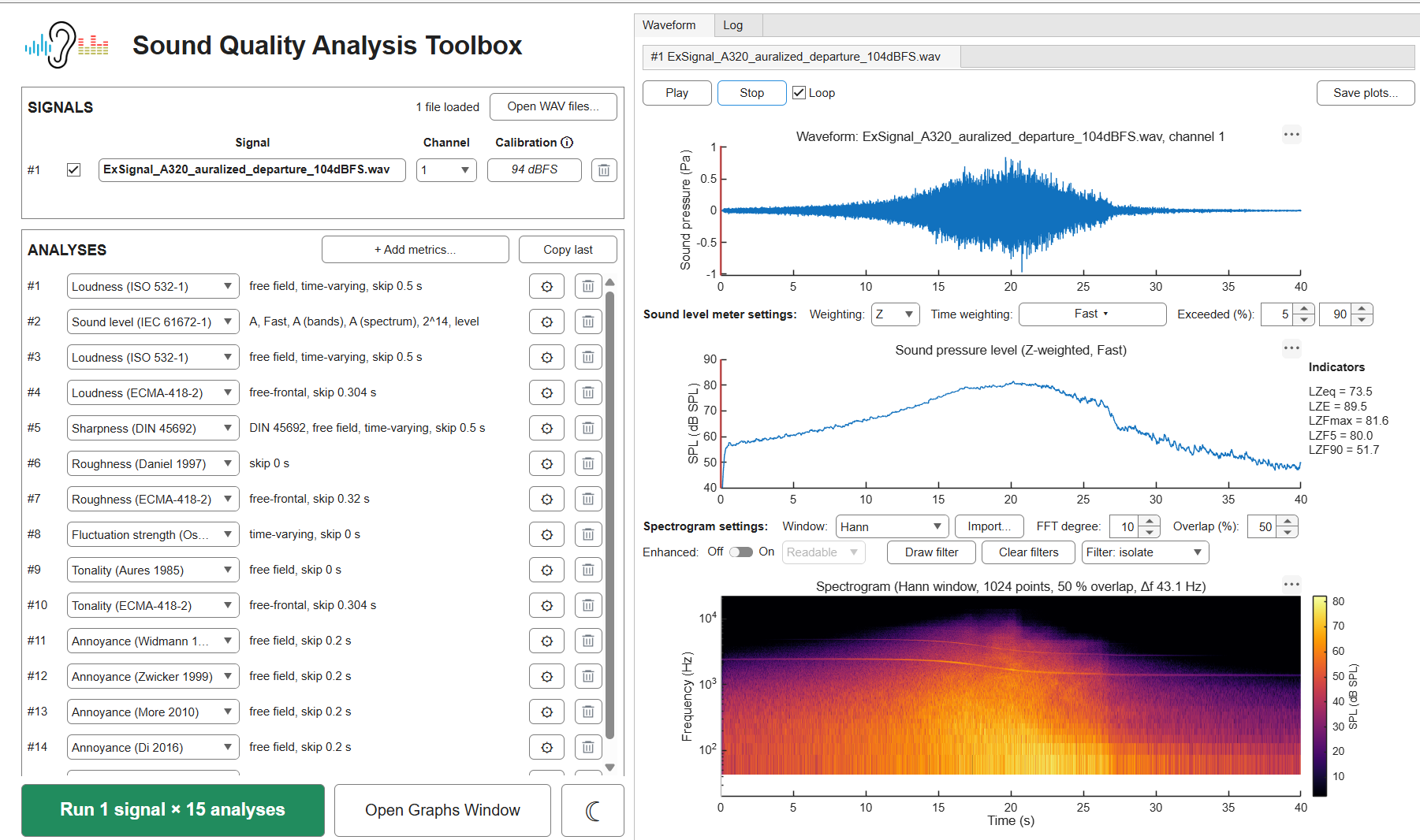
If you want to investigate a few recordings before writing code, SQAT's GUI gives you a guided workflow. Load one or more WAV files, then select a signal to see its waveform and spectrogram alongside an audio player. You can play and pause, move through the sound by clicking the plots, and loop a section while listening.
Before calculating absolute sound levels, set the calibration for each recording. The GUI accepts a known full-scale level, a recording made with a sound-level calibrator, or a relative level when the recording setup is unknown.
Next, add the analyses you want, adjust their parameters, choose which signals and channels to include, and select Run Analysis. The save dialog exports plots as PNG or PDF, statistics as CSV, and results in a spreadsheet.
And, for those who care, it supports dark mode!


评论
要发表评论,请点击 此处 登录到您的 MathWorks 帐户或创建一个新帐户。