
Learn MATLAB – A Student’s Guide
In today’s blog, we have Ben Pasquariello from the Student Programs team at MathWorks. He’ll walk us through some helpful MATLAB resources and tips for getting started.Over to you, Ben…
Hi everyone! I’m Ben, I manage our MATLAB Student Ambassador program, which is a community of 100+ students at universities around the world. One thing I hear from them again and again is that when students first install or use MATLAB, they don’t know where to start or which resources are the most helpful. There’s a lot out there, and it’s not always obvious what’s useful when you’re brand new.
So whether you’ve just been assigned MATLAB for the first time, or you’ve been using it for a while and want to get more out of it, this blog is for you. MATLAB is used by over 5 million people across engineering, science, and beyond, so whatever field you end up in, there’s a good chance you’ll use it again after university. The good news is it gets a lot easier once you know where to start.
I’ve put together a companion YouTube video too (see below), if you’d rather watch than read. Otherwise, here’s everything I’d tell a student sitting down with MATLAB for the first time.
Table of Contents
Step 1: Getting familiar with the MATLAB interface
Step 2: Learn the Fundamentals
Step 3: Know Where to Get Support
1. Built-in help commands, Search bar, and Help Button
2. MATLAB Copilot
3. Student Resource Hubs
4. MATLAB Answers
5. Cheat sheets
Let’s Recap Your First Week: A Day-by-Day Plan
Step 4: Build Habits That Keep You Improving
Step 5: Go Further — Competitions, Projects, and Toolboxes
Student Programs:
Challenge Projects:
Toolboxes:
Explore MATLAB in Your Field:
Step 1: Get Access
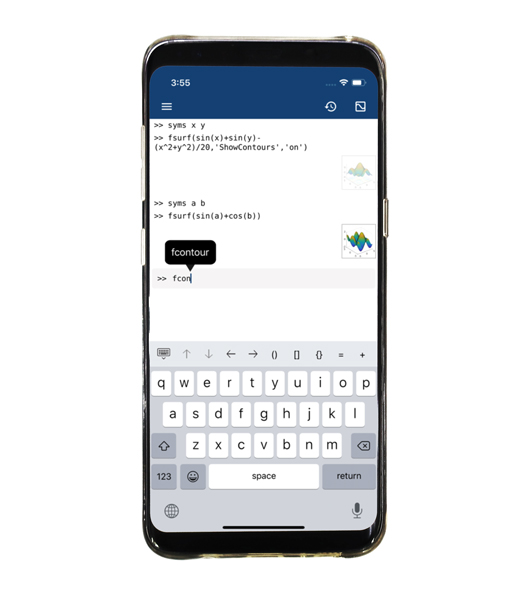
First thing: check whether your university has a Campus-Wide offering of MATLAB. A lot of students miss this, but many schools give you full access to MATLAB, Simulink, and 100+ toolboxes for free. Just check your eligibility and sign up with your university email address. If your university does not have a license, you can purchase a discounted student license on this page as well (see MATLAB and Simulink Student Suite).
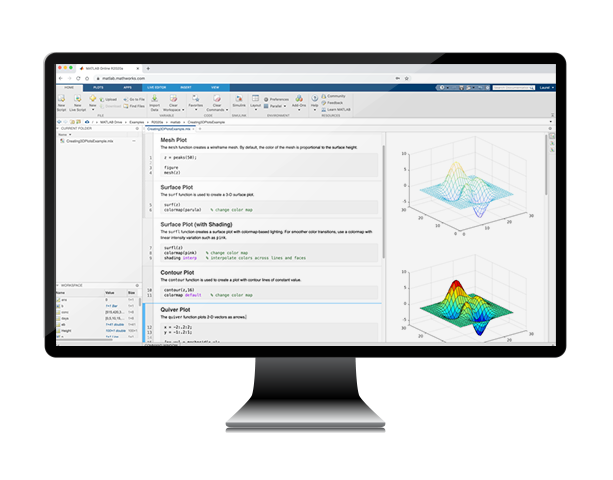
Once you’re in, you can install MATLAB Desktop or use MATLAB Online right in your browser. If you want a good starting example once you have MATLAB open, I recommend downloading this sample Live Script. Try following the instructions in the script to get comfortable with how to use live scripts.
Live Scripts let you mix code, outputs, and formatted text in one place, which is handy for assignments and lab reports. Fun fact: this blog was actually made with a MATLAB live script!
Getting familiar with the MATLAB interface
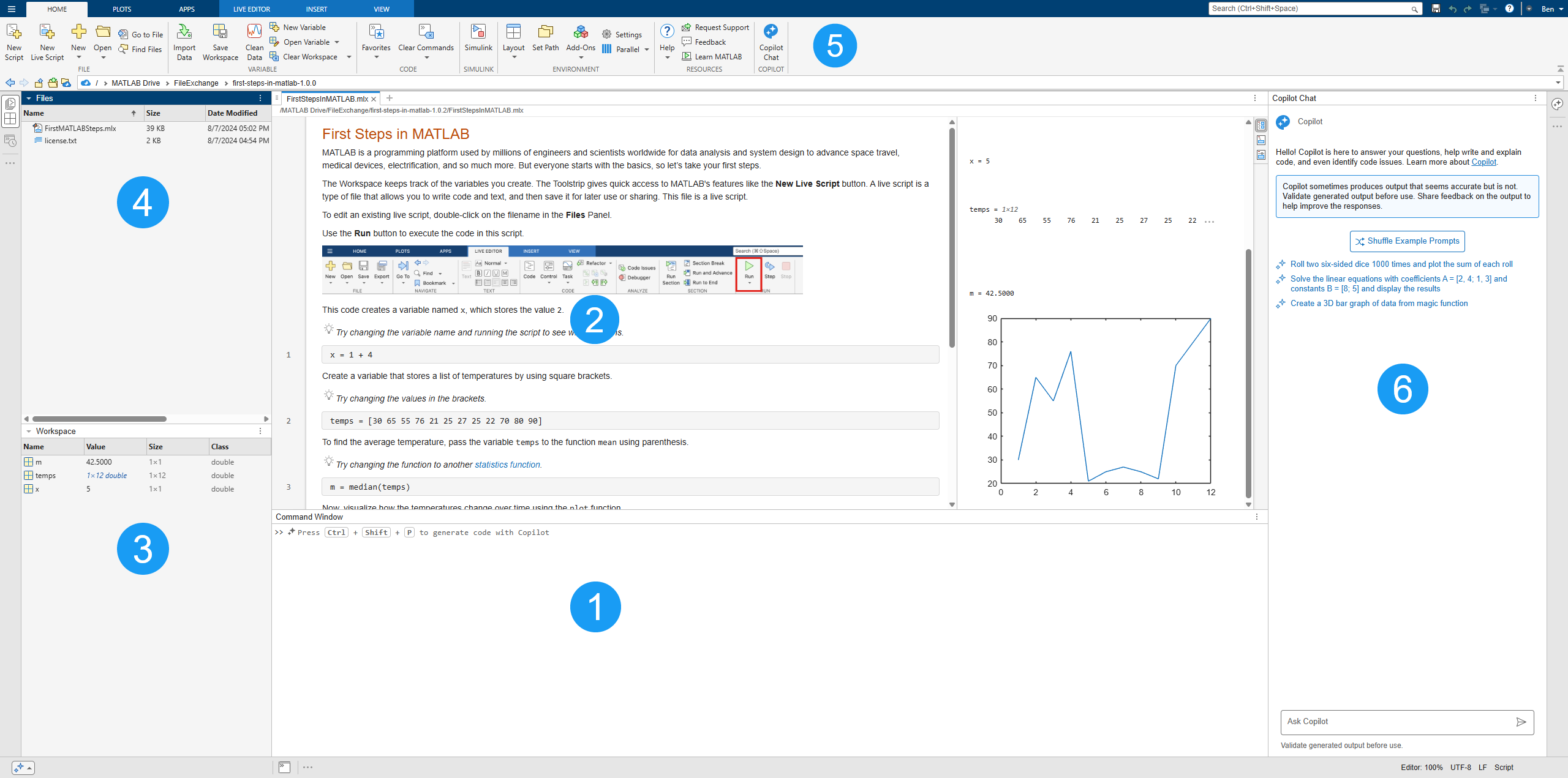
When you open MATLAB for the first time it can feel like a lot. Here’s a quick map of the key areas (see numbered image below for visual reference):
Note: Your layout might look slightly different depending on your MATLAB release or settings. You can always adjust or configure the Desktop to change what you see using the Home Tab > Environment section > Layout. You can also adjust your code output using the View tab in the MATLAB toolstrip (my output is set to be on the right below).
Command Window (1): the panel at the bottom where you type and run commands directly. A good place to test things out quickly. Think of it like a scratchpad.
Editor/Live Editor (2): where you write and save your code. Regular scripts (.m files) are plain code, while Live Scripts (.m or .mlx) let you combine code, results, and formatted text in one document, which is handy for assignments and lab reports. Anything longer than a few lines should go here.
Workspace (3): shows all the variables currently in memory. If you’re wondering where a variable went, check here first.
Files/Current Folder panel (4): on the left, shows your current folder and files. Make sure you’re working in the right folder or MATLAB won’t find your scripts.
Toolstrip (5): the ribbon across the top with tabs like Home, Plots, and Apps. Most things you need are in here.
MATLAB Copilot (6): an AI assistant built into MATLAB that can help you write code, explain errors, and answer MATLAB questions (if your license includes it). We’ll cover this more in Step 3.
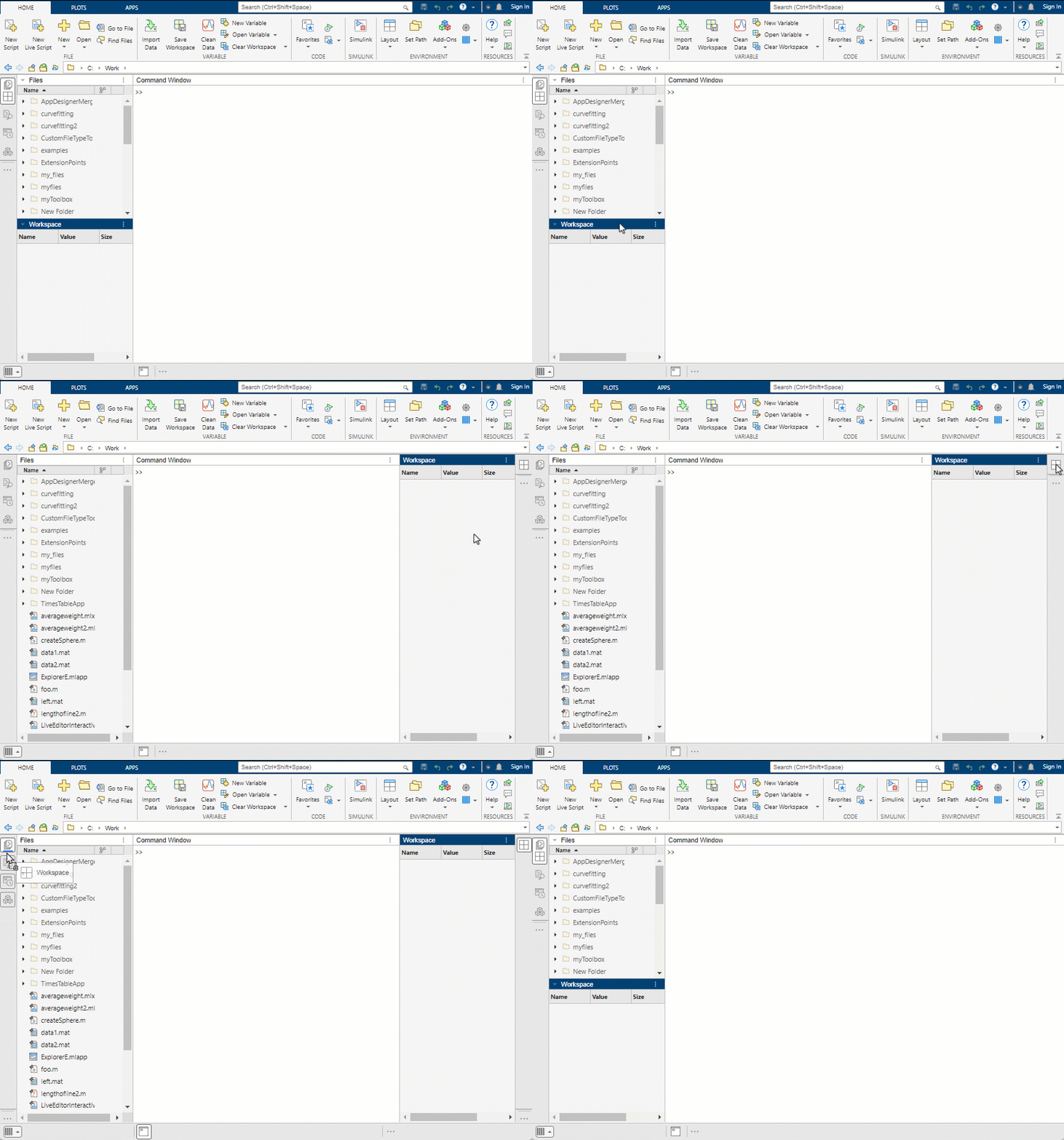
Quick tip: Try personalizing your MATLAB desktop early so it feels natural to you. You can rearrange, dock, or undock panels like the Command Window, Editor, and Workspace to suit how you work. And if you prefer dark mode, go to Home > Settings > MATLAB > Appearance and pick a theme from the Desktop Theme list.
Step 2: Learn the Fundamentals
My favorite getting started tip for new students is Onramps. Onramps are short, interactive courses designed to help you get started with a tool or topic quickly, even if you’re completely new. They focus on hands-on learning, immediate feedback, and practical skills you can use right away. They’re all free and most can be completed in under two hours.
For brand new users, start with MATLAB Onramp, a free, beginner-friendly course that teaches the basics of MATLAB from scratch. It is fully online, takes about two hours, and gives you instant feedback as you go. It covers variables, vectors, matrices, plotting, and functions. Everything you need to get started.
You also get a certificate at the end, which is worth adding to LinkedIn. MathWorks has 20+ additional Onramp courses on topics such as signal processing, image processing, machine learning, and Simulink. All free, all self-paced. Onramps are my personal favorite resource for learning MATLAB and I highly recommend them to students.
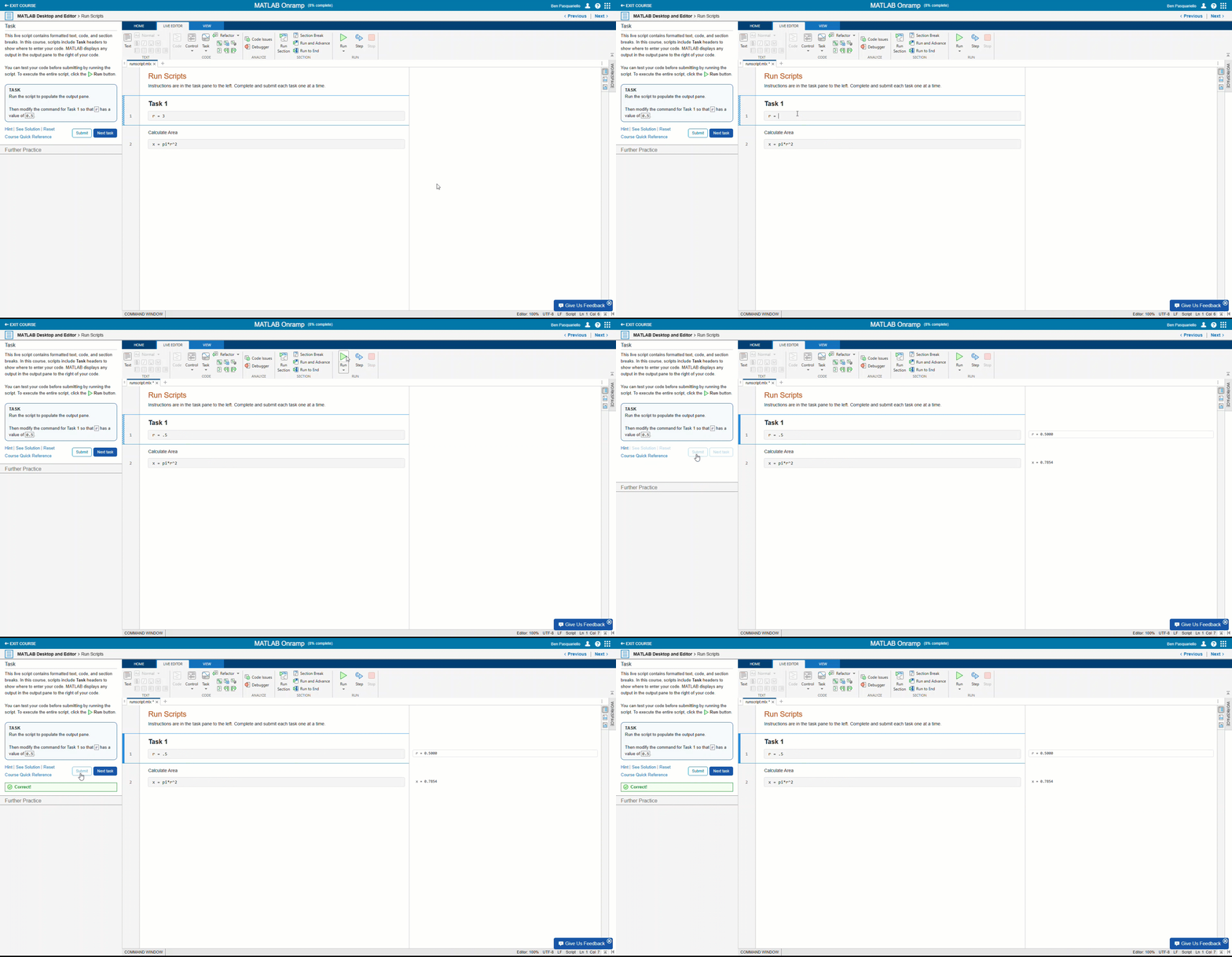
You can launch an Onramp directly from inside MATLAB: Toolstrip → Home Tab → Resources → Learn MATLAB.
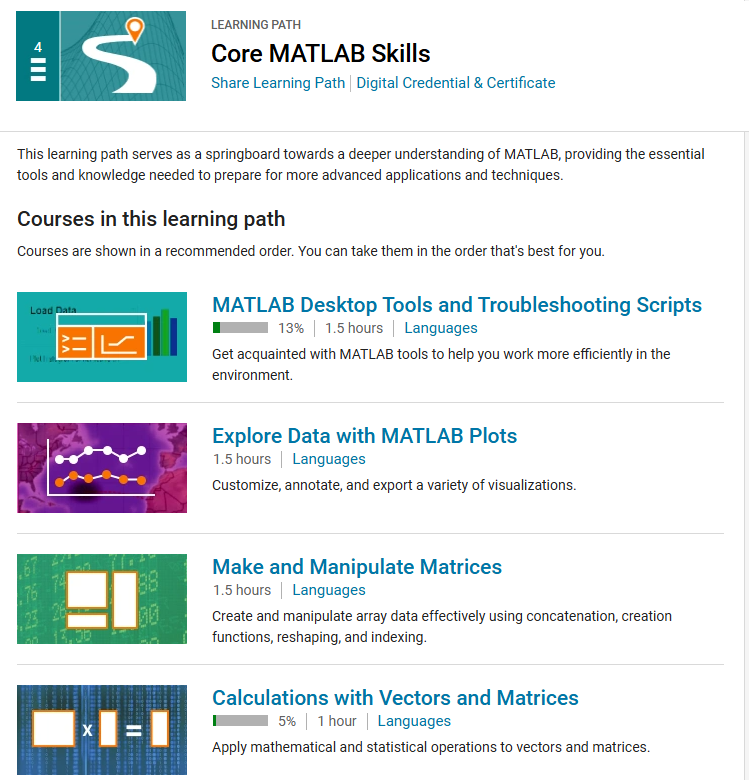
If your university has a Campus-Wide offering of MATLAB, you also have free access to Online Training Suite, which goes deeper than Onramps do with full learning paths in data analysis, visualization, machine learning, software development and much more. Each learning path has short courses that can be completed in 1-2 hours. Completing a learning path also earns you a digital credential. Just make sure you’re signed in with your university email.
Step 3: Know Where to Get Support
Getting stuck is a normal part of learning any new language, and MATLAB is no different. The good news is that knowing where to look makes all the difference, and there’s a lot of help available once you know where to find it. One thing I always tell students early on: when MATLAB shows you an error, read the message carefully before searching. It usually tells you exactly which line has the problem and why. Here are five places I recommend:
1. Built-in help commands, Search bar, and Help Button
Commands: Two commands worth knowing from day one inside of MATLAB: help and doc.
For example:
help plot % Quick syntax summary, right in the Command Window
doc linspace % Full documentation with examples and related functions
Type either one (help or doc) before any function name and MATLAB will bring you to the specific documentation page or give you help in the command window. The doc command opens the full docs page with examples and related functions. You can also browse everything on the MathWorks Documentation site.
Search Bar: You can also use the search bar in the top right-hand corner of MATLAB to find resources like toolstrip actions, examples, videos, and community answers.
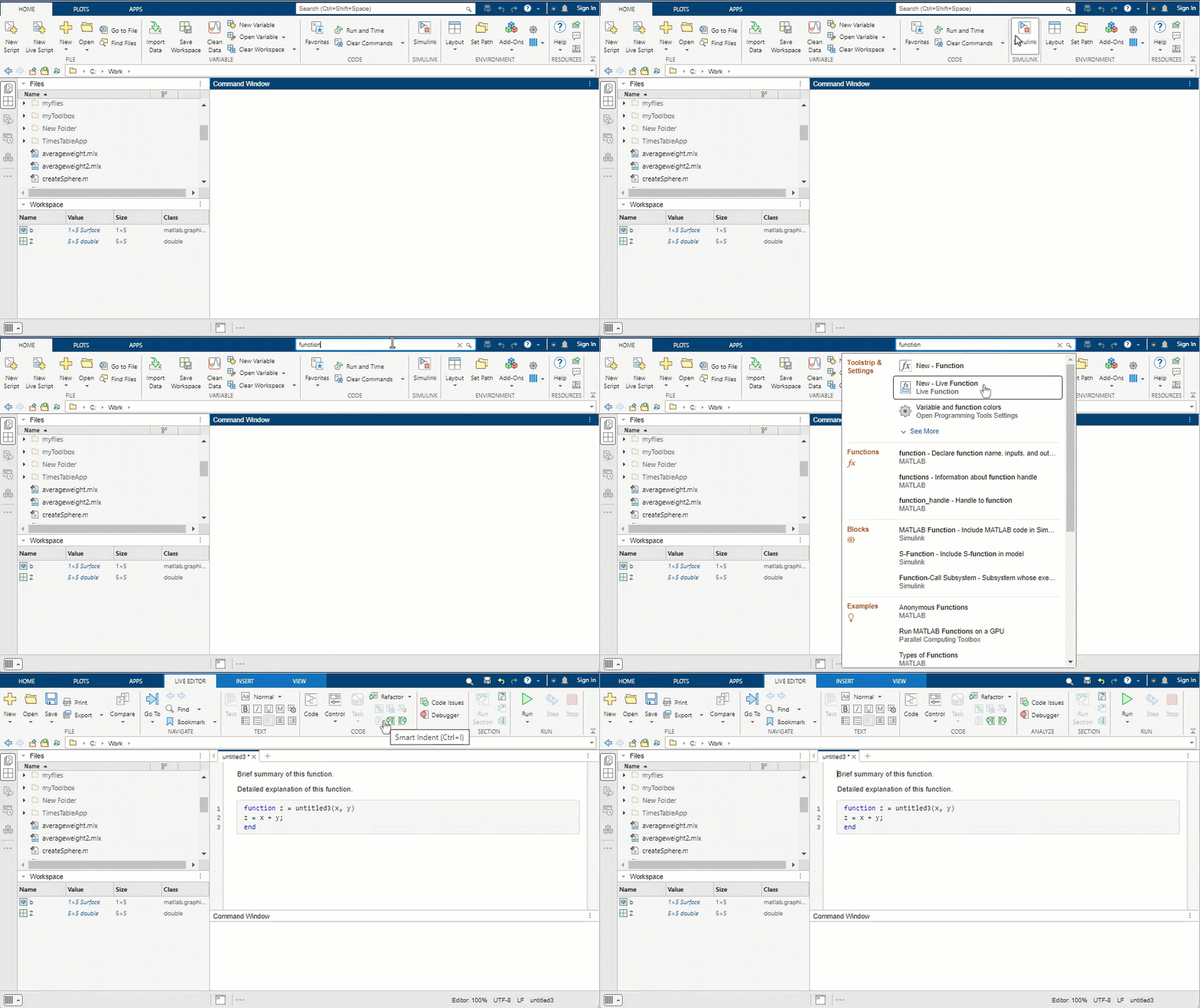
Help Button in the Toolstrip: Go to the MATLAB Toolstrip, under the Home tab, select the Help drop down button in the resources section. You will find links to the documentation mentioned above, examples, and community support on MATLAB Central.
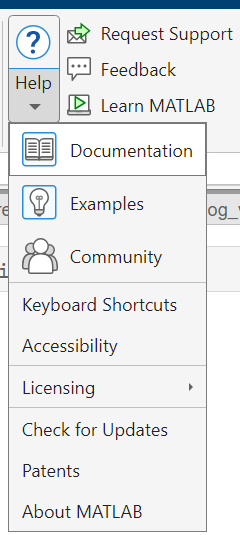
See the Keyboard Shortcuts link in the help menu. Shortcuts like Ctrl+R in the Editor or Live Editor comment out selected lines of code.
2. MATLAB Copilot
If your campus has access to MATLAB Copilot, use it as a learning tool rather than a shortcut. MATLAB Copilot is an AI assistant built directly into MATLAB that helps explain code, clarify error messages, and generate small examples using MathWorks documentation. The more specific your prompt, the better the answer.
Here are a few prompts that I recommend to get you started:
Learning a function: “Explain what the fft() function does and show me a simple example using a sine wave”
Understanding an error: “I’m getting this error: [paste error message here]. What does it mean and how do I fix it?”
Exploring a toolbox: “What can I do with the Signal Processing Toolbox to filter noisy sensor data? Show me a simple example”
Getting unstuck on a concept: “I don’t understand the difference between a for loop and a while loop in MATLAB. Can you explain it with an engineering example?”
Generating starter code: “Show me how to import experimental data from a CSV file and plot voltage against time in MATLAB”
Working with equations: “How do I numerically solve a differential equation in MATLAB? Show me an example”
Just make sure you understand the code it suggests before submitting your work. To learn more, check out the official MATLAB Copilot documentation on MathWorks.com.
Look for the  symbol in the toolstrip or command window which indicates ways that you can interact with MATLAB Copilot.
symbol in the toolstrip or command window which indicates ways that you can interact with MATLAB Copilot.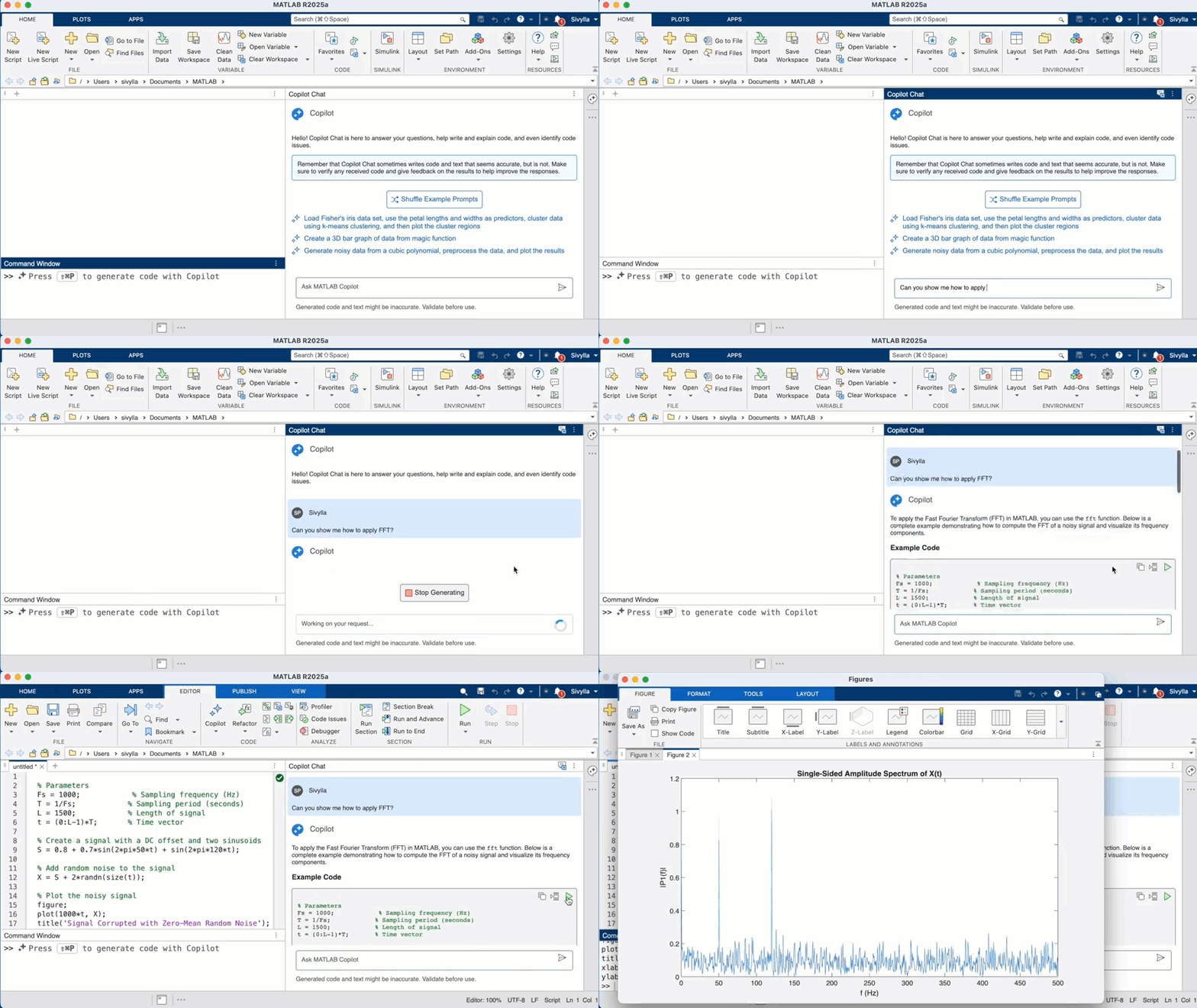
If your campus doesn’t have access to MATLAB Copilot, the MATLAB AI Chat Playground is a free alternative on MATLAB Central. It can generate and run MATLAB code, explain functions, and help you work through problems.
3. Student Resource Hubs
There are two pages I recommend bookmarking, and they serve slightly different purposes.
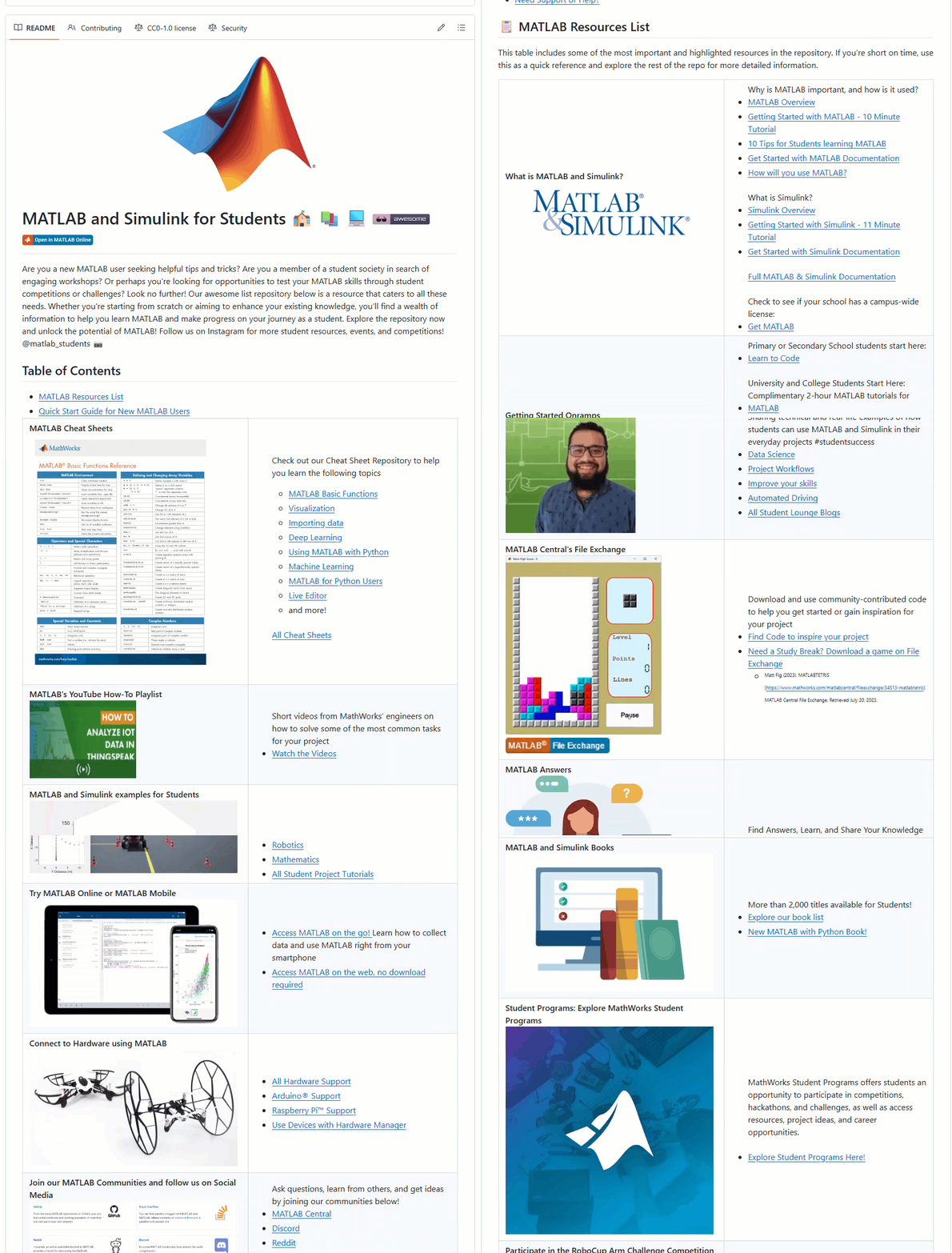
The MATLAB & Simulink Resources for Students page is the official MathWorks webpage, a clean, curated site linking to the core resources I mention in this post. It’s a great first stop.
Awesome MATLAB Students is a more comprehensive collection on GitHub, also maintained by MathWorks but shaped by conversations with students and faculty. It goes broader, with cheat sheets, fun examples, student club material, competitions, and more. Use it when you want to explore beyond the core set. Star it now and you can keep coming back to it all semester.
4. MATLAB Answers
MATLAB Answers is where I send students when they’re stuck on something specific. There are thousands of answered questions, and someone has almost always hit your exact error before. And if no one has, you can post your own question. The community is genuinely helpful and quick to respond.
5. Cheat sheets
Keep a cheat sheet open while you work. Forgetting syntax is normal, and a quick glance at a cheat sheet is faster than hunting through docs. There are sheets for Simulink, data import, machine learning, and more. One of my favorites for new students is the MATLAB Basic Functions Cheat Sheet.
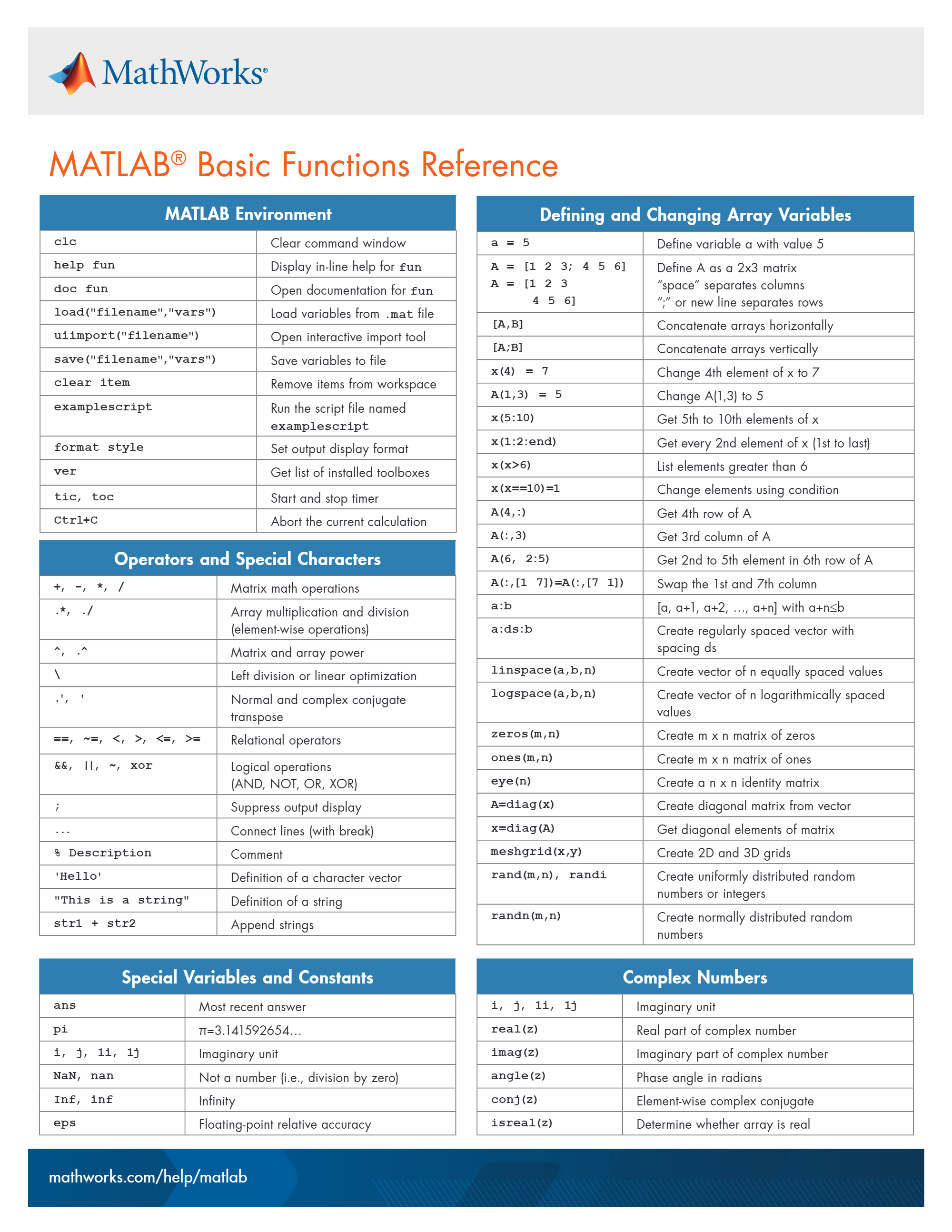
Some cheat sheets are available in multiple languages.
Let’s Recap Your First Week: A Day-by-Day Plan
Using the resources above, if you’ve just been assigned MATLAB, here’s a simple plan for your first week that I recommend following. I suggest focusing on learning one thing per day. The goal is to build your confidence one small win at a time.
Day 1 — Get access: Check if your university has a Campus-Wide offering and sign up with your university email. Once you’re in, open MATLAB Online and get familiar with the UI, toolstrip, command window, and files section.
Day 2 — Do an Onramp: Start MATLAB Onramp. Give it 1–2 hours and just work through it. This is my favorite MATLAB resource.
Day 3 — Finish Onramp and earn your certificate: Add it to LinkedIn. Then have a quick look at the other free Onramp courses. There’s almost certainly one for your field.
Day 4 — Get your cheat sheet: Review the Basic Functions Cheat Sheet and keep it open while you work. Most of it will look familiar from MATLAB Onramp, but having it all in one place is useful.
Day 5 — Write something real: Take one concept from your class and recreate it in MATLAB. Not sure where to start? Try pasting this into MATLAB Online and running it:
x = 0:0.1:2*pi;
y = sin(x);
plot(x, y)
title(‘My first MATLAB plot’)
xlabel(‘x’)
ylabel(‘sin(x)’)
Then try changing sin to cos, or the range to 0:0.1:4*pi. When you get stuck, try the doc command first, then MATLAB Answers or Copilot if you need more help.
Day 6 — Explore real code: Sharpen your skills by practicing with hundreds of coding problems on Cody, and browse MATLAB Central File Exchange for real-world code in your field. Open the files and study them. You’ll learn more from actual code than any tutorial.
Day 7 — Set yourself up for the semester: Subscribe to this blog, follow @matlab_students on Instagram, and star the Awesome MATLAB Students repo. That’s your support system for the semester. Below are more ways to grow your skills and explore project-based learning.
Step 4: Build Habits That Keep You Improving
In my experience, the students who get really good at MATLAB are the ones who stay in contact with it between assignments. It doesn’t take much. Here are a few easy ways to do that:
Subscribe to this blog. The Student Lounge goes up at least once a month with student stories, new resources, and tips. The subscribe button is in the top-left corner.
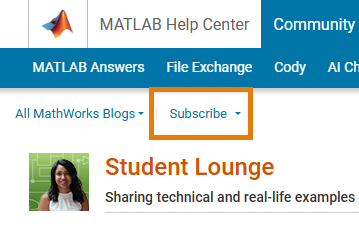
I’d also recommend checking out the other MathWorks blog channels on MATLAB Central — there are blogs covering everything from deep learning to student projects, and I find myself recommending them to students regularly.
Follow @matlab_students on Instagram. @matlab_students posts a few times a week: quick tips, competition callouts, student community highlights. A good way to pick up tips and see what’s happening in the MATLAB student community.

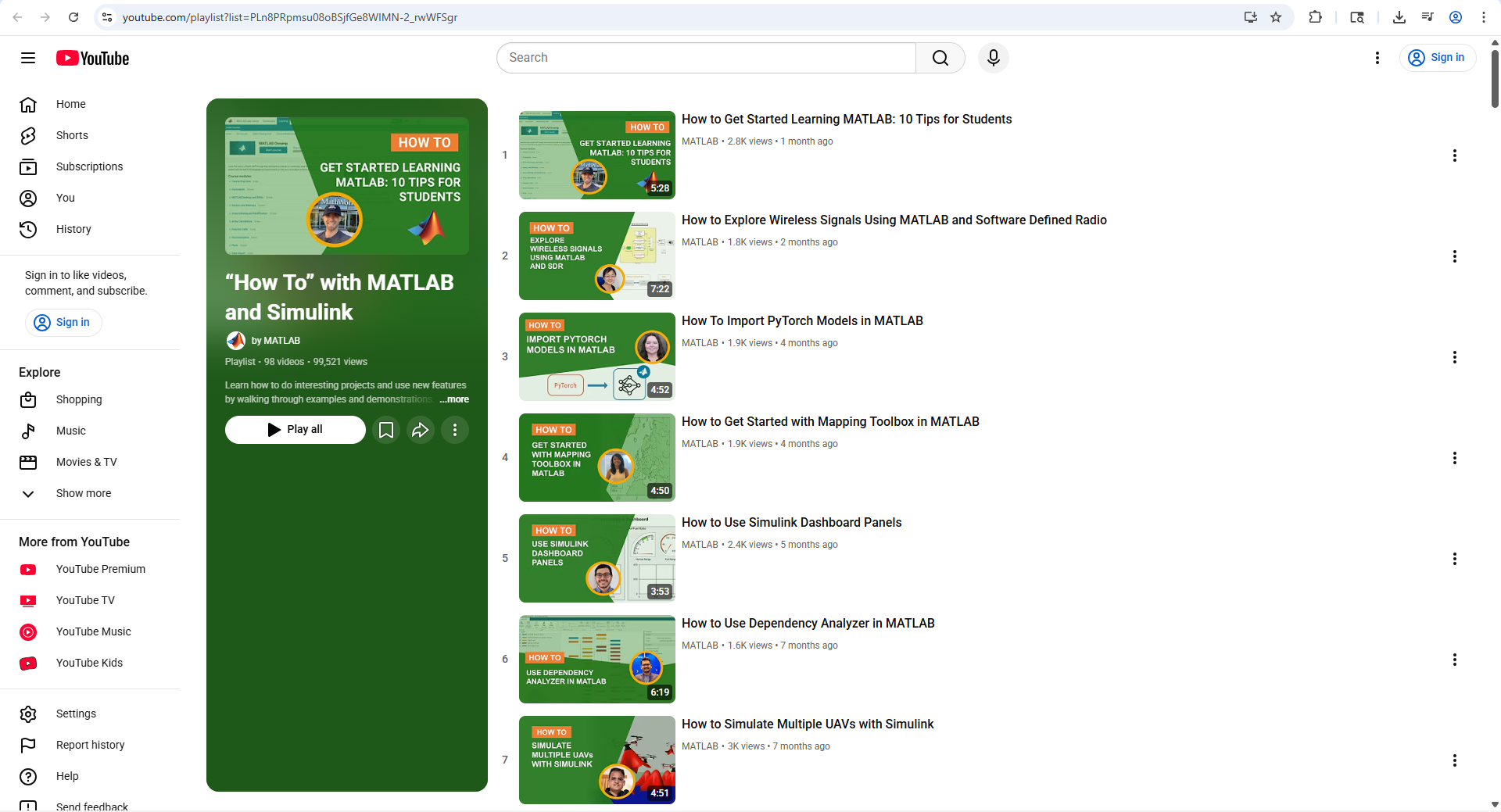
Watch short how-to videos. The MATLAB How-To Playlist on YouTube shares short tutorials every month, each focused on one specific concept. It’s worth subscribing to that playlist, along with the main MATLAB YouTube channel.
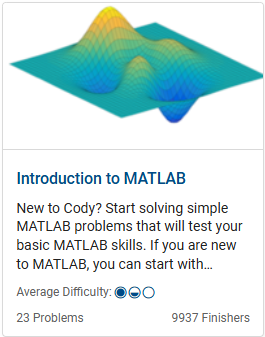
Try Cody. Cody is a fun coding challenge game site on MATLAB Central where you solve MATLAB problems and earn points. Good for finding gaps in what you know. Try a problem group, even for ten minutes a week.

Step 5: Go Further — Competitions, Projects, and Toolboxes
Once you’ve got the basics down, building something real is the fastest way to improve. Here are four ways to take it further.
Student Programs:
MathWorks Student Programs run competitions across engineering and science, from drone challenges to the annual Simulink Student Challenge with cash prizes. These are great for your CV, and you’ll often meet people from industry or research along the way.
Check out the full list of contests, competitions, and hackathons here. MathWorks provides complimentary software and self-paced online training for its competitions. If your team is participating and needs software, fill out the software request form on the corresponding competition page.


If there’s a MATLAB student club at your university, get involved. The Awesome MATLAB Students repo has material you can use to run a workshop.
Challenge Projects:
For capstone, thesis, or independent study ideas, browse the MathWorks Challenge Projects list. Once you have a project in mind, the File Exchange on MATLAB Central is a great place to find starting points, with thousands of open-source files across engineering and science that you can download and learn from.
Toolboxes:
As you start working on bigger projects, you’ll eventually hit problems that are specific to your field, like filtering a noisy signal or training a machine learning model. This is where toolboxes come in, and it’s worth understanding what they are now so you know what’s available to you.
A toolbox is a packaged collection of functions, apps, example code, and documentation built for a specific area like signal processing, image processing, machine learning, control systems, and so on. MathWorks has over 100 of them, so whatever your field is, there’s almost certainly a toolbox for it. They give you ready-made, tested algorithms for your field so you’re not building everything from scratch. If your university license includes them, they’re already available to you and work exactly like any other MATLAB function.
If you installed MATLAB Desktop, make sure you selected your toolboxes during installation. It’s easy to click through the installer without realizing they’re there. If you missed any, go to Home > Add-Ons > Explore Add-Ons to install them. To check what’s currently installed, type ver in the Command Window.
Some toolboxes also come with interactive apps, like Image Segmenter in the Image Processing Toolbox, that you can launch from the Apps tab to do common tasks without writing any code at all.
Here’s a quick example using the Image Processing Toolbox:
img = imread(‘peppers.png’); % load a sample image (built into MATLAB)
gray = rgb2gray(img); % Image Processing Toolbox – convert to grayscale
% (edge detection works on grayscale, not color)
edges = edge(gray, ‘Canny’); % Image Processing Toolbox – find the edges in the image
% ‘Canny’ is the algorithm used – one of the best for clean results
imshow(edges); % display the result – you’ll see a black image with white outlines
Before: After:


peppers.png is built into MATLAB so you can run this right now without needing your own image. In a few lines you’ve gone from a color photo to a clean edge-detected version, and that’s what a toolbox gets you. The best place to get started with any toolbox is its documentation page on MathWorks Documentation. Each one has a getting started section and worked examples to walk you through the basics.
On the Documentation page, select Product List from the filter in the top left to see every available toolbox and find the one that matches your field.
Explore MATLAB in Your Field:
My final recommendation is to start applying MATLAB to problems in your own discipline. This will be the glue that helps you understand how MATLAB can support your schoolwork, research, projects, or career.
Here are some academic areas where MATLAB is widely used and a resource page for each discipline:
- Biological Sciences – model, simulate, and analyze biological systems
- Chemical Engineering – enhance learning in process modeling, simulation, and labs
- Chemistry – analyze, visualize, and build predictive models for chemical data
- Electrical & Computer Engineering – explore signals, systems, and embedded design
- Geoscience – analyze and understand complex environmental and geological data
- Mathematics – explore numerical methods, modeling, and applied math concepts
- Mechanical Engineering – design, simulate, and analyze physical systems
- Neuroscience – process data, run experiments, and model brain activity
Pick one area, try an example, and if you want to see where these skills can lead, check out MathWorks customer stories to see how engineers and scientists have applied MATLAB in industry to solve real-world problems.
Happy Coding — you’ve got this!
MATLAB gets easier the more you use it. Start with Day 1, do one thing at a time, and don’t stress about knowing everything up front. Nobody does!
Key links from this post:
- Awesome MATLAB Students GitHub repo
- MATLAB & Simulink Resources for Students
- MATLAB Onramp
- Online Training Suite
- MathWorks Documentation
- MATLAB Answers
- MATLAB Basic Functions Cheat Sheet
- Cody — MATLAB coding challenges
- MATLAB Central File Exchange
- MathWorks Student Programs
- MATLAB Central
- Watch the companion video on YouTube
- 类别:
- MATLAB



评论
要发表评论,请点击 此处 登录到您的 MathWorks 帐户或创建一个新帐户。