
Version Control for Economic Models
A Practical Guide to Git in MATLAB
The Problem You Already Have
You know the folder. Somewhere on your machine there is a directory that looks like this:
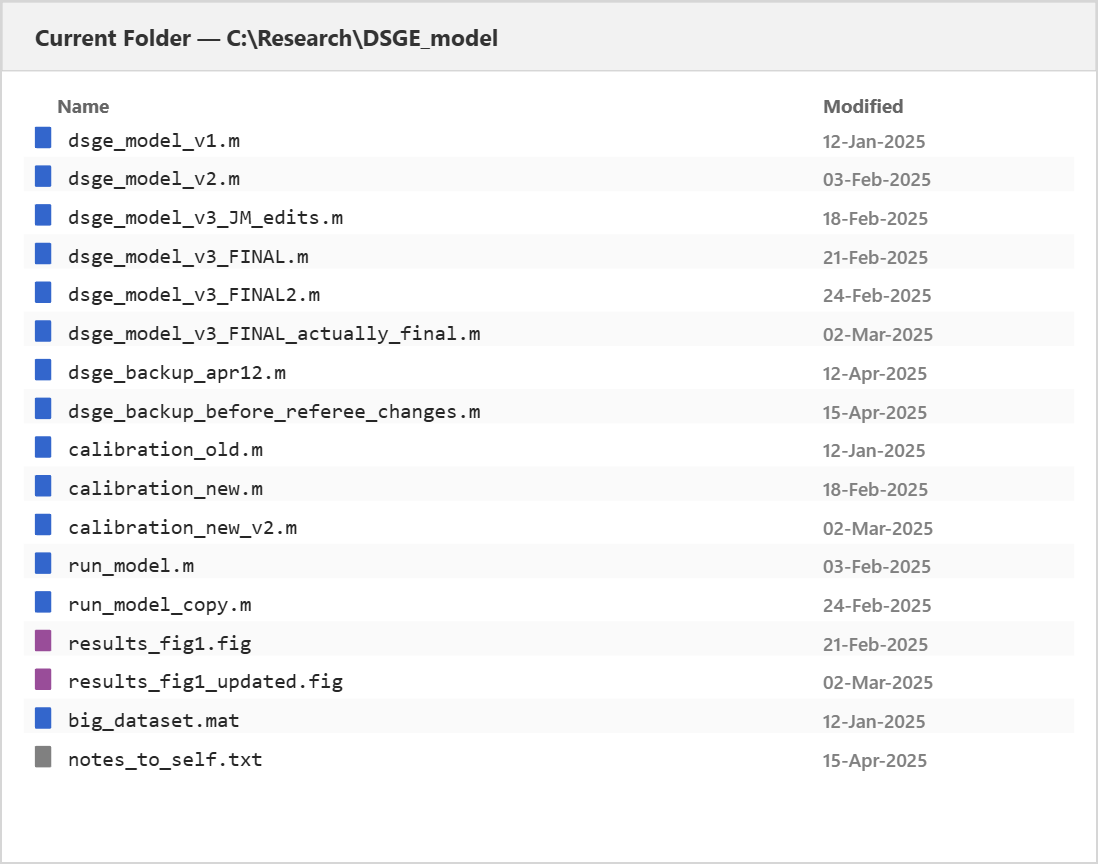
Every economist who writes code recognises this. You start a model, iterate on it, share it with a co-author, and within weeks, the naming conventions have collapsed. Which file is the current one? Which one did you send to the referee? Nobody knows — least of all you, six months from now.
This creates four problems that compound over time:
- The naming problem. File names become a lossy, unreliable version history. When _FINAL needs changes, you get _FINAL2. When your Research Assistant edits it, you get _FINAL2_JM_edits. The information content of these names approaches zero.
- The collaboration problem. You email a zip file to your co-author. They make changes. You make changes. Now you have two divergent copies and no systematic way to reconcile them. “Which version are you running?” becomes a recurring question.
- The reproducibility problem. A referee asks how you generated Table 3. Six months have passed. You cannot reconstruct the exact state of the code that produced those results, because you never recorded it.
- The undo problem. You refactored the Phillips curve block yesterday, and something broke. The model no longer converges. You want to go back to Tuesday’s version, but there is no Tuesday’s version — only _backup_apr12.m, which may or may not be what you need.
Git solves all four of these. It is not a programming tool—it is a research tool. And if you use MATLAB, it is already built into your workflow.
Git in 60 Seconds
Git is a version control system. That means it tracks every change you make to your files, labels those changes, and lets you navigate back to any previous state. Think of it as track-changes for your entire project—not just one document, but every file in the folder, with a complete history going back to day one.
Five concepts are all you need to get started:
- Repository. Your project folder, made version-aware. A repository (“repo”) looks and behaves exactly like a normal folder—you just gain the ability to record and revisit its history.
- Commit. A labeled snapshot of your project at a specific point in time. Each commit has a short message describing what changed: “Added Taylor rule to monetary policy block” or “Calibrate to US quarterly data.” Commits are the entries in your research log.
- History. The ordered sequence of commits. You can browse it, compare any two points, and revert files to an earlier state. This is your undo button—not for the last five minutes, but for your entire repository history.
- Remote. A copy of your repository stored on a server (GitHub, GitLab, or your institution’s own infrastructure). The remote serves as backup, and as the sharing mechanism when you collaborate with co-authors.
- Branch. A parallel line of work that does not affect your main version. You might create a branch called alternative-calibration to test a flatter Phillips curve slope—and if the experiment fails, you discard the branch without ever touching your working model.
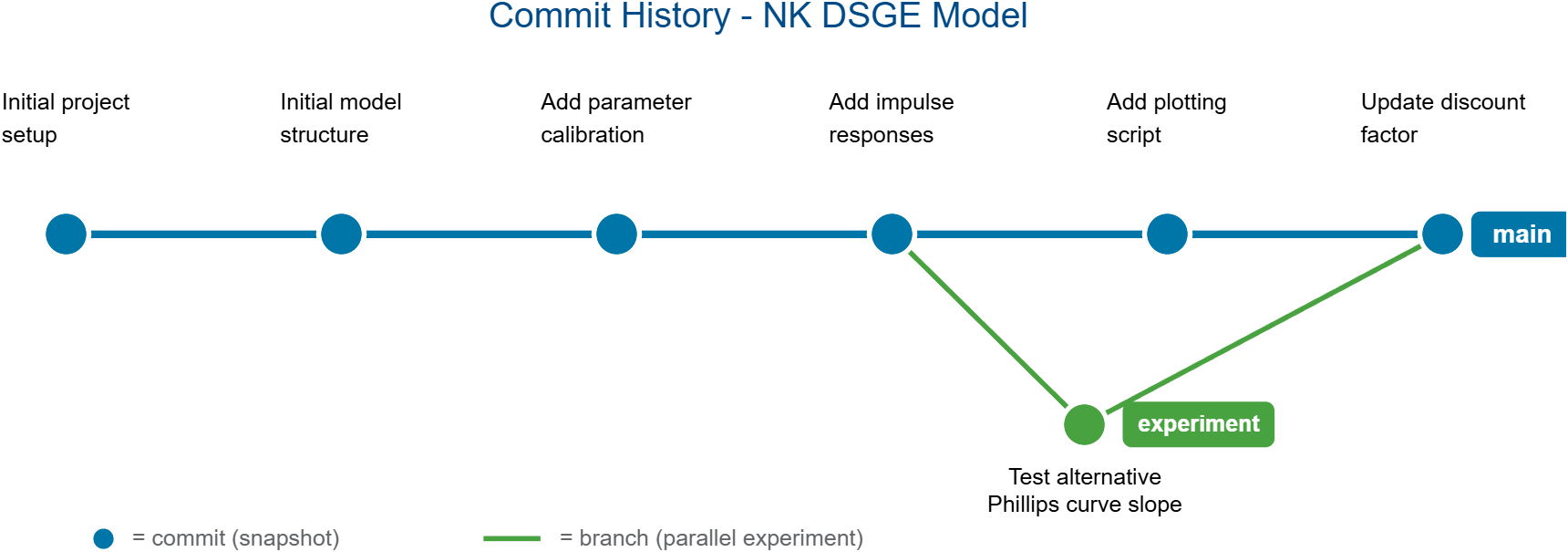
That is the entire mental model. Everything else—every command, every interface element—is just a way to do one of these five things.
What It Looks Like in MATLAB
You do not need the command line to use Git. MATLAB has source control built in—a graphical interface that lets you commit, push, compare, and branch without leaving the environment you already work in.
Setting Up (One Time)
Starting a new Git-tracked project in MATLAB takes under a minute, and you can do it from the interface:
- Open MATLAB and navigate to your project folder (or create a new one).
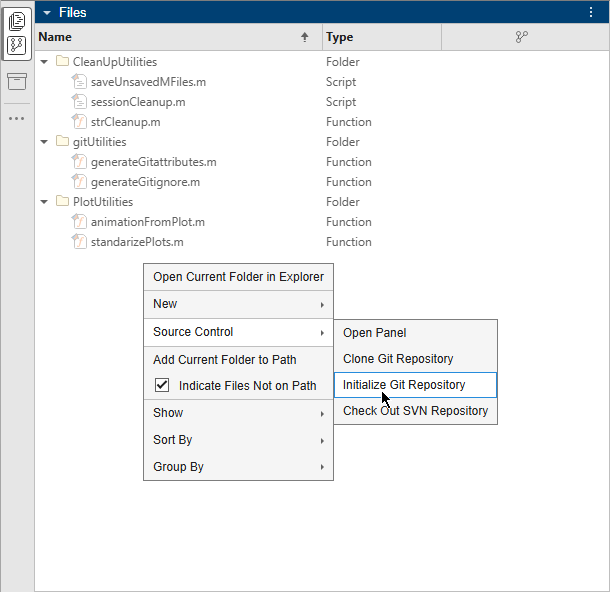
- In the Files panel, right-click the white space and select Source Control > Initialize Git Repository.
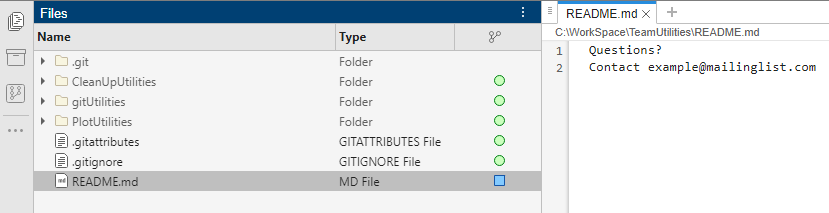
- MATLAB initialises a repository. Your files now have status indicators beside them in the Files panel.
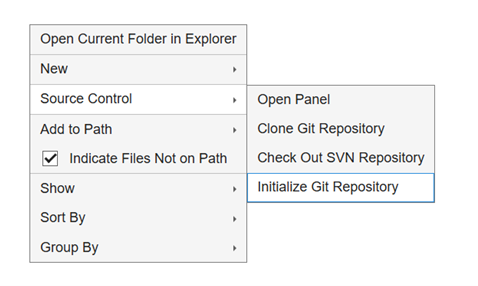
That is the entire setup. From this point forward, MATLAB tracks changes to every file in the folder.
To connect to a remote (for backup and sharing), in the Files panel, right-click the white space and select Source Control > Add RemoteSource Control > Add Remote and enter the URL of your GitHub or GitLab repository. Your IT team can help with credentials—or if you are using a personal GitHub account, MATLAB walks you through authentication.
A note on MATLAB Projects. MATLAB also offers MATLAB Projects, a more structured way to organize files, manage dependencies, and integrate with source control. If you already use Git and want more structure later, Projects are worth exploring. But they are not required to get started.
The Daily Workflow: Work, Commit, Push
Once your repository exists, version control becomes a 30-second habit at the end of each working session:
1. Work. Edit your .m files as normal. MATLAB shows modified files with a status indicator in the Files panel—you can see at-a-glance what has changed since your last commit.
2. Commit. Right-click a modified file and select Source Control > View Changes to inspect the line-by-line diff. Then write a short message describing what you did.
3. Push. Send your commits to the remote with a single click. Your work is now backed up and available to co-authors.
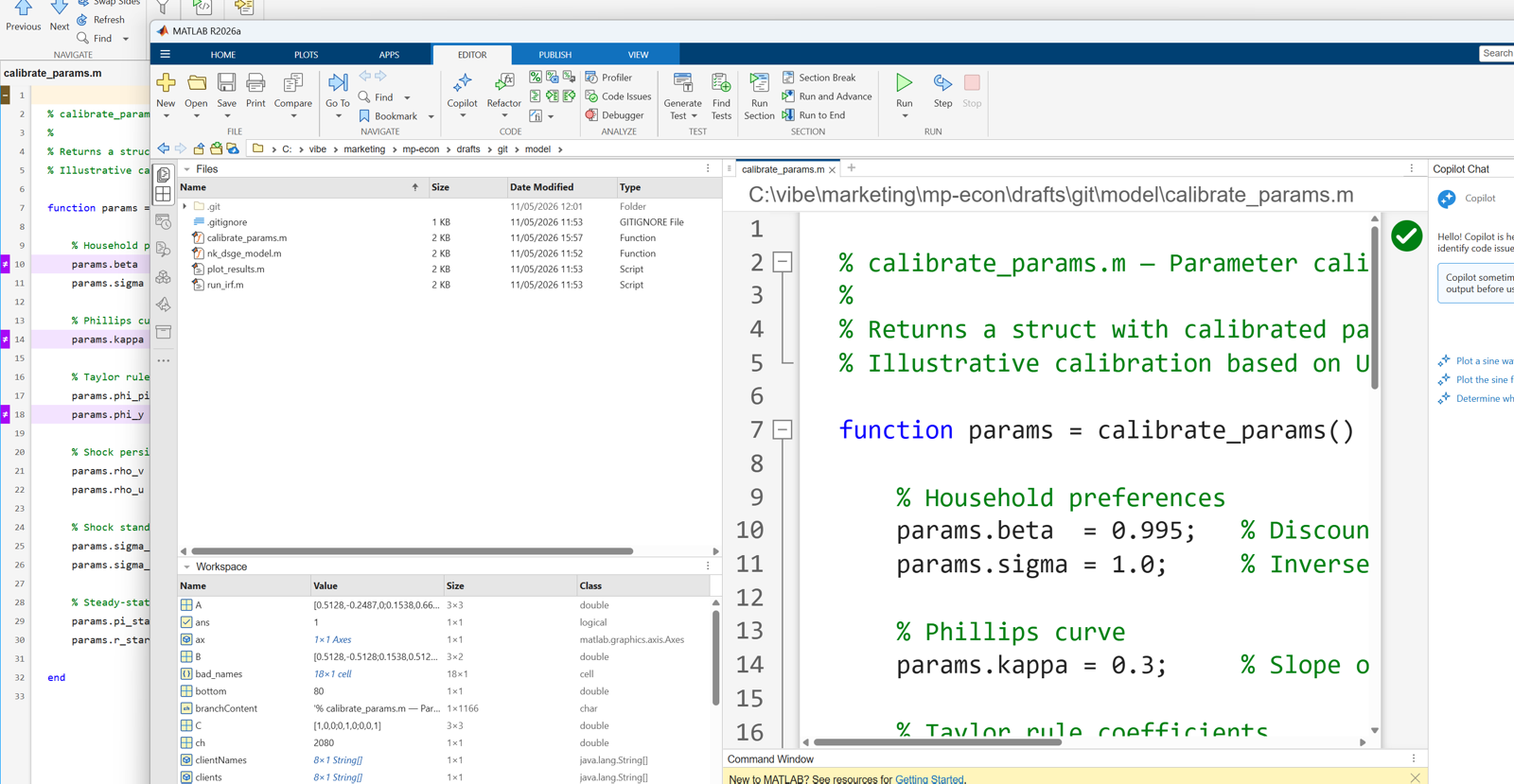
This loop—work, commit, push—is the entire daily practice. It takes less time than saving a backup copy with a new file name.
Seeing Your History
Need to know what you changed last Tuesday? MATLAB lets you browse your commit history and compare any two versions of a file side-by-side.
The Comparison Tool shows exactly what changed between versions: added lines in green, removed lines in red. For a calibration file, this means you can see precisely which parameters were adjusted and when.
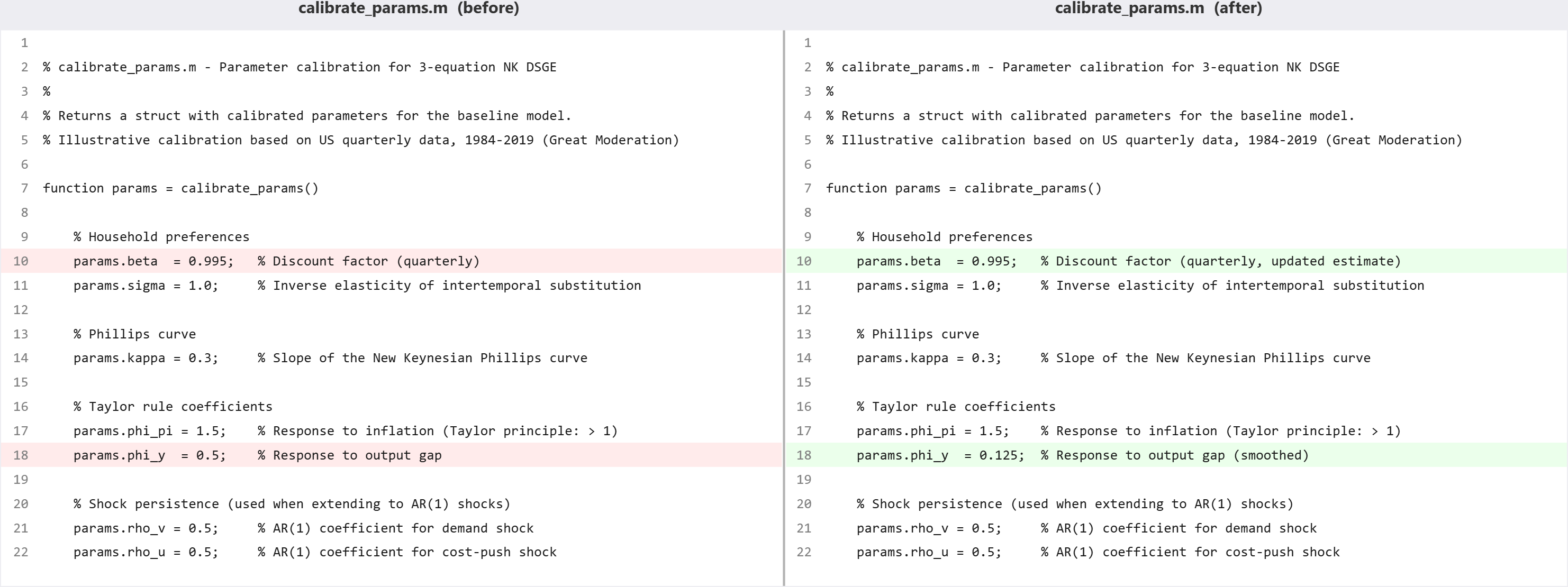
To revert a file to a previous state, right-click it in the Files panel and select the version you want. No guesswork, no digging through backup folders.
Collaborating with Co-Authors
Working with co-authors follows the same rhythm, with one addition:
- Pull before you start work (download any changes they have pushed).
- Work and commit as normal.
- Push when you are done.
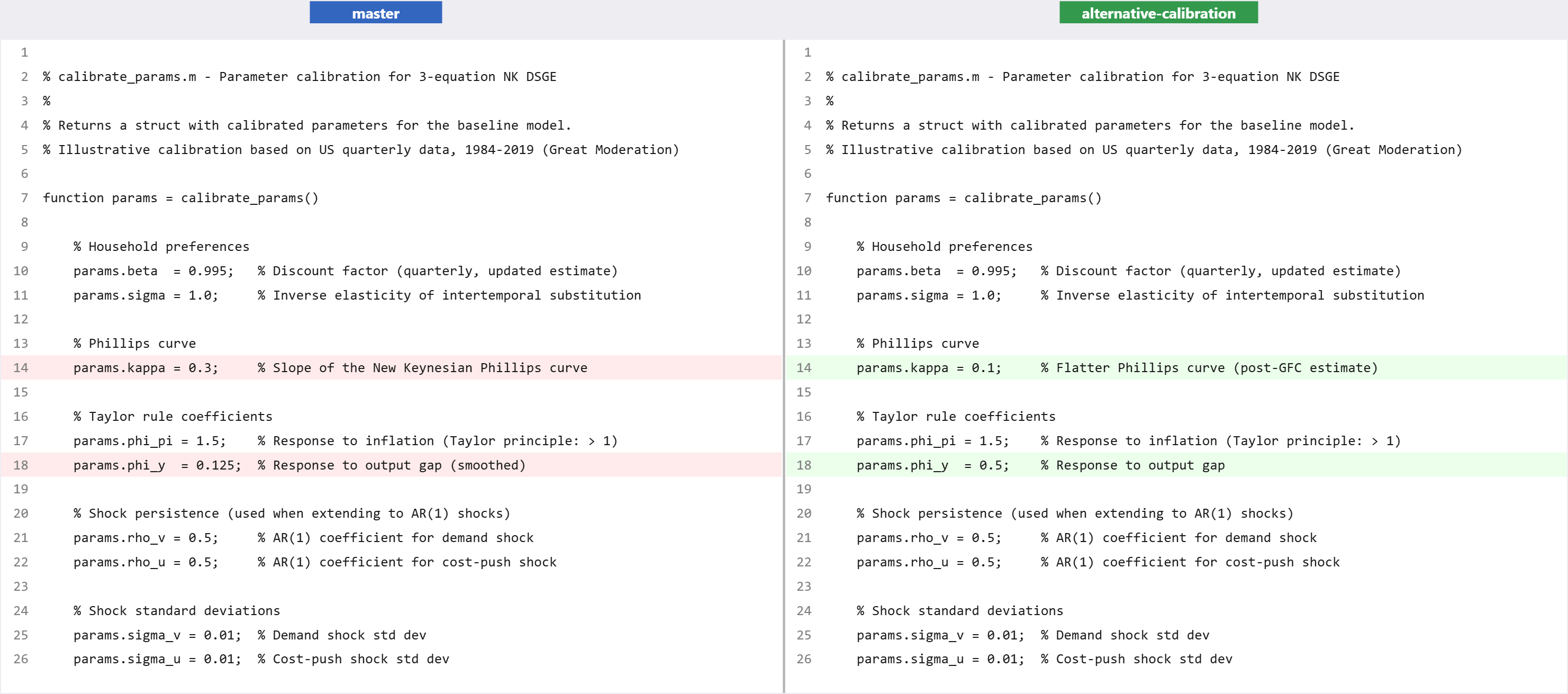
If you and a co-author both edited the same file, MATLAB flags the conflict and helps you resolve it—showing both versions side by side so you can choose which changes to keep. This sounds intimidating, but in practice it is rare and straightforward to resolve—see “AI Assistants Help When Things Go Wrong” below.
What Goes In, What Stays Out
Not everything belongs in a Git repository. The principle is simple: track code, exclude data and outputs.
Track these (commit them):
- Model code (.m files)
- Parameter and calibration files
- Documentation and READMEs
- Small configuration files
Exclude these (add to .gitignore):
- Large datasets (.mat files with large arrays, CSVs over a few megabytes)
- Generated outputs (figures, tables, log files)
- Compiled and temporary files (*.mex*, *.asv)
The reason is straightforward: Git works best with text files. Source code is text—it is small, it diffs cleanly, and Git can show you exactly what changed line by line. The same applies to LaTeX (.tex) files, BibTeX (.bib), and any other plain-text format—all excellent candidates for version control. Data files and binary outputs are large, do not diff meaningfully, and will bloat your repository.
To tell Git which files to exclude, create a file called .gitignore in your project folder (or ask your coding agent to do it for you):
# Generated outputs
  *.fig
  *.png
  *.eps
  results/

  # Large data files
  *.mat
  data/*.csv

  # MATLAB temporary files
  *.asv
  *.mex*
  slprj/
  codegen/

  # OS files
  .DS_Store
  Thumbs.db
  desktop.ini
Once this file exists, Git ignores the matching files automatically. You never have to think about it again.
Where to Host Your Repository
A remote host stores a copy of your repository on a server—providing backup, sharing, and collaboration infrastructure. Two options cover nearly all cases:
| Option | Best for |
| GitHub (cloud) | Open research, community visibility, MATLAB Online integration |
| GitLab (cloud or self-hosted) | Institutional workflows, private-by-default, on-premises data governance |
Many universities and central banks run their own GitLab instance—if your institution has one, that is likely the simplest path. If not, both GitHub and GitLab offer free tiers with private repositories—your unpublished research stays confidential until you explicitly choose to share it.
If your co-authors already use one of these, use that. Consistency matters more than features at this stage. If nobody has a preference, GitHub is the default choice—it has the largest community and the most integrations.
MATLAB Online integration. If you host on GitHub, you can open your repository directly in MATLAB Online—no local installation required. This is useful for quick edits, for sharing reproducible examples with colleagues, or for working from a machine that does not have MATLAB installed locally.
The hosting decision is low-stakes and reversible. Pick one, create a free account, and push your first repository. You can always move later.
AI Assistants Help When Things Go Wrong
One concern people have about adopting Git is: “What if something goes wrong and I do not know how to fix it?” This is a reasonable worry—and it is increasingly a non-issue.
AI coding assistants can interpret Git situations in plain language and act on them directly. If you encounter something unfamiliar, you can ask:
- “What does this merge conflict mean? Keep my co-author’s version and discard mine.”
- “How do I undo my last commit?”
- “Pull the version from a week last Thursday into a separate folder, re-run the model there, and explain why the results differ from what I am running now.”
The assistant reads the state of your repository, explains what happened, and—crucially—can do the work for you. It does not just list steps; it resolves the conflict, writes the commit message, or checks out the old version and runs the comparison. You stay in your research workflow while it handles the mechanics.
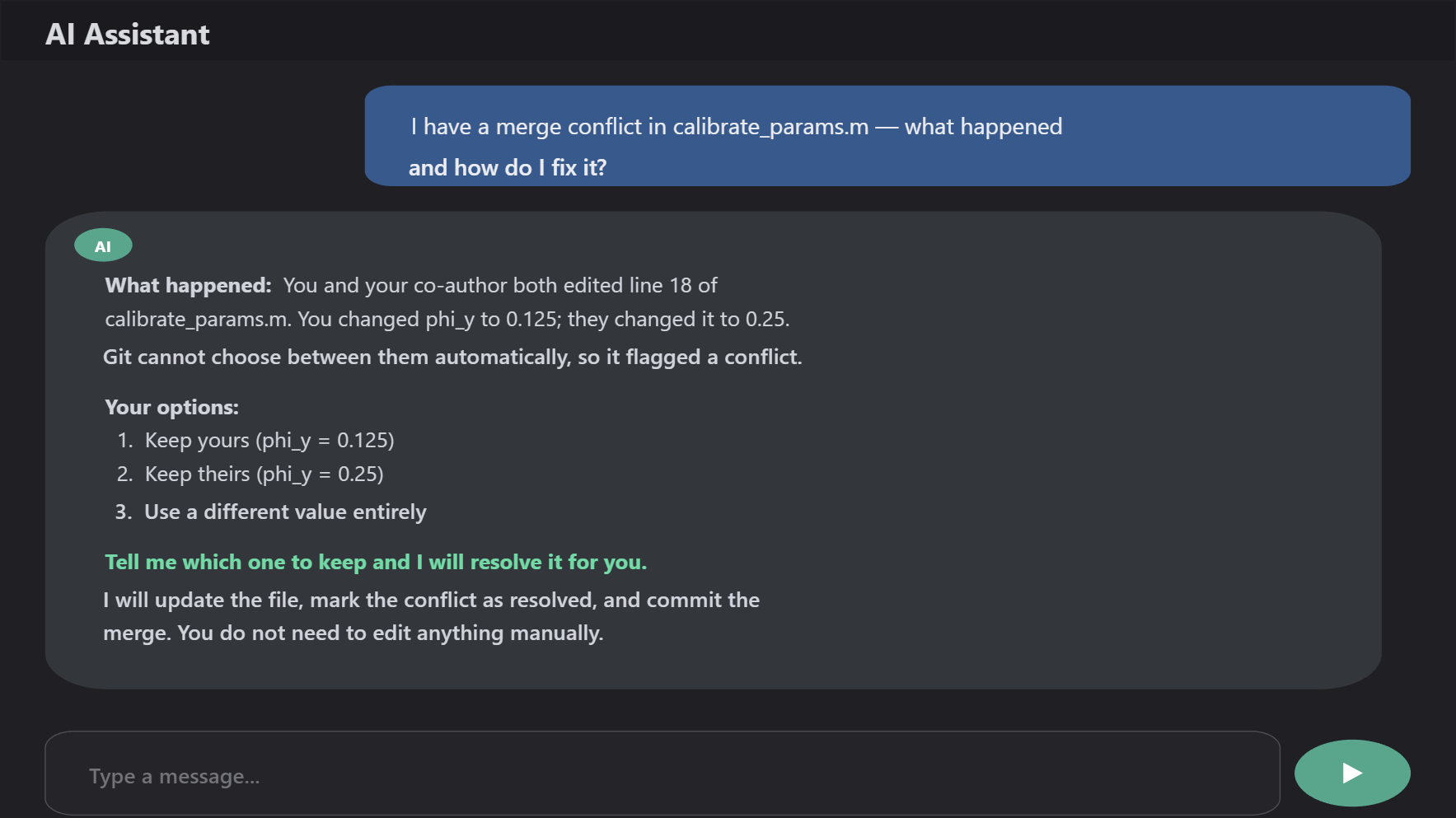
Merge conflicts—the situation where two people edited the same line—look intimidating the first time you see one, but they are routine. MATLAB highlights the conflicting sections and shows both versions, and an AI assistant can resolve it in seconds once you tell it which change to keep.
The practical takeaway: you do not need to learn Git commands. Between the MATLAB graphical interface and AI assistants, the underlying commands are handled for you. You need to know that Git exists and that it solves real problems in your research workflow—the tooling takes care of the rest.
Once You Are Using Git, There Is More
Git is not an end in itself—it is the foundation for a set of practices that make research code more robust, more shareable, and more reproducible. Once version control is part of your workflow, these capabilities become natural next steps:
Automated testing. Run validation checks every time you push—catch calibration errors or convergence failures before they reach your co-authors. If a parameter change breaks the model, you find out immediately rather than weeks later.
Dependency management. Track exactly which toolboxes and versions your model requires, so it runs the same way on every machine. No more “it works on my laptop” conversations.
Packaging and sharing. Bundle your model as a MATLAB toolbox that colleagues can install with one click. Move from emailing zip files to providing a professional, versioned distribution.
Git is the foundation. Once it is part of your workflow, these capabilities are a natural next step.
Getting Started This Week
You do not need to convert your entire research archive. Start with one project—ideally a new one, or an existing project that you are actively developing.
This week:
- Open your project folder in MATLAB.
- Right-click in the Files panel and select Source Control > Initialize Git Repository.
- Make your first commit.
That is version control. Everything else—remotes, branches, collaboration—builds on this foundation, and you can add it at your own pace.
Further reading:
- Collaborate Using Git in MATLAB — official documentation with step-by-step instructions
- Develop and Integrate Research Software with Continuous Integration — for when you are ready for the next step
- Category:
- Data Management,
- Econometrics,
- ModelOps



Comments
To leave a comment, please click here to sign in to your MathWorks Account or create a new one.