Skip to Main Content Skip to Search
File Exchange
MATLAB Newsgroup
Link Exchange
  Blogs  
 Contest 
MathWorks.com

Inside the MATLAB Desktop

March 29th, 2007

Shortcuts for commonly used code

If you haven’t discovered Shortcuts yet, you should. Shortcuts are useful for storing small snippets of m-code that you regularly run. If you find yourself typing the same 3 or 4 lines of code everyday, you should select those lines in the Command History (or the Command Window) and drag them up to the Shortcuts Toolbar in the Desktop. This will automatically create a shortcut on the toolbar.

shortcuts1.jpg

A dialog will open where you can modify the code, give it a catchy name, and even change the icon.

shortcuts2.jpg

The shortcut shows on the Shortcuts Toolbar.

shortcuts3.jpg

Shortcuts also show in the MATLAB Start Button. In the Shortcuts menu in the Start Button, you will find all of your Shortcuts including the Toolbar Shortcuts and any Help browser favorites you may have bookmarked. In this area, you can create more categories of shortcuts for even greater storage capacity and organization.
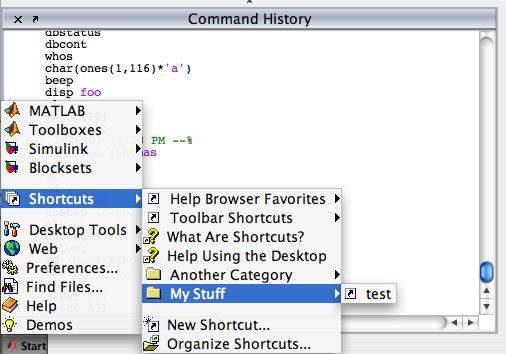
shortcuts_start.jpg

When your shortcuts start getting a little disorganized, you can open the Shortcuts Organizer from the Shortcuts Toolbar context menu or the Start Button Shortcuts menu. In this dialog, you can move items up and down and into categories, rename items, create new categories, and delete items.
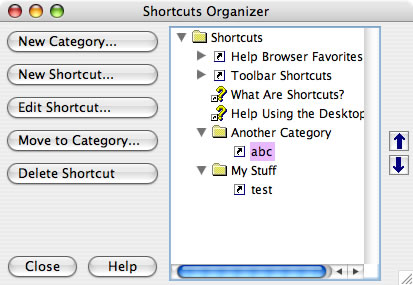
organizer.jpg

So, if you haven’t already, give Shortcuts a try. It is as easy as drag and drop.

Do you have a favorite Shortcut? We’d love to hear what it is.

23 Responses to “Shortcuts for commonly used code”

  1. Yehuda Sylman replied on :

    Hi Kristin,

    1) Is there a way to modify the layout so the shortcuts will be accessible in the lower part of the screen ? (if getting there thru “Start”, have to cascade thru two menus)

    2) I have three favorite shortcuts:

    Delete All Children
    ——————-
    delete(allchild(0)) % stronger than close all

    Maximize
    ——–
    function maximize(figs)

    if (nargin==0)
    figs=findobj(’Type’,'figure’);
    end

    for i=figs’
    % get state
    Name=get(i,’Name’);
    NumberTitle=get(i,’NumberTitle’);
    set(i,’NumberTitle’,'on’,'Name’,”)
    drawnow
    showwindow(sprintf(’Figure %d’,i),’showmaximized’)
    % reset state
    set(i,’Name’,Name,’NumberTitle’,NumberTitle)
    end

    Toggle Stop On Error
    ——————-
    function ToggleStopOnError

    s=dbstatus;
    if (isempty(s))
    dbstop if error
    fprintf(’Stop on Error ON\n’);
    else
    if (isempty(strmatch(’error’,{s.cond},’exact’)))
    dbstop if error
    fprintf(’Stop on Error ON\n’);
    else
    dbclear if error
    fprintf(’Stop on Error OFF\n’);
    end
    end

  2. Kristin replied on :

    There is not currently a way to move the start button to another location. We are looking into other ways we can display this information and also considering allowing users to add folders to the shortcuts toolbar which would allow you to store more information on the toolbar and have it be categorized.

    I like the toggle stop on error. I am sure this will be useful to others.

  3. Scott Hirsch replied on :

    Great article, Kristen. Since I work with a lot of time series data, I’ve become a huge fan of linkaxes to link zooming across multiple axes. This lets me see what’s happening at a particular time for data spread across multiple plots. This leads to my favorite shortcut:

    Title: X Link Zoom
    Code:
    linkaxes(findobj(0,’Type’,'Axes’,'-not’,'Tag’,'legend’),’x'); zoom on
    Icon: \toolbox\matlab\icons\view_zoom_in.gif (close enough)

  4. Michel Slivitzky replied on :

    What about the possibility to have faster access to the shortcuts directly from the editor window.

    Creating graphs directly from the editor I use shortcuts to toggle grid, hold, etc and would welcome this possibility.

    Michel

  5. David Canon replied on :

    I like these shortcuts. I’ve been trying to create a set of shortcuts on start up, but the method described in the documentation does not work (adding ‘/r filname’ after the target in the matlab shortcut. This is described in the “Startup Options in Windows Shortcut” section of the documentation).
    Is there a way to automatically execute certain commands when matlab is launched?

  6. Kristin replied on :

    Hi David,

    The documentation refers to creating Windows application shortcuts. These are different. In a windows application shortcut, you can add “-r function_name” after matlab.exe to get MATLAB to run code after it initializes on startup. You can also create a startup.m file and place it in your startup directory to achieve the same effect. You should be able to find more info on startup.m in the doc too.

    Does that help?

  7. Kristin replied on :

    Hi Michel, Do you mean that you would like a shortcuts toolbar in the Editor? I’ll put in an enhancement request for that.

  8. Michel Slivitzky replied on :

    Hi Kristin,

    Thanks, I will certainly appreciate it a lot.

    As 95% of my work is done from the editor window, I do not like to interrupt the going stream of work by switching to the command window.

  9. Amir replied on :

    It can be very useful if I could put a function on the shortcuts bar. I am thinking on selecting a variable or a set of variables from the Workspace or even the command window press the shortcut and run the desired function.

  10. Kristin replied on :

    Thanks for the feedback Amir.

  11. Vidya replied on :

    Hi Kristin,

    When I add/remove/modify shortcuts in the Toolbar, they seem to be reflected in the shortcuts.xml file immediately.

    Is there a way to update the shortcuts in the Toolbar, when I modify the shortcuts.xml file?

    My goal is to update the Shortcuts Toolbar using scripts. Please let me know if you have any suggestions.

    Thank you,
    Vidya

  12. Vidya replied on :

    Hi Kristin,
    I found the following response in the newsgroup:

    >>> Michael wrote:
    >>> Is it possible to set and delete shortcuts by command line?

    >>It is not currently possible. I do have an enhancement request to
    >>provide an M command to do this and I will consider it for a future release.

    >>Kristin

    I would like to know if this feature is available now and if so, for which Matlab release?

    Thanks in advance,
    Vidya

  13. Kristin replied on :

    Hi Vidya,

    This is still not available. And we are still considering it for a future release. Thanks for letting us know you are interested in this feature.

    Kristin

  14. Stead Kiger replied on :

    This is my favorite shortcut, a Windows Explorer shortcut for the current directory. It’s on the Matlab file exchange at:

    http://www.mathworks.com/matlabcentral/fileexchange/loadFile.do?objectId=14140&objectType=FILE

    Regards,
    Stead

  15. Kristin replied on :

    That’s a good one Stead: winopen(pwd). What tools is the Current Directory browser missing for you that make you want to open Windows Explorer? Is this something we could fix?

  16. Stead Kiger replied on :

    One of the main reasons I need to open Windows Explorer is to use TortoiseSVN for source/revision control. TortoiseSVN ( http://tortoisesvn.net/ ) is a Subversion client that is implemented as a Windows shell extension that integrates into the Windows Explorer. On the surface, the Matlab Current Directory browser looks a lot like the Explorer and it would be handy to be able to access the TortoiseSVN contextual menu from there, but that may not be practical.

    Also, its a lot faster to navigate (and look for files) with Windows Explorer, especially since the Current Directory browser doesn’t have an integrated folder (tree) view.

    Thanks for asking!

    Stead

  17. Javier replied on :

    Where is the shortcut’s info stored?
    Is it possible to pass all the shortcuts to another user?

  18. Kristin replied on :

    Javier - if you type “prefdir” at the MATLAB command line you will see the directory where they are stored. In that directory, there is a file called shortcuts.xml. If you make changes to the file manually, you will want to do it while MATLAB is closed.

    There is not currently a way to import in another users shortcuts. I do have an enhancement request to provide that functionality in the future.

  19. Robin Larsson replied on :

    Hi,

    Is there a way to add shortcuts to Simulink (in the menu of a model)?
    Or is there a way to modify the the menu(File Edit Debug Desktop…) to add your own menu items for Simulink (and/or Matlab)?

    Thanks
    Robin

  20. Mike replied on :

    Robin,

    You can add items to the Simulink menus by adding a sl_customization.m file to your MATLAB path. Details can be found by starting here: http://www.mathworks.com/access/helpdesk/help/toolbox/simulink/index.html?/access/helpdesk/help/toolbox/simulink/ug/bqt2_v7-1.html&http://www.mathworks.com/access/helpdesk/help/toolbox/simulink/helptoc.html.
    This is a bit out of our area, so for further advice you should contact technical support (see link at the right), post to comp.soft-sys.matlab or bug Seth to create a post on his blog about that.

    As for the main MATLAB menu, we do not currently support that functionality, but we will take it under consideration.

    Thanks for the great question.

  21. Daniel replied on :

    Hi,

    is there a way to use shortcuts to insert some text at the cursor position in the Matlab Editor (on Windows)?
    I thought of an ActiveX or Java solution, but I appreciate any hints.

    Regards,
    Daniel

  22. Ken replied on :

    Hi Daniel,

    There is not currently a way to insert text into the MATLAB Editor programatically. I’ll create an enhancement request for this.

    -Ken

  23. Queffurust replied on :

    This is my “cleanup” shortcut

    clc % clear Command Window

    close all hidden % deletes all figures including those with hidden handles.

    bdclose all % closes all system windows

    imtool close all % closes all image tools

    com.mathworks.mlservices.MLEditorServices.closeAll; % close MATLAB editor

    com.mathworks.mde.desk.MLDesktop.getInstance.closeHelpBrowser % close the doc page

    com.mathworks.mlservices.MatlabDesktopServices.getDesktop.closeGroup(’Web Browser’) % to close an URL open with the WEB function

    com.mathworks.mlservices.MLCommandHistoryServices.removeAll; % to clear the history

    clear all % remove items from workspace, freeing up system memory

Leave a Reply


Inside the MATLAB Desktop is written by the MATLAB Interface teams.

Team picture
  • Etienne: Hello, Is it possible to change the background color of a particular cell?
  • Ken: No problem Mark…glad to help. Enjoy your font!
  • Mark Andrews: Ken, thanks for replying @3 and giving such clear instructions on how to get this to work.
  • Steve Eddins: Hi Ken, Every year or so I try to find a programming font that would really make me happy. A couple of...
  • Ken: @Jiro: Andale Mono looks nice! I especially like the rendering of the letter “g”.
  • Ken: Hi Mark, The issue your referring to (see the bug report here) was fixed in version 7.5 (R2007b). The problem...
  • Jiro: Ken, That’s a nice font. I use “Andale Mono” which has a similar look. I also like the clear...
  • Queffurust: This is my “cleanup” ; shortcut clc % clear Command Window close all hidden % deletes all...
  • Mark Andrews: Ken, should this work with version 7.0 (R14) on Windows? My favorite font is Consolas, but MATLAB seems...
  • Mark Feldman: Like Bryan (#38) and Kim (#40), I strongly request that you add native vi key bindings to the MATLAB...

These postings are the author's and don't necessarily represent the opinions of The MathWorks.

Related Topics