Mike on the MATLAB Desktop

July 16th, 2007

Closing Time at the Document Bar

When you are done working with a “document” (M-File in the Editor, variable in the Array Editor, docked Figure, etc.) MATLAB offers a plethora of ways to close it:

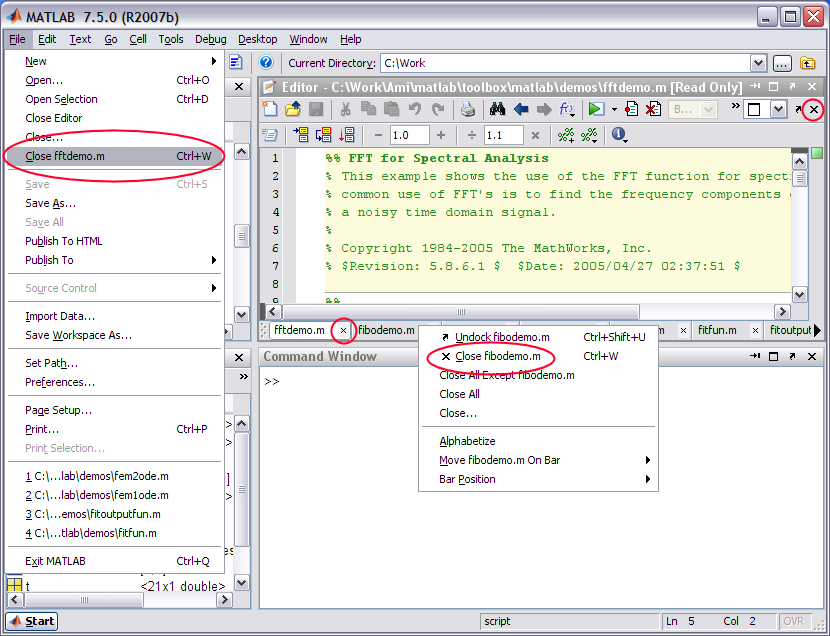
  • You can select File->Close my document from the menu
  • You can press Ctrl-W (while the document has focus)
  • You can click the X to the upper right of the document
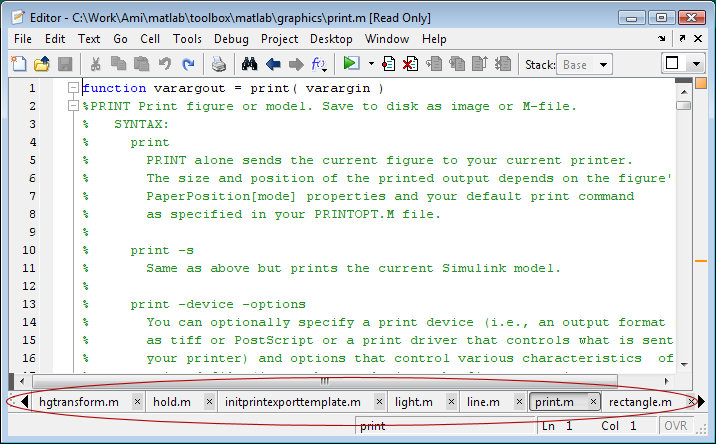
  • You can click the X on the document bar button (tab) corresponding to the document
  • You can even right click on the document bar button and select Close my document from the context menu.
What more could you want?

Well if the document you are closing is an M-File with unsaved changes; you probably want MATLAB to prompt you regarding the disposition of the changes. Indeed, MATLAB will do so in response to any of the above close gestures. If you happen to know that you want to discard your changes you can avoid the prompting dialog by holding down the Ctrl key while pressing either of the X’s. MATLAB will respond by closing the document and discarding any changes without prompting you. This Ctrl key trick extends to closing the Editor itself. If you hold down the Ctrl key and press the X on the Editor’s title bar, the Editor will close, discarding unsaved changes to all files.

Sometimes, instead of closing a particular document you might want to keep a particular document open and close all the others. As of R2006b, the document bar button context menu offers a “Close all except my document” item for just this eventuality. This can be handy but it can also be frustrating when you instead want to keep a few documents open rather than just one. Here’s this menu item offering to do almost, but not quite, what you want. The solution is to use the “Close…” item that also appears on the context menu as well as on the File menu. This item has been present since R2006b. Close… opens a dialog that lets you choose which files to close.
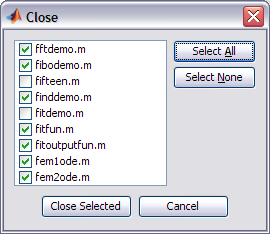
Close Dialog

In order to use this dialog to close all but a few documents, click the “Select All” button, then within the list at the left individually deselect the documents you want to keep open. Click the “Close Selected” button and MATLAB will do your bidding.

10 Responses to “Closing Time at the Document Bar”

  1. Michel Slivitzky replied on :

    I may be off topic, but would like to make a suggestion for keeping files in editor when closed inadvertently

    How about having a confirmations dialog window when closing the editor (undocked).

    I can’t remember hoe many times I have lost track of all files in the editor by clicking on close instead of minimize.

    Would be nice to have this option in a future version

  2. Peter replied on :

    Thanks for pointing out this pitfall. We will consider doing something about it in a future release.

  3. Andrew Catellier replied on :

    Documents, you don’t have to go home but you can’t stay here.

    Had no idea about right clicking on the closing bar, or the close dialog box. Thanks!

    And of course, props for the witty title.

  4. Margaret replied on :

    Can you make a feature to open all subroutines? So if I open my file main.m I also get function1.m function2.m,script1.m if they are currently called by main.m (or by a subsidiary, so if main.m calls script1.m which calls function 4.m I want to view all 3 of them. )
    Thanks.

  5. Christina replied on :

    Hi Margaret,

    Thanks for the suggestion. We will consider something like this in the future.

    -Christina

  6. Richard replied on :

    You asked what more could we want – so here it is. Is it possible to close a file in the Matlab editor from the command line? If not, it would be a nice feature. I have to switch between tasks often. I use shortcuts to quickly change directories and it would be a nice feature to be able to close all the files currently open (saving the file info so they can be reopened later), switch to a new directory, and open all the relevant files. I think the only thing preventing this is the ability to close files from the command line. It would be especially helpful if the ‘close_file’ function returned a list of the files that were closed and/or accept a list of files to be closed.
    Thanks

    P.S. Love the title

  7. Mike replied on :

    Richard,

    Keep watching the blog in the future…

  8. Jim replied on :

    Often time I end up with 25 document on my title bar. I would like a way to write a text file containing the path & filename of each open document before closing them all. Can this be done now from the command line?

    Thanks

  9. Ken replied on :

    Hi Jim,

    There’s no way to do what you’re asking for right now, but I can tell you we’re actively working on things that will enable this.

    -Ken

  10. Yair Altman replied on :

    Jim – an undocumented/unsupported way to do exactly this was reported by another user on Loren’s blog a few months ago: http://blogs.mathworks.com/loren/2009/03/03/whats-in-your-startupm/#comment-30128

    Note that because of the undocumented nature of his solution, it may well fail in any upcoming Matlab release. But it works great for all the latest Matlab versions.

Leave a Reply

Wrap code fragments inside <pre> tags, like this:

<pre class="code">
a = magic(3);
sum(a)
</pre>

If you have a "<" character in your code, either follow it with a space or replace it with "&lt;" (including the semicolon).


MathWorks
Mike works on the MATLAB Desktop team.

These postings are the author's and don't necessarily represent the opinions of The MathWorks.