Mike on the MATLAB Desktop

October 22nd, 2007

Tiling without a Wet Saw

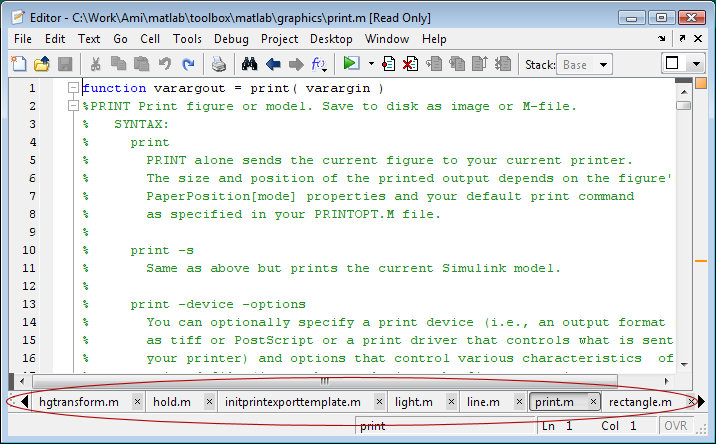
The various desktop tools that contain documents (the Editor, Array Editor, Figures container, etc) display one document at a time by default. Tiling allows you to see more than one document at a time. For example, in the Editor you might want to see two files side-by-side as shown below.

Left/Right Editor Tiling

To achieve this, choose “Left/Right Tile” from the Window menu or the Editor toolbar. Alternatively, you can choose “Top/Bottom Tile” to view one file above another. If you have more than two files open, the tiles will be populated with the file that was showing, plus the one that appears after it on the document bar. Once you have create the tiles, you can make any file appear in a particular tile simply by dragging from its document bar button into the tile. Alternatively, you can use the Tile dialog, displayed by choosing Window->Tile… from the menu bar, to select which files should appear in advance.

You can tile documents into an arbitrary n x m grid by using the tiling widget depicted below.
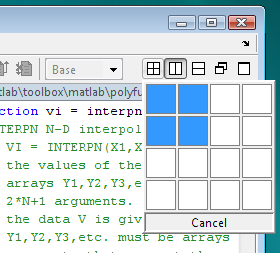
Choosing a 2 x 2 Tile Grid

It’s not clear why you would want to display more than two text files at a time but if you do, have at it. On the other hand, it’s easy to envision situations where you would like to see more than two MATLAB figures at once. The following shows the result of selecting a 2 x 2 grid when there are three figures open.
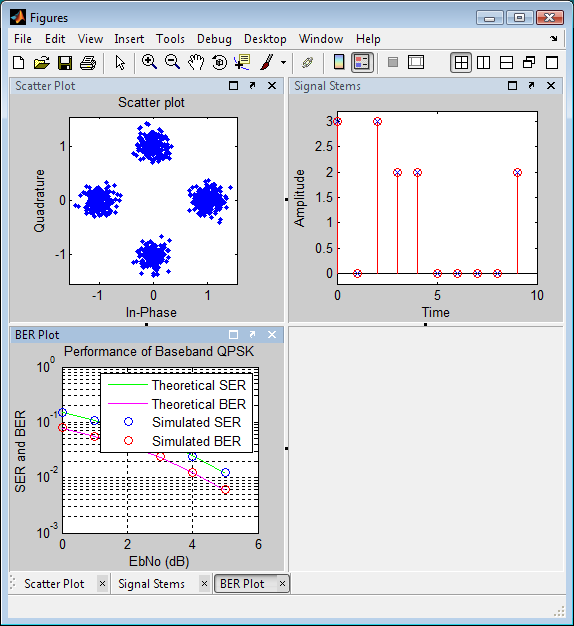
Three Figures in 2 x 2 Grid

When you specify a new grid, the open figures are dealt into the tiles by row and then column according to their order of appearance on the document bar, starting with the currently selected document. In the above case there was one less figure than the number of tiles so the last tile remained empty. You can tailor the tiling for three documents by removing the divider in the bottom half of the grid. To do this, hover of the small dot at the center of the divider. An [x] button appears. Click the [x] and the bottom tiles will merge into one.
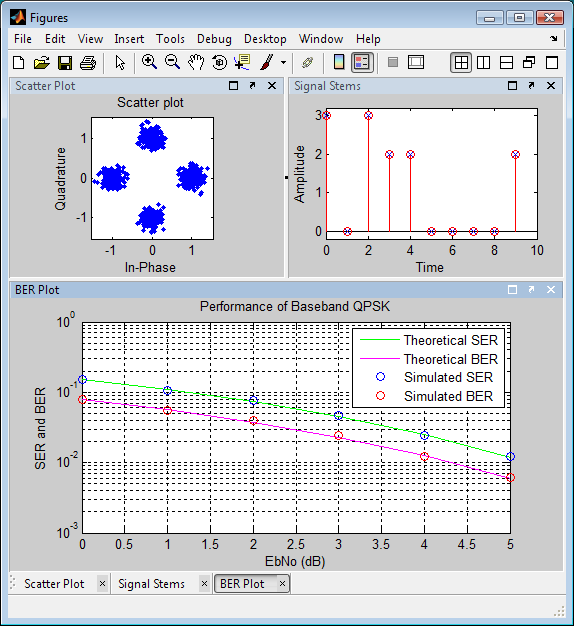
Three Figures in Three Tiles

Removing a divider never closes a document. For example, if you remove the divider between the two figures in the upper half of the Figures container depicted above, both figures remain open, one on top of the other. You can also subdivide any tile by right clicking on the title bar of the document it contains (or on the background if it doesn’t contain a document). The right click context menu offers options to subdivide the tile left/right or top/bottom.

You can carry this subdividing and merging business well beyond the point of utility. Witness the following tile arrangement:
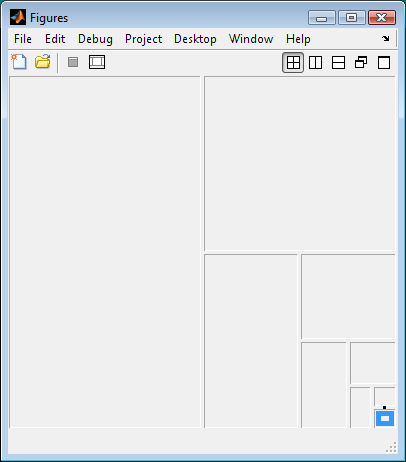
Useless Tiling

You can even turn it into a bit of a game; How many subdivisions and merges do you need to arrive at this arrangement?

Tiling Puzzle

Clearly this post has now gone beyond the limit of utility.

4 Responses to “Tiling without a Wet Saw”

  1. naor replied on :

    I know it’s an old post but I have questions about the Figures container and the forums are mostly silent on this feature.

    I had a neat and plesent work flow for interactive plotting with R2006a. I think the introduction of the Figures container is what messed it up. Used to be, when I pressed the show plot tools button, the figure would be surrounded by all the lovely tools, WITHOUT changing the figure window size and position. Now it’s the “show plot tools and dock figure” button, only the property editor shows up when I press it, and the figure size is fouled up. I have to go to the View menu to bring up the figure palette and the plot browser, and they further mess with my figure size. In fact they squeeze it into uselessness. I resize the figure so I can work with it, and when I hide the plot tools the figure expands to uselessness! I think this is related to the new “…and dock figure” part, but I’m not sure. Is there anyway I can recreate the older neater way? Is there a way to “show plot tools” but NOT “dock figure”, as an experiment? My work flow also includes a mixture of interactive and command line usage which is now greatly hampered, because docked figures cannot be resized by set command.
    Big thanks for any tips, as well as to any person who read this too long question regardless of answer,
    -naor

  2. Peter replied on :

    Noar,

    You can achieve something similar to the old behavior as follows:

    1. From the MATALB desktop menu bar choose Desktop->Figures
    2. Undock the empty figures container and adjust its size and location as you wish
    3. Click the Show Plot Tools tool bar button
    4. Undock each of the plot tools (using the undock button on the upper right of each title bar)
    5. Drag and size the undocked plot tools such that they surround the Figures container along the lines of the screen shot below
    6. Now whenever you select the plot tools for a particular figure it will drop into the container, leaving the plot tools around it border

    Granted this is a fair number of steps but the position and size of the Figures container and the plot tools will be remembered across sessions, so you should only have to do the first five steps once.

    Undocked Plot Tools

  3. naor replied on :

    Thanks Peter!
    This went a long way toward fixing my desktop experience. My bet that the author of the post would have a feed to the comments months later paid off :)
    I am trying to learn more about this container object but I’m having trouble locating it in the documentation. For example, how can I get/set the container size so that if someone were, say, a perfection freak they could make the container the right size for a single maximized figure in it would be x pixels wide by y high?
    Thanks again,
    -naor

  4. Peter replied on :

    The figures container and plot tools are designed to be interactive tools. As such they do not provide programmatic APIs that offer the level of precise control you are looking for. The basics of figures container interactive use are covered in the help documentation at http://www.mathworks.com/access/helpdesk/help/techdoc/creating_plots/f5-41409.html

Leave a Reply

Wrap code fragments inside <pre> tags, like this:

<pre class="code">
a = magic(3);
sum(a)
</pre>

If you have a "<" character in your code, either follow it with a space or replace it with "&lt;" (including the semicolon).


MathWorks
Mike works on the MATLAB Desktop team.

These postings are the author's and don't necessarily represent the opinions of The MathWorks.