
Sharing Your M-Lint Settings
Writing robust, production quality MATLAB code is a whole lot easier when you use M-Lint. M-Lint inspects your code for problems and also recommends changes that will help improve the performance or maintainability of your code. M-Lint is analogous to the spelling and grammar checkers I so depend on, available in most word processors.
In order to really take advantage of M-Lint, I’ve found it useful to integrate it into the code review process. So when working on a team project, we use an agreed upon set of M-Lint settings, which are stored on a public drive. Then, each developer points their M-Lint analyzer to those settings, and codes against them.
Finally, when completing a code review, one of the exit requirements is that the MATLAB code must be in a “green” state (no errors, no warnings). We do allow warnings to be ignored using %#ok, though good justification must be provided.
Here’s how you can set up shared M-Lint settings:
The person setting up the shared settings should do the following
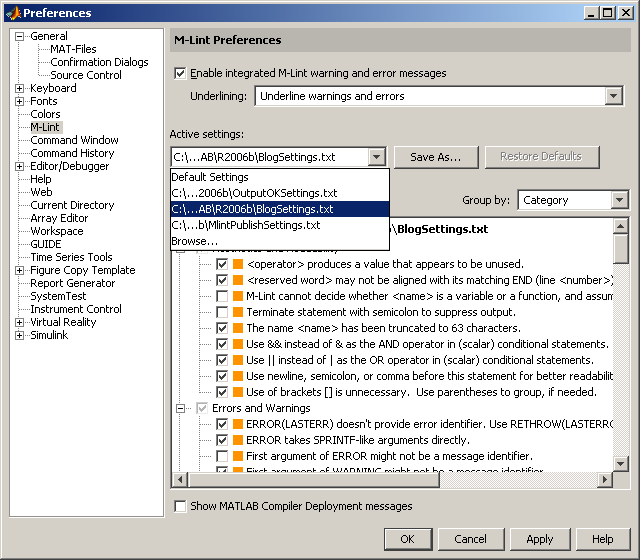
- Open the Preferences dialog by going to File -> Preferences… and select M-Lint (you should see the dialog below)

- Tweak the M-Lint settings as needed
- Press Save As…
- Navigate to a shared directory and press Save (alternatively you could check this file into source control)
Each team member should do the following
- Open the Preferences dialog by going to File -> Preferences… and select M-Lint
- Click on the Active Settings combo-box and select Browse…

- Navigate to your teams shared M-Lint settings, select that file and click Open
- Press Apply or OK for the settings to become active.
Many of us work on multiple teams, so I should point out that it’s very easy to switch between M-Lint settings. Go to Tools -> M-Lint and select the appropriate settings for the project your working on.
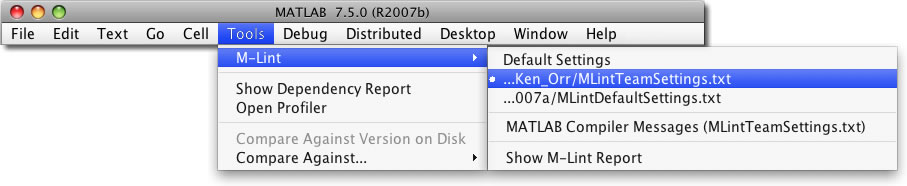
I think you’ll find this approach really makes you think about your warnings, and it will force you to justify any usages of %#ok.
By the way, there’s a new blogger in the family. Seth will be talking about Simulink over at his new blog, Seth On Simulink. This will be a great place for Simulink users to pick up tips and tricks, as well as share their experiences with the product.
- Category:
- Editor,
- Preferences






Comments
To leave a comment, please click here to sign in to your MathWorks Account or create a new one.