Mike on the MATLAB Desktop

March 16th, 2009

Click for more information

R2009a introduces Extended M-Lint: a new set of tooltips in the MATLAB Editor that provide on-demand additional information about a particular message. The following images show the new R2009a M-Lint message features.
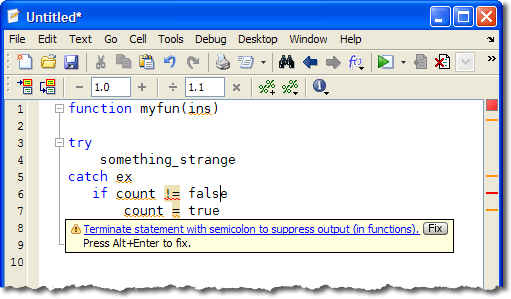
collapsed M-Lint message

Some, but not all of the messages are hyperlinks. Clicking the hyperlink expands the tooltip box and displays additional information on why the message was shown and how to possibly resolve the issue. Clicking the link again will shrink the message.

expanded M-Lint message

In addition to the color of the squiggle or stripe, the severity of a message is indicated by a warning or error icon. M-Lint warning and error icons
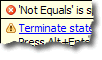
Not all M-lint messages have extended information. We started with the ones we felt would be most useful, and each release going forward we’ll examine the new and existing messages to see how we can provide the most useful information about your code.

If there is a an automatic fix available for the message, there is a “fix” button M-Lint auto-fix button in the tip which will apply the change for you. To preview the change, you’ll still have to use the context menu. In addition to the Alt+Enter shortcut introduced last release, this release we introduce Ctrl+M (or Command+M on Mac) to show the message and expand/collapse it.

Let us know how you find this new feature; we’re especially interested in any comments you might have about the content and what messages you find useful or would like to see.

14 Responses to “Click for more information”

  1. StephenLL replied on :

    I like the new Extended M-Lint. Good work.

    A suggestion for a future inclusion would be to check for functions that have a different behavior for a vector and a matrix when the dimension parameter is missing. For ex: if x is a row vector, sum(x) will sum across but if x is a matrix, sum(x) will sum down the column. In some runs of a model X is a matrix, but for other runs it could potentially be a vector.

    I would suggest to the user they specify the dimension parameter for these functions.

    Stephen

  2. Mike replied on :

    Stephen,

    Thanks for the suggestion. That’s a tough one as lot of the older commands were inconsistent with inputs. Our new functions are a lot better but its hard to change the old ones due to backwards compatibility problems. A message would be a good way of reminding people about that.

  3. davetweed replied on :

    This is a more general m-lint thing: it would be really useful if there was a checkbox that said “warn about variables that naively appear to be used undefined” where ‘naively’ means “assuming the user isn’t doing something sophisticated to create variables dynamically at run-time, etc. (I’ve seen people claim m-lint can do this, but I haven’t ever persuaded the m-lint in R2008b to manage it.)

    This would be most useful when there’s a time consuming calculation that its difficult to save out (say, finding eigenvalues of a huge matrix) before the misspelled varable.

  4. Mike replied on :

    davetweed,

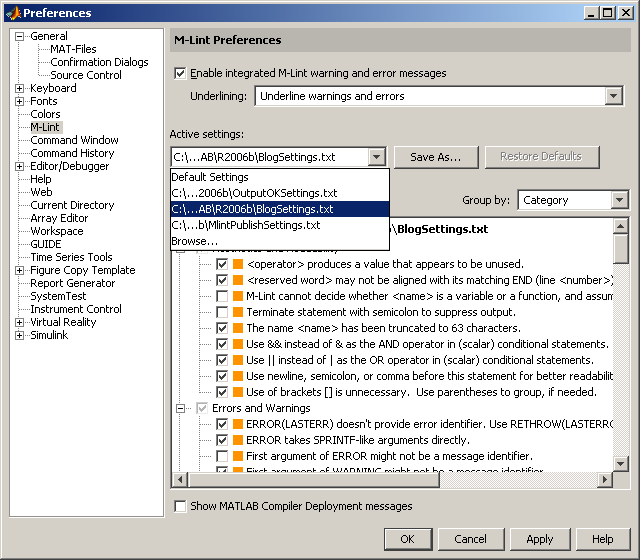
    Do you mean this one?

  5. Michael replied on :

    What I miss is a selective deactivation of messages. A goof example is the warning “Terminate statement with a semicolon …” you are using in the articles screenshot.

    In most cases it is usefull to supress the output, but especially in scripts I want to see selected outputs in the command window.

    In this situation I can only deactivate the specific warning complete or not. The result is, the specific item will not be checked in the whole file or there will be some warnings, I have to ignore.

    Michael

  6. Mike replied on :

    Michael,

    You have a few options in this case:

    1. Specifically for the semi-colon, we have two separate messages, one for functions and one for scripts. From the M-Lint Preferences (File -> Preferences) you can disable the message for scrips and leave the one for functions enabled.

    2. You can suppress an individual warning just for one instance or the whole file using the right-click context menu on an individual message. This inserts a %#ok directive into the file’s text.

  7. Michael replied on :

    Thank you Mike,

    the first solution is the general one, I mentioned as not satisfying, as it treats all lines in the same way (it only distinguishes between scripts and functions).

    The second one is a more specific solution which seems to fit my needs. One question: Does the %#ok directive only deactivate the semicolon warning or are all tests omitted?

    Michael

  8. Mike replied on :

    Michael,

    The %#ok directives are particular to each message type, depending on the ID. For example for the using semicolon in a function, the directive is %#ok<NOPRT>. This will suppress the “Terminate statement with semicolon…” for just the line the directive appears on. You can also with a single directive suppress all “Terminate statement…” mssages in the file; it looks like: %#ok<*NOPRT>. The context menu will insert these automatically for you.

  9. Eric replied on :

    Hi Mike,

    I noticed that if I bring up the M-lint message by hovering over it with the mouse, Ctrl-m doesn’t expand it – this only works if you initially bring up the message by cursoring to it and then Ctrl-m’ing. This seems odd.

    Also, it would be nice if there was a ‘Suppress’ button on the message alongside the ‘Fix’ button. Right now you have to switch to a different context/menu using right-click and then find the correct option, instead of just quickly clicking a button.

    Best,
    Eric S.

  10. Mike replied on :

    Eric,

    To address your first point, if you already have your hand on the mouse to hover over the message, why would you move to the keyboard to expand it rather than click the hyperlink? (That’s the general “you”, btw) That was our thinking for not providing the keyboard expand action in the mouse situation.

    Your second point would be convenient, but we did not want to complicate an already busy “tooltip” by adding more buttons. I’m toying with the idea of adding a keybinding for quick message suppression.

  11. Eric replied on :

    Mike, it might not make the most sense to do this, but it’s a matter of the ‘principle of least suprise’. The information said that Ctrl-m expands the message, not that it expands the message only if you’ve cursored to the m-lint highlight. I kept trying to use the keybinding and it did nothing for me, until it dawned on me to try the keyboard to navigate to there. What would it hurt to allow Ctrl-m to work with mouseover? It might prevent the situation that I ran into when you’re trying to use/discover the feature for the first time.

    I think you could fit a small button below the existing ‘Fix’ one in the dead space (right aligned on the same line as ‘Press Alt-Enter to fix, Alt-??? to suppress). Otherwise you’d have to switch to the keyboard when you were just using the mouse to view the message. A keybinding would also be helpful though for when you are navigating with the keyboard.

  12. Mike replied on :

    Thanks for the suggestions, Eric.

  13. junziyang replied on :

    Editor is a tool for user EDIT their code. The MATLAB Editor good enough for MATLAB code edit and debug, I think. Instead of spending more time and mony on the developing of such tricks, Why do not to improve the Editor for editing or debuging MEX files such as Fortran and JAVA,conveniently.
    Would it be more worthy?

  14. Mike replied on :

    junziyang,

    While we would like do more with non-MathWorks languages like C, Java, Fortran, etc, there are already great environments for programming these languages like Visual Studio, Xcode, Eclipse, IntelliJ, etc. As far as I know, MATLAB is only IDE with a fully-functional Editor/Debugger for the MATLAB language. Therefore our first responsibility is to help out people programming MATLAB code.

    That doesn’t mean we don’t have some new and neat features planned for editing other languages. :-)

Leave a Reply

Wrap code fragments inside <pre> tags, like this:

<pre class="code">
a = magic(3);
sum(a)
</pre>

If you have a "<" character in your code, either follow it with a space or replace it with "&lt;" (including the semicolon).


MathWorks
Mike works on the MATLAB Desktop team.

These postings are the author's and don't necessarily represent the opinions of The MathWorks.