
Your History Just Got a Little Richer
As Daniel mentioned two weeks ago, we updated how figures work in MATLAB Mobile 1.2. One of the most requested features was to see what figures were already opened on the desktop. In this new version, when you connect to your computer we grab all the open figures and display them as thumbnails in the new Figures tab.
For example, if you ran these figure commands on your desktop:
figure;
plot(rand(5));
figure
imshow peppers.png
figure
surf(peaks(20))
figure
cruller

connector on
And then connected from MATLAB Mobile, you would see this in the Figures Tab:
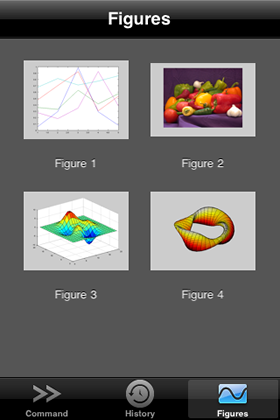
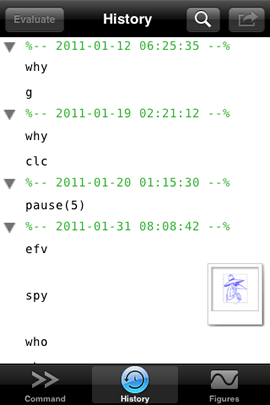
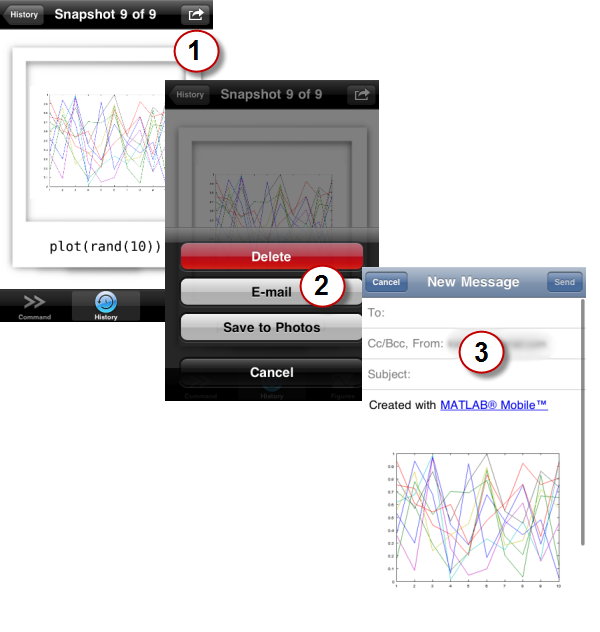
Tapping one of these thumbnails will open a specific figure where you can rescale the image and look at data points. This figure list represents the current state of your desktop and not the saved snapshots that you get when you run a command that generates a new image. That list was on the MATLAB Mobile 1.1 “Figures” tab, listed alongside the command that generated it. We felt this was redundant with the regular Command History and so have combined them in the new History tab. For commands that generated figures, we show a preview snapshot alongside the command:
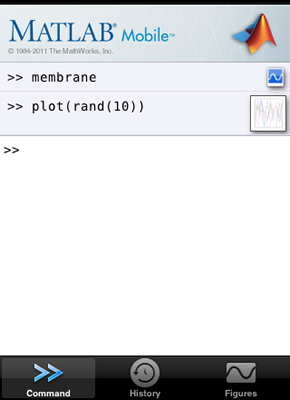
Finally, to help differentiate commands where the created figure is still live from those where only a snapshot is available, we supply a preview thumbnail for live figures, and the sinusoid icon when only the snapshot is available. In the picture below, I first ran the membrane command that generated a figure of the L-Shaped Membrane. Then I plotted a random matrix, which overwrote the figure. Now, “Figure 1” no longer corresponds to the output of the membrane, but instead shows the output of plot. We can still look at the snapshot in the history for both commands, but we can only interact with the output of plot.
- Category:
- MATLAB Mobile




Comments
To leave a comment, please click here to sign in to your MathWorks Account or create a new one.