Over the past few years I've been fascinated to see the progress in making text look better on the screen. (I should confess right away that I know nothing about typography, and almost nothing about text anti-aliasing.) I recall reading some time ago that the Microsoft ClearType technology made use of color pixels, even when displaying "black" or gray text text. I thought to myself, "I wonder how that works," and then I promptly forgot all about it.
A couple of weeks ago I was preparing to give a presentation at Yale, and I was tinkering with a screen magnifier program (ZoomIt; highly recommended) to use during my presentation. When I cranked the zoom factor all the way up, I was startled to see the colors everywhere in my text.
Here's a screen shot of a portion of my browser display:
Now here's a highly enlarged view of the word "Each":
Well! That's pretty cool. Human visual perception is a strange and wondrous thing.
Today I'm introducing a short series about using lookup tables to implement neighborhood operations in binary images. This is a fast implementation technique that works for small neighborhoods,
typically 2-by-2 or 3-by-3.
My tentative plan is to do three posts on this algorithm topic:
1. Explain the basic idea (today)
2. Show some examples using Image Processing Toolbox functions
3. Explain an algorithm optimization we recently put in the toolbox.
QUESTION: How many different 3-by-3 binary neighborhoods are there?
Each pixel in the neighborhood can take on only two values, and there are nine pixels in the neighborhood, so the answer is:
2^9
ans =
512
That's not so many different possibilities, although it would certainly be tedious to write them all out by hand! Is there
an easy way to generate them?
I'm sure there are lots of reasonable methods. One way, used by the Image Processing Toolbox function makelut, is to use the 9-bit binary representation of the integers from 0 to 511.
label = 5;
bin = dec2bin(label, 9)
bin =
000000101
bin is a 9-character string. A logical comparison and a reshape turns it into a binary neighborhood:
bw = reshape(bin == '1', 3, 3)
bw =
0 0 1
0 0 0
0 0 1
Just repeat this for the other 511 integers in the range [0,511] and you'll have all possible 3-by-3 neighborhoods. Compute
the output of your operation for each one and save the result in a table.
Then use this procedure to implement your operation:
For each input pixel:
Extract the 3-by-3 neighborhood
Compute the table index corresponding to the neighborhood
Insert the table value at that index into the output image
Computing the table index corresponding to a given neighborhood can be done by using bin2dec. Note that bin2dec takes a string, so we have to do a little work first to convert the binary neighborhood to a string of '0' and '1' characters.
I often find myself writing small functions that help visualize certain image processing algorithms. For example, my last
three posts on bwlabel included identical snippets of code that performed the following steps on a label matrix:
1. Display a binary image using two light shades of gray.
2. Use regionprops to find the location of each labeled object.
3. Superimpose object text labels over each labeled object.
The visualization code, although not complicated, was longer than the algorithm code I was trying to explain. That can obscure
the key points of the discussion. It would be nice if there were a single visualization function to call.
In the past, we haven't put algorithm visualization functions into the Image Processing Toolbox. They don't really increase
what you can do with the toolbox, and there are many different visualization techniques that might be useful for any given
algorithm. Even within a single basic technique, such as my bwlabel visualization, there are many possible variations.
Still, algorithm visualizations can be very useful. We've been talking recently about including "example" visualizations
in the toolbox. My idea is that each example visualization should have simple code and a simple syntax. We shouldn't succumb
to the temptation to overdesign these examples by supporting lots of options and variations, or by overoptimizing them. The
primary purpose of the examples would be to provide inspiration and a starting point for our users to create their own visualizations.
This week I captured the visualization code from my recent posts into a function called VISLABELS, which I uploaded to the
MATLAB Central File Exchange. Here's how to use it:
help vislabels
VISLABELS Visualize labels of connected components
VISLABELS is used to visualize the output of BWLABEL.
VISLABELS(L), where L is a label matrix returned by BWLABEL,
displays each object's label number on top of the object itself.
Note: VISLABELS requires the Image Processing Toolbox.
Example
-------
bw = imread('text.png');
L = bwlabel(bw);
vislabels(L)
axis([1 70 1 70])
Several questions I've seen about bwlabel are about finding the correspondences between object labels in two images. In other words, if a particular pixel is in the
foreground in two binary images, is that pixel labeled the same in both images, or is it different? In general, for foreground
pixels in the same locations, how do object labels in one binary image match up to object labels in the second?
I'll show one method using the same small binary image that I've been using in my other recent bwlabel posts.
L1 = bwlabel(bw);
I = im2uint8(bw);
I(~bw) = 200;
I(bw) = 240;
s = regionprops(L1, 'extrema');
imshow(I, 'InitialMagnification', 'fit')
hold onfor k = 1:numel(s)
e = s(k).Extrema;
text(e(1,1), e(1,2), sprintf('%d', k));
end
hold off
Now let's try a morphological closing operation on this image.
Compute and display the labeled objects in the second image.
L2 = bwlabel(bw2);
I2 = im2uint8(bw2);
I2(~bw2) = 200;
I2(bw2) = 240;
s2 = regionprops(L2, 'extrema');
imshow(I2, 'InitialMagnification', 'fit')
hold onfor k = 1:numel(s2)
e2 = s2(k).Extrema;
text(e2(1,1), e2(1,2), sprintf('%d', k));
end
hold off
Compare the two sets of labels visually. You can see that the broken "f" character on the bottom line was labeled with 6
and 7 in the first image. In the second image, the broken pieces have been merged and labeled with 4.
On the first line of the first image, the "s" and "t" characters are distinct and are labeled with 2 and 4, respectively.
In the second image, they have been merged into one object that was labeled 2.
Let's see how to compute all of the correspondences between the object labels in the two images. First, compute the set of
pixels that belong to the foreground in both images.
overlap = bw & bw2;
Next, compute the corresponding label pairs by using logical indexing into the two label matrices.
pairs = [L1(overlap), L2(overlap)];
Eliminate the duplicates in the list of pairs.
pairs = unique(pairs, 'rows');
Let's look at a few of the pairs to see how to interpret their meaning:
pairs(1:5, :)
ans =
1 1
2 2
3 3
4 2
5 1
Pixels belonging to objects 1 and 5 in the first image belong to a single object, labeled 1, in the second image. Similarly,
pixels belonging to objects 2 and 4 in the first image belong to a single object, labeled 2, in the second image. Pixels
labeled with a 3 in the first image are also labeled with a 3 in the second image.
Depending on your application, you might want to form an adjacency graph, represented as a sparse matrix.
S = sparse(pairs(:,1), pairs(:,2), 1);
spy(S)
One way to use the graph is to find all the object labels in image 1 that correspond to a given label in image 2. For example,
here are all the first-image objects corresponding to the object labeled with 6 in the second image:
The three most common questions I've been hearing about bwlabel, which is used for labeling connected components in a binary image, are about
Search order
Relabeling (renumbering the label matrix)
Correspondence between labels in two different images
Today I'll tackle relabeling.
In my previous post on search order, I showed how to postprocess the labeled objects to modify their order according to various criteria. Now I'll take that
a step further and use the sorted output from regionprops to renumber the labels in the label matrix.
Blog reader Trung wanted to know if we could sort lexicographically by centroid, so I'll do that here.
To visualize the sorted object order, we can display the object numbers on top of the objects like this:
% First, make an image with a light gray background instead% of a black background, so that the numbers will be visible% on top of it.
I = im2uint8(bw);
I(~bw) = 200;
I(bw) = 240;
imshow(I, 'InitialMagnification', 'fit')
% Now plot the number of each sorted object at the corresponding% centroid:
hold onfor k = 1:numel(s2)
centroid = s2(k).Centroid;
text(centroid(1), centroid(2), sprintf('%d', k));
end
hold off
We sorted the output of regionprops, but we haven't touched the label matrix itself. We can relabel it according to the sort order by using linear indexing
and the PixelIdxList of each object. An object's PixelIdxList is a vector of linear indices for the pixels belonging to the object. Here's the relabeling loop:
for k = 1:numel(s2)
kth_object_idx_list = s2(k).PixelIdxList;
L(kth_object_idx_list) = k;
end
In MATLAB 7.6 (R2008a), the publish feature lets you capture multiple graphics from within a loop. I'll use that new capability to show the location of the
first few relabeled objects in L.
for k = 1:5
imshow(L == k)
end
Soon I'll write another post that shows how how to match up labels in objects that overlap between two images.
I grabbed the latest issue of IEEE Signal Processing Magazine out of my mailbox the other day. As I was flipping through the pages I noticed a familiar face: Doug Williams, who is the Special Sections Area Editor for the magazine. (I know Doug because he joined the faculty at Georgia Tech as I was finishing up my Ph.D. there.) He wrote the "From the Editor" column this month, entitled "Periodically Reconsidering the Impossible." His point is that people who recognize outdated assumptions can "sometimes initiate remarkable progress" in a particular field. One example he gives is the fast Fourier transform:
By the late 1990s, very few people were developing new fast Fourier transform (FFT) algorithms, and the field was considered to be very mature. Researchers had long since determined exactly how many arithmetic operations were necessary to perform a discrete Fourier transform (DFT), and optimized FFT software was widely available. However, these algorithms were based on assumptions made in the 1970s that minimizing additions and multiplications would yield the quickest implementations. Computation speed on modern processors is much more dependent on efficient pipelining and memory access. Thus, the field was ripe for a pair of computer scientists to reformulate the problem, and, in 1998, Matteo Frigo and Steven G. Johnson presented "FFTW: An Adaptive Architecture for the FFT" at the 1998 ICASSP. Their software, which can actually be found at http://www.fftw.org, is actually a collection of FFT algorithms that can self-optimize to choose the best combination for a particular computing platform.
—IEEE Signal Processing Magazine, vol. 25, no. 2, March 2008, p. 2
Doug's point about arithmetic operation counting is very true. Today whenever we look at improving performance in MATLAB, memory access patterns and processor utilization tend to dominate the discussion.
It didn't take long for The MathWorks to incorporate FFTW into MATLAB (in version 6). The FFTW code would have horrified DSP researchers from a couple of decades ago. Among other things, it was (GASP!) explicitly recursive, which was a no-no back then.
Doug's column introduces the special issue on compressive sampling, which is a dramatically different look at sampling theory. I'm looking forward to reading through it.
Viewing output-space coordinates for a transformed image
Blog reader Ram asked a question last week that I hear fairly often: When you apply a spatial transformation to an image, how can you see the x-y coordinates when you display the image?
The answer has three steps:
1. Ask imtransform for the spatial coordinates of the output image
2. Give imshow the spatial coordinates when you display the output image
3. Turn on the axis box and tick labels
Let's walk through these steps using an affine transformation.
T = maketform('affine',[.5 0 0; .5 1.5 0; 100 200 1]);
I = imread('cameraman.tif');
The first output from imtransform is the transformed image. There are two more optional arguments, though: xdata and ydata. xdata is a two-element vector specifying the x-coordinates of the first and last image columns. Similarly, ydata specifies the y-coordinates of the first and last image rows.
[I2, xdata, ydata] = imtransform(I, T);
xdata
xdata =
101 356
ydata
ydata =
201.5000 584.5000
Step 2 is to pass the coordinate information to imshow. You can do that by using the 'XData' and 'YData' parameters, like this:
imshow(I2, 'XData', xdata, 'YData', ydata)
But we still can't see the coordinates! That's because imshow turns the axis display off. That brings us to step 3: Turn on the axis box and tick labels:
axis on
After you do these steps, you might also want to call impixelinfo, which turns on a display of pixel location and value in the figure window. The display updates as you move the mouse.
I've received several questions over the past months about the search order for the function bwlabel and whether it can be changed. Today's post discusses the search-order issue, how useful it might or might not be to change
it, and how to use regionprops to reorder labeled objects.
First, though, a brief review of bwlabel: It takes a binary image, bw, and produces a label matrix, L. The elements of L are integer values greater than or equal to 0. The elements equal to 0 are the background. The elements
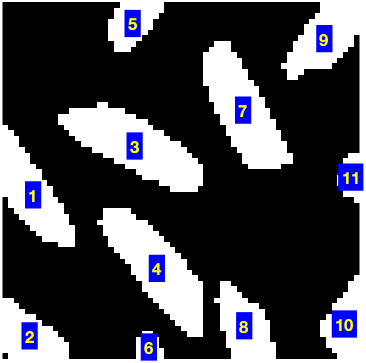
equal to 1 make up one object, the elements equal to 2 make up a second object, and so on. Here's a small example.
So bwlabel found four connected groups of foreground pixels in bw. Since bwlabel scans the pixels of bw of column order, it finds the object in the lower-left corner second, which is why those pixels are labeled with a "2" in
L.
Sometimes people ask if bwlabel can be made to search along the rows instead of along the columns, because they want the object in the upper right to be
found second.
The search order for bwlabel is determined by the internal memory storage order of elements in MATLAB. Searching along rows would substantially slow
the function down. However, it is possible, with the assistance of regionprops, to efficiently postprocess the output of bwlabel so that objects are ordered however you wish.
Before I show that technique, though, let me show an example of how ordering objects in two dimensions is not always straightforward,
no matter which way you search.
Here's a snippet of a scanned text image we've look at before:
The serif on the upper-left of the "F" extends to the left of the letter "s." Therefore, the columnwise scan performed by
bwlabel finds the "F" first.
We could force a row-wise labeling search by transposing the binary image and then the output of bwlabel, like this:
L = bwlabel(bw')';
But another surprise awaits; the first object found still isn't the "s"!
imshow(L == 1)
The "t" is found first, because the vertical stem of the "t" extends higher than the top of the "s" character.
Also, bwlabel will merge two or more initially assigned labels if it discovers along the way that two or more apparently separate objects
are actually connected. This can change the labeling order in unexpected ways.
With those cautionary notes in mind, let me show you how to postprocess the output of bwlabel to sort objects as desired.
First, let's use regionprops to get some object measurements that might be useful for object ordering.
s = regionprops(L, 'BoundingBox', 'Extrema', 'Centroid');
We could sort the objects from left to right according to the left edge of the bounding box.
I = im2uint8(bw);
I(~bw) = 200;
I(bw) = 240;
set(gcf, 'Position', [100 100 400 300]);
imshow(I, 'InitialMag', 'fit')
hold onfor k = 1:numel(s2)
centroid = s2(k).Centroid;
text(centroid(1), centroid(2), sprintf('%d', k));
end
hold off
To sort according to a row-wise search order, sort lexicographically (using sortrows instead of sort) on the left-most top extremum of each object. This extremum is the first row of the 'Extrema' output from regionprops.
extrema = cat(1, s.Extrema);
left_most_top = extrema(1:8:end, :);
[sorted, sort_order] = sortrows(fliplr(left_most_top));
s2 = s(sort_order);
imshow(I, 'InitialMag', 'fit')
hold onfor k = 1:numel(s2)
centroid = s2(k).Centroid;
text(centroid(1), centroid(2), sprintf('%d', k));
end
hold off
Notice how the characters still aren't well-ordered from left to right. That's because the taller ones get sorted earlier.
Let's try sorting first on the bottom of each character instead of the top, and quantizing the bottom coordinate. The left-most
bottom extremum is the 6th row in 'Extrema' measurement.
left_most_bottom = extrema(6:8:end, :);
left = left_most_bottom(:, 1);
bottom = left_most_bottom(:, 2);
% quantize the bottom coordinate
bottom = 6 * round(bottom / 6);
[sorted, sort_order] = sortrows([bottom left]);
s2 = s(sort_order);
imshow(I, 'InitialMag', 'fit')
hold onfor k = 1:numel(s2)
centroid = s2(k).Centroid;
text(centroid(1), centroid(2), sprintf('%d', k));
end
hold off
That's somewhat better, but to get further I imagine that some higher-level analysis of the structure of text lines in the
image will be necessary.
Notice that I did not modify the label matrix, L, in these postprocessing steps. Next time I'll show how to relabel L.
When the new releases come out, I like to peruse the release notes for MATLAB. Loren and the Desktop team have already started writing about the new features in their blogs, but I thought I'd mention a few items that particularly caught my eye.
First of all, the new object-oriented programming features in MATLAB are huge. Key features include:
Class definition files, enabling definition of properties, methods, and events
Handle classes with reference behavior, aiding the creation of data structures such as linked lists
Events and listeners, allowing the monitoring of object property changes and actions
Development environment support for the creation and use of classes
This page contains links to documentation, a tutorial video, and an upcoming webinar.
The MATLAB Desktop has received several very useful enhancements. I particularly like the improved code folding in the MATLAB Editor, as well support for inspecting object properties in the Variable Editor. Here's a short video demonstration of the new Desktop features.
Since I frequently use the publish feature to create my blog posts from MATLAB scripts, I appreciate the new ability to create publish configurations for each of my scripts. Also, now you can define cells and capture output from within a for-loop.
If you want to experiment with different compiler settings for the FFTW library that MATLAB uses, you can now replace the FFTW shared objects with your own. (Warning—this is not for the faint of heart. You can crash MATLAB hard if you make a mistake in replacing its core libraries.)
A long-standing user request has finally been implemented; use the clearvars function to clear all variable except the ones you specify.
Finally, on Windows platforms MATLAB can give you some insight into the current status of overall memory usage on your computer with the memory function.
I've made no attempt here to provide a comprehensive summary of the new MATLAB features. As I said earlier, these are just some of the things that caught my eye. I encourage you to look at the release notes yourself to discover your own gems in the new release.
For the geoscientists in the audience who are using my upslope area functions, I just updated the files. The update fixes a problem with the computation of influence and dependence maps for data sets that have NaNs outside the catchment area of interest. (Thanks to Claire for reporting the problem.) If you have data sets structured this way, you might want to download the revised files.
Steve Eddins manages the Image & Geospatial development team at The MathWorks and coauthored Digital Image Processing Using MATLAB. He writes here about image processing concepts, algorithm implementations, and MATLAB.
Recent Comments