
Managing Layout in the Absence of Layout Management
I’d like to welcome guest blogger Brian Cody from the MATLAB GUI Building Toolkit team. Brian will occasionally be blogging here on the Inside the MATLAB Desktop blog.
As I poke around on MATLAB Central, I find no shortage of great graphical user interfaces (GUIs) developed by MATLAB users to drive their algorithms. As a member of the GUI Building Toolkit team, I love seeing people use our tools to put easy user interfaces on top of their technologies. But as I played with many different GUIs, I realized that many of them are very static: the figure windows containing them cannot be resized or docked, and if you try to resize them, bad things happen. uicontrols crash into axes or disappear from view completely. And expanding GUIs to the full screen size gives nothing more than lots of empty gray space.
As of right now, MATLAB doesn’t offer layout management tools on the order of Java or .NET, but there is an easy way to design your GUIs to scale nicely with the size of the figure window. Keeping a few tricks up your sleeve in the form of uipanels and normalized units, you can get around the layout problems that I mention above. With a little work, you can even apply these tricks to your existing GUIs!
To prove my point, I am going to take a non-resizable GUI from MATLAB Central and give it a makeover. When I’m done, you will be able to maintain its usability not only when resizing to fit your screen, but also when docking into your MATLAB Desktop. The GUI I will be featuring is a very cool application called charGUI by Kailup Tan. charGUI illustrates how a trained neural network can recognize handwritten numerals. It is very interactive and fun to play with and you can download it from MATLAB Central here. It looks like this:
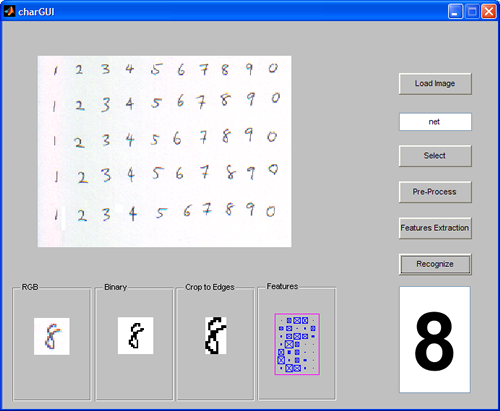
The only problem is that, like many other applications designed with MATLAB, the GUI elements stay the same size and in the same position no matter how big or small you make the figure window. To break the bond of a one-size-fits-all GUI, I’ve written a published M-file called rearrangeCharGUI that will walk you through the steps of deconstructing and rebuilding the GUI so that it gracefully resizes. To see all of the steps in detail, download rearrangeCharGUI from MATLAB Central here. For now, I’ll take you through the big steps.
The first thing I think about when laying out a new GUI is breaking down the figure window’s real estate into a few major subregions. Think about what the GUI looks like from 1000 feet up. What are the major pieces? In the case of charGUI, the biggest piece I see is the main set of axes where the input image is displayed. I also see a set of uicontrols along the right-hand side. Lastly, I see a group of axes along the bottom that are used to show the image processing results (I’ll call these the processing axes). The next thing I consider is how I might go about breaking up the window into these smaller regions so that I can work on them individually. By thinking of smaller portions of the GUI independently, I relieve myself of the complexity of thinking about the whole GUI all of the time, and this makes my life easier.
So I think about what tools are at my disposal for breaking down the GUI. If I’m writing my code in Java, I might think to use a BorderLayout. If I’m marking up my GUI in XAML, I may consider a DockPanel. But I’m working in MATLAB, because I have this cool image processing code that I want to run, so I’m going to think in MATLAB! In MATLAB, I’m choosing to use uipanels. uipanels are great because they can be positioned anywhere inside the figure window (or inside other uipanels) and because using uipanels is going to let me think about subregions of my GUI independently.
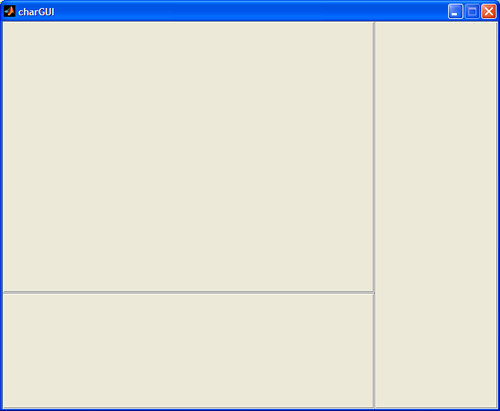
In rearrangeCharGUI, I create three uipanels: one for the input image axes, one for the uicontrols, and one for the processing axes. I position the uipanels in the figure window using normalized units, which will allow the uipanels to scale with the changing size of the figure window. If you’ve never used normalized units, it’s really simple. Units is a property on the uipanel (as well as all other Handle Graphics objects) that works closely with the position property. By setting units to ‘normalized’, I am choosing to position my uipanels relative to the containing figure window using percentages of the figure window’s position.
For instance, consider the uipanel that will contain the uicontrols. In rearrangeCharGUI, I position it against the right-hand side of the figure window, occupying 25% of the horizontal space and 100% of the vertical space. So no matter how I grow or shrink the figure window, that uipanel will always occupy the right-hand quarter of the figure window from top to bottom. I use a similar strategy to lay out the other two uipanels.
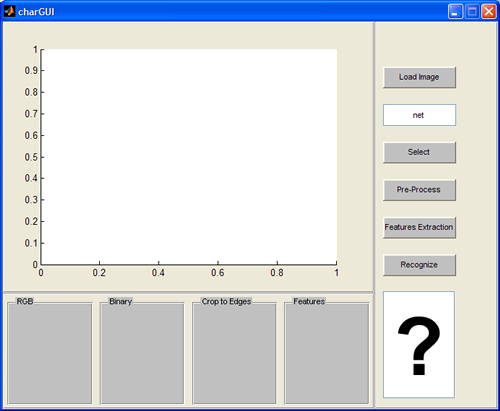
Once I’ve divided up my figure window into more manageable pieces, I can consider each of my three uipanels and how I want to position objects inside them. First, I place the input image axes inside my first uipanel. By setting the axes’ units to ‘normalized’, I can make the axes grow and shrink relative to the containing uipanel: as the uipanel grows, so do the axes. This works just like the three uipanels with normalized units that I placed in the figure.
Second, I position the uicontrols inside the second uipanel. But instead of changing their units to ‘normalized’, I leave them as ‘character’. Doing so means that my uicontrols’ positions are absolute: they will not grow and shrink relative to the uipanel. I do this because if the figure window grows really large, I don’t want to see really large uicontrols along with it. Finally, I position the processing axes inside the third uipanel. I once again use normalized units. This is nice, because if I have a large monitor, I can expand my figure window and see more detail in the image processing steps. After a few more quick touch-ups, my newly resizable GUI is ready to go!
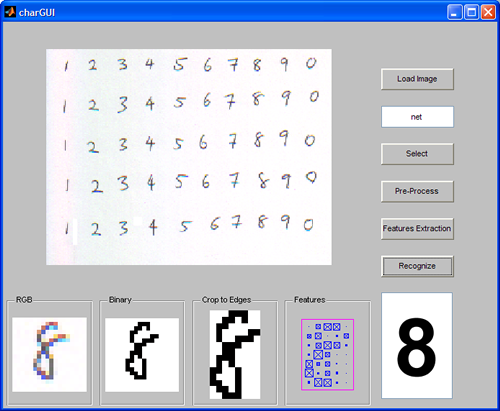
Of course, all of this programming is great for people who like to type a lot, but what if you are used to creating your GUIs in GUIDE? Don’t worry! The same techniques can be applied right in GUIDE! uipanel is one of the objects that you can use in your GUIDE GUIs. So go ahead and drop a few into your own applications! Use the Property Inspector to change the units properties of your uipanels to ‘normalized’. You can bring up the Property Inspector by simply double-clicking on any uipanel that you have placed in your GUI or by right-clicking and selecting “Property Inspector”. Do the same for any other object that you would like to resize automatically. Give it a try. You will be creating resizable GUIs in no time!
Now before I go, I’ll leave you with one more challenge. How can we make rearrangeCharGUI better? I’ll start you off with an idea. As you may remember, the uicontrols on the right-hand side of the GUI do not resize dynamically with the figure window, but the uipanel that contains them always occupies one-quarter of the horizontal space. So as the figure grows, we have more and more wasted space to the right of the uicontrols. Can you think of a way, perhaps using the figure’s ResizeFcn property, to keep this uipanel at a constant width, while still letting the other two uipanels resize dynamically? Leave your comments, or better yet, post your code to MATLAB Central!
-by Brian Cody, The MathWorks
- Category:
- MATLAB GUI


See Also
-
GUI Layout (Part 1)
Blogs
-

GUI Layout (Part 3)
Blogs
-
GUI Layout (Part 2)
Blogs



Comments
To leave a comment, please click here to sign in to your MathWorks Account or create a new one.