
The Keys to Moving and Resizing Docked Windows
Have you ever been stuck using a computer without a working mouse or equivalent pointing device? It can be an interesting experience. It’s surprising how much you can do with just the keyboard. For example, on Windows, pressing Alt-Space invokes a menu in the upper left corner of the selected application. Among the choices on this menu are move and resize. If you select one of these you can then use the arrow keys to reposition or resize the application window.
Clearly when a mouse is available most will find dragging to be a preferable way to move or resize a window. Still it’s nice that this feature is available to accommodate those who have inherent difficulty using the mouse.
MATLAB offers a similar keyboard driven mechanism for moving and resizing docked windows. Under the Desktop menu you’ll find Move and Resize options that operate on the currently selected window (if your goal is to avoid using the mouse see Keeping your fingers on the keyboard for information on how to move the selection among docked windows using the keyboard then use the menu mnemonics Alt-d, v and Alt-d, z to initiate move or resize, respectively).
While the primary motivation for including the move and resize options is to accommodate those who have difficulty using the mouse, that doesn’t mean others can’t take advantage this feature. Moving a docked window by dragging can be challenging because there is a hidden, though hopefully intuitive, mapping between the mouse position and the finite set of alternative locations.
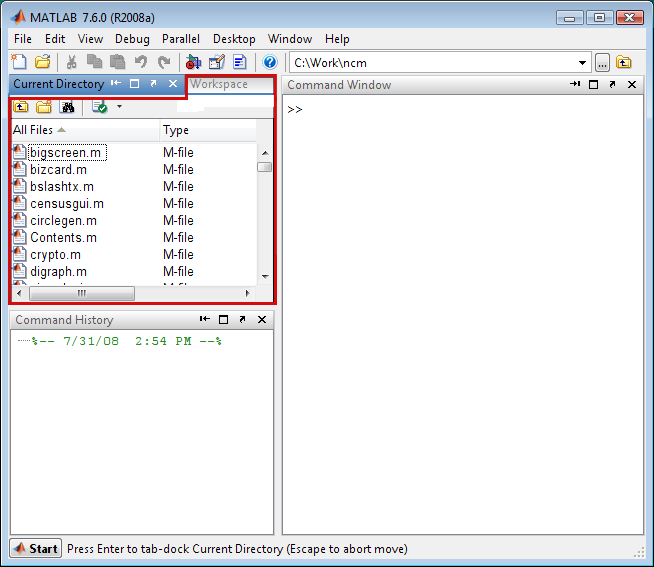
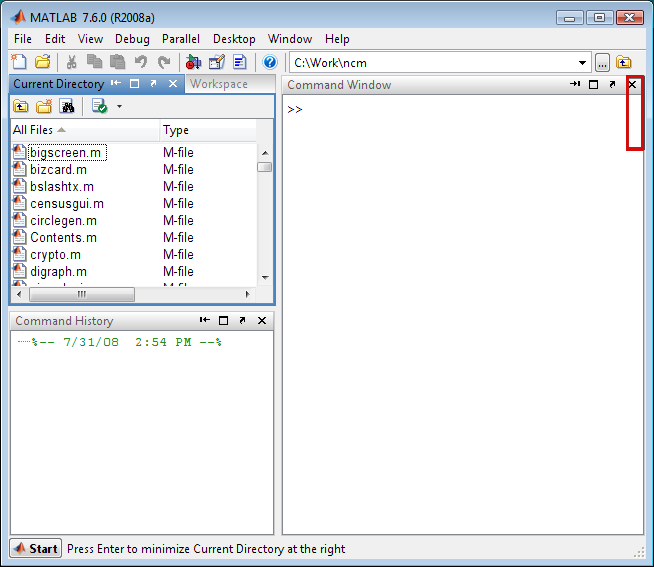
When you select the move option the selected window’s location is placed under control of the arrow keys. Each arrow key stroke moves an outline representing the window to a new potential resting location. For example the following screen shots show the outlining of potential locations of the Current Directory window resulting from successive presses of the right arrow key. The sequence of locations is:
- Tabbed with the Workspace
- To the right of the Workspace
- To the left of the Command Window
- Tabbed with the Command Window
- To the right of the Command Window
- To the right of everything
- Minimized along the right border
|

|

|

|

|

|
|
When the window reaches the location you want, press the Enter key to commit the move. If you decide not to move the window after all, just press the Escape key instead. This can be a very convenient way to explore possible locations without risk of getting your desktop layout into an undesired state.
While key controlled window movement offers some advantages over dragging, there aren’t any obvious advantages to key controlled resize. Still, if you really want to avoid the mouse, feel free.
I don’t recommend moving the mouse around after initiating a move or resize, as the window will follow the mouse as if you were dragging. This shouldn’t cause any problems but it can be a bit disconcerting because the mouse button isn’t down. If you want to move or resize a window using the mouse you might as well forgo the menu options and simply press the mouse button while over its title or border, respectively, and drag.
- Category:
- Desktop,
- MATLAB GUI





Comments
To leave a comment, please click here to sign in to your MathWorks Account or create a new one.