Ken & Mike on the MATLAB Desktop

August 18th, 2008

It’s all about the data…

You have data, right? You want to analyze and manipulate the data using MATLAB, right? The question is, how do you import this data into MATLAB?

It turns out there are many answers to these questions and which import mechanism you use will depend on what you are trying to do. Lets look at several useful techniques for importing data into MATLAB.

Using the Command Window

The simplest (and most obvious) way to get data into MATLAB is to type it at the command line. For example:
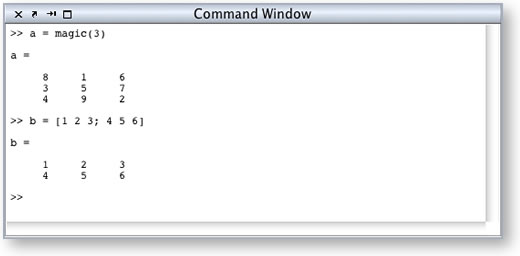
Now you have some data assigned to the variables a and b in the MATLAB workspace. This technique works well if you’re going to use data that can be generated by MATLAB commands or you’re using small sets of data that can be hand entered.

Cut/Copy/Paste or Drag and Drop

If you have a larger set of data, perhaps a few pages worth of numbers in a text file, you may want to use Cut/Copy/Paste or Drag and Drop to bring the data into MATLAB.

Simply select the text in the text file and cut or copy (depending on whether you want the data to stay in the file) Then click the command window and press Ctrl-V (Cmd-V on Mac) to paste. Alternatively, select the text, click on the selection and drag it to the command window.

Import wizard

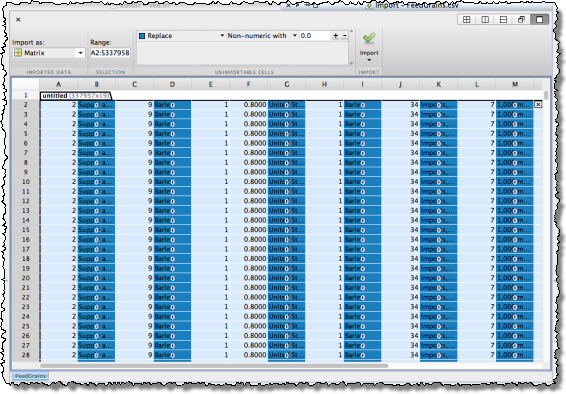
This tool was created to help you import data into MATLAB and can handle a wide variety of data types. It allows you to customize how the data will appear in MATLAB. The wizard walks you through the process of importing you’re data.

There are several ways to bring up the Import Wizard

  • At the Command Line
    >>uiimport % This will open the import wizard
  • Via the File -> Import Data… menu item: You can bring up the import wizard by selecting File->Import Data…
  • Via the File -> Open menu item: If you select a File->Open and choose a file with data in it, MATLAB will either import that data (such as from a MAT-file) or Open the import wizard to allow you to import that data (such as from a comma separated list file).
  • Double-clicking a data file in the current directory browser: Double clicking in the current directory browser has the same effect as doing File->Open and then selecting the file did the double click on.

How do you get your data into MATLAB?

Happy Data Analysis!

9 Responses to “It’s all about the data…”

  1. Quan replied on :

    Hi Jennifer,

    The most frequent type of data I work with is excel. There a bunch of ways to import data, and one of the ways that I use is the command xlsread.

    Other times, when I just want to quickly transfer some data from excel into MATLAB, I first create an empty variable, which I will call myData.

    Next, I go to the workspace window and double click on myData to open up the array editor. Finally, I cut and paste from excel into MATLAB.

    I also work with other data formats but they are not quite so easy to import (as there is both text and numbers). Usually, I write scripts and functions to import data to my liking.

    Nice post, hope to see more from you guys soon!

    Quan

  2. StephenLL replied on :

    I know this blog is about the desktop but I find the dataset function does not get advertised enough. :)

    I find the _dataset_ function from the stats toolbox a great way to get data out of excel and into an organized structure.

    The more I use the dataset function the more I like it. It is my go-to function when I have prototyping to do.

    Stephen

  3. Ken replied on :

    @Quan: xlsread is a great function! Also, I like your cut and paste technique.

  4. Ken replied on :

    @Steven: Thanks for the great feedback! We’d love to hear more about how you use the dataset function when prototyping.

  5. Jennifer French replied on :

    Hi Quan,

    Thanks for sharing those techniques for working with excel! They sound quite useful and effective.

    –Jennifer

  6. Jennifer French replied on :

    Hi Stephen,

    Thanks for posting about dataset. Its great to hear about techniques that work well for folks.

    –Jennifer

  7. Carl Korkpoe replied on :

    Yes what am reading here helps a bit but for me, I would like a demo of say importing text based data into Matlab say under the heading Income , Number_households and then do a plot in matlab of Income versus Number_households. If I can go ahead and do a curve fit, that will be a huge leap!

  8. Guillaume Costil replied on :

    Hi,
    I got a problem with the differents versions of Matlab.
    The 7.0.0 and the 2009 versions give me the importdata i need. But if i want to do the same with the 7.5.0, it leaves the numbers i need apart.
    Do I need to fscanf ? or is it a format problem ?
    Thx

  9. Mike replied on :

    Guillaume,

    I don’t know what feature might be missing from your version of importdata, or what the particular issue might be. Please contact technical support. http://www.mathworks.com/support/service_requests/contact_support.do.

Leave a Reply

Wrap code fragments inside <pre> tags, like this:

<pre class="code">
a = magic(3);
sum(a)
</pre>

If you have a "<" character in your code, either follow it with a space or replace it with "&lt;" (including the semicolon).


Ken & Mike work on the MATLAB Desktop team.
  • DP: Hi i have a problem with ezplot3, i want to plot more than i curve in the same graph but hold on command...
  • Ken: Hi Arsalan, Unfortunately there is no way to get the new Editor API in older versions of MATLAB. -Ken
  • Arsalan: Hi, I am very excited about the MATLAB API for editor because right now i am working on a project and i need...
  • Johannes: Since I started using matlab-emacs some days ago I never experienced Emacslink. But I experienced some...
  • Francisco J. Beron-Vera: Hi all, I have recently learned about ViEmu (http://www.vimemu.c om) which, for Vi/Vim...
  • OysterEngineer: When I first learned of the Publish feature in MatLab, I thought it might be useful to help to...
  • Ken: Hi Herve, I’m not quite sure what you mean by “stand-alone&# 8221; mode? -Ken
  • Herve: I wonder when the publish fonction will be supported in standalone mode.
  • Mike: Ravi, What you described should work as far I understand it. Please follow up with technical support. With a...
  • Mike: @Daniel, Thanks for that note.

These postings are the author's and don't necessarily represent the opinions of The MathWorks.