Ken & Mike on the MATLAB Desktop
August 10th, 2009
Tab to narrow completions
Tab completion is a great time saver for me, and helps me find a function when I can’t quite remember the exact name. There’s a little known feature that makes tab completion even more useful, though, and it happens to be off by default.
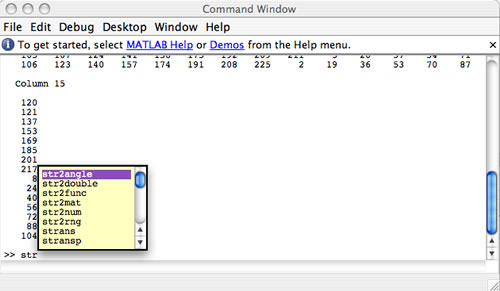
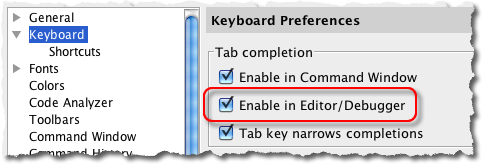
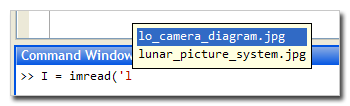
When you press tab in the Editor or Command Window, if there are functions that start with what you’ve typed, you’ll be shown a popup with a list of all the those functions. If you press tab again, then the selected item is inserted at the caret. But what if the popup is showing, and you want to filter down the list of things by typing more text? You can do that if you turn on the following preference:
Preferences -> Keyboard -> Tab key narrows completions (in the Tab Completion section)
When you press “p” at the command prompt, and then press tab, you’ll see a list of all the functions that start with “p”. So far, nothing is different.
But now, if you type “e” after the “p”, and then press tab, the list of items will be re-filtered, and you’ll see only items starting with “pe” .
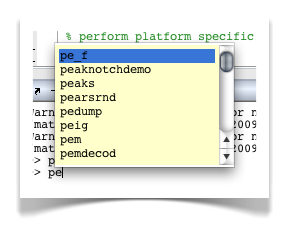
Typing “a” with another tab really filters the list down into something usable.
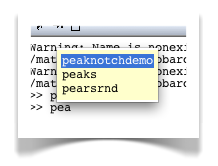
You’ll have to press enter to accept completions now (instead of tab), which is an acceptable trade-off for me.
What do you think? Should this feature be on by default?
By
Ken Orr
Ken is a developer on the MATLAB Desktop team. He loves the art of graphic design as well as developing visually pleasing user interfaces - he's one of those 'crazy' Mac guys!
11:00 UTC |
Posted in Command Window, Editor |
Permalink |
You can follow any responses to this entry through the RSS 2.0 feed.
You can skip to the end and leave a response. Pinging is currently not allowed.
Leave a Reply
|
I just turned this on the other day and find it to be useful. I can’t see it would hurt to have it on by default.
I have two other suggestions for improving tab-completion:
1) Let the arrow-keys ‘wrap-around’, so when you start at the top of the list, pressing the up arrow will take you to the end of the list (and vice-versa).
2) When you select an item from the tab-complete list, have it correct the capitalization of what you’ve typed so far. For example, if you type in ‘mycla’ then select ‘MyClass’ from the list, it fixes the case of the M and C already typed.
Hi “me”,
Thanks for the great suggestions. In fact, we already have enhancement requests for both.
-Ken
@Ken, Another thing learned. Thank you.
Yep, I agree with “me”. I kind of expected this behaviour to be on by default when it first came around. I’m happy to find that now I can still use it!
Auto-capitalisation sounds like it would also come in handy.
Cheers,
Sven.
This should definitely be made default, since in its present state (off), it contradicts with the usage in an xterm; and I end up selecting a variable/function when I try to narrow down the choice list, and I have to delete the selection, and start over.
Other bash features like M-. to recall the last part of the last command could be useful too.
One other enhancement would be to cycle the selection when Tab is pressed continously so that one doesn’t have to press the Down arrow (or C-n) to select other choices.
Finally!
AS utsun said, xterm has the narrow down behaviour as default, and I think that is a pretty heavy argument.
The fact that this behaviour has not been enabled by default (And I didn’t know it was available as an option) has been one of the great mysteriser and sources of frustration to me over my matlab years.
Oh, and another comment. The phrase “Tab narrows completion” is an option I realize I have seen many times, but the phrase is far to obscure for me to understand what the option does.
Thanks for the feedback Daniel. We’ll look at the wording.
-Ken
Is there a way to combine with the standard behaviour of ? + isn’t good enough.
/per
Is there a better way to have both “tab completion” and the standard behaviour of “tab” than using “space”+”tab” for “tab”? That’s not good enough.
/per
Hello Ken,
when comparing to the VisualStudio IDE I see that narrowing of the list of items is done automatically when adding a character. So no need there to press to narrow the list of items. I think this helps in focusing for finding the right item.
In VS2008 the first matching item is always on top of the itemlist, in contrary to the ML auto-complete, where pressing shows the peak item selected on the bottom of the list. When looking for functions starting with “pe” one should scroll down to inspect the choices.
Furthermore in VS2008 the item list is below the cursor. I also think this is more logical than the position above.
@per,
I’m not sure I understand your question. If you turn on the behavior described in this entry, then you are changing the tab keys behavior to *always* narrow the completions list. The enter key can then act as the selection mechanism.
-Ken
@Han,
Great suggestions! It does seem that the list should automatically filter when you type a character. I also agree that the placement of the popup window should be below the cursor.
We’ll look into these suggestions.
-Ken
Hello Ken,
My question might be a bit off topic - sorry for that.
I appreciate the behavior described in this entry and have both “Tab completion” and “Tab key narrows completions” turned on most of the time.
However, to me there is a serious drawback. I have to give up the standard function of the tab key, i.e move the cursor to the next tab position. (I know the tab key works that way after delimiters.) I used to use the tab key a lot to line up the code. I think that makes the code more readable.
There seems to be as many “fill in text” solutions as there are editors and word processors.
Thus, I search a work around such that I can have both “tab completions” and “move cursor to the next tab position” at the same time, e.g an alternate key binding.
/ per
@Per and Ken,
I think that using the keys straightaway to use for autocompletion (as in my suggestion) solves the issue.
Then there is no need to use the tab key to go into a autocomplete mode: each pressen (non whitespace) key is used to narrow the autocomplete list.
-Han
@Per - I am currently placing final touches on my EditorMacro submission on the File Exchange, that will enable you to assign a different keybinding to the auto-completion action, or any other built-in editor/menu action, in the Editor and Command Window. This version should be ready and uploaded sometime next week.
Yair
@per,
I find that “Smart indenting” alleviates most of the need for the tab key. Also, the tab key only tries to auto-complete if the caret is abutting text, so it will still insert tabs (or spaces) some of the time.
-Ken
As promised, the new version of EditorMacro is now online at http://www.mathworks.com/matlabcentral/fileexchange/24615
This new version enables assigning key-bindings to Editor and Command Window user macros and built-in actions. Apparently there are ~200 possible internal Command-Window actions, but only half are assigned a keyboard shortcut by default (the same is true for the editor). Using EditorMacro you can now see the full list of actions and assign new (or reassign existing) key-bindings.
Please note that EditorMacro is highly reliant on undocumented and unsupported features, which may well break in future Matlab releases.
HTH,
Yair
I agree with per. For example, working on a new class, when I add a new property I usually want to tab over to put in a comment to describe it, like this:
foo%This is the foo property
However, at the moment, the autocompletion doesn’t allow the cursor to advance. I have to manually insert a space before I can use tab.
Let’s try that code again
foo<TAB>%<TAB>This is the foo property
Hi Ken!
just a small question:
i am working on a project linking c# and matlab command window.
is there any possibility to printout in the matlab command line a message directly from c3, like in the msdos console?
Hi Edrin,
Sorry for the delayed response — I had to get in touch with the right people to find out the answer to this.
Using System.Console.WriteLine in .NET is not supported (you can file an enhancement request here if you like). Note that stdout in C++ and System.out.println in Java will print directly to the Command Window.
-Ken
I definitely vote yes to have the “Tab narrows completion” option on as default. I used to get so frustrated every time multiple tab key presses would choose an incorrect function. With the option turned on it acts very similar to my linux shell autocomplete.