
Starting MATLAB from the Mac OS X Finder
I’d like to welcome back guest blogger Ken Atwell for his second in a two part series of accessing MATLAB from the Macintosh OS X environment. This week he writes about opening a MATLAB file from the Finder.
MATLAB source files have the .m extension and the Finder should have an association between MATLAB and files with a “.m” extension. However, if you try to open a MATLAB source file by double-clicking in the Finder, you may get one of these unexpected behaviors:
- Rather than starting MATLAB, you may get a report of a crash and an offer to reopen the application. Should you choose to reopen, you will again get a crash. This is happening because MATLAB, not a required starter application, is being invoked by the Finder. Refer to my previous post for a discussion of the MATLAB starter app and the reasons why this crash happens.
- Rather than starting MATLAB, Xcode (Apple’s software development environment) may start. In an unfortunate coincidence, the .m extension is also used by Xcode for Objective-C files (with “m” indicating a file containing Objective-C methods). If you have Xcode installed on your Mac, it is likely that double-clicking a MATLAB source file will start Xcode instead of MATLAB.
Both of these problems can be addressed with the same procedure: To open a MATLAB source file from the Finder on a one-off basis, you can Control-click (or right-click) the file and use the Open With menu. On Snow Leopard, you will see two MATLAB choices, one called “MATLAB_R2009b” (the exact choice depends on the version of MATLAB you have installed) and the other one simply “MATLAB” (Figure 1). Choose “MATLAB_R2009b” (the starter application) and not “MATLAB”. Choosing “MATLAB” will result in a crash as discussed above.
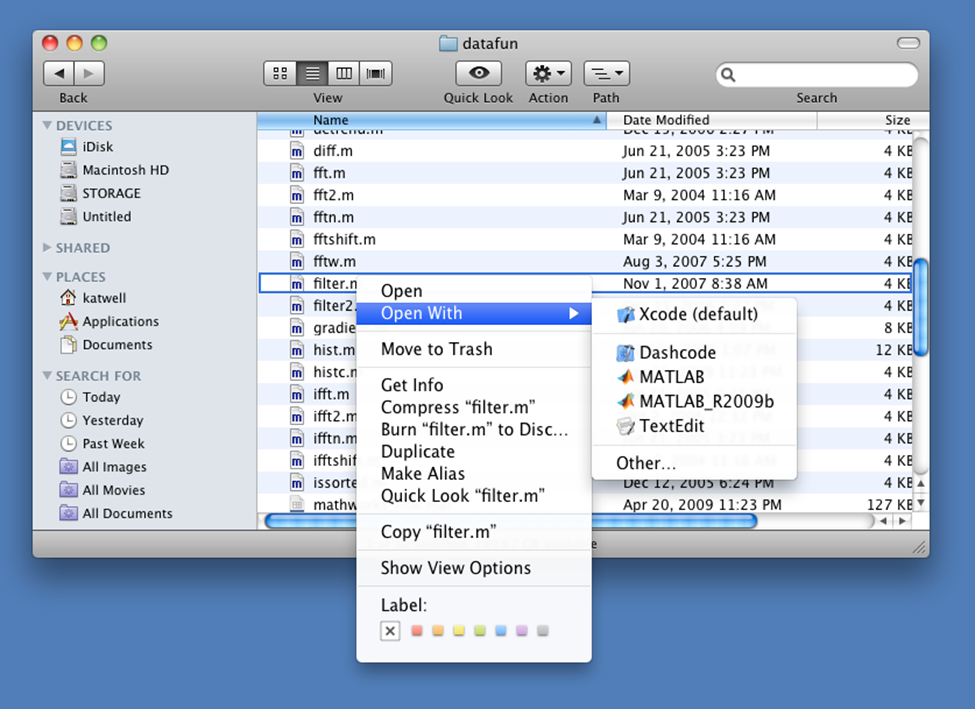
Suppose you wish to launch MATLAB every time you double-click any file with the .m file extension? The Mac OS X Finder allows you to change the default double-click behavior:
- Control-click any MATLAB source file (with a “.m” extension) and then select Get Info.
- In the Info window, expand the Open With section and select “MATLAB_R2009b”… again, not “MATLAB” (Figure 2).
- Click Change All… and then confirm that all files with the .m extension should be opened with “MATLAB_R2009b”.

MATLAB should now start without issue whenever you double-click a MATLAB source file in the Finder.
Have you figured out any other OS X shortcuts or tricks that have simplified your workflow? Chime in below!
- Category:
- Mac


See Also
-

Is 7 your lucky number?
Blogs
-
-
-


Comments
To leave a comment, please click here to sign in to your MathWorks Account or create a new one.