Skip to Main Content Skip to Search
File Exchange
MATLAB Newsgroup
Link Exchange
  Blogs  
 Contest 
MathWorks.com

Inside the MATLAB Desktop

September 17th, 2007

Running functions with input from the Editor in R2007b

Despite the lack-luster title of this entry, I assure you that this new feature will be well worth the read, as it addresses one of our most common user requests!

In R2007b, you’ll notice a fancy new run button to the left of the debug toolbar (see Figure 1 below). The new split-button has a green play icon imposed on a document. Pressing the left side (with the icon) runs the currently selected configuration (I’ll explain what a configuration is in a minute), while pressing the right side (the downward facing arrow) will show you all the configurations for the file being edited.
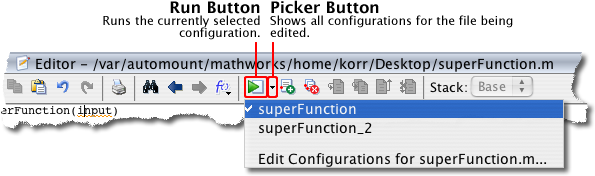
New MATLAB Editor Toolbar
Figure 1.

Let me note that if you want to run your file as you used to, simply press the run button. Now, if you’re a little curious about what these new configurations can offer you, read on!

Configurations are small pieces of MATLAB code associated with a particular M-file. There can be many configurations associated with a given file, which can be very convenient as we’ll see below. When you first press the run button’s drop down arrow, you’ll see two menu items: the default configuration name (which happens to be the file/function name) as well as an option to edit configurations for the file you’re currently working with in the MATLAB Editor. If you select Edit Configurations for [your file] you’ll see the Configuration Editor (Figure 2 below).
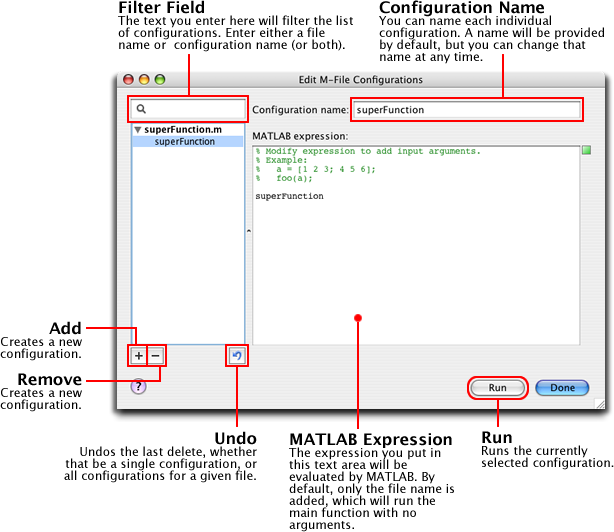
Configuration Editor
Figure 2.

Notice that by default, the name of the file you’re editing (which should also be the function name) is inserted into the default configuration as well as any subsequently created configurations. Running such a configuration would be identical to typing the file name at the command prompt.

This seems like such a complicated way to run a file, you say…ahh, but we haven’t arrived at the good part yet! Say your function (we’ll call it superFunction) takes an input argument. Previously in the MATLAB Editor, there would have been no way to run your function. You would have been forced to go to the command window and type superFunction(1234).

Now all you need to do is edit one of superFunction.m’s configurations, adding the desired input. You can then run your configuration from the Configuration Editor, or go back to the MATLAB Editor and select your configuration from the drop down portion of the run button. The run button will remember which configuration was last run. Thus, subsequent presses of the run button (or F5) will run the last configuration you ran.

Creating multiple configurations allows you to easily change how you run a function. Each configuration can pass in different input arguments or it can call your function with a different number of input arguments (if your using varargin). You can even do some setup and/or cleanup in the configuration! If you had a surface you regularly created, you could have a configuration like this:

x = magic(20);
x = x .* 2;
surf(x);
title('Magic Surface');

and maybe another like this:

x = magic(50);
x = x .* 5;
surf(x);
title('Another Magic Surface');

Configurations are currently stored in a binary file, but we’re actively working on making their storage more transparent.

Configurations should help you stay focused on writing and testing your code…let us know what you think!

6 Responses to “Running functions with input from the Editor in R2007b”

  1. Elmar Mertens replied on :

    Hi Ken,

    great functionality. I have quickly become accustomed to using it since I tested the prerelease. One thing for the future: I am working on several computers (desktop/laptop not connected to same network) and it is easy to synch my m-files on the matlab path, but so far it seems hard to synch the settings for the new run-functionality.

    Again, great feature
    Elmar

  2. Ken replied on :

    Hi Elmar,

    Thanks for the feedback! We’re actively working on making Run Configurations more portable, which should solve your problem. We certainly want to make this feature as easy to use as possible, as we think it will really streamline your workflow.

    -Ken

  3. Brian replied on :

    Great feature, and I agree with Elmar and am glad to see you are working to make it more portable…in the meantime though, where is the binary file stored so I can manually copy it from one machine to another?

  4. Brian replied on :

    P.S. My first thought (before reading this and seeing that they are indeed stored as a binary somewhere) is that they were added directly to the m-file as, say a comment block and then just hidden by the editor. I am glad to see that is not the case as it could cause headaches with configuration management.

    The simplest option I could think of to make it portable would be to continue to store them in a binary but have an option to “save to file” which would create a .cfg (like superFunction.cfg) file that could then be loaded via the configuartion dialog. Maybe give the option to merge the ones from the file with existing ones or overwrite existing ones of the same name etc…

    Anyway, just a thought.

    Brian

  5. Ken replied on :

    Hi Brian,

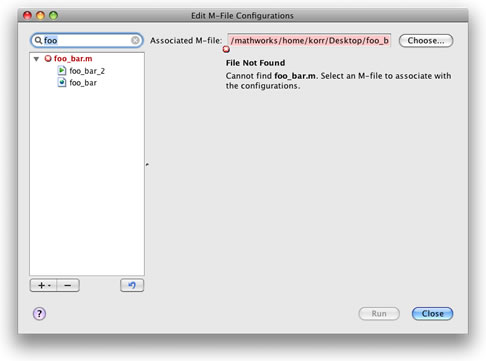
    Thanks for the feedback! Run Configurations are currently stored in your preferences directory in a file named ‘Configuration.ser’. You should be able to safely copy this file between systems - note that your configurations will show up under a file marked with a red x if the file that a set of configurations is associated with doesn’t exist on the target system.

    As for the future…I think you’ll really like the new storage mechanism!

    Run Configurations will be stored in a new file called ‘run_configurations.m’, which will be located in your preferences directory (the configurations in the old file will of course be imported automatically). This file will be an M-script, in which each Run Configuration will be a cell (check out MATLAB Cell Mode for more info). That means you’ll not only be able to open up the file and send individual configurations to colleagues, but you’ll also be able to run configurations from within the Editor (by evaluating the cell with Ctrl-Enter).

    I thought this was pretty neat! What do you think?

    -Ken

  6. Brian replied on :

    Sound great! Thanks for the reply.

Leave a Reply


Inside the MATLAB Desktop is written by the MATLAB Interface teams.

Team picture
  • Etienne: Hello, Is it possible to change the background color of a particular cell?
  • Ken: No problem Mark…glad to help. Enjoy your font!
  • Mark Andrews: Ken, thanks for replying @3 and giving such clear instructions on how to get this to work.
  • Steve Eddins: Hi Ken, Every year or so I try to find a programming font that would really make me happy. A couple of...
  • Ken: @Jiro: Andale Mono looks nice! I especially like the rendering of the letter “g”.
  • Ken: Hi Mark, The issue your referring to (see the bug report here) was fixed in version 7.5 (R2007b). The problem...
  • Jiro: Ken, That’s a nice font. I use “Andale Mono” which has a similar look. I also like the clear...
  • Queffurust: This is my “cleanup” ; shortcut clc % clear Command Window close all hidden % deletes all...
  • Mark Andrews: Ken, should this work with version 7.0 (R14) on Windows? My favorite font is Consolas, but MATLAB seems...
  • Mark Feldman: Like Bryan (#38) and Kim (#40), I strongly request that you add native vi key bindings to the MATLAB...

These postings are the author's and don't necessarily represent the opinions of The MathWorks.

Related Topics