
Variable Editor
When the Array Editor was introduced back in MATLAB 5.0, it provided static snapshots of MATLAB double arrays. It has evolved a lot since then, to provide dynamic editors for…
- One- and two-d arrays of all numeric types
- Logical arrays
- Cell Arrays
- Structures
- Single-line character arrays
- timeseries objects
- viewers for all other objects, including N-D arrays.
A lot of new functionality was added in R2008a, including
- Editors for objects created in the new MATLAB class system
- Improved Structure support
- Support for Data Brushing
- Other interface enhancements.
Because of all of these changes since Version 5, we felt that it was time to rename the Array Editor. It’s now called the “Variable Editor” to reflect its enhanced capabilities.
Let’s take a look at some of the changes. Create a variable and open it in the Variable Editor:
>> x = magic(10);
>> openvar x % Or go to the Workspace and double-click on x.
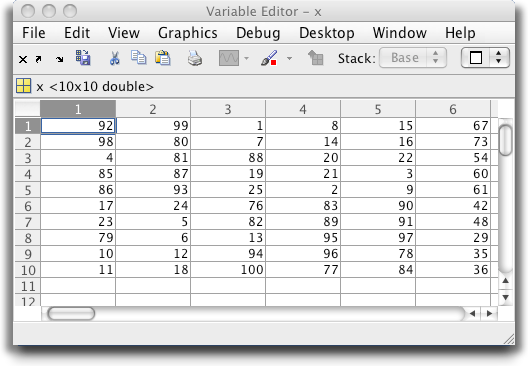
Here we see the Variable Editor with a new information bar bar located just below the toolbar. It shows the name, size, and class of the current variable, as well as the same icon (based on data type) that’s shown in the Workspace.
We also see the new data brushing toolbar button. Data brushing is a topic unto itself, worthy of a future posting (stay tuned – if you can’t wait to try it, checkout the documentation).
Structure Editing
We’ve enhanced structure editing to leverage a lot of the features that have been added to the Workspace in recent years. To see this, let’s create a structure with some interesting data.
>> s.data = magic(10);
>> s.city = ‘Natick’;
>> s.temp = 70.2;
>> openvar s
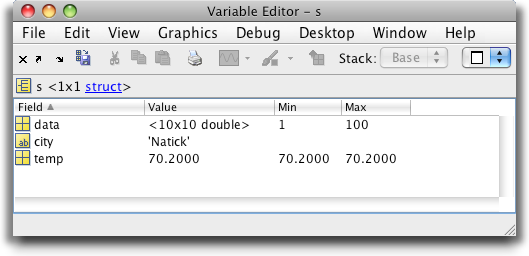
As you can see, the Variable Editor shows the fields of the structure in the same way that the Workspace shows the variables in the Workspace. Field (instead of Name), Value, Min, Max, and all of the other columns accessible in the Workspace are also shown here. Further, all of the gestures for editing (clicks, context menus, and so on) are identical to those used in the Workspace.
Object Editing
We’ve also added support for MATLAB class system objects. Now, the public properties of objects are shown in the same way as the fields of structures.
Let’s examine an instance of the memmapfile object:
>> m = memmapfile(which(‘clown.mat’));
>> openvar m
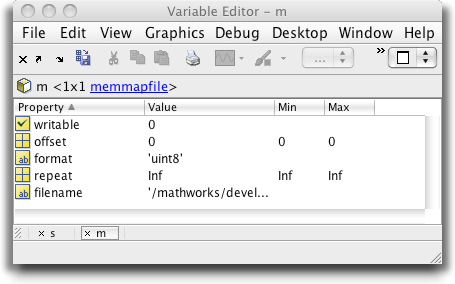
Notice that the public properties of the object appear in the Variable Editor.
Normally, only the public properties of an object are visible. But if you’re debugging an object, you’ll need to be able to get to the protected or private properties, too. The Variable Editor supports that. Let’s set a breakpoint in one of the methods of memmapfile, and watch what happens.
>> edit memmapfile
Set a breakpoint on the set.writable method (in R2008a, that’s line 132) by right-clicking on that line and selecting “Set/Clear Breakpoint.”
Now, do something to hit that breakpoint:
>> m.writable = false;
The debugger stops on that line of code. In the Editor, you can see that the object being debugged is called “obj”. To see the contents,
>> openvar obj
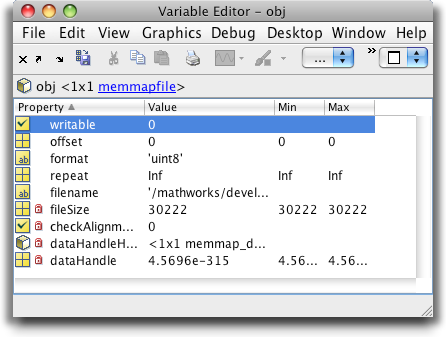
The Variable Editor opens, showing all of the properties, both public and private. The ones that end users normally have access to are shown without any lock icons next to them. In contrast, the private properties have little red locks next to them, to show you that they’re normally inaccessible. You can only see them because you’re debugging one of the object’s methods.
These enhancements to Variable Editor should help to make interactions with your data more seamless. Let us know which Variable Editor enhancement you use most!
- Category:
- Data Tools




Comments
To leave a comment, please click here to sign in to your MathWorks Account or create a new one.