
Configurable keyboard shortcuts have arrived
I’d like to welcome guest blogger Christina Roberts from the MATLAB Editor team. Christina was the lead developer on the configurable keyboard shortcuts feature.
R2009b has a new feature that I am particularly excited about: user-configurable keyboard shortcuts for the MATLAB desktop. This is a project that has been in the works for several years, and I am thrilled that it is now officially released.
I will be splitting up my discussion of this feature into two posts. The first will give a high-level overview of the R2009b functionality, and the second will delve into the somewhat troubled history of keyboard shortcuts in MATLAB. I hope that you will learn some valuable tips from both posts and gain a better understanding of how to leverage customizable keyboard shortcuts.
First, let me explain the layout of the keyboard shortcut preference panel. You can open it from the File Menu: File -> Preferences -> Keyboard -> Shortcuts
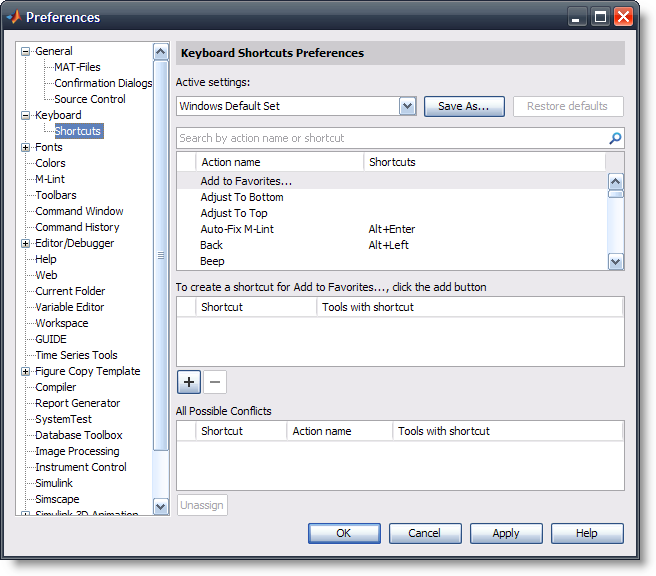
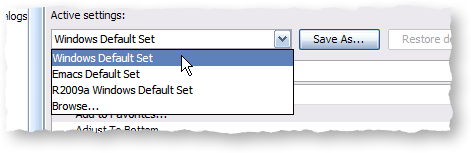
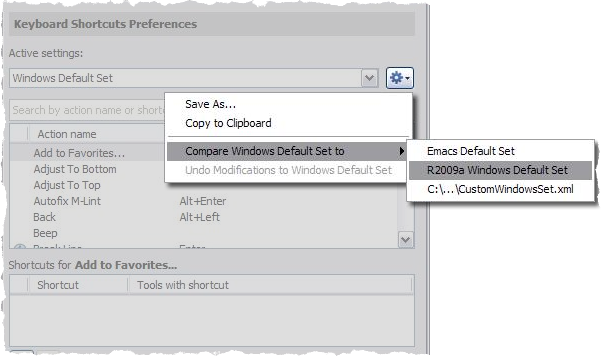
The Active settings dropdown list at the top of the preference panel allows you to choose between different keyboard shortcut sets—those that ship with the product, and customized sets that you may obtain from colleagues or MATLAB Central. The shortcut set selected by default matches common keyboard shortcuts on the platform on which you are running. For Windows and Macintosh, these are based on Windows and Macintosh platform standards, respectively. On UNIX, we decided to base our default keyboard shortcuts on the popular Emacs editor; however, if you are more comfortable with Windows-based keyboard shortcuts, that option is also available on UNIX.
The Windows and Emacs sets are both available on non-Macintosh platforms, but the Macintosh Default Set is only available on Macintosh due to the usage of the Command key. In addition to our new default sets, we also ship a set representing the default keyboard shortcuts in R2009a, specific to the platform on which you are running.
To import a customized keyboard shortcut set, choose Browse… from the Active settings combo box and navigate to the location of the set’s XML file. If you would like to share your own customized set, use the Save As… button to create an XML-representation of the set.
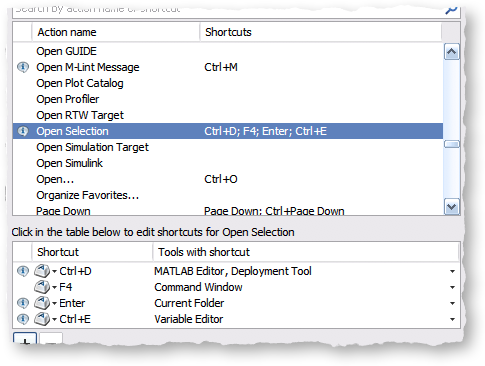
The top table of the preference panel lists all the actions that are configurable. You can search the contents of this table using the search field above it. For example, let’s look at the actions relating to pasting an item from the clipboard:

You can see that there are three paste-related actions. The generic Paste action has the keyboard shortcuts Ctrl+V and Shift+Insert. These same keyboard shortcuts are also assigned to Paste to Workspace in the Workspace Browser, as indicated by the informational icon next to the actions as well as their tooltips.
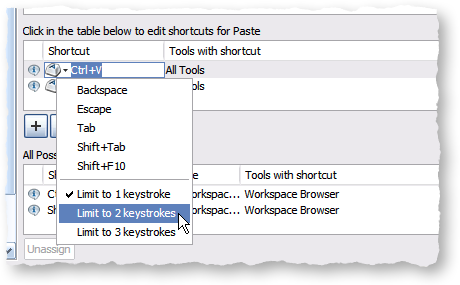
The middle table is where you can change assigned keyboard shortcuts, remove existing assignments, and add new ones. Let’s assume that you want to change Paste’s Ctrl+V shortcut to Ctrl+Shift+P. To do this, click in the table cell displaying Ctrl+V and press your new keyboard shortcut. The text representing the shortcut that you just pressed will then be displayed. Note that you can also insert multi-stroke keyboard shortcuts, popular in Emacs, by selecting Limit to 2 keystrokes from keyboard shortcut editor’s context menu.
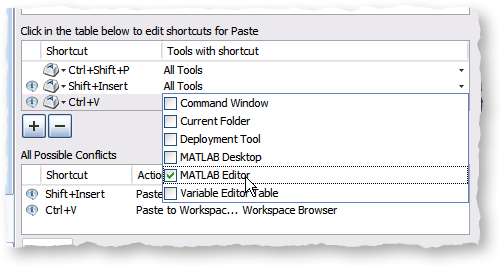
If you press the Apply or OK buttons, Ctrl+V will be replaced by Ctrl+Shift+P for all tools which support the Paste action. To see what tools these are, click in the table cell to the right of the new assignment. It is then possible to deselect some of these tools, if you do not wish for Ctrl+Shift+P to be assigned to Paste in all desktop tools.
Now let’s also assign Ctrl+V back to Paste in the Editor only. To do this, press the  button under the middle table. Then press Ctrl+V in the shortcut field, and finally deselect all the tools for that shortcut except the MATLAB Editor.
Finally, the bottom table in the panel shows keyboard shortcut conflicts with the action currently being edited. In the example above, informational icons indicate that there are keyboard shortcuts assigned to Paste which are also assigned to Paste to Workspace. However, since the Workspace Browser does not support the default Paste action, this is not an actual conflict. To create a real conflict, try replacing the Ctrl+Shift+P assignment with Ctrl+P.
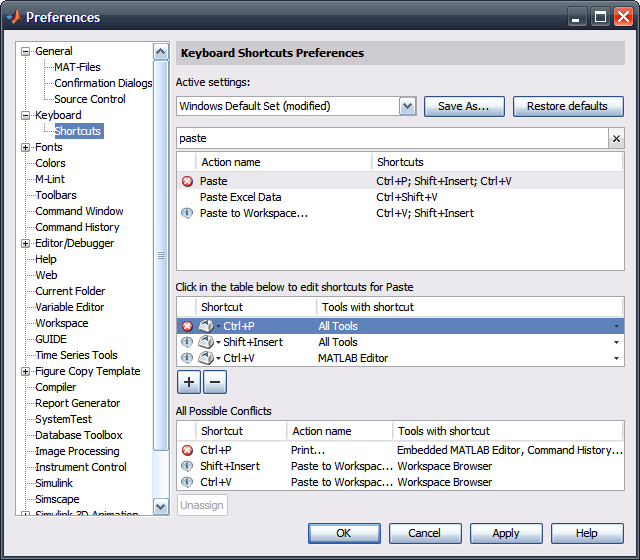
When you make that change, an error icon appears, indicating that Ctrl+P is assigned to two or more actions within the same desktop tool. This means that you cannot use Ctrl+P for both Paste and Print, but you can instead choose to unassign Ctrl+P from Print by selecting the first row in the bottom table and pressing the Unassign button.
If you now press the OK or Apply button, your modifications to the Windows Default Set will be retained in subsequent sessions of MATLAB. You can go back to the original Windows Default Set by selecting Restore defaults, or you could write this file out as a custom set by selecting Save As….
That is a quick overview of how the preference panel works. In a future post, I will discuss the history of keyboard shortcuts in MATLAB and explain how we made some of our design choices.
-by Christina Roberts, The MathWorks




Comments
To leave a comment, please click here to sign in to your MathWorks Account or create a new one.