
Browsing vs Searching
One of our big team efforts is making information in MATLAB more accessible. When figuring out how to the present and teach new features, we often wind up at the “browsing versus searching” discussion (i.e. what are users preferred methods for finding information). The following is a list of the current ways to browse and search for functions, but we are investigating new ones and are always curious how are customers find out (or don’t find out) how to use our products.
Browsing is great for exploring to find new features, gaining insight in to how we organize things, and for when you just don’t know exactly what you’re looking for. When it comes to finding functions, I quickly thought of two ways of browsing: the MATLAB documentation and tab completion.
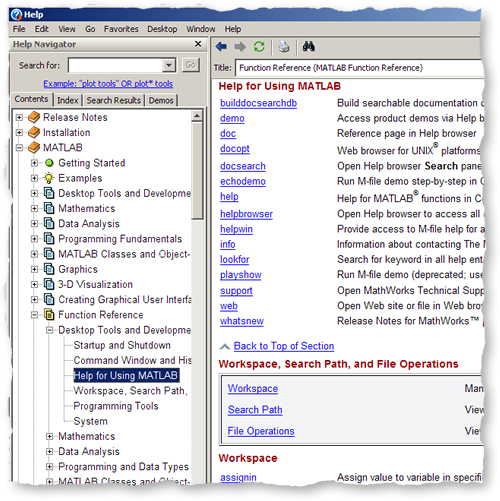
Function list in the documentation
For me, when I want to find a function nine times out of ten, I’ll go to the “Function Reference” (“Functions – By Category” in earlier versions) section of the MATLAB documentation:
Tab completion
As we previously described, you can use tab completion to find all functions that start with a particular letter (“sl” is a good bet for simulink functions) or to find methods of an object after a period “.”.
Searching is browsing’s non-linear cousin: the search engine sifts through information to find the thing you’re looking for. There’s a few ways to go about searching for functions, each provides its own powers and flexibility but requires good querying skills to narrow down the results.
MATLAB documentation
You can search in the help browser’s search bar. Once you understand the documentation’s literary style you can find things quite effectively. We previously blogged about how to narrow the search results.
You also have two documentation search options from the command line docsearch which performs the same search as the help browser search bar, and displays the results in the help browser, and lookfor which searches the H1 lines of all the m-files in your path. The first time you run this will be the slowest as it will have to search your path. Lookfor and docsearch might give different results depending how comprehensive the H1 line of the M-file is. lookfor will also search your own m-files if they are on the path.
Google
Of course, you can always use Google’s search engine to search our online documentation. Just append site:https://www.mathworks.com/access/helpdesk/help to your search to narrow the results to the MATLAB doc.
While we’re on the Google topic, you can search the whole internet for text in M-files using Google’s codesearch, again just append lang:matlab to the search to just search M-files.
Find Files
When you want to search your own non-internet based code, you can use Find Files. We previously discussed Find Files in this post.

We have many great new features in the pipeline to enhance both browsing and searching. In the meantime tell us how you go about finding new functions to use.
- Category:
- Find tools,
- Help Browser,
- MATLAB GUI





Comments
To leave a comment, please click here to sign in to your MathWorks Account or create a new one.