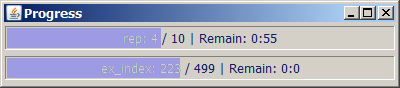
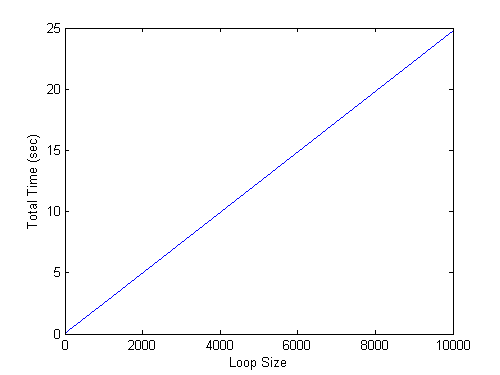
Users sometimes want to monitor the progress of some calculation or simulation. Here's a recent example from the MATLAB newsgroup.
Contents
Some functions have an option you can set that displays information throughout the course of a calculation, for example, fminsearch via the OutputFcn in optimset. What are your choices when you want some intermediate output from your own code? I see three choices.
- Mimic behavior of the OutputFcn idea in your own code so you can specify the output.
- Use waitbar for a graphic progress meter.
- Send output to the command window in a way that's legible and doesn't clutter the information, using fprintf and taking advantage of some of the special formatting capabilities.
Graphical Output Option Using waitbar
Here's a very short illustration of the kind of control you can get using waitbar. First, create a waitbar and get its handle.
h = waitbar(0,'Initializing waitbar...');

Here's an update when the calculation is halfway done. Make sure to use the waitbar handle to update the existing waitbar.
waitbar(0.5,h,'Halfway there...')

And further along again:
perc = 75;
waitbar(perc/100,h,sprintf('%d%% along...',perc))

Close the progess meter when the calculation is done.
close(h)
There are a plethora of alternatives to waitbar on The MATLAB Central File Exchange. I count 29 today when I search for waitbar.
Textual Output Option
fprintf can print output to the command window by specifying the file identifier as the value 1. In addition, you can take advantage of escape characters, such as \b for backspace, to control where the output goes.
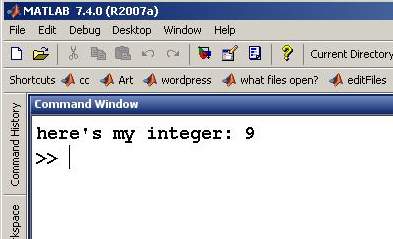
Look at lines 2 and 4 in the code snippet here. On line 2, I print out a line, but do not terminate it with a newline character \n. On line 4, we use the backspace capability to overwrite our previous integer, before pausing so the command window output can be updated. Finally, when the loop is complete, I use fprintf to advance the cursor to a new line \n.
dbtype cmdwinProgress
clc
1 % Example Code for Printing Progress to the Command Window
2 fprintf(1,'here''s my integer: ');
3 for i=1:9
4 fprintf(1,'\b%d',i); pause(.1)
5 end
6 fprintf('\n')
Here's the final result from that command window, having first made sure the screen (using clc) before running cmdwinProgress.
Progress Indicators
What do you look for in a progress indicator? Do any of the options mentioned above work for you? If not, why not? Post your thoughts here.
Get
the MATLAB code
Published with MATLAB® 7.4

There are many other graphical options on the file exchange. Mine is progressbar.
Thanks Loren,
I use both of these methods regularly, but I don’t always get a consistent behaviour with command window output, so maybe you can help me. Is using pause(0.1) the only way to update the command window? Does pause actually force an update or just allows an update? If the latter, is there a way to force an update?
Thanks
-naor
I’m just happy when it’s not spitting warnings and error messages at my code. The less I see, the better. That’s progress.
I use a more general logging utility. This can write out progress, warnings, etc..
I typically write to a file and that file is monitored using a tail utility to display the most recent changes to the file.
Typically my loops are “vectorized”, ie each loop is doing a block of iterations at a time where the calculations are completely vectorized, so having a utility to write out to a file after each block is done is not going to slow down my code by a lot. I also have the ability to turn off this logging.
There are several tail utilities out there for all OS. Under windows you can find a nice gui one that will display several files. I have even seen utilities for mac and windows that will put the progress as a background on your desktop.
Stephen
The backspace is my favorite trick, and I am delighted it is mentioned here. Log files are nice for after-the-fact monitoring, but for “interactive” monitoring the backspace is a nice fix for a rapidly scrolling command window (especially for command windows that only occupy a small corner of a MATLAB desktop.)
A more sophisticated trick for longer running codes where the overhead/time spent in fprintf() or friends is of concern could be solved with a more intelligent output routine. The mentality there would be to call the update routine every loop iteration, but to only fprintf() unless a specified amount of human-significant wall time has elapsed since the last fprintf(). (Credits for that go to a colleague of mine.)
Finally!!! I spent 3 friggin years cursing Matlab because you couldn’t print something on the commandline without getting that stupid trailing newline. There really should be a mention in the documentation of “disp” that references the fprintf. As it is now there is only a reference to sprintf, but sprintf allways has to go inside a disp, so you get the newline either way.
Either way, now I can finally get reasonable ammounts of output without spending a significant ammount of coding time doing sdvanced tricks of the variant that Ben mentioned.
Wow folks! I’m stunned and gratified that I hit a helpful nerve here.
The pause WILL flush the buffer. I haven’t found any others that are reliable. If you know of a case where pause doesn’t update the command window, please send a report in to technical support.
For files, there are options for fopen that help you control the buffer flush behavior.
Thanks.
–Loren
Funny that I just today had another look at my version of function wdisp from the File Exchange…
One drawback of the “backspace trick” shows up if the command window already has a scrollbar and line breaks are overwritten and retyped. Then the command window flickers, to my feeling randomly. Is there anything one can do about that?
Regards
Markus
We have sometimes situations where one single MATLAB command lasts some time (lets say, several minutes) and we want to give the user a feedback that the program is still running. Usually users don’t look at the command window - so we need something graphical. The classical waitbar solution doesn’t work here because there is no possiblity to update the waitbar. Do you know a trick for this?
Jette-
You have to program in the waitbar functionality for it to work. Or some other method for showing progress, in your own code. Only you know how long it will take. MATLAB can’t do that on it’s own.
–Loren
I was just wondering, how much effect does displaying the waitbar() has on the speed of execution?
I tried using the following:
tic;
for i = 1:1000000;
if (mod(i,1000) == 0);
% Do nothing.
end;
end;
toc
Elapsed time is 2.342689 seconds.
w1 = waitbar(0, ‘waitbar()’);
tic;
for i = 1:1000000;
if (mod(i,1000) == 0);
waitbar(i/1000000, w1);
end;
end;
toc
Elapsed time is 3.240022 seconds.
w2 = waitbar(0, ‘waitbar()’);
tic;
for i = 1:1000000;
if (mod(i,1000) == 0);
waitbar(i/1000000, w2, i); % Update title.
end;
end;
toc
Elapsed time is 5.276238 seconds.
Here is an improved version of the command line progress bar printing: the endvalue is configurable and the required backspaces are put in:
% Improved example code for Printing Progress to the Command Window
endvalue=100;
required_blanks=ceil(log10(endvalue))+1;
fprintf(1,[’here’’s my integer: ‘ blanks(required_blanks)]);
backspace_string=”;
for n=1:required_blanks
backspace_string=strcat(backspace_string,’\b’);
end
% build format_string: put backspaces in, define format specifier (leftalign)
format_string = [backspace_string ‘%-’ num2str(required_blanks) ‘d’];
for i=1:endvalue
fprintf(1,format_string,i); pause(.1)
end
fprintf(’\n’)
Thanks, Hans. Nice improvements!
–Loren
You can post most code to blog comments using some html tags. I will write them out with spaces so you can see them and they won’t be interpreted:
If all the work is inside a mexFunction, then this method won’t work. You’d need to modify the mexFunction. I gave it a try using mexCallMATLAB at the link listed here, and it works fine.
But what if all the work is, say, inside x=A\b, or another built-in? The proftool seems to update itself when time marches on inside a built-in, but can waitbar do that to?
Dear Loren,
great blog!
I would like to reuse a waitbar for several loops and avoid new windows popping up. (Sure, old ones can be deleted with close, but still, every new waitbar diverts attention from what I am currently doing.)
- Is it true that I cannot reset a current waitbar with handle “h” using “waitbar(0,h)”, once the counter has been larger than 0?
- Is it possible for a waitbar to be created in the background?
Many thanks in advance!
…I’ve always thought that the drawnow function should also flush the text buffers, since it performs an equivalent task for the graphics.
The ‘\b’ trick is nice as long as you run the code in the command window. But once I compile it to a stand-alone application and run it in the MS-DOS command prompt window, the \b seems to be ignored. Instead, the MS-DOS (Win XP) command window starts a new line at every increment.
Does anybody know a workaround, to make the MS-DOS command prompt window output look like the Matlab command window?
Loren,
The use of waitbar you mention is really nice.
But here’s a problem:
I use waitbar inside a function, but during debug my code has errors and exits from within that same function.
Now the handle to waitbar is not global, so ‘close(w1)’ won’t close the waitbar, neither will ‘close all’.
This means I am left with a lot of open waitbars and have to close them manually -rather annoying!
Any ideas?
thanks,
Antunes
Antunes-
See the post from Mar. 2008 on onCleanup.
–Loren
Here is another proposal:
for i=1:110 fprintf(1,'%d',i); pause(.1) for n = 1:ceil(log10(i+1)), fprintf(1,'\b'); end endHello,
Ok for the waitbar. I use it for quite a long time now… But it’s more to show progress of the program than to invite user to wait.
I would like something animated just to do that, regardless of the program progress. Is it possible ?
Syl20-
I am not sure what you mean. Perhaps changing the figure pointer property (perhaps to an hourglass helps)? Or your own custom pointer perhaps?
Possible pointers include:
crosshair | {arrow} | watch | topl |
topr | botl | botr | circle | cross |
fleur | left | right | top | bottom |
fullcrosshair | ibeam | custom
Look here for more info and go to the pointer property.
–Loren