File Exchange Pick of the Week

January 28th, 2011

Cascade your Figure Windows

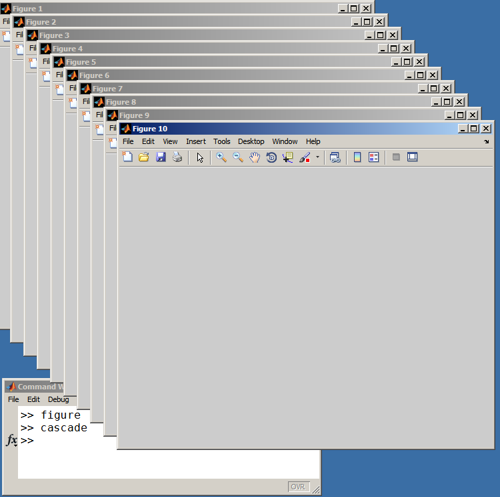
Jiro's pick this week is cascade by a fellow MathWorks application engineer, Isaac Noh.

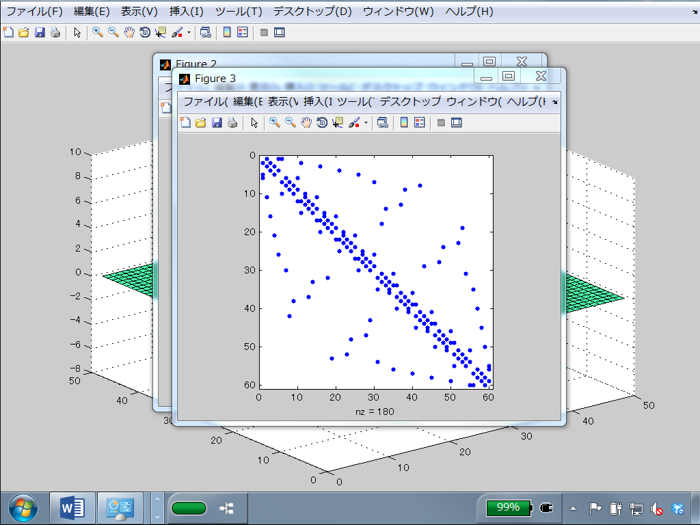
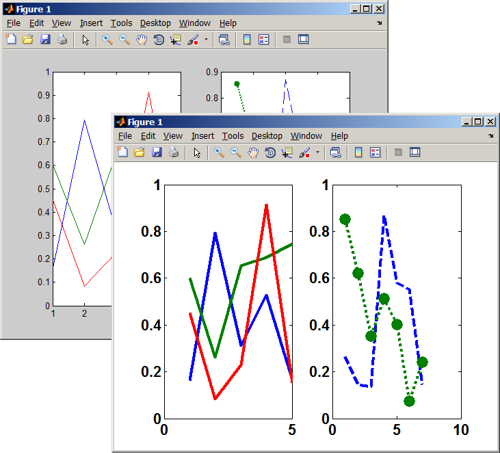
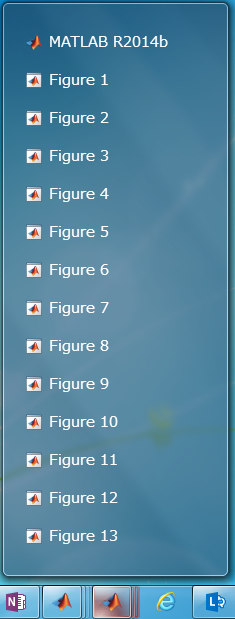
Do you work with a lot of figures? Do you end up with so many figures open that it becomes hard for you to find the one you're looking for? You just need to cascade them so that you can see them all. Add Names to your figures so that you can easily spot them by their title bars.
Comments

Let us know what you think here or leave a comment for Isaac.


Get the MATLAB code

Published with MATLAB® 7.11

5 Responses to “Cascade your Figure Windows”

  1. wcampbell replied on :

    If you’re a Simulink user, I wrote something similar that you might like.
    http://www.mathworks.com/matlabcentral/fileexchange/26185-simulink-model-cascade

  2. Markus replied on :

    If you want to see the contents of all your figures at the same time, check this out:

    http://www.mathworks.com/matlabcentral/fileexchange/19646

  3. Stephan Junek replied on :

    Ok, here another solution you might want to check out: What about placing all your data in a single figure with a slider to browse through them?
    http://www.mathworks.com/matlabcentral/fileexchange/29496-browsefigure

  4. Brett replied on :

    Isaac’s contribution is nicely implemented, and (with this post) prompted references to some nice alternatives. But I should point out that MATLAB has a built-in support for cascading windows: if all figures are DOCKED, there’s a WINDOW->Float menu option, and an equivalent shortcut button, that cascades figures.

    Here’s a link to a useful doc page:

    http://www.mathworks.com/access/helpdesk/help/techdoc/matlab_env/bq36_8h.html#bq36_86-6H

    The figure panel itself can be docked or undocked, but the options for managing multiple figures are, in my opinion, far superior when the individual figures are docked. In fact, I have this line in my startup.m file to set my default FigureWindowStyle to ‘docked’:

    set(0,'DefaultFigureWindowStyle','docked');
    

    However, even within the docked figure window, I find the multiple-floating-windows approach to figure management to be non-ideal. I much prefer opting for the ‘maximize’ setting for my docked figures. Then each is automatically positioned by MATLAB (and Simulink?), and each is readily identifiable and navigable by its tabbed title bar.

    Here are a couple files that I shared that I find useful in this regard:

    DOCKFIG allows one to programmatically dock or undock a single figure, or all figures:

    http://www.mathworks.com/matlabcentral/fileexchange/18194-dockfigundockfig

    TOGGLEFIG allows one to specify a figure window by name. If that figure exists, it is activated. Otherwise, it is created and activated:

    http://www.mathworks.com/matlabcentral/fileexchange/18220-togglefig

    Cheers,
    Brett

  5. jiro replied on :

    Great comments, everyone. It’s nice to see that, while they all do similar things, they have specific features that differentiate themselves from other entries. Whether it is for Simulink windows, viewing all windows at once, or optimizing screen real estate with a slider, all of these FEX submissions seem very useful.

    Brett, I never knew about the built-in Float option in docked figures! I notice the icon in the figure container, but it never occurred to me to click on it! Thanks for pointing that out.

Leave a Reply

Wrap code fragments inside <pre> tags, like this:

<pre class="code">
a = magic(3);
sum(a)
</pre>

If you have a "<" character in your code, either follow it with a space or replace it with "&lt;" (including the semicolon).


MathWorks

Brett & Jiro share their favorite user-contributed submissions from the File Exchange.

These postings are the author's and don't necessarily represent the opinions of The MathWorks.