Loren on the Art of MATLAB

June 30th, 2008

LEGO Mindstorms NXT in Teaching

Today I’d like to introduce a guest blogger, Gautam Vallabha, a developer here at The MathWorks who works on classroom applications of MATLAB. Today he shows you one way in which MATLAB can be used to teach programming concepts.

Contents

Introduction

Before I joined The MathWorks, I was an academic doing research on neural networks and neuroscience. MATLAB's utility in research is a commonplace, but one thing that struck me was its utility in learning: its interpreted nature and visualization allowed me to play with ideas numerically and graphically. Today, I want to highlight one such teaching application, which is the use of MATLAB with the LEGO Mindstorms robotics system.

What is LEGO Mindstorms?

The LEGO Mindstorms NXT is a "robotics system" composed of a few sensors, motors, and an embedded processor (the "NXT brick"). What makes the system more than just an obscure hobbyist toy is its price (around $250, in the same ballpark as consumer electronics items) and the decision by LEGO to create an open programming interface. This allows third-party programs to send commands to the NXT over a Bluetooth wireless link, compile programs to be executed autonomously on the NXT, or replace the NXT firmware entirely with custom firmware and programs. In this post, I focus on the Bluetooth wireless approach.

But what does this have to do with teaching? Simply this: it is now easy and (relatively) inexpensive to connect lines of code on a computer screen to concrete actions in the world. A LEGO Mindstorms robot's actions - scooting around the room, bumping off the walls, playing sounds - can be controlled on the fly by a MATLAB program. This provides a powerful way to motivate students to explore and master programming concepts.

Step 1: Build an NXT Robot

Let's see how to control the standard NXT example robot, the tribot.
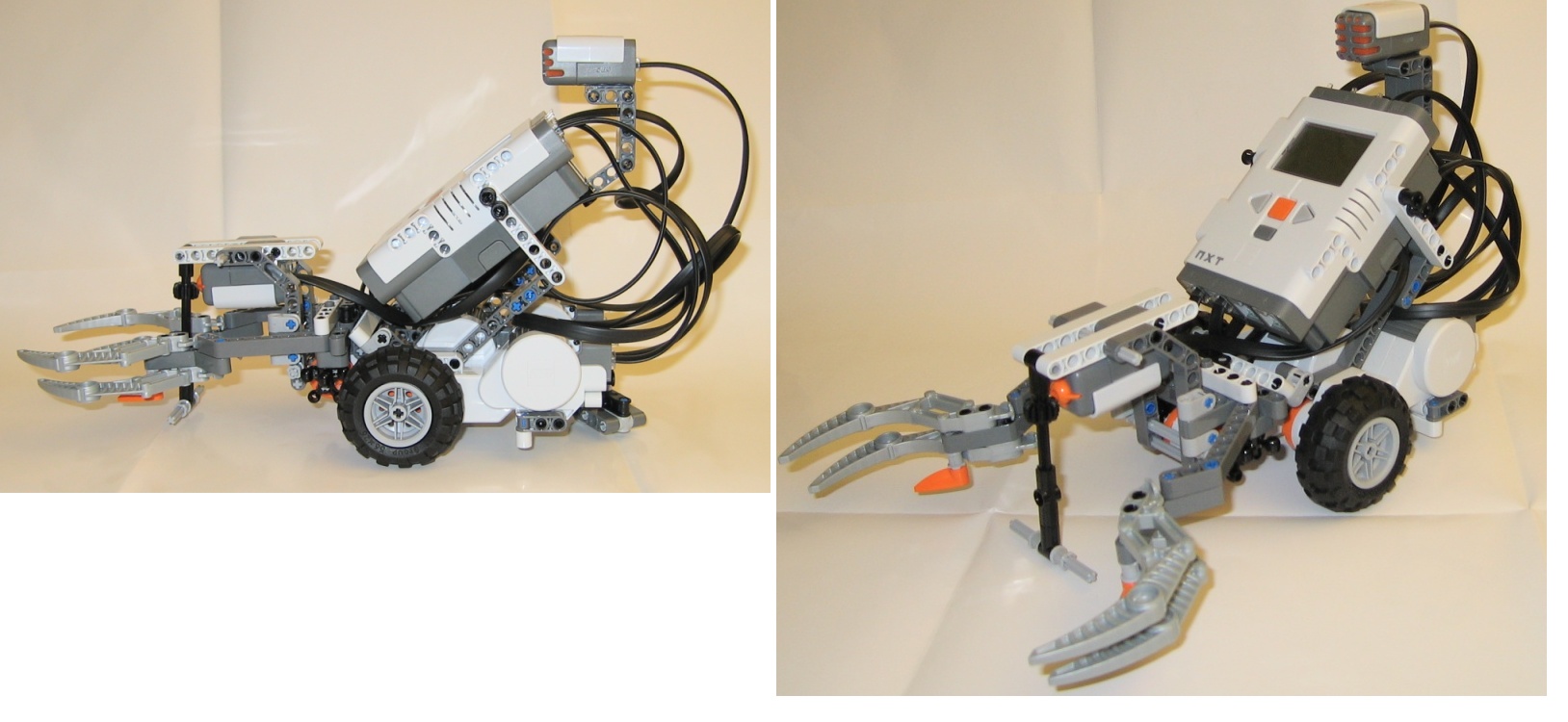
The tribot has two independently-powered wheels, a touch sensor in front to detect obstacles, and a sound sensor (so that the tribot can be started or stopped with a clap, for example). In addition, it has a pair of claws that are powered by a third motor. The NXT has four sensor ports (Port1Port4) and three motor ports (PortAPortC). In a typical configuration,

  • PortA is connected to the claw motor
  • PortB and PortC are connected to the left and right wheel motors
  • Port1 and Port2 are connected to the touch and sound sensors.

Step 2: Set Up the Bluetooth Connection

Next I establish a Bluetooth connection between the LEGO NXT and the host computer. To do this, I need a Bluetooth adapter (preferably one recommended by LEGO). Once the adapter is installed and paired with the LEGO NXT, the communication channel shows up on the host computer as a virtual serial port (e.g., 'COM40').

Step 3: Set Up a Connection Between MATLAB and the Tribot

I use the serial port I/O capability to access a serial port. The freely-downloadable MATLAB toolbox (see the "Remote control" solution) wraps this communication channel into a high-level object-oriented interface. A similar, though non-object-oriented, toolbox has also been developed at RWTH Aachen University in Germany.

Once the MATLAB toolbox is downloaded and installed, I first need to add the download directory to the MATLAB path, using addpath.

Now I can initiate a MATLAB connection to the tribot. (You can try out the toolbox even if you do not have a LEGO robot by using 'test' for the name of the serial port).

nxt = legoNXT('test');

nxt is a MATLAB object and the input and output ports are objects also.

leftMotor = nxt.PortB;
touchSensor = nxt.Port1;
whos nxt leftMotor touchSensor
  Name             Size            Bytes  Class         Attributes

  leftMotor        1x1              1260  outputPort              
  nxt              1x1               840  legoNXT                 
  touchSensor      1x1               280  inputPort               

Issue commands by invoking the appropriate object methods. For example, let me to rotate the left wheel for 3 seconds at a power level of 30 (out of a maximum of 100).

start(leftMotor, 30);
pause(3);
stop(leftMotor);

In order to read a sensor, I first need to tell the NXT what type of sensor is connected to the input port. From then on, the sensor can be read with a simple method call:

% configure nxt as a touch sensor
set(nxt.Port1, 'type', 'touch');
% get a sensor reading
v = getdata(nxt.Port1);

The NXT Bluetooth interface has other capabilities in addition to accessing motors and sensors. To access these capabilities, I need to get the "low-level" NXT interface from the nxt object.

type lowlevelNXT
 nxti = get(nxt, 'NxtInterface');
 % Play a 1000 Hz tone for 300 milliseconds 
 playTone(nxti,1000,300);
 % execute a program already present on the NXT
 startProgram(nxti, 'Demo.rxe');
 % get a full list of low-level commands
 help nxtInterface/Contents     

Finally, close and clean up the interface.

delete(nxt);
clear nxt

Step 4: Create Tribot Programs in MATLAB!

The capabilities I just showed provide the building blocks for students to explore a variety of programming concepts. A simple assignment might be, "wait until the sensor is pressed and released five times". This assignment requires understanding of both looping and conditionals. Here's one solution.

type checkSensor
function checkSensor(nxt)
% sensor values less than 50 => touch sensor is depressed
count = 0;
previousValue = 100; 
while count < 5
   currentValue  = getdata(nxt.Port1); 
   if (previousValue >= 50) && (currentValue < 50)
      count = count + 1;    
   end
   previousValue = currentValue;
end

Motor actions lend themselves naturally to grouping, through the use of functions. This function has the tribot back up for duration seconds, chirping all the while.

type backupTribot
function backupTribot(nxt, duration)

nxti = get(nxt, 'NxtInterface');
playSoundFile(nxti, '! Attention.rso', 1);
start(nxt.PortB, -20); start(nxt.PortC, -20);
pause(duration);
stop(nxt.PortB); stop(nxt.PortC);
playSoundFile(nxtInterface, '! Attention.rso', 0);

An advantage of developing these programs in MATLAB is that students can use the MATLAB environment for interactive debugging and visualization. For more advanced assignments, students could build a MATLAB-based GUI to control a robot (these would integrate well with teaching object-oriented programming). To give a flavor of such GUI-based control, the toolbox ships with nxtdemo, a sample GUI.

I should note that the NXT Bluetooth interface does not provide support for fine motor control (for example, to rotate a motor through a specified angle). Likewise, the round trip latency – sending a command from the PC to the NXT and receiving a response is on the order of 30 ms – makes it impractical for real-time control. Nevertheless, the basic capabilities provide enough flexibility for many interesting projects.

For those looking for real-time control, there is a free Simulink-based library that provides much more sophisticated embedded control.

What Else?

What other capabilities would make the MATLAB + LEGO NXT combination especially useful in a classroom? Let me know in here.


Get the MATLAB code

Published with MATLAB® 7.6

30 Responses to “LEGO Mindstorms NXT in Teaching”

  1. tuan ngo replied on :

    Hi Loren,

    I am designing the NXT Mindstorm robot with Matlab, but I am using the usb cable connection. I can make it run but when connect using the cable.
    I want to ask that, how do I attach the program that I programed into the the NXT bricks, so I don’t need to use the cable when I want to test the robot.

    Please help
    thank you

  2. Gautam Vallabha replied on :

    Tuan,

    I assume you are using the RWTH-Mindstorms NXT Toolbox (http://www.mathworks.com/matlabcentral/fileexchange/18646).

    Regarding your question — how to program the NXT so that you don’t need to use the cable — here are some options:

    1) You can use Bluetooth to control the LEGO NXT remotely, as described in the post above. The RWTH Mindstorms NXT Toolbox provides this capability as well.

    2) If you have Simulink and Real TimeWorkshop (with Embedded Coder), you can use the following toolbox to create a binary that will run directly on the ARM processor on the LEGO NXT:
    http://www.mathworks.com/matlabcentral/fileexchange/13399
    Note that this requires you to convert your MATLAB algorithm into a Simulink model.

    3) (This is more speculative) You might try interfacing your MATLAB program with NXC (http://bricxcc.sourceforge.net/nbc/), and then use the NXC compiler to produce a binary that can be executed on the LEGO NXT.

    Gautam

  3. tuan replied on :

    Hi Loren.
    Yes, the way i doing is using Matlab Simulink. Is it any tutorial about that? I did try this: http://www.mathworks.com/matlabcentral/fileexchange/13399
    But after set up connection, i dont know how to control the speed or sensor.
    I had try Matlab help, but still doesnot help.
    Please tell me
    thank you

  4. Gautam Vallabha replied on :

    Hi Tuan,

    The Simulink-based solution comes with a library of NXT blocks:

     ecrobotNXT\environment\ecrobot_nxt_lib.mdl
    

    To control the speed of a motor, use the inport of the “Servo Motor Write” block. To read a sensor, use the outport of the corresponding Sensor block (e.g., “Ultrasonic Sensor Read”).

    There are a couple of sample models that can provide further guidance:

     ecrobotNXT\samples\TestMotor.mdl
     ecrobotNXT\samples\TestUltrasonicSensor.mdl
    

    For more information, see:

     ecrobotNXT\docs\Embedded Coder Robot NXT Tips En.pdf
    

    By the way, make sure you run the setup script (ecrobotNXT\ecrobotnxtsetup.m) before running any of the test models. You only need to run this once.

    Hope this helps,
    Gautam

  5. tuan replied on :

    hi Gautam,

    Yes, it does help me. But now I run into another problem that i cannot stop the motor, or set the 90 degree angle turn for the robot.

    would you please put some instruction for me also for order new user learning more about MATLAB SIMULINK?

    thank you
    Tuan

  6. Loren replied on :

    Tuan-

    Check out this site: http://www.mathworks.com/academia/student_center/tutorials/simulink-launchpad.html

    for Simulink tutorials.

    –Loren

  7. Trung replied on :

    Hi Tuan,
    I also had the problem about controlling NXT by Matlab via bluetooth.Are you Vietnamese student?May I have your email to discuss more with you?Thank you.

  8. Gautam Vallabha replied on :

    Tuan,

    I’m not sure if you are referring to ECRobot or the MATLAB+Bluetooth package, but generally:

    - To stop, set the motor power to 0.
    - To turn, use differential power to the left and right wheels. To turn to the right, for example, maintain power to the left wheel while zeroing out power to the right wheel.

    Gautam

  9. Trung replied on :

    Hi Gautam,
    I intend to mount a camera sensor to the Lego Mindstorm NXT for visualization.I intend to use a wireless camera and transfer image data to the matlab via USB.The problem is the output of camera is composite port,so i need a converter to convert from composite port to a digital form that can communicate with computer via USB port.I wonder if Matlab can recognize that digital image data correctly?The system reference can be found here: http://www.roborealm.com/tutorial/ball_picker/slide010.php

    Please Help Thank you

  10. Gautam Vallabha replied on :

    Hi Trung,

    I’m afraid there isn’t a simple answer. MATLAB can read video data using the Image Acquisition Toolbox (www.mathworks.com/products/imaq/). You may want to look through the Supported Hardware list (look under “Windows video Hardware”). In particular, note that you can use the Microsoft AMCAP utility to test whether your video data will be accessible from within MATLAB.

    If your particular device isn’t supported, you might also try a different USB wireless webcam.

    Gautam

  11. Trung replied on :

    I try to setup the Bluetooth (BT) connection between Matlab and NXT and I got the error.Please help me to solve it.I used RWTH - Mindstorms NXT Toolbox and set up the BT connection succesfully.Also,my BT adaptor does not support bi-directional connection.

    The erroe is here:

    >> nxt = legoNXT(’COM6′);
    Opening Serial port (COM6) … This may take a few seconds
    Warning: The specified amount of data was not returned within the Timeout period.
    ??? Unable to open a serial port connection to the Lego NXT
    LEGO NXT is not responding to direct commands
    ==> Turn the NXT off and on, re-establish the Bluetooth connection, and try again

  12. Trung replied on :

    Hi Gautam,

    I resolved the above problem.BT connection is not stable.Sometimes i can’t figure out which problems have been occurring although I had done successfully the same procedure before .Anyway,I have a question.How can I control the motor to reach a position with a given angle by using Matlab NXT toolbox?

    Thank you,

  13. Gautam Vallabha replied on :

    Trung,

    It is difficult to get precise angular control using Bluetooth (whether you are using the MATLAB NXT toolbox or RWTH Aachen’s NXT toolbox). The standard LEGO NXT firmware does not reliably handle Bluetooth requests like “turn motor A 90 degrees”.

    If you really need precision turns, here’s the simplest workaround.
    1) Create NXT-G programs for the turn angle you need (e.g., Rotate90Degrees, Rotate270Degrees) and download them to the NXT.
    2) Use the Bluetooth interface to run the program that you want.

    An alternative to using NXT-G is to use NXC for LEGO NXT . It is a simple C-like language that compiles to an executable that will run on the standard NXT firmware.

    Gautam

  14. Trung replied on :

    Hi Gautam,
    I found out a simple way to control motor with an approximate angle.Just adjust 2 parameter:the power of motor and the time of pausing.This can be done by experiment.Certainly,there are many optional ways to get a given angle.However,if you set the power of one motor O and the other motor high,the more sharp curve you will get.Here is one example that I used in my experiment (45 degree)

    >>start(leftm,0);start(rightm,30)
    >>pause(0.78)

  15. miguel angel replied on :

    hi, i’m mexican student and beginning to program the lego MindStorm with matlab and download and insatale the toolbox, but I have a problem with the connection between Matlab and NXT, I get the same error as trung

    >> nxt = legoNXT(’com1′)
    Opening Serial port (COM1) … This may take a few seconds
    Warning: The specified amount of data was not returned within the Timeout period.
    ??? Unable to open a serial port connection to the Lego NXT
    LEGO NXT is not responding to direct commands
    ==> Turn the NXT off and on, re-establish the Bluetooth connection, and try again

    please, help me

  16. Gautam Vallabha replied on :

    Miguel,

    When you successfully set up a Bluetooth connection between the LEGO NXT and your Windows PC, the connection shows up as a “virtual” serial port (e.g., COM40).

    You appear to be trying to connect using COM1, which is typically the hardware serial port. I suggest you check whether the LEGO NXT has successfully paired with your PC. If it has, you can view the properties of the connection and find out the name of the virtual COM port.

    You can also find out what serial ports are available on your system, as follows (the error message lists the available ports):

    >> p = serial('COM0');
    >> fopen(p)
    ??? Error using ==> serial.fopen at 71
    Port: COM0 is not available. Available ports: COM1, COM3.
    

    Gautam

  17. miguel angel replied on :

    hey thanks for your answer Gautam, but I have not made the connection, I checked and the NXT if paired with the pc, also check the available ports and brand me a lot of mistakes, I made some programs and everything compiles fine but the I PC communication and the NXT is what is wrong have some pdf guide with instructions to establish the connection I would greatly appreciate. thanks
    this is the mistake that I make:

    >> nxt = legoNXT(’COM8′);
    Opening Serial port (COM8) … This may take a few seconds
    ??? Unable to open a serial port connection to the Lego NXT
    Unable to open Serial port (COM8)
    Error using ==> serial.fopen at 71
    Port: COM8 is not available. No ports are available.
    Use INSTRFIND to determine if other instrument objects are connected to the
    requested device.

  18. Gautam Vallabha replied on :

    Miguel,

    The MATLAB LEGO NXT toolbox comes with a PDF document (called Bluetooth.pdf) that provides some guidance.

    You can also try the following:

    1) The University of Aachen also has a MATLAB-NXT toolbox. Here is their FAQ entry on Bluetooth connectivity:
    http://www.mindstorms.rwth-aachen.de/trac/wiki/FAQ#Bluetooth

    2) You can also try to see if you can connect to the NXT without using MATLAB. There are many freely available programs for doing this. Here is a Windows program, for example:
    http://www.norgesgade14.dk/bluetoothremote.php

    Gautam

  19. john replied on :

    Hi Miguel,
    I am using the RWTH Mindstorms NXT Toolbox. The problem i got is unaccurate angle when turning. I want to use Matlab, not anything else.

    So I got the compass sensor and plan for the robot free turn until it catch a number on the compass sensor. But when i send the moter setting, the robot just get in to the endless loop and keep turning nonstop. It does not get any value of compass sensor.

    I dont know if it is any way that we can use the compass sensor to detect the right direction while the robot is spinning.

    My scripts are: SetMotor(MOTOR_B);
    SyncToMotor(MOTOR_C);
    SetPower(60);
    SetAngleLimit(0);
    SetTurnRatio(0);
    SetRampMode (’off’);
    SendMotorSettings();

    %% Detect the number using compass sensor (sensor loop)
    OpenCompass(SENSOR_4);
    tictic(1);
    while(toctoc(1) < MaxDriveTime)
    if GetCompass(SENSOR_4) == 30
    break
    end%if
    end%while

    %% then stop motor

    That scripts did not work for me.

    Please help!!
    Thank you

  20. Gautam Vallabha replied on :

    John,

    Since you are controlling the robot over Bluetooth, it takes approx. 30 msec to send a command to the NXT and receive the sensor value. As a result, you will miss sensor readings. This is probably what is causing your test (GetCompass(SENSOR_4) == 30) to always fail — it is unlikely that you can get a sensor reading just as it hits 30.

    The workaround is to test for transitions instead of exact sensor values. Something like this:

    tic;
    lastReading = GetCompass(SENSOR_4);
    while (toc < MaxDriveTime)
      newReading = GetCompass(SENSOR_4);
      if (lastReading < 30) && (newReading >= 30)
         break;
      end
    end
    
  21. Eduard replied on :

    Hi Gautam,
    is there any way to control my nxt by simulink simultanously without downloading the file to my nxt. By using the rwth Mindstorms code in matlab it works fine. And I also use the ecrobot nxt Toolbox, but here I have to download the file to my nxt first before running the programm.
    Is there any way to use the rwth codes in Simulink?
    Thank You

  22. Gautam Vallabha replied on :

    Eduard,

    You can use the RWTH functionality from Simulink. I will go through the example with the MATLAB toolbox from my post, but you can use the same approach for the RWTH toolbox functions.

    Step 1: in MATLAB set up the connection to the LEGO NXT and configure the sensors:

     lego = legoNXT('COM40');
     mySensor = lego.Port1;
     set(mySensor, 'Type','Touch');
     leftMotor = lego.PortA;
    

    Step 2: To read the sensor in Simulink, add a “MATLAB Fcn” block to your model. For the MATLAB expression, enter “getdata(mySensor)”. Wire the input port of the MATLAB Fcn block to Ground. You can group the Fcn and Ground blocks as a subsystem that pumps out sensor values.

    Step 3: To control the motor in Simulink, add another “MATLAB Fcn” block. For the MATLAB expression, enter ” setMotorPower(legoMotor,u)”, where setMotorPower is the following MATLAB function:

    function out = setMotorPower(motorObj, powerValue)
      set(motorObj, 'power', powerValue);
      out = 0;
    

    (You need a separate function because the MATLAB Fcn block requires an output, but the SET command doesn’t return one). Finally, wire the output port of the MATLAB Fcn block to a terminator. You can group the Fcn and terminator blocks as a subsystem that accepts a motor power setting. You can create another such subsystem for starting/stopping the motor.

    Step 4: Configure your model (using the “Configuration Parameters …” dialog box) to use a Fixed-step discrete solver. Now, you need to run your model in real time rather than simulated time (for example, you want to poll the sensor every 200 msec or so). To achieve this, you need a block which forces the simulation to match elapsed time. If you have the Aerospace Blockset, you can use the “Simulation Pace” block. Otherwise, try the following submissions in the MATLAB Central FileExchange:
    Pseudo Real Time in Simulink
    Real-Time Blockset 7.1 for Simulink

    You can improve this lots of ways, of course. For example, you can mask your “read sensor” and “set motor power” subsystems and allow the user to specify different sensor/motor ports. Or, you can include the the initialization code as part of another MATLAB Fcn block. But the above steps should be sufficient to get you started.

    Gautam

  23. Gautam Vallabha replied on :

    Correction — In Step 3 of my Simulink example, the expression in the MATLAB Fcn block should be “setMotorPower(leftMotor,u)”

    Gautam

  24. Dhruba replied on :

    I am using Mindstorm NXT can I run from MATLAB. If so, do I have to earse the firmware and how do I switch back to Mindstorm NXT. While changing the firmware is there a possibilty of damaging the brick.

    Regards,
    Dhruba

  25. Gautam Vallabha replied on :

    Hi Dhruba,

    If you want to control the LEGO NXT from MATLAB using Bluetooth, there is NO need to change the standard firmware.

    If you want to generate an executable that will run autonomously on the LEGO NXT (using the Simulink-based library) then you will need to change the firmware (the library comes with instructions for how to do this). Updating the firmware — and switching back to the standard firmware — is usually pretty safe, and is common in many LEGO NXT programming environments.

    Gautam

  26. HIDIR replied on :

    how can I get the time information together with the gyro or accelerometer data?
    Thanks

  27. Gautam Vallabha replied on :

    Hi Hidir,

    I assume you are referring to Bluetooth interface.

    You can get both the gyroscope and accelerometer data using the RWTH Aachen Mindstorms NXT Toolbox (see the GetAccelerator and GetGyro functions).

    Getting the time information is tricky. With the Bluetooth interface, it is difficult to get the time at which the gyro or acceleration value was sensed. The simplest solution is probably something like the following:

      % This example uses the RWTH Aachen Mindstorms NXT Toolbox
      tic; % start of measurement
      OpenGyro(SENSOR_1);
      for i=1:100
        sensorValue(i) = GetGyro(SENSOR_1);
        timeStamp(i) = toc;
        pause(0.1);
      end
      CloseSensor(SENSOR_1);
    

    Gautam

  28. Linus Atorf replied on :

    Hello,

    I’d like to respond to some issues brought up in the comments here:

    Bluetooth
    Not all Bluetooth adapters you can buy work equally well with the NXT or with MATLAB. We tested some, and here’s the (incomplete) list as a guide:
    http://www.mindstorms.rwth-aachen.de/trac/wiki/BluetoothAdapter

    Motor precision
    Since version 2.03 of the RWTH - Mindstorms NXT Toolbox, a way for better precision is provided. While the official NXT firmware (and previous toolbox versions) don’t provide a way to rotate a motor to a precise angle with a single command (like e.g. 90 degrees and then stop), we added this feature by a program running on the NXT simultaneously. So give version 2.03 a try and use the NXTmotor class.

    Even better motor control is added with the latest version 4.00 (beta), only 10 days old :-). While it might be unstable, first results show a really great way to control motors accurately (the class is now called NXTMotor). Try out the latest version and see if it works for you:
    http://www.mindstorms.rwth-aachen.de/trac/wiki/Download

    Gyro Sensor
    Make sure to use either version 2.04 (of the RWTH - Mindstorms NXT toolbox) or the beta 4.00, as version 2.03 has limited support for the Gyro sensor (no good calibration, only 1 sensor allowed) which is fixed in later versions.

  29. Michele replied on :

    Hi Gautam,

    I am using version 2.03 of the RWTH - Mindstorms NXT Toolbox on a MacBook and Matlab 7.6. I am able to communicate via bluetooth. I can play a note and read from the sensors. I am having trouble with the motors. I have uploaded the MotorControl.rxe file to the NXT.

    If I run

    handle = COM_OpenNXT('bluetooth.ini');
    

    the MotorControl.rxe program on the NXT is executed.

    If I then run

    COM_SetDefaultNXT(handle);
    m = NXTMotor('A', 'Power', 50, 'TachoLimit', 1000);
    m.SendToNXT(handle);
    timedOut = WaitFor(m, 5);
    

    I get the following warning:

    Warning: There has been no reply (time out) for at least 5 seconds from the
    embedded NXC program MotorControl, which should be running on the NXT
    brick. Please make sure the program is running and does not get terminated
    accidentally. Exiting WaitFor() and continuing...
    > In NXTMotor.WaitFor at 168
    

    Coincidentally, the file COM_NXTOpenNXTEx.m was using MotorControl20.rxe instead of MotorControl.rxe. I changed this in the m-file back to MotorControl.rxe. No luck. Next, I left the MotorControl20.rxe in the m-file and changed the name of the file on the NXT. That didn’t work either. I tried this because I wasn’t sure which m-files actually use the filename on the NXT.

    I have used the DirectMotorCommand to get the motors to turn. The motors don’t rotate to the programmed value. Also, the NXT makes high-pitched noises afterwards until I turn the NXT off.

    I’d like to use the NXTMotor functions rather than the DirectMotorCommand function.

    Any advice for me?

    Thanks,
    Michele

  30. Linus Atorf replied on :

    Dear Michele!

    Thank you for your comments. It seems you’ve got a little version mix-up.

    The toolbox 2.03 (and 2.04) uses MotorControl.rxe. The version displayed on your NXT screen should be MotorControl 1.1 (or 1.2). With this toolbox, you need to have the LEGO MINDSTORMS NXT Firmware version 1.05 installed.
    So far so good. The motor class in this version is called NXTmotor (note the lowercase m). Motor precision and performance is alright, but not great.

    The warning you describe (no reply time out in .WaitFor) has only been introduced in toolbox version 4.00. This version offers far better motor control. For this version, MotorControl20.rxe is required. It’s called this way intentionally by COM_OpenNXTEx to distinguish from previous versions (so renaming files doesn’t help). In order to compile MotorControl20.nxc, you need nbc.exe from the very latest version from BricxCC, included in the file test_release.zip, found here: http://bricxcc.sourceforge.net/
    You can also find the MotorControl20.rxe binary here: http://www.mindstorms.rwth-aachen.de/trac/browser/trunk/tools/MotorControl/MotorControl20.rxe

    Please note that MotorControl 2.* needs the newest LEGO MINDSTORMS NXT Firmware. Either 1.26 (comes with NXT-G Education 2.0), 1.27 or 1.28 by John Hansen (included in the mentioned test_release.zip from BricxCC) or 1.28 (comes with the new NXT 2.0 retail building kit).

    So please don’t mix up different versions of the toolbox with different versions of MotorControl. Always take the MotorControl version which comes with the according toolbox zipfile. You can find out the toolbox you’re using (set in the MATLAB path) by typing:

    info = ver('RWTHMindstormsNXT')
    

    With toolbox 4.00, the motor class is called NXTMotor (uppercase M) by the way.

    So I hope I’ve clarfied eveything. The high pitched beeping noise you describe is intended. It’s the NXT’s synchronization. It should be mentioned somewhere inside the chapter “Troubleshooting” of the toolbox documentation I believe. I’ve also added a description of this “feature” in the new documentation for future version 4.01. It keeps the motors in sync, useful for straight driving. It can be disabled using .Stop or .StopMotor.

    The next toolbox release 4.01 is scheduled for next week. With this release we’ll also officially support Mac OS. The motor control in 4.00 (beta) works ok, we fixed some minor issues for 4.01, but overall 4.00 is pretty stable and should be well usable.

    Don’t hesitate to ask further questions. Keep watching http://www.mindstorms.rwth-aachen.de for future versions, and feel free to open a ticket with feature requests or bug reports if needed.

    Regards, Linus

Leave a Reply

Wrap code fragments inside <pre> tags, like this:

<pre class="code">
a = magic(3);
sum(a)
</pre>

If you have a "<" character in your code, either follow it with a space or replace it with "&lt;" (including the semicolon).


Loren Shure works on design of the MATLAB language at The MathWorks. She writes here about once a week on MATLAB programming and related topics.

  • Jun: I totally can not believe it, Loren. You are really helpful. Thank you so much, MATLAB master!
  • Loren: Wow folks- Always lots of interest when there’s a quickie to try out! I will only make 2 general...
  • Loren: Jun- ismember is your friend here: >> [aa,ind] = ismember(Array2,Arra y1) aa = 1 1 1 1 1 1 1 ind = 1 2 1 4 4 3...
  • Dan: I like the first way better than the second way. Combining the arrays into one and running any is nice, although...
  • James Myatt: How about I = (a == 0 | b == 0); a(I) = []; b(I) = [];
  • Tunc: Hello Loren, love your blog because of such inspiring and challenging comments to such ’small’...
  • Pekka Kumpulainen: Here is my tradeoff. I usually want to keep the original variables as they are most probably...
  • Iain: Followup: Of course, to allow NaNs (counting them as non-zero): mask = (a~=0) & (b~=0); The mask says “a...
  • Matt Fig: I would usually go with something like this: y = a&b; x = a(y); y = b(y); But I was surprised to find...
  • kk: c=all([a;b]) a(c) a(b)

These postings are the author's and don't necessarily represent the opinions of The MathWorks.