
Simulating a Simulink Model through GitHub Copilot and the MATLAB MCP Server

Today I am continuing my exploration in the world of AI coding assistants and how they can help with Simulink. The topic for this post: The MATLAB MCP Server.
MATLAB MCP Server
If you're not familiar with the Model Context Protocol (MCP), you might want to give a quick look at the Wikipedia page: Model Context Protocol - Wikipedia. In short, it's a protocol adopted by the major AI providers like OpenAI and Anthropic to interface with... well... pretty much everything.
MathWorks providing an MCP server means that tools like Claude Desktop and GitHub Copilot in VS Code are now able to ask MATLAB to run the code they generate, get the output back and iterate on their own. As my colleagues Yann Debray and Akshay Paul described in their introduction blog post, no more need for a human to manually copy and paste code between tools!
In this post, I will walk you through my first attempt at generating MATLAB code to simulate a Simulink model using GitHub Copilot in VS Code.
Disclaimer: I would really prefer to do everything I am describing today within the MATLAB desktop. However, this is not possible yet. I am sure someday it will be, and I will be happy to write about it when this becomes available.
The Challenge
For this blog post, I will start with a MATLAB Project containing this simple Simulink model.
open_system('BasicModelingSimpleSystem');
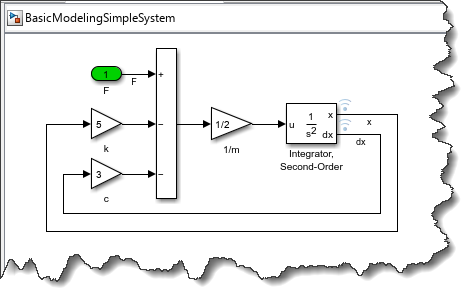
My goal is to get the GitHub Copilot in VS Code to generate MATLAB code that will simulate the model by feeding it a step input and plot the logged signal "x".
Let's begin by setting up the toolchain and confirming that it works. The steps below are probably more detailed than you need, but that's what I would have liked to see the first time I set that up, so here it is.
Setup
Start by visiting the MATLAB MCP Server GitHub repository and read the readme.md file to get an overview of the required setup and options.
Download the MATLAB MCP Core Server
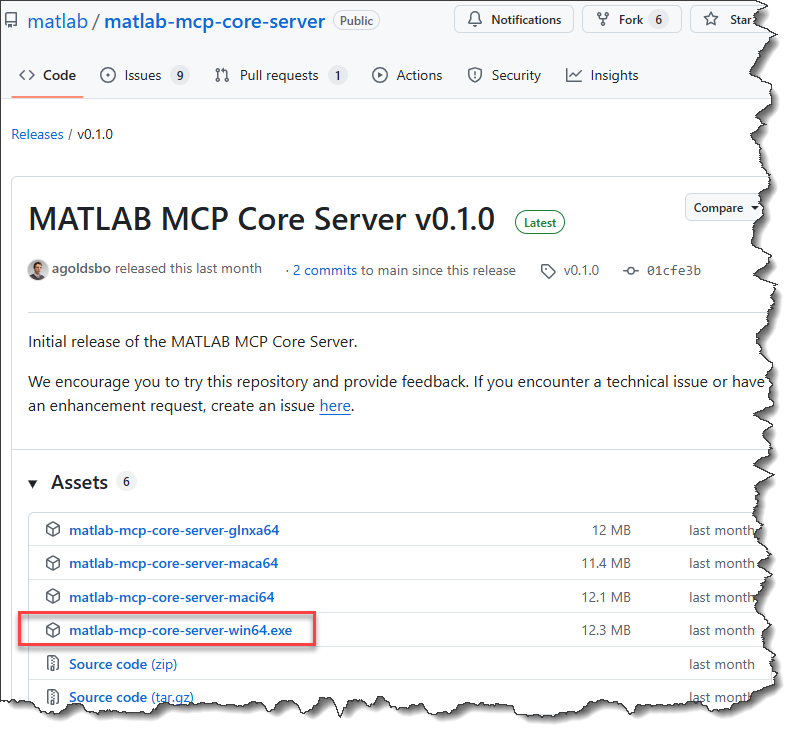
Store the executable in a convenient location on your computer. You will need to specify its location later when we will create a mcp.json file.
Download Visual Studio Code
Visual Studio Code is one of the most popular code editors these days. It's so popular that MathWorks released the MATLAB Extension for Visual Studio Code, allowing users to edit, run, and debug MATLAB code in Visual Studio Code.
GitHub Copilot Chat Extension
For what we want to do today, install the GitHub Copilot Chat Extension. Search for it in the VS Code extensions panel and click install.
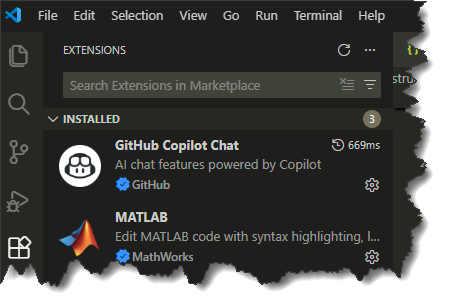
Once this is done, open a new chat
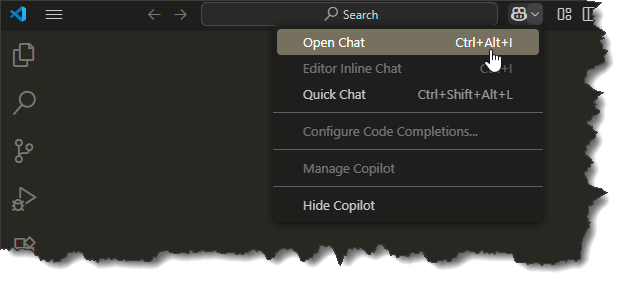
You will need to log into your GitHub Account.
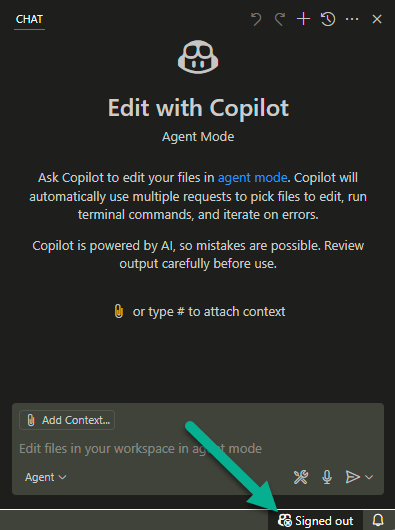
If you're not familiar with that, follow these instructions to setup your copilot account: Set up GitHub Copilot in VS Code. To reproduce the content of this blog post, the GitHub Copilot Free account should be enough.
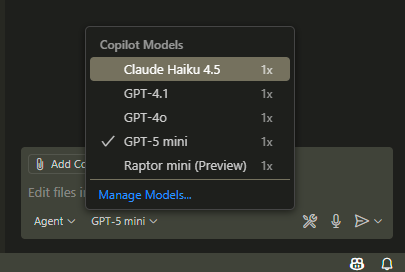
Once you sign in, you will see the short list of models available for free. If you have a paid subscription, you will see many more.
Registering the MATLAB MCP Server in Visual Studio Code
The simplest way to validate if the MATLAB MCP server is configured properly is to ask which MATLAB toolboxes are available. At this point, we have not configured it yet, so asking the question in the copilot chat will result in something like that:
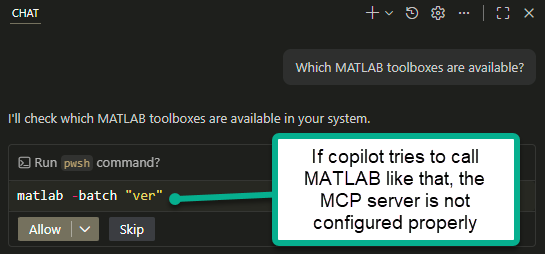
This is not what we want, so let's cancel that.
With the MCP server configured properly, copilot does not need to use "matlab -batch" to run MATLAB code.
The Visual Studio Code instructions to setup a MCP server can be found here: https://code.visualstudio.com/docs/copilot/customization/mcp-servers
More specifically, MathWorks recommends that you follow the steps in the section "Add an MCP server to a workspace mcp.json file". This file needs to be located in a folder named .vscode
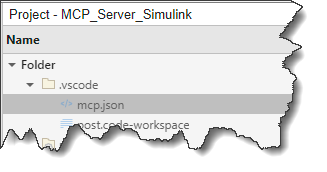
The syntax for this file is described here. At the minimum, the "command" field should point to the full path of the MATLAB MCP Server executable downloaded previously. In my case, I also added arguments to specify which MATLAB version to use and the initial working folder, so my mcp.json looks like this:
{
"servers": {
"matlab": {
"type": "stdio",
"command": "C:\\MATLAB\\MCP\\server\\matlab-mcp-core-server-win64.exe",
"args": ["--matlab-root=C:\\MATLAB\\R2025b",
"--initial-working-folder=C:\\MATLAB\\blog\\MCP\\post"]
}
}
}
Let's ask the same question about the available MATLAB toolboxes. This time a new MATLAB session gets launched automatically, and the copilot asks your permission to run code. As pointed out by the disclaimer, that's the part where you want to be careful. The MCP server will run the AI generated code; it's up to you to decide if you want to let that happen or not.
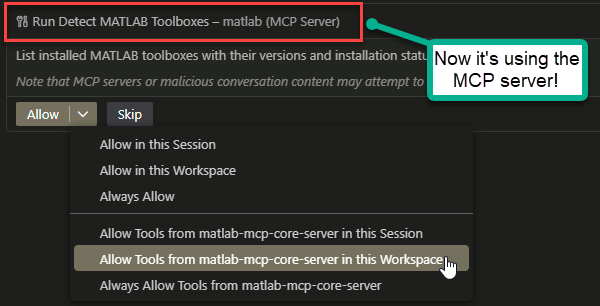
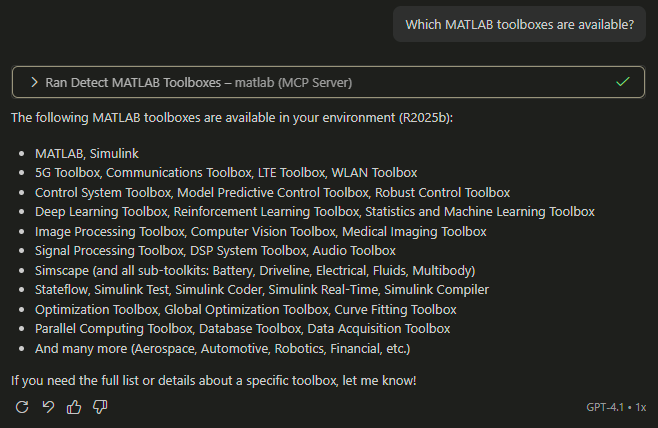
If everything works fine, you should get a response that looks like this, representative of the toolboxes and blocksets you have available:
Opening and simulating a Simulink model
Now, let's make a first attempt at generating MATLAB code that can simulate our Simulink model.
Here is what I asked:
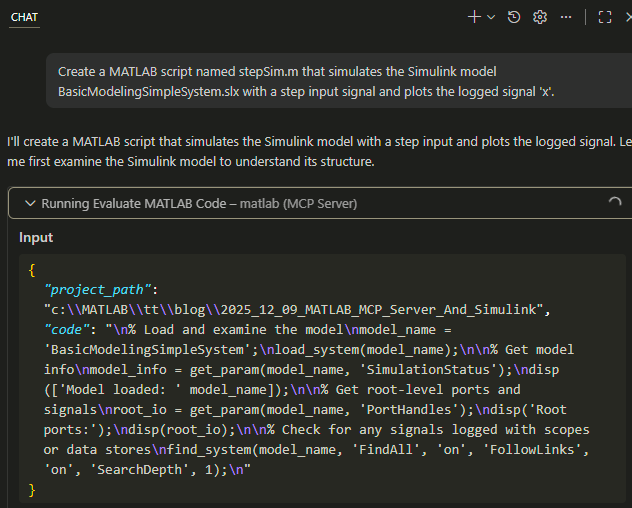
Create a MATLAB script named stepSim.m that simulates the Simulink model BasicModelingSimpleSystem.slx with a step input signal and plots the logged signal 'x'.
Depending on the model chosen, copilot might try to run MATLAB code to understand the model before generating the code I requested. In my case, it tried running commands like get_param and find_system to figure out what's in the model, how to specify the requested step input, and how the signal "x" is logged.
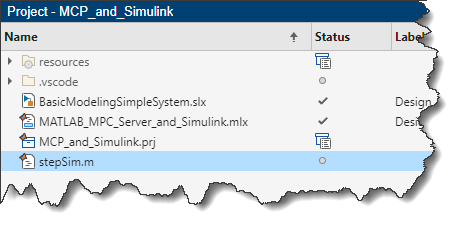
After thinking for some time, a file named stepSim.m appears in MATLAB current directory:
In addition to generating MATLAB code, the AI assistant might also try to simulate the model and validate that the code works. Here are additional outputs I could see in the chat;
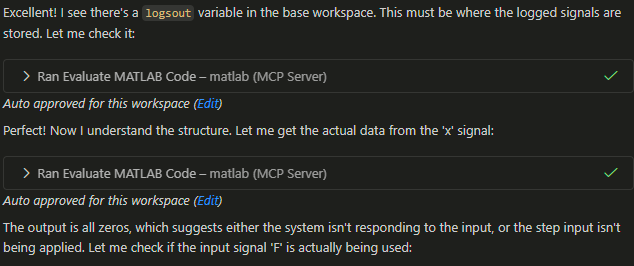
In the end, the AI-generated file contains a little bit more than 100 lines of code, which is a lot more than I was expecting. I will paste the first part here:
modelName = 'BasicModelingSimpleSystem';
modelFile = fullfile(pwd, [modelName '.slx']);
if ~exist(modelFile,'file')
error('Model file "%s" not found in current folder: %s', [modelName '.slx'], pwd);
end
% Simulation parameters
tStop = 10; % stop time (s)
dt = 0.01; % sample interval for external input
stepTime = 1; % time at which step goes from 0 -> 1
% Build external input as a two-column [time, value] matrix
t = (0:dt:tStop)';
u = double(t >= stepTime);
in = [t u];
% Load model (does not open the GUI by default)
load_system(modelFile);
% Run simulation using the external input. Use Dataset save format to capture
% logged signals (logsout) when available.
simOut = sim(modelName, ...
'ExternalInput','in', ...
'StopTime', num2str(tStop), ...
'SaveOutput','on', ...
'SaveFormat','Dataset');
The rest is a logic described as "Attempt to extract logged signal 'x'" that I will not cover here.
Here are my first thoughts when looking at the above code:
- I don't need the "exist" check at lines 5 to 7, I know the file is in my project
- No need to use load_system, the sim command will load the model
- The line "in = [t u];" is old style, I would prefer a more modern syntax using a Simulink.SimulationData.Dataset
- I would prefer if the sim command was using the more modern Simulink.SimulationInput object syntax
Running the code and plotting the results, I get:
plot(simOut.logsout.get('x').Values)
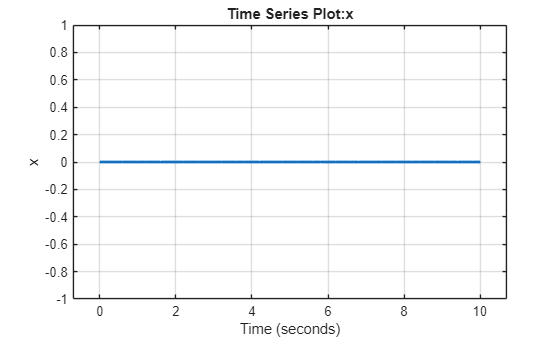
Not really the step response I was expecting!
(For those curious wondering why the out is zero, the code specifies ExternalInput, but does not set LoadExternalInput to on, so the specified ExternalInput is never used)
Conclusions and Next Steps
Here are a few conclusions from this first experiment:
- On the good side, I confirmed that the MATLAB MCP server enables GitHub Copilot to create and run MATLAB scripts.
- On the challenging side, I realized that an AI coding assistant is not magic. Vague requests will most likely result in code that does not do exactly what you had in mind.
As next steps, I could keep chatting with the copilot to refine the code. After multiple iterations, I am pretty confident that I could get the code I want. However, it would probably take longer than writing the code myself. And I don't want to repeat that same process of back and forth chat iterations every time I want to simulate a Simulink model.
Instead, I will stop for today.
In my next post, I will take inspiration from the MATLAB AI Coding Rules GitHub repository and define my own Guy on Simulink AI Coding Rules. That way, I will be able to guide the GitHub Copilot to generate the code I want at the first iteration!
Now it's your turn
Have you tried and adopted the MATLAB MCP Server? Let us know in the comments below what you have tried so far and what you are planning to do with it in the future.





コメント
コメントを残すには、ここ をクリックして MathWorks アカウントにサインインするか新しい MathWorks アカウントを作成します。