
Debugging Simulation Results with an AI Coding Agent

I have to admit, in my day-to-day work, I spend a lot more time debugging Simulink models that produce unexpected results than creating new ones. Since I have access to AI coding agents, I have had a lot of success speeding up debugging sessions and getting deeper insights than I could have dreamed of before.
Today I decided to share one example of this kind of debugging.
The problem
A colleague reached out saying they were trying to apply the technique I described in Getting the most out of Rapid Accelerator mode, but they were getting unexpected results. The model was made of more than 100,000 blocks from many different blocksets and used thousands of parameters.
We offer many tools, diagnostics, and documentation pages to understand and debug this type of issue. Even with all those resources, running into an issue like this one can be intimidating.
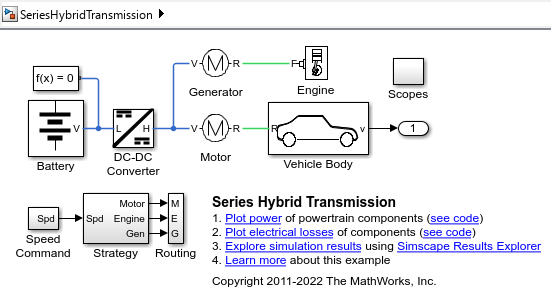
For this blog post, I reproduced the original problem in a smaller project, using a slightly modified version of the Simscape Driveline example Series Hybrid Transmission.
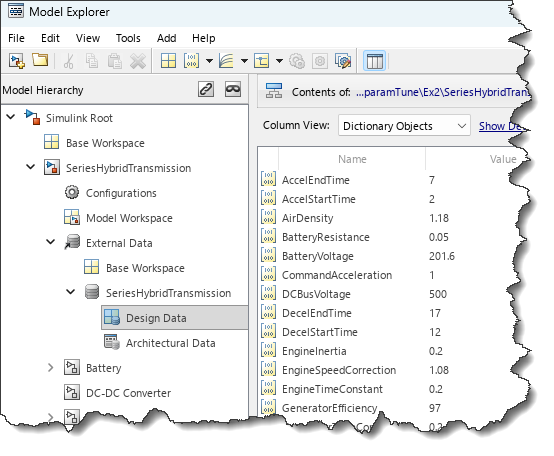
I stored most of the variables needed by the model in a data dictionary:
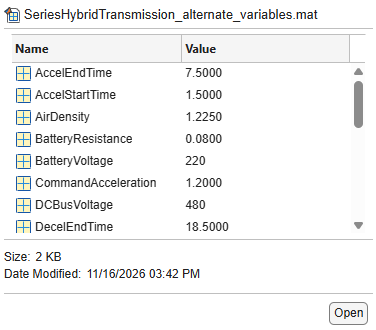
Then I created a second parameter set with different values for most variables.
I simulated the model with both parameter sets in Normal mode and in Rapid Accelerator mode. For the Rapid Accelerator runs, I set RapidAcceleratorUpToDateCheck to off for maximum performance.
mdl = 'SeriesHybridTransmission';
in = repmat(Simulink.SimulationInput(mdl),4,1);
Simulink.BlockDiagram.buildRapidAcceleratorTarget(mdl);
in(1) = in(1).setModelParameter('SimulationMode','Normal');
in(2) = in(2).setModelParameter('SimulationMode','Normal');
in(2) = in(2).loadVariablesFromMATFile('SeriesHybridTransmission_alternate_variables.mat');
in(3) = in(3).setModelParameter('SimulationMode','Rapid',...
'RapidAcceleratorUpToDateCheck','off');
in(4) = in(4).loadVariablesFromMATFile('SeriesHybridTransmission_alternate_variables.mat');
in(4) = in(4).setModelParameter('SimulationMode','Rapid',...
'RapidAcceleratorUpToDateCheck','off');
out = sim(in,'ShowProgress','off');
figure
hold on
styles = {'-','-','o','o'};
for i=1:4
plot(out(i).logsout.get('Velocity').Values,styles{i})
end
legend({'Normal - Dataset 1',...
'Normal - Dataset 2',...
'Rapid Accelerator - Dataset 1',...
'Rapid Accelerator - Dataset 2'},"Location","northwest");
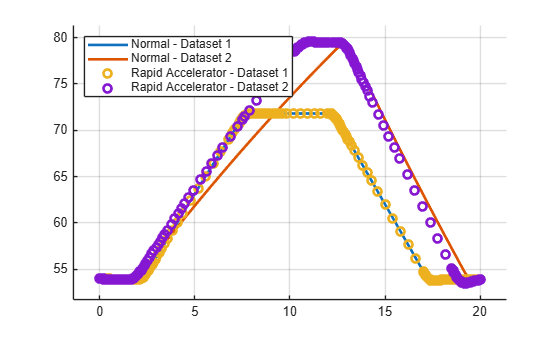
Looking at the results, we can see that the Normal and Rapid Accelerator results match for parameter set 1. The run in Normal mode with parameter set 2 returns expected results, but the run in Rapid Accelerator mode with parameter set 2 gives unexpected results.
Asking for help
A year ago, I would have started manually digging into that. This time, I executed shareMATLABSession, launched the AI agent from the same folder as the MATLAB project and asked:
See repro.m. It shows unexpected results in Rapid Accelerator for case 4. Explain why and how to fix it. Don't change the model, let me review.
To begin, the agent loaded relevant skills from the Simulink Agentic Toolkit:

The agent ran a few MATLAB commands using the evaluate_matlab_code tool, loaded the matlab-read-documentation skill to gather more info and quickly responded with:
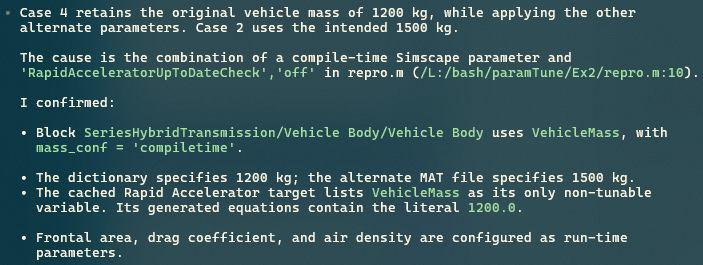
To address my request for possible ways to fix the problem, I got this answer:
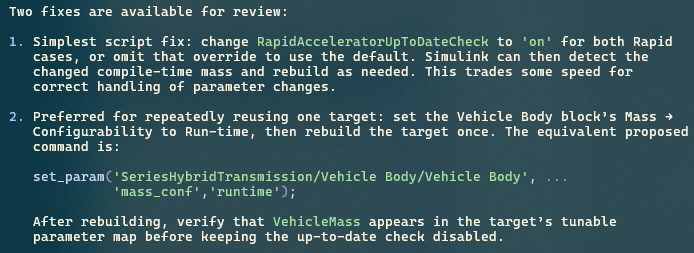
I asked the agent to set the configurability of the vehicle mass parameter to Run-time, as suggested in option 2. I then confirmed that the simulation results matched the expected results.
Learning opportunity
When I solve a problem using an AI agent, I like to ask how it diagnosed the issue and which tools I could have used to investigate it myself. So I asked:
Summarize which tools and techniques I could have used to understand and debug that myself manually
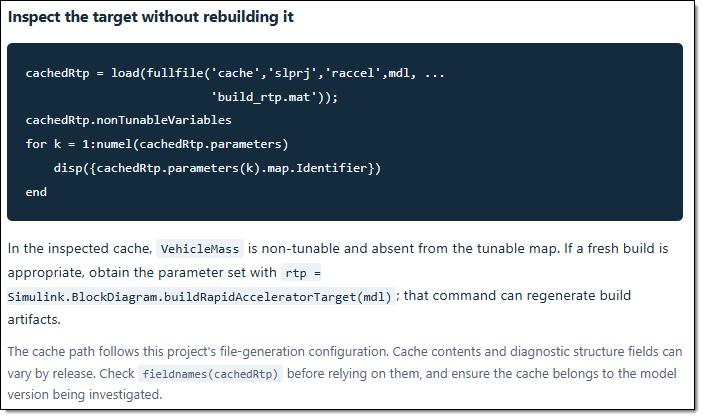
I also like to ask the agent to generate a Markdown or HTML report of its findings. Here is a screenshot from the HTML report I got:
Creating a repeatable tool
While an AI agent can speed up an investigation like this one where I was not sure what to look for and the scope was large, it's not always the most efficient solution. Once a problematic pattern has been identified, it's usually faster to call a function that does the work efficiently in a repeatable manner. To create this function, I asked the AI agent:
I would like to write a MATLAB function to detect this situation in the future. The function should take the simulationInput object as input and check the existing build_rtp.mat in slprj. The function should return a table with one entry per variable in the simulationInput identified as non-tunable. It should list the variable name, the default and new values, the blockpath of the block(s) where it's used and a reason. For now, include the Simscape configurability reason and keep a placeholder for other future reasons we might discover.
Within a few seconds, the function was created. Here is what it returns:
T = findNonTunableOverrides(in(4))
Conclusion
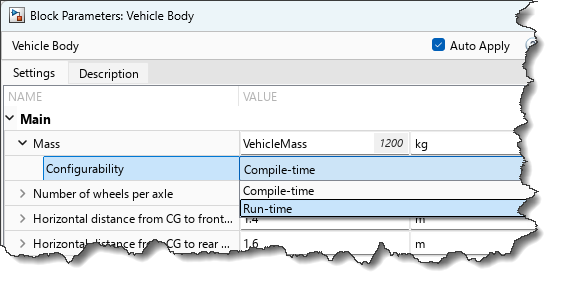
Simscape parameters need to have their configurability set to Run-time to be tuned in Rapid Accelerator mode and not trigger a rebuild. We have a full documentation section on that topic.
The agent was especially useful because the problematic parameter was buried among thousands of others. Investigating manually could have taken considerable time: inspecting parameters, comparing them with simulation results, writing inspection code, and stepping through code in the debugger.
While digging further, I confirmed that the sim command issues a warning for this behavior. In the original project, however, it was easy to miss.
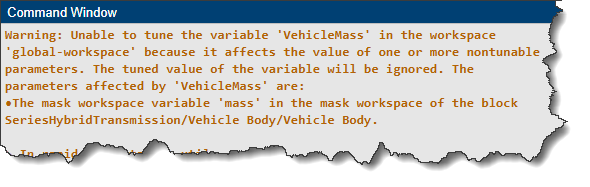
Once the agent helped me understand the problem, I asked it to create a simple function to detect similar issues before trying to simulate the model.
Now it's your turn
What kinds of problems are you debugging with the help of AI agents? Let us know in the comments below.


댓글
댓글을 남기려면 링크 를 클릭하여 MathWorks 계정에 로그인하거나 계정을 새로 만드십시오.