
Simulink and Simscape modeling using Claude Code and the MATLAB MCP Server

This week, I am going one step further in my exploration of AI agents and how they can help Simulink workflows.
In previous posts, I went through the basics of connecting GitHub Copilot with the MATLAB MCP Server, and created a set of basic coding rules to generate MATLAB code simulating Simulink models.
This week, I am taking one step sideways and one step forward:
- Instead of using GitHub Copilot, I switched to Claude Code
- Instead of simulating an existing model, I am creating a new Simulink model
Let’s see how that turned out.
The Challenge
I received a request from a colleague that sounded like:
Using the currently available version of MATLAB, how feasible or complex would it be to leverage an AI agent to build a Simulink model? For example, let’s start simple and model the temperature of a cup of coffee slowly cooling to room temperature, something like what’s described in this post.
Something like that:
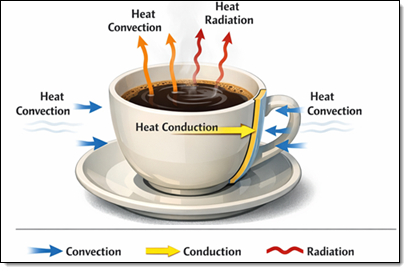
There is no better way to answer this question than trying, so I got myself a Claude Pro account and gave it a try.
The Final Result
Without much experience using Claude Code, I turned on screen recording and started from scratch.
Here is a video that covers the essentials of this first experience. I edited away the parts where I stepped out to do some research and sped up the boring parts where the AI is thinking. Otherwise, I kept most of what I actually went through.
The Details
Here is a breakdown of what I went through.
Initial Setup
After following the Claude Code Quickstart instructions and downloading the latest version of the MATLAB MCP server, I launched a Windows PowerShell and executed this line to add the MATLAB MCP Server to the Claude configuration file:
claude mcp add
--transport stdio matlab
-- "C:\Path_To_MCP_Server\matlab-mcp-core-server-win64.exe"
--matlab-root=C:\MATLAB\R2025b
--initialize-matlab-on-startup=true
--matlab-display-mode=desktop "--initial-working-folder=C:\MyProjectPath"
With that done, from an empty folder I typed claude, and it launched a new MATLAB session.
The Plan
I put Claude in plan mode and described my high-level goal.
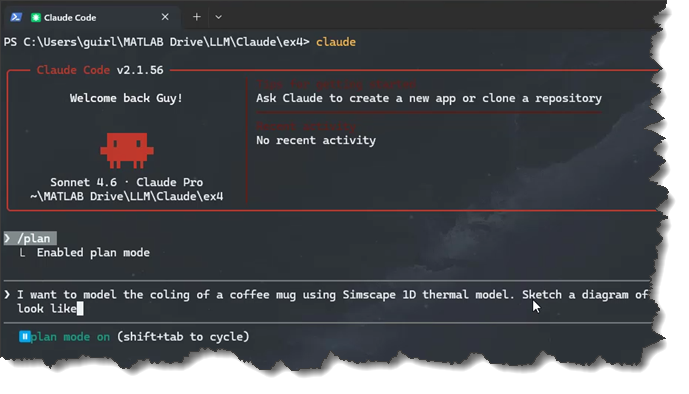
It proposed an initial model
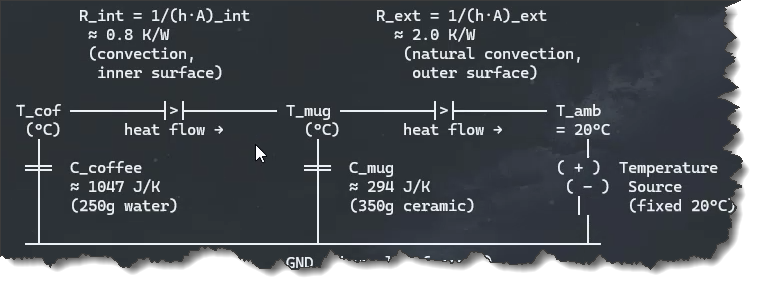
After a few iterations, I liked the proposed plan.
Before asking it to start implementing the plan, I took a few minutes to read Best Practices for Claude Code. One tip that seemed important is: "The more precise your instructions, the fewer corrections you’ll need.". This led me to try two things:
- Skills: Following the instructions to create skills, I wrote down a few bullets describing how I typically go about picking and connecting Simscape blocks
- Incremental Development: When I create a Simulink model, I never draw the entire thing in one shot. I develop and validate incrementally.
Skills
In a skills.md file, I wrote down the same few tips I give to users who want to write MATLAB code to programmatically create Simscape models. Here are a few examples:
## Adding blocks
- Add blocks using `add_block('libraryPath/BlockName', 'modelName/BlockName')`
- Add blocks from Simscape shipping libraries: fl_lib, sdl_lib, SimscapeFluids_lib, nesl_utility
- Don't set the position of blocks explicitly.
- After adding Simscape blocks use auto-arrange: `Simulink.BlockDiagram.arrangeSystem('systemName')`
## Connecting blocks
- Connect Simscape physical ports using `simscape.addConnection(block1,port1,block2,port2)`
- Obtain ports info using `portsInfo = simscape.connectionPortProperties(block)`. portsInfo fields are Name, Label and ConnectionType
- Only connect together ports with same ConnectionType
## Simscape variables logging
- Get the default variable table: `table1 = simscape.instrumentation.defaultVariableTable('modelName/Block')`
- Enable logging: `table1("variable").Logging = true`
- Apply: `simscape.instrumentation.setVariableTable('modelName/Block',table1)`
With that skill, Claude was able to quickly build this simple model for one part of my problem:
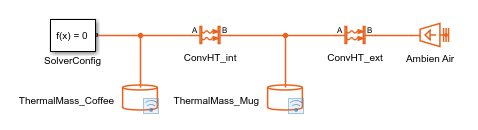
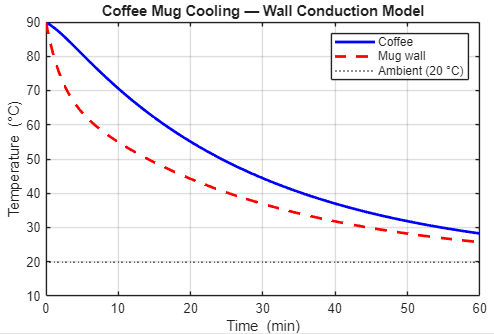
It was able to validate that the temperature evolution was as expected in the plan:
Developing Incrementally
Another set of advice I always give to Simulink users is:
- Develop incrementally
- Validate often
- Clean things up as you go
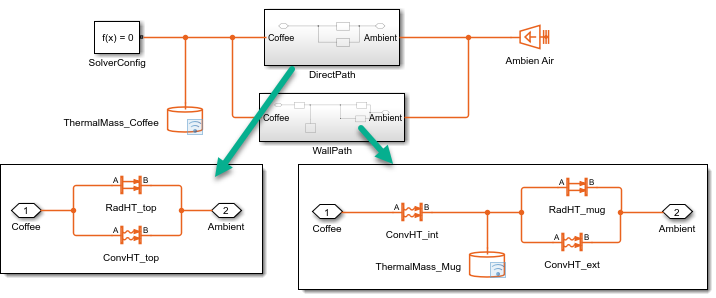
So, I asked Claude to implement and validate each heat transfer path before moving to the next one, cleaning things up in between by grouping each heat transfer path in separate subsystems. I did not try this time, but I think it should be possible to create an agent to help automating that... I'll keep that for a future post.
Once it was done and the whole model was validated, I only made manual cosmetic changes (moving and resizing blocks) to give the model the visual look I like to see in screenshots for this blog. Here is the final model.
I included in this project (you can reach it on GitHub using the link at the top of the post) the AI-generated code and model. Try running the live script run_coffee_mug.m.
What's Next?
Based on what I went through during this first short experimentation, and after reading a little bit about tools, skills, and agents, I have a good feeling. Things are moving quickly and I'm pretty confident that we will soon be able to provide you with tools, skills, and agents to create and validate Simulink models from high-level requirements.
Now it's your turn
Have you started using AI agents with MATLAB and Simulink? Share your experiences in the comments below.
- Category:
- AI Coding Assistant,
- Modeling,
- What's new?





Comments
To leave a comment, please click here to sign in to your MathWorks Account or create a new one.