
My Favorite New Feature in R2009a: SimState
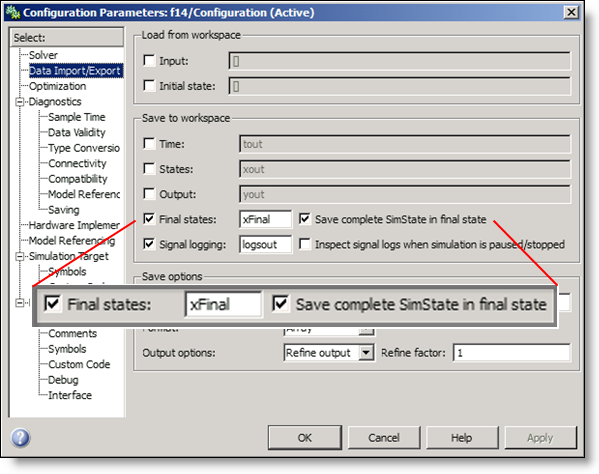
I am so excited about saving and restoring the simulation state in Simulink. This is my favorite feature of R2009a because it has been long anticipated and it enables important new capabilities for simulations. While the only interface change was the addition of a check box under Data Import/Export in the configuration parameters, this has affected every block that stores some kind of state information, including Stateflow. Who better to explain this than the developer who has spent the last couple of years enhancing Simulink to save the entire simulation state? In this post, I present guest blogger Zhi Han.
What is the state of my last simulation?
By Zhi Han

The capability for saving and restoring the state of simulation has been one of the long-standing requests from users of Simulink. The motivation comes two-fold. Sometimes simulation takes a very long time, and often it is desirable to break a long simulation into several stages. In addition, if you simulate a model many times, most of the simulations share a common phase such as the start-up of the system. In these cases, it is desirable to save the state of the system at the end of the simulation and restart a simulation later from that saved state.
Prior to R2009a, Simulink provides the ability to save the final state and load the initial state of a model. However, Simulink could only loads the logged states. Logged states are continuous state and discrete work vectors used as state, which is only a subset of the variables used in simulation. In real-life models, the set of logged state is often not enough to capture the complete state of simulation.

As an experiment, let us open a Simulink demo model sldemo_VariableTransportDelay. The model uses Variable Transport Delay blocks to capture the delay between the vertical displacement of the front wheel and rear wheel of a running car.

Models with Transport Delay blocks are usually difficult to restore to their state because, when you save the "Final states", Simulink does not save the state of the transport delay in the structure format or the array format. As a demonstration, we simulate the model from 0 to 5 seconds and save the "Final states" in structure format in the workspace. Then we load this saved state and simulate from 5 to 10 seconds.

The blue lines are the results of a nonstop simulation, which serves as our baseline. The red dashed lines are the results of our experiment. It can be seen that beginning from 5 seconds on the restored simulation does not match the nonstop simulation.
In R2009a Simulink introduces the feature to save and restore the complete set of states used in simulation; this is the SimState of the model. By saving the SimState at the end of a simulation, Simulink is able to restore all the simulation variables as they were and reproduce the exact same simulation results as a nonstop simulation.

Now, we check the box and repeat our experiment. By restoring the complete simulation state, the saved and restored simulation results match the nonstop simulation.

Here are some important features of the SimState:
Timing information
The SimState retains the timing information of the model of the last simulation, including the start time and the current simulation time: the last time that the simulation runs. Upon restoration, Simulink restores both the start time and the simulation time. This is very important to handle correctly time-varying systems. This detail of the SimState has the following effects that may surprise the user:
- The start time specified in the restored simulation, if different from the start time of the last simulation, overrides with the start time stored in the SimState.
- When loading a SimState, the user must make sure the stop time is greater than the last simulation time; otherwise, Simulink immediately stops the simulation after loading the SimState to the model.
Structural changes
Simulink checks the structure and the configuration parameters of the model with the information stored in the SimState to verify that the model has not changed before loading the SimState. Structural changes, such as adding or deleting a block, renaming a block, or changing the connection between blocks would make the model incompatible with the SimState.
Accessing the states
The data stored in the SimState is accessible to the user. You can change the values saved in SimState to initialize the model to a different operating point than the last simulation. For the logged states, the values are available in structure format as xFinal.loggedStates. For a Stateflow chart, the state is available using the following:
>> state = xFinal.getBlockSimState('path_to_the_Stateflow_Chart')
To set the state of a Stateflow chart, use the following function.>> state = xFinal.setBlockSimState('path_to_the_Stateflow_Chart',x)
Check out the SimState documentation for the full details on how this new capability works.
Now it's your turn
Do you initialize simulations with the state from a previous run? Did you request this capability? Leave a comment here and tell us what you think.
- Category:
- Guest Blogger,
- Simulation,
- What's new?


See Also
-
What's New in R2018a!
Blogs
-
-

Comments
To leave a comment, please click here to sign in to your MathWorks Account or create a new one.