
Zooming and Panning in Simulink R2012b
As we highlighted recently, Simulink R2012b has a ton of new features. During the next weeks, we will try to provide as much details as possible on all this new cool stuff.
For this week, I will start with the basic of navigating models.
Zooming
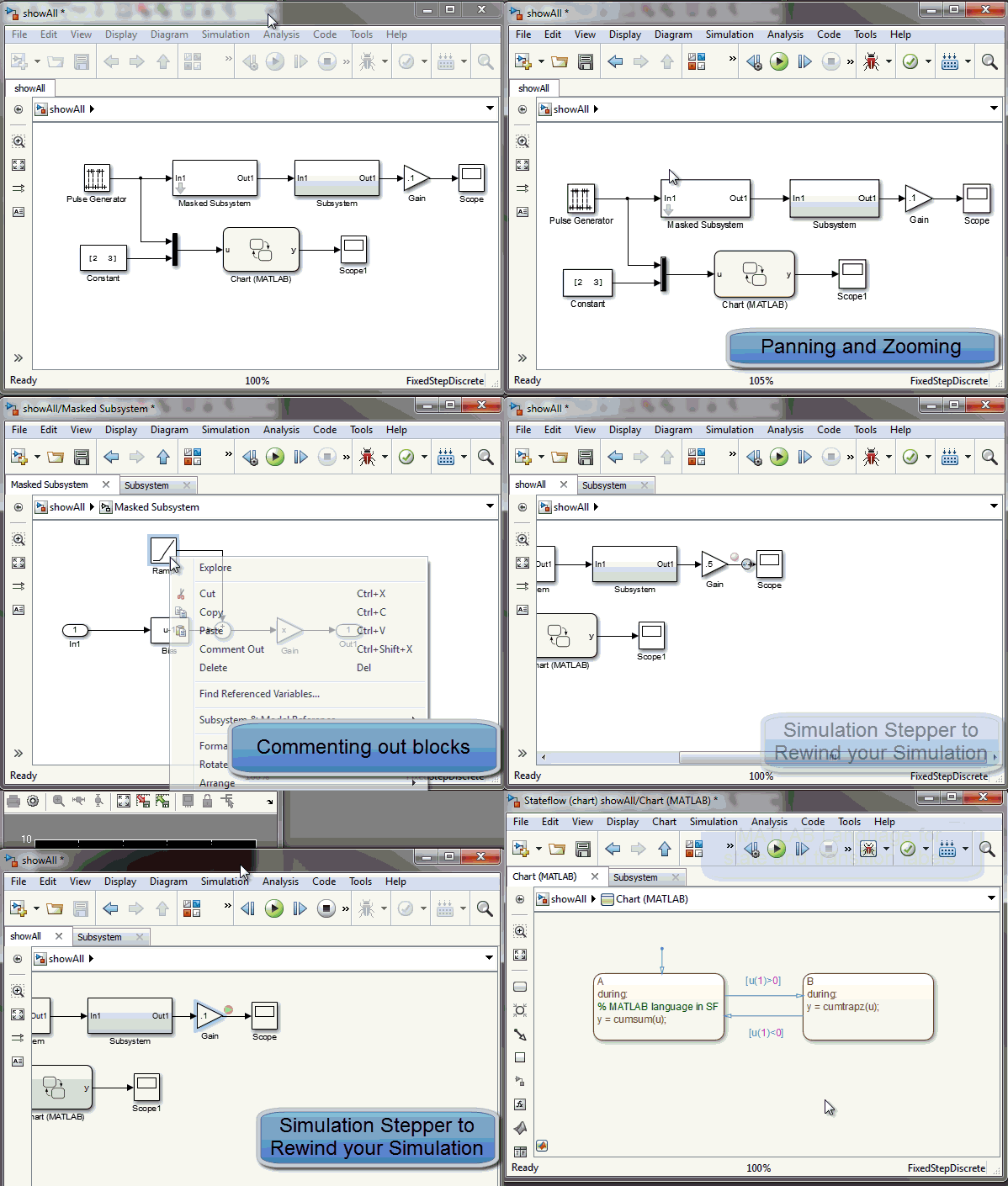
In R2012b, zooming is a lot more dynamic with the mouse wheel. Here is a short animation where I highlight all the possible ways to zoom in R2012b:

In case you have problems getting used to scroll wheel zooming, you can go to the Simulink preference and uncheck the Scroll wheel controls zooming option:

Panning
Before R2012b, panning could be done using P or Q in combination with the left mouse button. The result was equivalent to moving the scrollbars at the top and bottom of your model. I am not sure why, but I almost never used this feature.
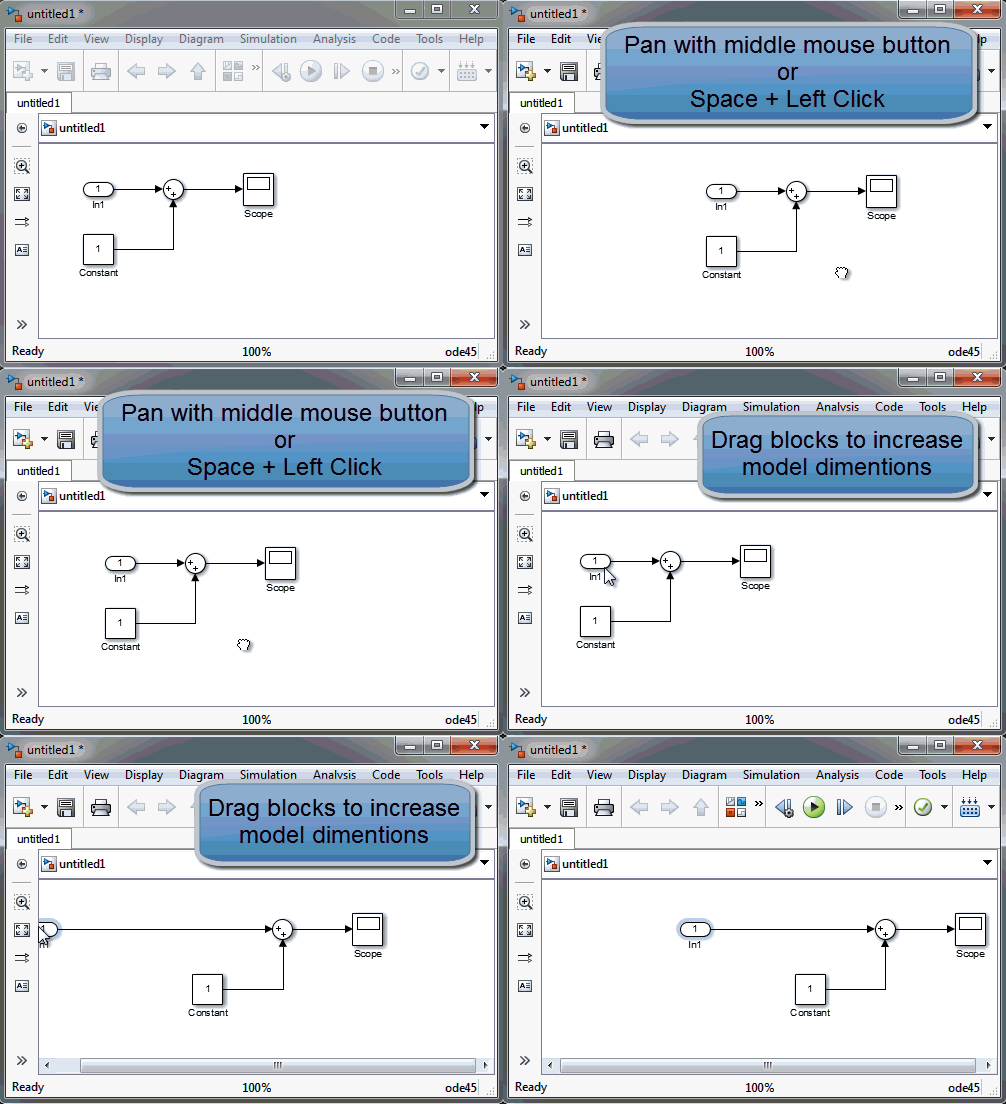
In R2012b, the panning is easier to access, with the middle mouse button or a combination of the spacebar and left mouse button.
The panning is also more powerful. It allows you to increase the dimensions of the model in any direction:
My personal experience
I need to be honest with you... getting used to Simulink R2012b was a good challenge for me.
Before R2012b, the 4 most used keys on my keyboard were R, F, V and 1. Every time I opened a new model I was using those to zoom in, zoom out or zoom 100%.
I tried the new panning and zooming for a few weeks. After some frustration because I ended up zooming instead of scrolling, I tried disabling the scrolling zoom. That quickly made me realize that using the scroll wheel to zoom is very useful and after just a few hours I re-enabled the option.
About the panning, it forced me to develop new muscles. Since I was never using the middle button of my mouse, that gesture initially felt weird, like if it was requiring a lot of efforts in my finger to push that middle button.
After a few months using Simulink R2012b, I now try to use the middle mouse button to pan everywhere and end up saying to myself: Why is that software not panning with the middle button?
Now that I have been using Simulink R2012b for a few months, I absolutely love it. Everything is more easy.
The other day I had to test something in R2012a and when I opened the model I asked myself: How was I satisfied with this old interface?
Now it's your turn
Refer to the Zoom and Pan Block Diagrams page for more details, and let us know what you think of Simulink R2012b by leaving a comment here.
- Category:
- What's new?





Comments
To leave a comment, please click here to sign in to your MathWorks Account or create a new one.