Guy and Seth on Simulink

March 22nd, 2012

Normal Mode Simulation in Real Time

In R2012a, Real-Time Windows Target offers two modes for executing Simulink models in real time: The classic External Mode and the new Normal Mode.

External Mode vs. Normal Mode

In external mode, Simulink Coder is used to dynamically link generated algorithm code with generated hardware driver code. The resulting executable runs in Windows kernel mode and communicates with Simulink via External Mode.

In normal mode, the algorithm runs in Simulink and the I/O drivers run in a separate Windows kernel mode process that maintains the real-time clock.

The following diagram illustrates the difference between these two modes:

Comparison between external and Normal Mode

Advantages of Normal Mode

As you can guess based on the above diagram, normal mode offers lower performance when compared to external mode. On the other hand, normal mode offers interesting advantages:

You can also use Normal Mode on Windows 64-bit, where External Mode is only supported in Windows 32-bit as of R2012a.

How does that work?

Most blocks in the Real-Time Windows Target library have at least 2 parameters: Sample Time and Maximum missed ticks.
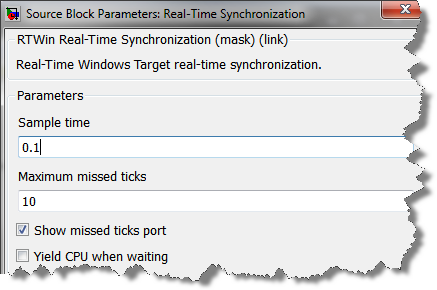
Dialog of the Real Time Synchronization block

Since, in normal mode, only the I/O drivers are synchronized with the real-time clock, it is possible for the simulation to miss clock ticks. When this happens, the Maximum missed ticks parameter determines how your model should behave. Set it to a value of zero if you want your model to error out at the first missed tick. Use a larger value if your application can deal with a few missed ticks. Note that, if the model misses a few ticks, it will resynchronize with the real-time clock as soon as possible.

Now it's your turn

Do you think Real-Time Windows Target normal mode will be useful for you? Leave a comment here.

4 Responses to “Normal Mode Simulation in Real Time”

  1. Thomas M replied on :

    Is there any advantage to using RTWT over xPC Target with respect to speed and performance?

  2. Brian McKay replied on :

    @ThomasM
    With regard to speed and performance of a real-time testing system, there is no advantage using Real-Time Windows Target (Normal and/or External Mode) compared to xPC Target. Additionally, requirements not related to speed and/or performance like I/O functionality, system design, and overall project complexity are important factors in making the best choice.

  3. Raymond Reynolds replied on :

    Having recently tried using RTWT in normal mode, unfortunately I found it crashed often due to missed ticks. I was hoping to save some cash, but in the end I purchased Matlab Coder & Simulink Coder to run in external mode. So, in summary I found normal real-time mode not reliable enough for any serious data acquisition/output. The only advantage it offered me is to quickly trial a RTWT model without having to build code every time. Although the stated possible speed in normal mode is >= 500Hz, I had issues with only 200Hz.

  4. pk replied on :

    hi I have created a no of library blocks and arranged them in

    sub-folders, then in main folder created a new main library where I

    dragged in the library blocks from the sub folders and arranged them

    in desired architecture, and the created a slblock.m file for the

    main library to add it to the simulink library browser. Then added

    the main folder along with subfolders to matlab path. when I drag

    one of the library block from library browser to a model and make

    changes and update the changes to root library, it do make changes

    to that individual lib block but do not update in the browser or the

    main library where we accumulated all lib blocks. it only updates

    the browser and main lib when i reopen matlab.
    I also tried to run slblocks.m by itself after making changes to lib

    but still it does not update the browser.
    by the way im working on 2006b.

Leave a Reply

Wrap code fragments inside <pre> tags, like this:

<pre class="code">
a = magic(3);
sum(a)
</pre>

If you have a "<" character in your code, either follow it with a space or replace it with "&lt;" (including the semicolon).


MathWorks
Guy Rouleau and Seth Popinchalk are Application Engineers for MathWorks. They write here about Simulink and other MathWorks tools used in Model-Based Design.

These postings are the author's and don't necessarily represent the opinions of MathWorks.